New Purchasing and Planning menus in the sidebar
The Orders menu held 23 pages, and about half of them were purchasing. The sidebar now gives buying and planning their own menus, so each job has one obvious place. No links change: bookmarks, saved views and links in emails keep working.
✨ What this means for you:
- Work a purchase order end to end, from order to bill to vendor credit, from one Purchasing menu.
- Find Demand Planning, the Send Planner and Open-to-Buy together under Planning.
- Scan shorter menus: Orders, Purchasing and Inventory are grouped into labelled sections.
Purchasing
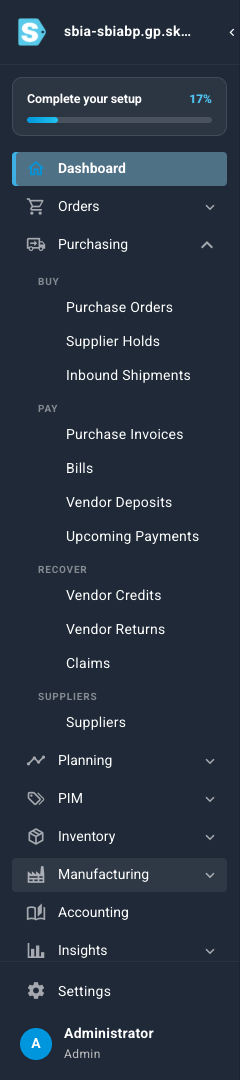
Purchasing follows a purchase order's life:
- Buy: Purchase Orders (and your Approvals), Supplier Holds, Inbound Shipments
- Pay: Purchase Invoices, Bills, Vendor Deposits, Upcoming Payments
- Recover: Vendor Credits, Vendor Returns, Claims
- Suppliers
Planning
Planning holds the pages that decide what to make, buy and send, and whether you can afford it: Demand Planning, Send Planner, Merchandise Planning, Size Profiles and Cash Flow.
Everything else that moved
| Page | Was | Now |
|---|---|---|
| Purchase Orders, Supplier Holds, Inbound Shipments, Purchase Invoices, Bills, Vendor Deposits, Upcoming Payments, Vendor Credits, Vendor Returns, Claims | Orders | Purchasing |
| Suppliers | Contacts | Purchasing |
| Warehouses | Contacts | Inventory |
| Demand Planning, Send Planner, Merchandise Planning, Size Profiles, Cash Flow | Inventory | Planning |
| Replenishment (refilling pick faces from reserve bins) | Inventory | Inventory → Bin Replenishment |
| Subscription Offerings, Product Merge | Inventory | PIM |
The Contacts menu is gone: customers moved to CRM earlier this month, and suppliers and warehouses moved as above. Orders now groups its pages into Sell, Ship, After the sale and Setup, and Inventory into Stock, Warehouse, Traceability and Costing.
You'll only see the pages your role allows, exactly as before. For a few weeks, a short note at the top of Orders and Inventory points to where things went. Close it with ✕ once you've found your way.