Sales targets: see how every rep is tracking against their number
A wholesale sales team runs on targets: what each rep should sell this month, and how much of it should come from a key retailer or a particular brand. SKU.io already credits every order to a sales rep and reports their commission, but the targets lived in a spreadsheet, and someone re-keyed the actuals every Monday. Sales targets bring them into SKU.io. Set a target for a rep for a month or a quarter, overall or for one retailer, one brand or one brand at one retailer, and the new Performance view shows actual sales against every target, with the percentage reached and what's still to sell.
✨ What this means for you:
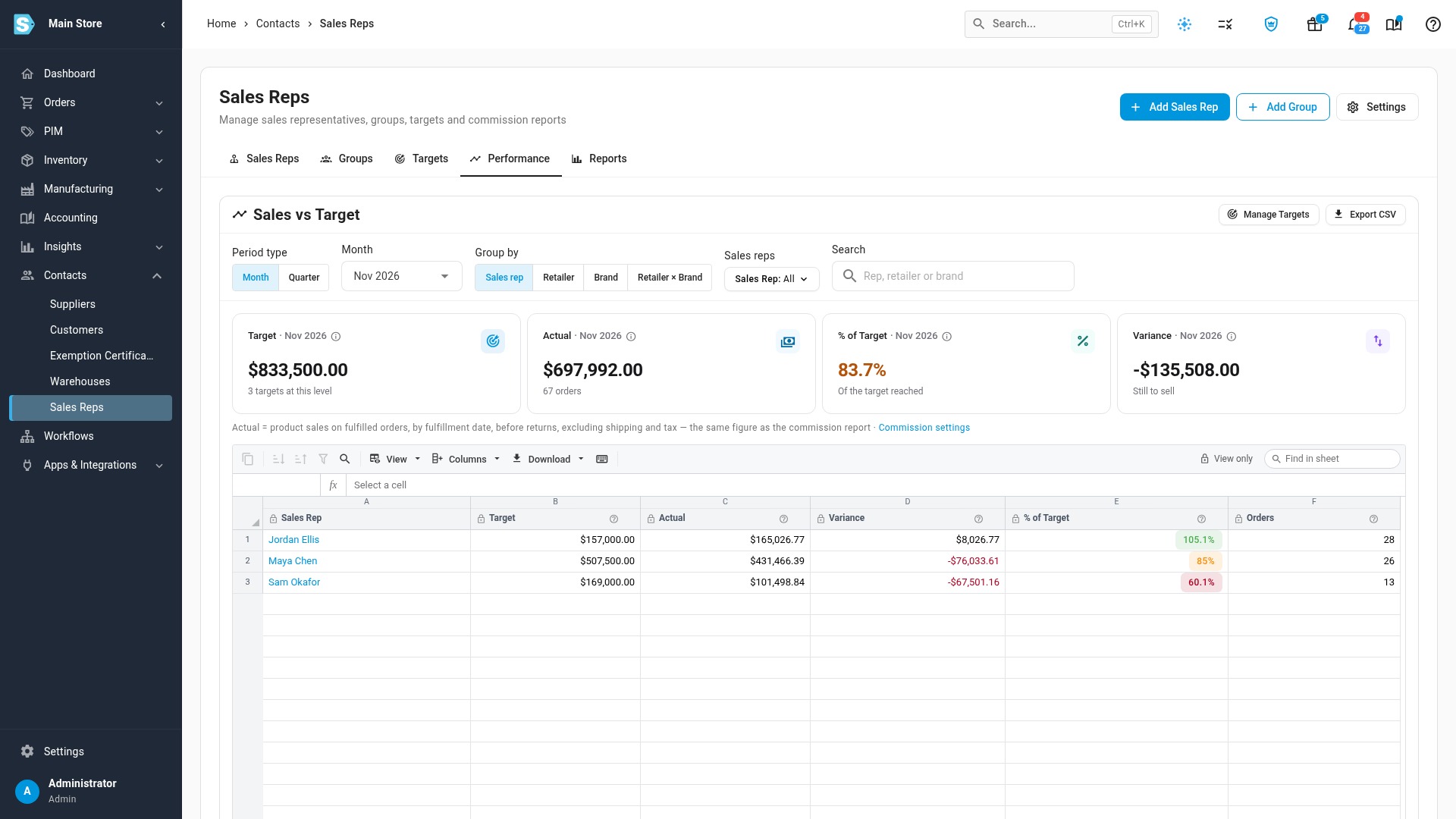
- One screen for the Monday review. Every rep's target, actual sales, variance and percentage of target for the month or quarter, colour-coded green, amber or red.
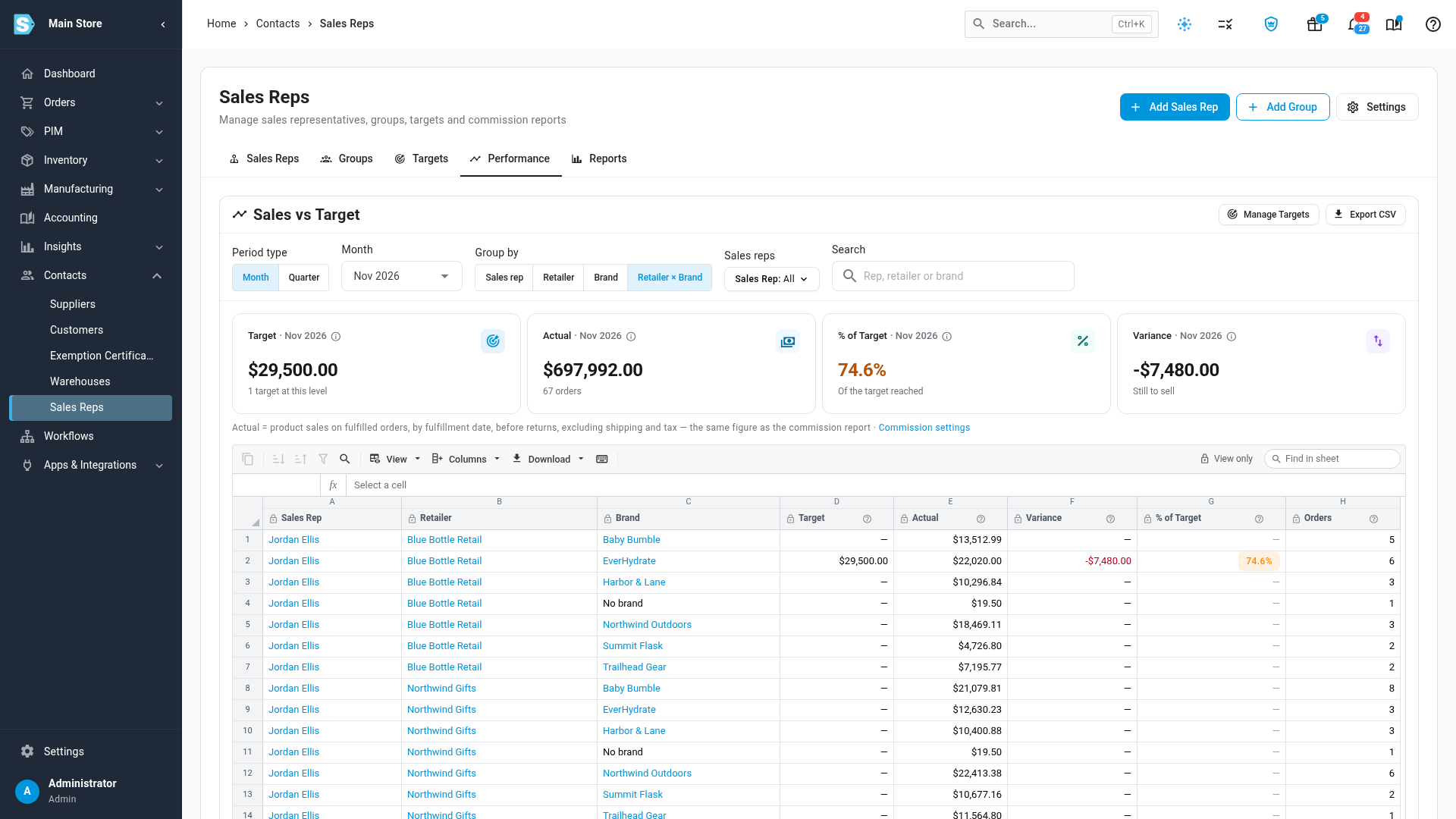
- See where the number came from. Break the same view down by retailer, by brand, or by brand at each retailer, and click a rep to drill into their retailers.
- The same numbers as commission. Actual sales follow your commission settings, so the performance and commission reports never disagree.
- Targets at the level you manage. A rep's overall number, a retailer, a brand, or one brand at one retailer, each compared only with the sales it covers, so nothing is counted twice.
- Export it. Every view downloads as a CSV.
Set a target
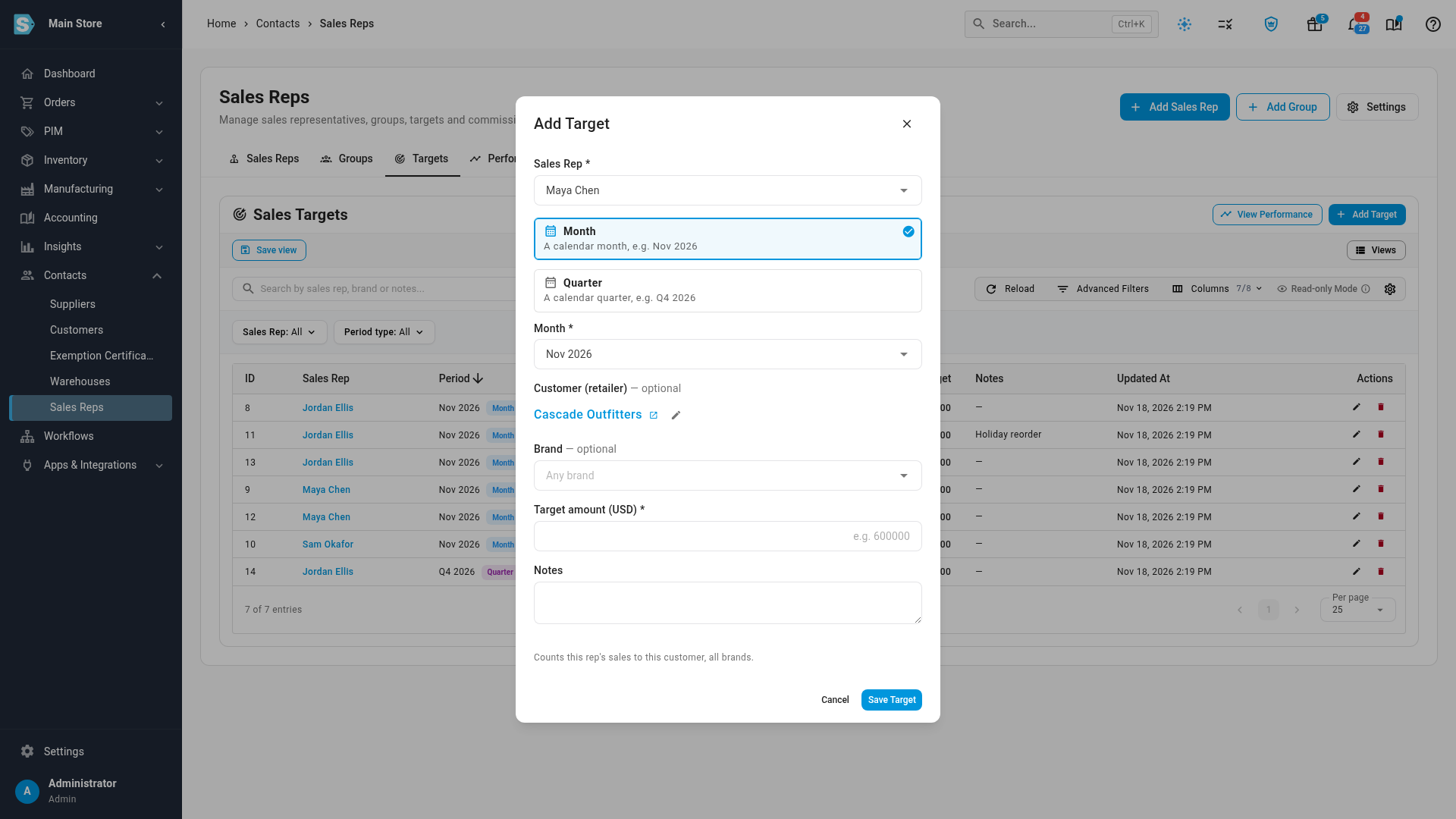
On Contacts → Sales Reps, the new Targets tab lists every target. Click Add Target, choose the rep, pick Month or Quarter and the period, and optionally narrow it to a customer, a brand or both. A rep can have one target at each level for a period, so a second one by mistake is caught with a clear message.
Track actual against target
The Performance tab opens on the current month. The cards total the target, the actual sales, the percentage reached and the variance, and each rep has a row with the same figures.
Switch Group by to Retailer, Brand or Retailer × Brand to see a rep's sales broken down. Retailers and brands without a target of their own still show their sales, with a dash for the target, and products without a brand appear as No brand.
Where to find it
Go to Contacts → Sales Reps and open the Targets or Performance tab.
Full guide: Set sales targets and track rep performance