One sign-in for every brand you work on
If you work with an agency, a fractional operations team or a 3PL, they probably work in several SKU.io accounts, one for each brand. Until now they needed a separate sign-in for each. Now one sign-in reaches every account a person belongs to. You invite them by the email they already use, you choose their role in your account, and you can see every invitation, join and sign-in in an Access log.
✨ What this means for you:
- Invite outside staff by the email they already sign in with. They accept, and your account appears in their account switcher.
- Their role in your account is yours to set. Being an admin somewhere else gives them nothing extra here.
- Removing someone takes away their access to your account and the API tokens they set up for it, and leaves their other accounts alone.
- An Access log shows who was invited, joined, changed role, left or signed in, and when.
Invite someone who already uses SKU.io
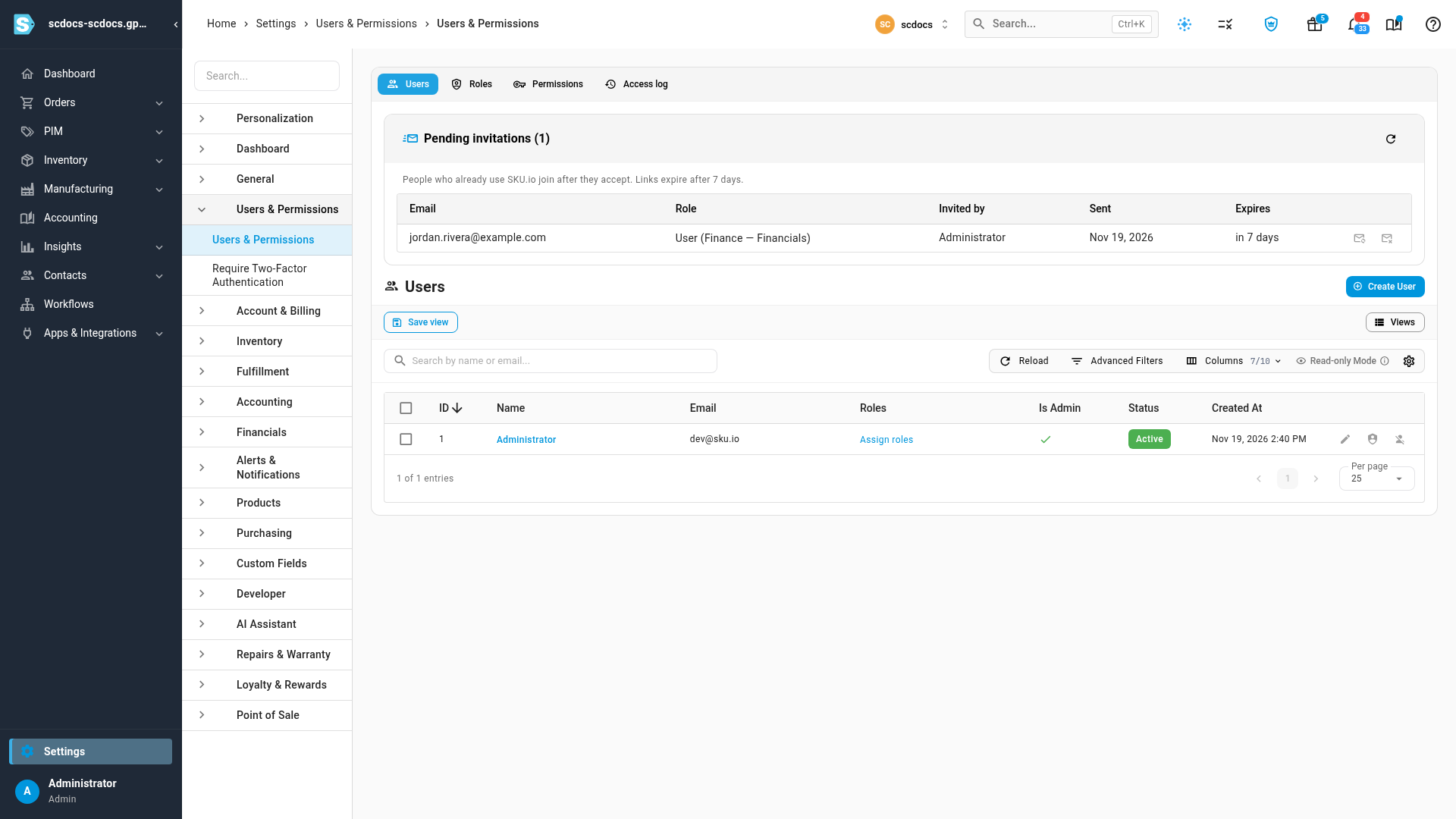
Under Settings → Users & Permissions → Users, click Create User as usual and enter their email, their role in your account and their roles. If they already have a SKU.io account, they get an invitation and appear under Pending invitations until they accept, with Resend and Withdraw if you need them. Invitations last 7 days.
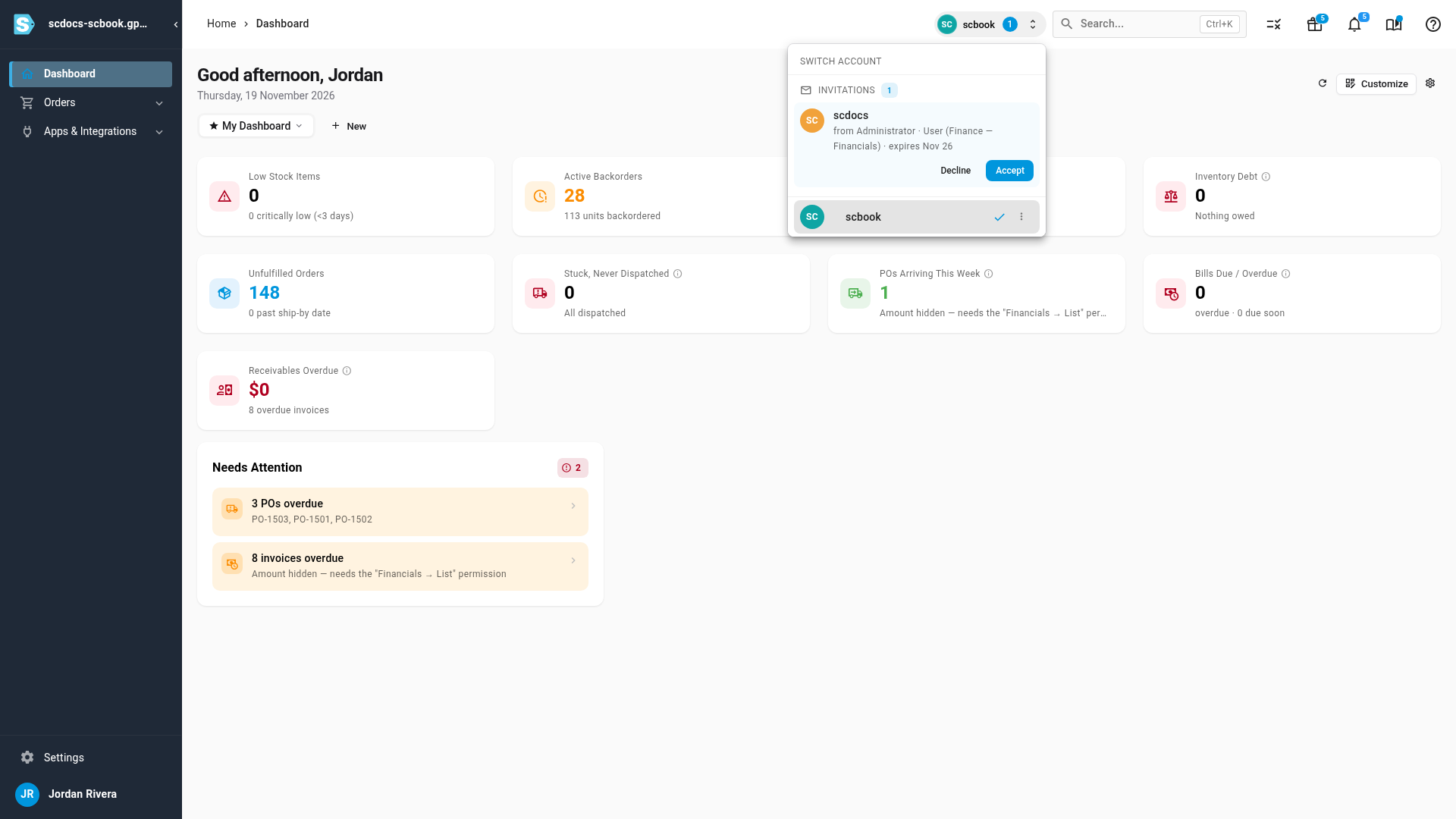
Switch accounts, accept invitations, and leave
The account switcher at the top of the page lists every account you belong to, the most recent first. New invitations appear there with Accept and Decline, and you can leave an account you no longer work on from its menu.
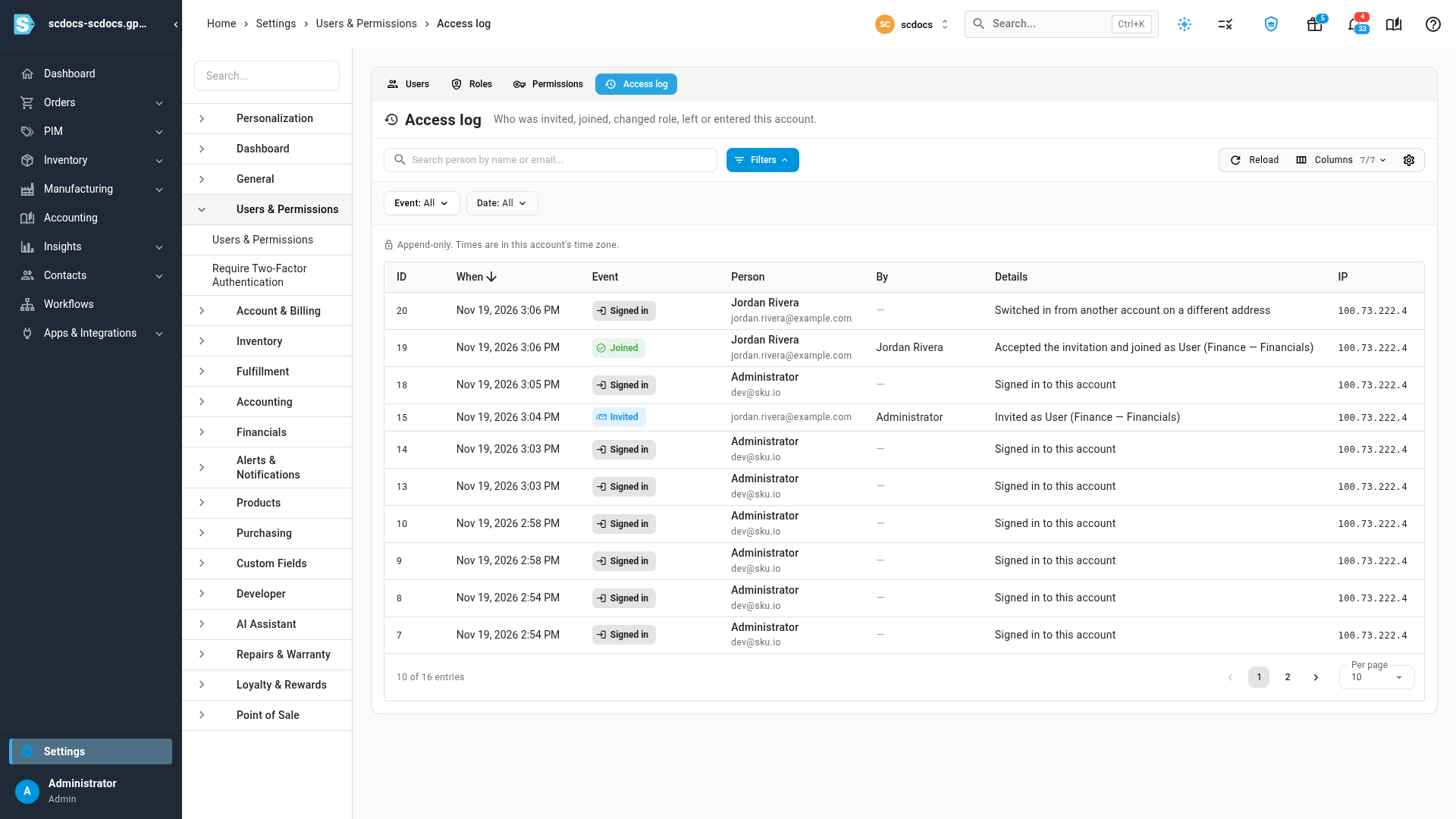
See who accessed your account
The new Access log tab records invitations, joins, role changes, removals, people leaving, and sign-ins, each explained in plain words. Each person's edit dialog shows their own Access history.
Admin is now set per account
Being an Admin now applies only to the account where it's set. Everyone kept exactly the access they had before this change, so nothing was taken away. If people from other brands or agencies are in your account, check their role under Users and set it on purpose.
Where to find it
- Invite and manage people: Settings → Users & Permissions → Users.
- Access log: Settings → Users & Permissions → Access log.
- Switch accounts: click the account name at the top of any page.
- Full guides: Invite someone who already uses SKU.io, Switch between your SKU.io accounts and Review who has accessed your account.