Requests for quote: price products with several suppliers, compare, and turn the winners into purchase orders
Getting competing prices usually means three emails with three spreadsheets, a week of follow-ups, and a fourth spreadsheet to compare what came back. Then someone copies the winning prices onto a purchase order by hand. With Requests for quote, you send one request for a list of products to several suppliers at once. Each supplier prices it line by line, and SKU.io lines the answers up so you can pick the best price for each product. One click then turns your picks into draft purchase orders.
✨ What this means for you:
- Ask several suppliers to price the same products in one step, from a product list, the products page or Demand Planning.
- Suppliers answer in the supplier portal or from a link in the email, with no account needed.
- Compare every answer side by side, freight and currency included, with the best price and fastest lead time marked for you.
- Choose a supplier for each line, then create one draft purchase order per supplier.
- Keep supplier costs current: the prices you accept can update each supplier's catalog.
Build a request and send it
Start a new request under Purchasing → Requests for quote, or select products in PIM → Products or Planning → Demand Planning and choose Request quotes. Add the quantity you need, an optional target cost for your own reference, and a message for suppliers.
SKU.io suggests the suppliers who already carry those products and shows how many of them each one carries. It also shows how each supplier will get the request: in the Portal, by Email link, or No contact for a supplier you will call and enter yourself. Before anything goes out, you see who receives it and can edit the email wording.
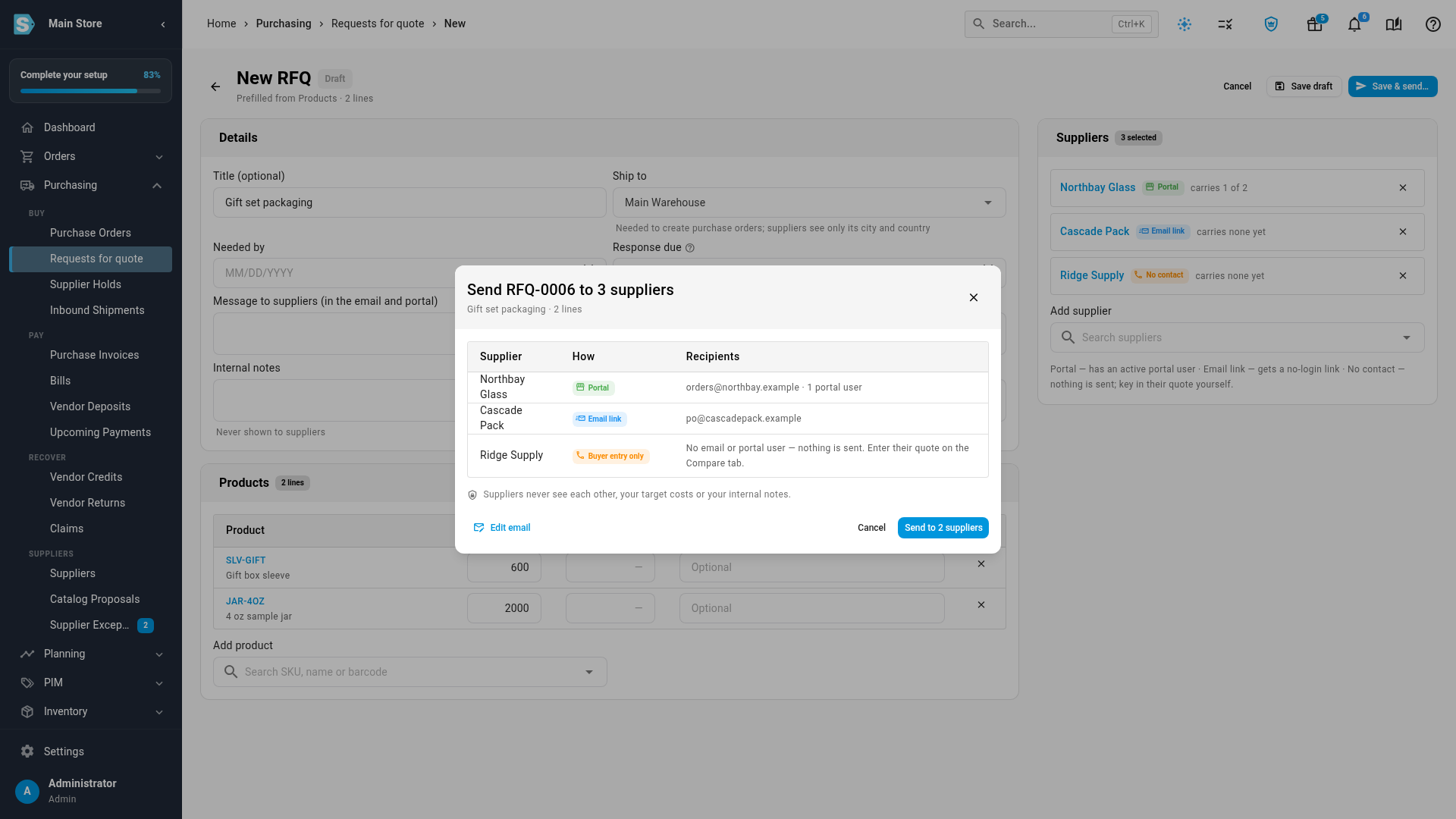
Suppliers never see each other, your target costs or your internal notes.
Suppliers answer line by line
Each supplier enters a unit cost, the quantity they can supply, lead time, minimum order quantity and their own SKU for every product. They can also add freight for the whole order, payment terms and how long the quote is valid, in their own currency. Prices they already have with you are filled in from their catalog. They can mark a product they can't supply, decline the request, or revise their quote until you close it.
Suppliers on the portal find the request under Quote requests. Everyone else answers from the link in the email, without signing in.
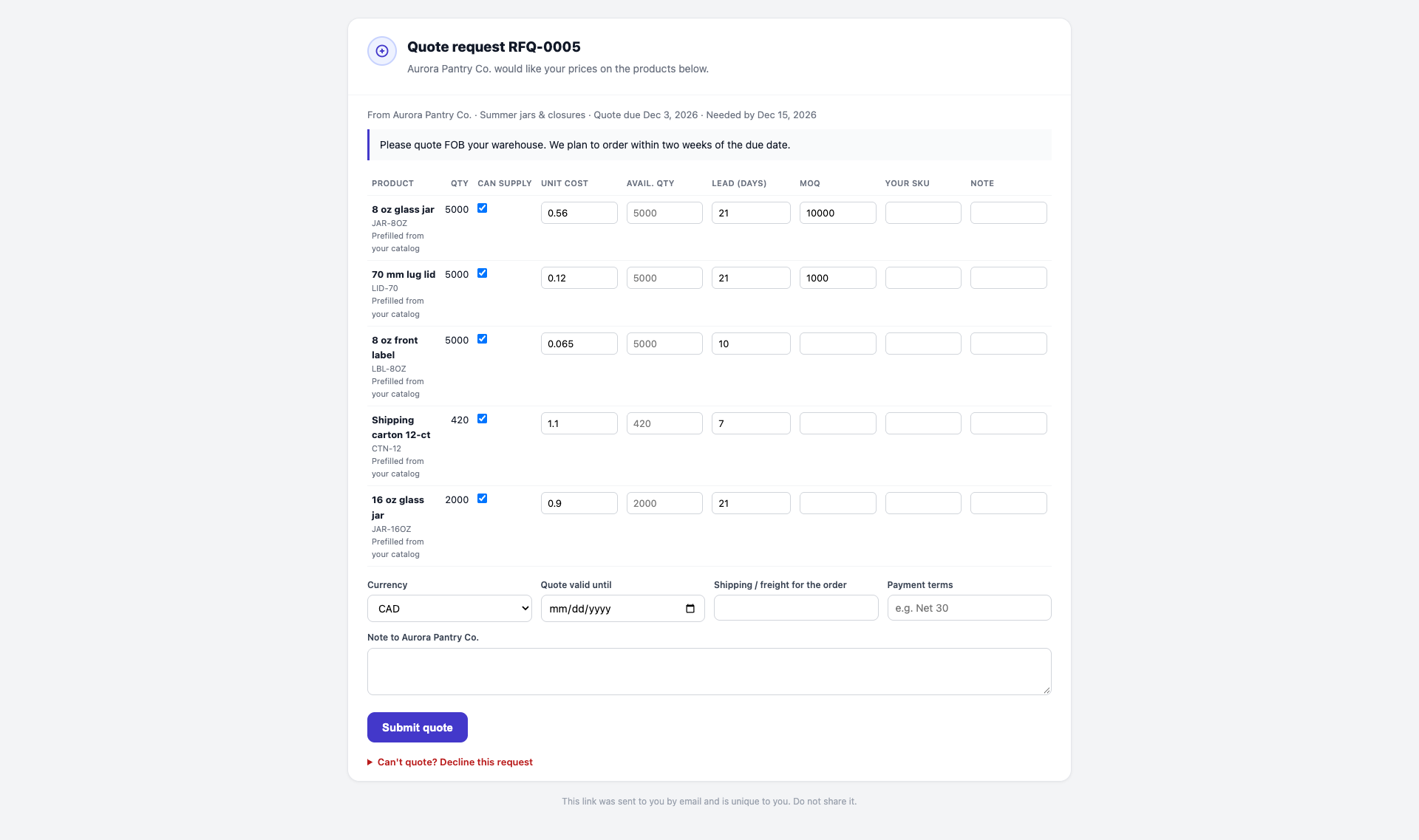
Got a price by phone? Enter it for that supplier yourself. You get a bell alert each time a quote comes in, and the Suppliers tab shows when each request was sent, opened and answered, with a button to send a reminder.
Compare and pick the winners
The Compare tab puts every answer side by side, converted to your currency with the supplier's own currency shown underneath. Freight is spread across the lines, so you compare the real landed cost. You can switch freight off to see unit prices alone.
A summary at the top shows the cheapest supplier for the whole order, the fastest lead time, and what you would pay if you bought each product from its cheapest supplier. Each answer is marked when it is the best price, over your target, short of the quantity you asked for, or has a minimum order above what you need.
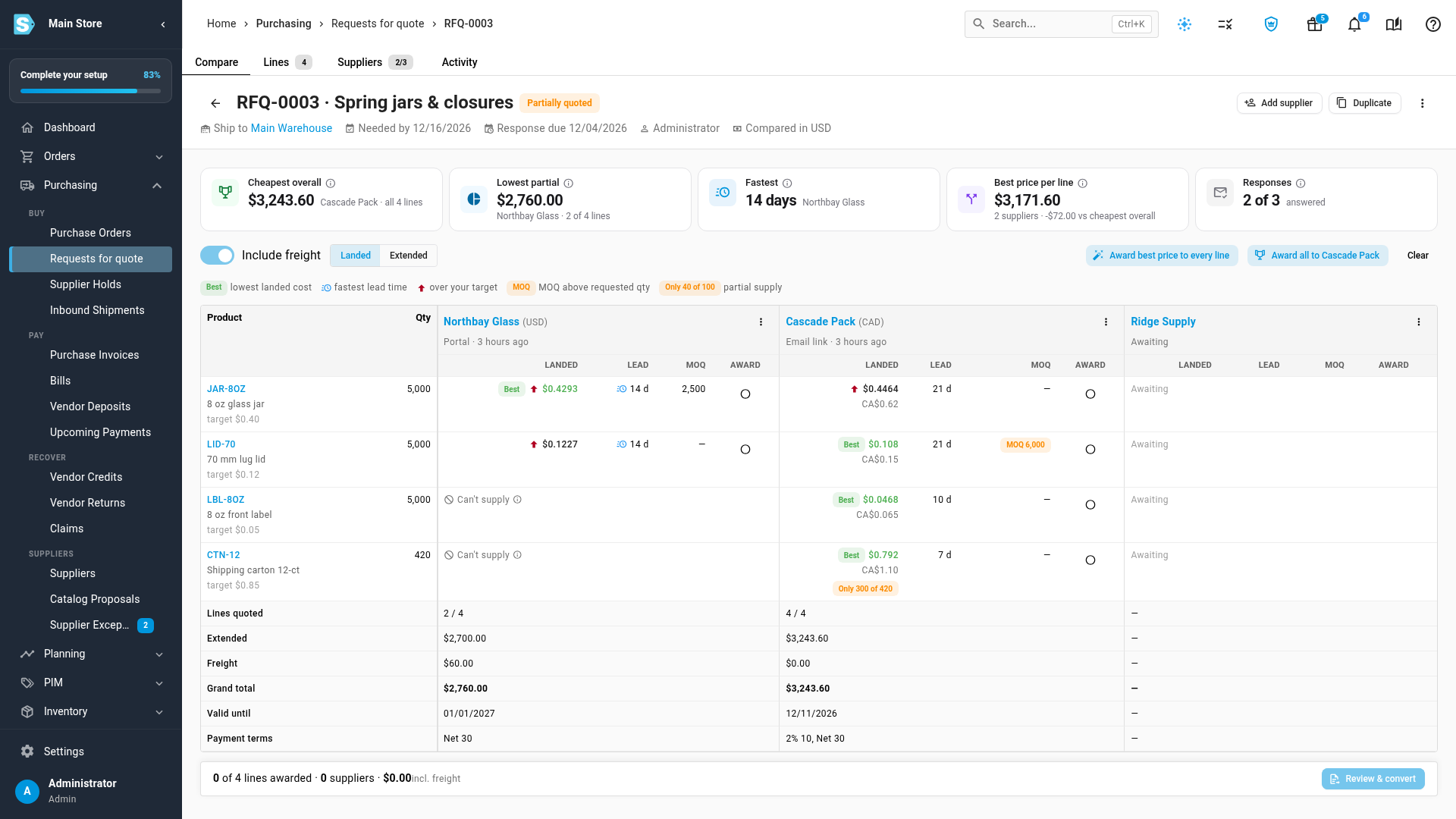
Choose a supplier for each line, or use Award best price to every line, or Award all to one supplier to keep it to a single order and a single freight charge.
Turn the quotes into purchase orders
Review & convert groups the lines you picked by supplier and creates one draft purchase order for each, in that supplier's currency, with the quoted freight as a shipping cost. Leave Update supplier catalog from these quotes on to save the accepted cost, lead time, minimum order quantity and supplier SKU to each supplier's catalog. Products a supplier didn't carry yet are added.
Nothing is sent to suppliers at this step. Review each purchase order and send it as usual. Each one links back to the request it came from.
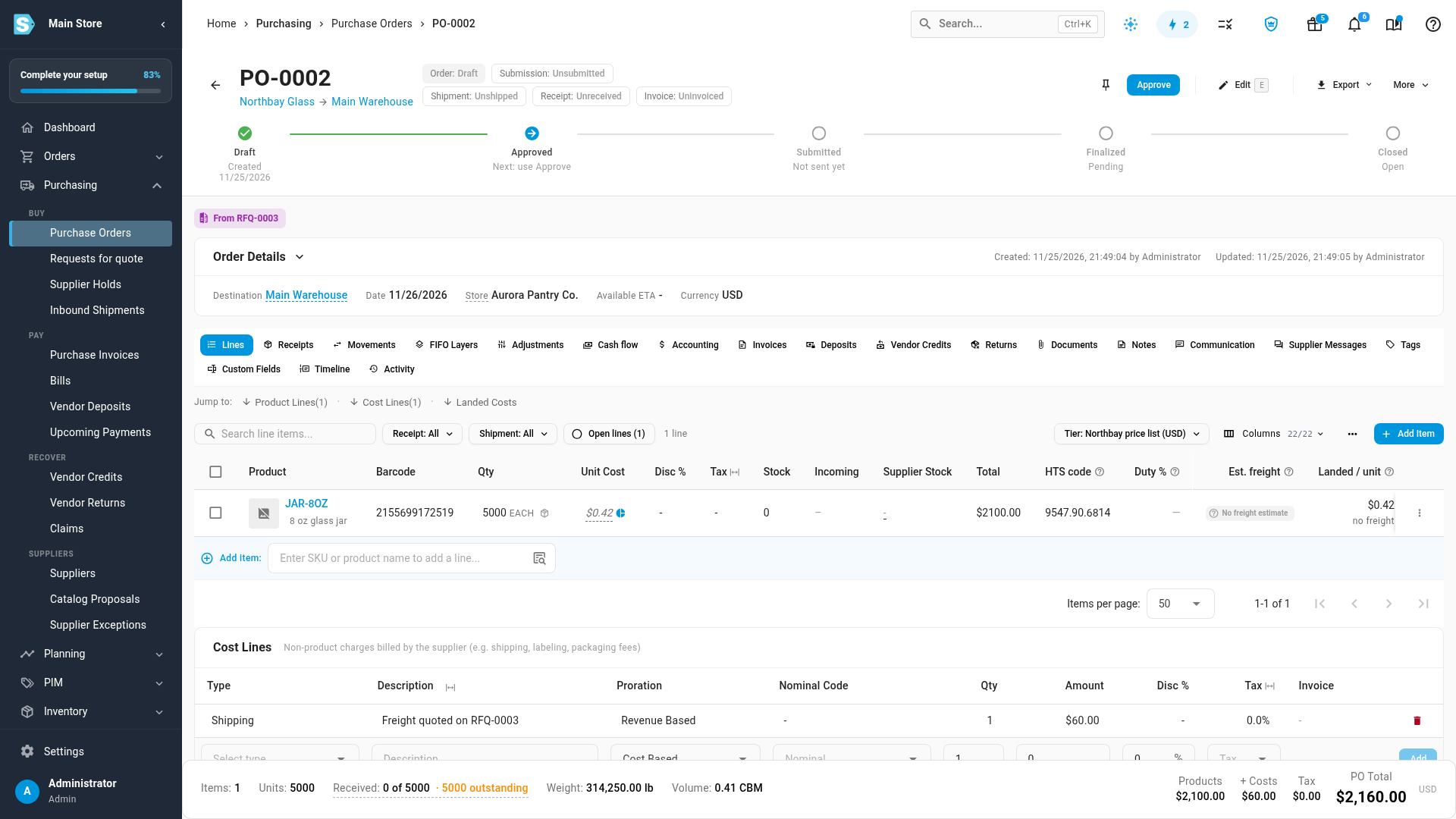
Once you convert or cancel a request, suppliers can no longer change their answers, and the email link stops working. Suppliers you didn't choose aren't emailed. Their portal simply shows the request as closed.
Where to find it
Go to Purchasing → Requests for quote and click New RFQ. You can also select products in PIM → Products or Planning → Demand Planning and choose Request quotes.
Full guides: Request quotes from several suppliers (RFQs), and for your suppliers, Answer a quote request.