MCP Server — ask Claude, ChatGPT or Cursor about your business, and let them do the busywork
You already ask an AI assistant to draft emails and summarise documents. But when the question is "how much of this do we have, and is more on the way?", it has nothing to go on, so you end up copying numbers out of SKU.io by hand. The new MCP Server connects SKU.io to the assistant you already use: Claude, ChatGPT, Cursor or any other assistant that supports MCP connectors. Add one link, sign in to SKU.io, and the assistant answers from your live products, stock, orders and purchase orders. If you allow it, it can also do the routine work, such as drafting a purchase order or recording a supplier invoice.
✨ What this means for you:
- Answers from your real numbers. Ask about stock per warehouse, units on order and when they arrive, what is about to run out, or where an order is. The answers link back to the record in SKU.io.
- One link for every assistant. The same connector URL works in Claude, ChatGPT and Cursor. There is nothing to install.
- Changes only when you say so. Viewing data is the default. Making changes is off until you turn it on, and you choose which areas.
- Nothing gets deleted. Delete and void actions are always refused, and the assistant can only do what your own role allows.
- A full record of every call. Each request an assistant makes is listed with its result and a link to anything it created.
Connect in a minute
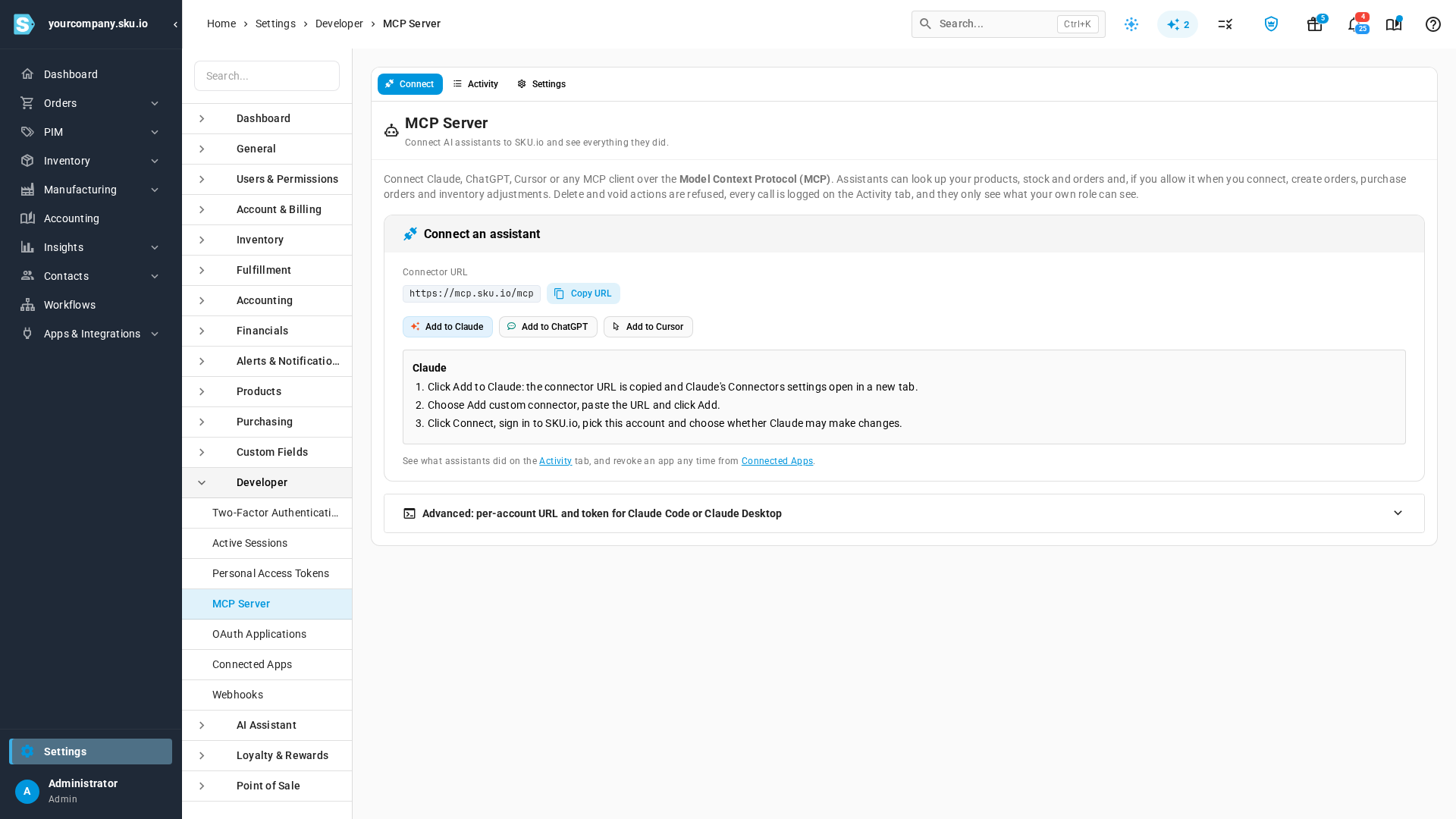
Open Settings → Developer → MCP Server. Copy the connector URL, or click Add to Claude, Add to ChatGPT or Add to Cursor for step-by-step instructions for that assistant. Claude Code and Claude Desktop users can use the Advanced section for a per-account link and token instead.
You decide what it can do
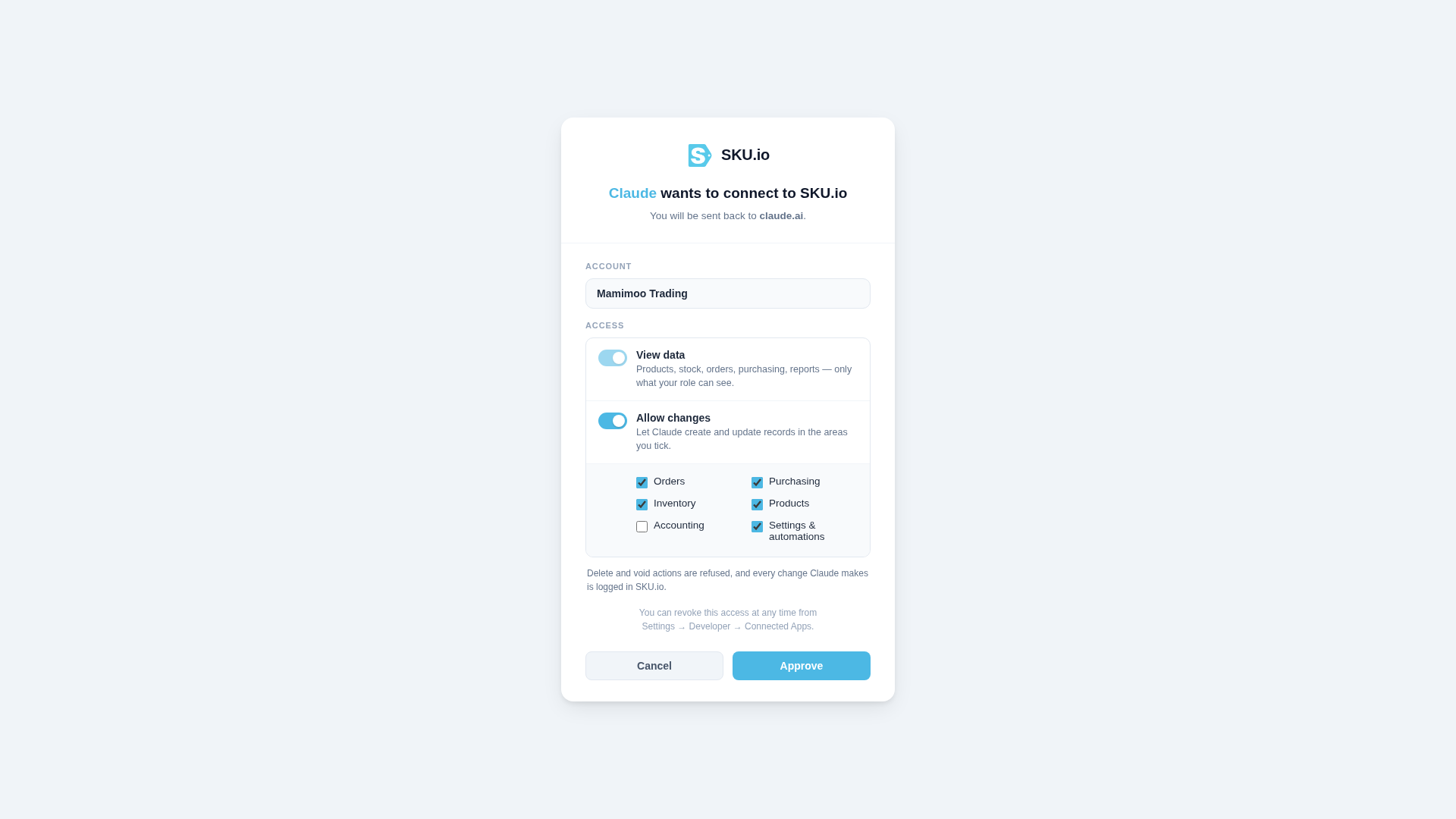
When you connect, SKU.io asks you to sign in and pick the account. View data is always on, and covers only what your role can already see. Switch on Allow changes to let the assistant create and update records, then tick the areas it may touch: Orders, Purchasing, Inventory, Products, Accounting, or Settings & automations.
With changes allowed, an assistant can draft sales orders and purchase orders, send a purchase order to its supplier when you ask, adjust stock, record supplier invoices, draft vendor credits, create products, update prices, and save table views and draft automations. Orders it creates are drafts, so you review them in SKU.io before anything goes out.
See everything an assistant did
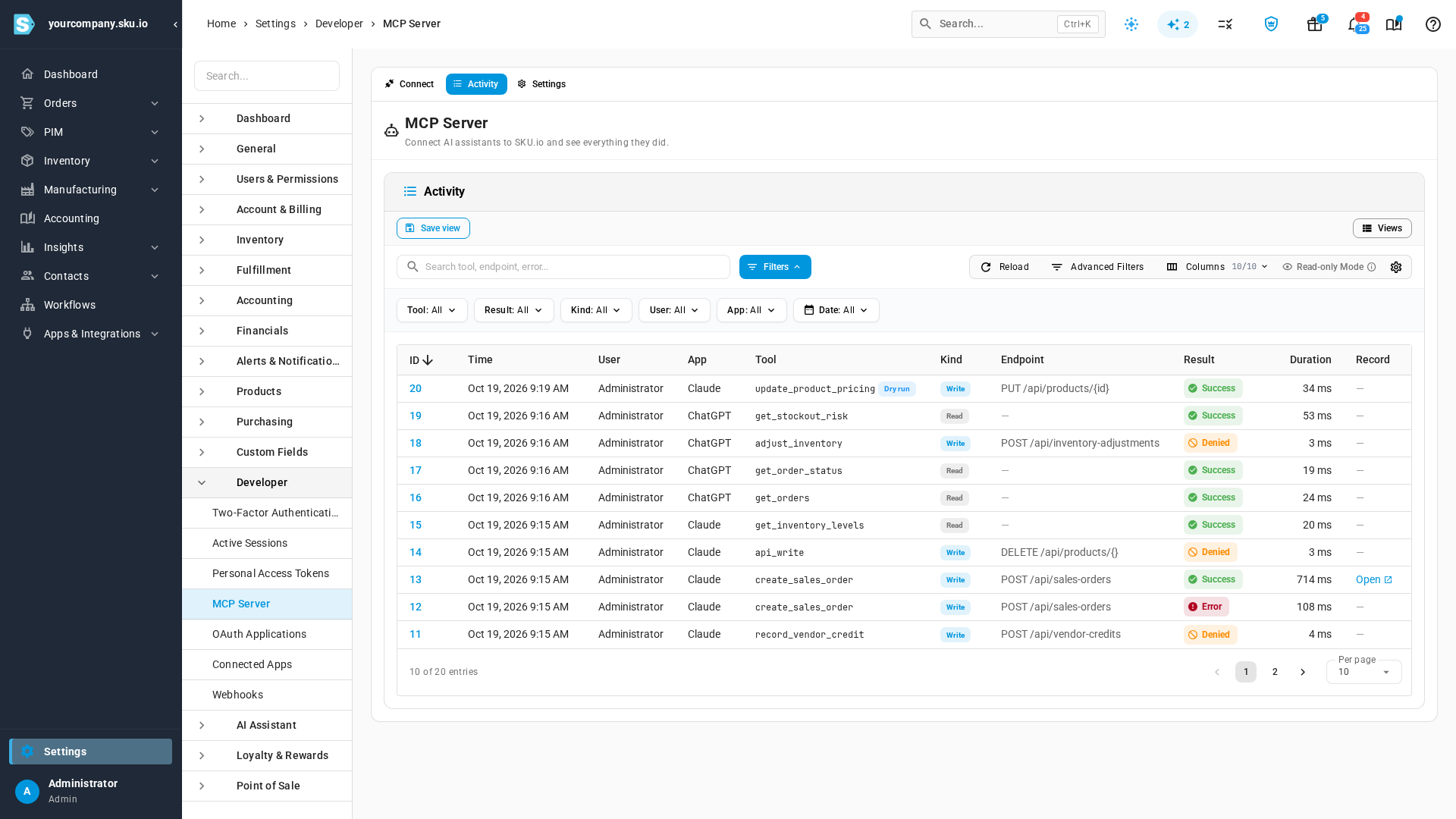
The Activity tab lists every call: when it happened, who connected the assistant, which assistant it was, what it asked for, and whether it succeeded or was refused. Filter by tool, result, user, assistant or date, and open any record an assistant created.
Stay in control of the whole account
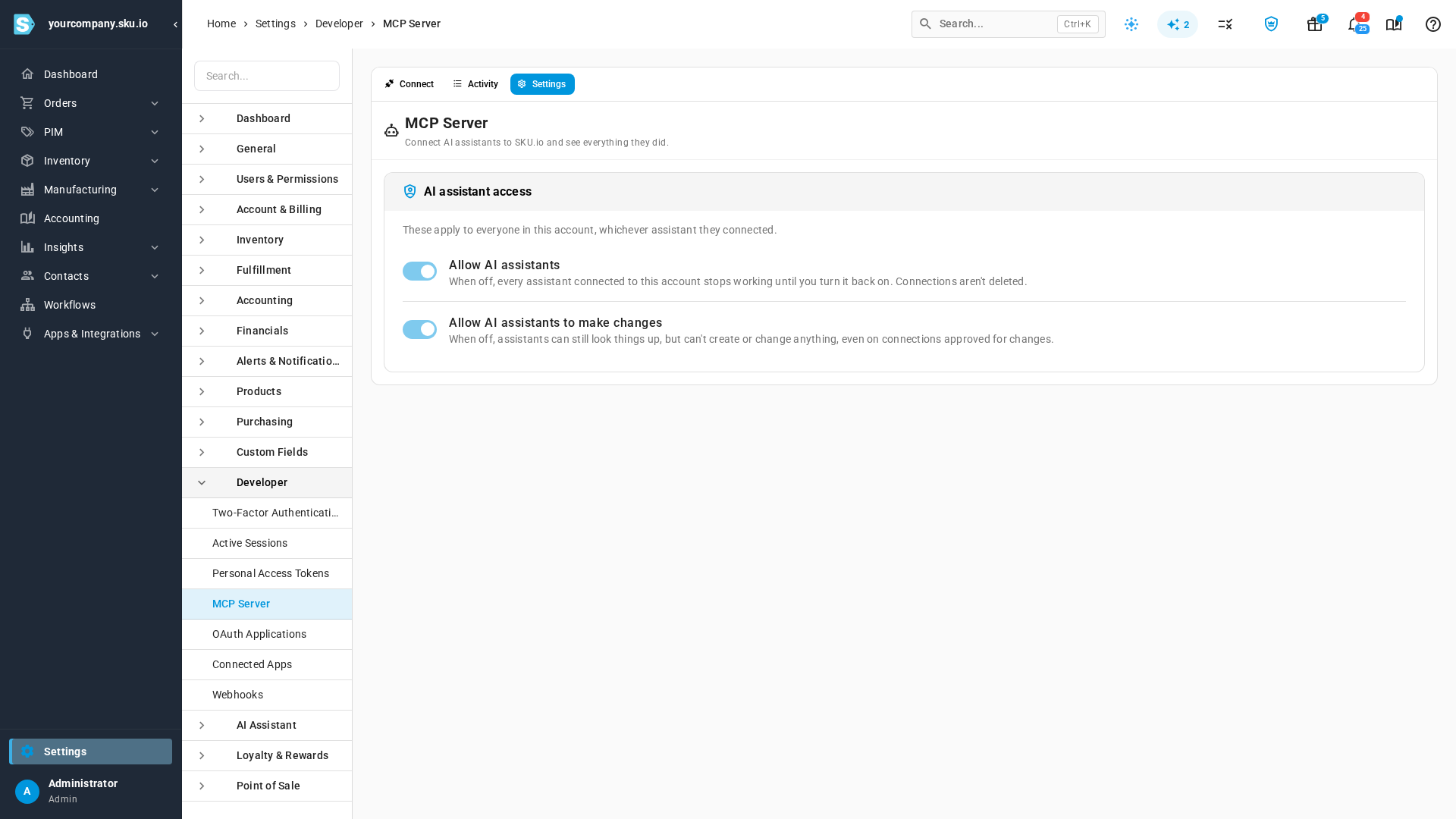
Admins can switch assistants off for everyone, or keep them read-only, from the Settings tab. Turning access off pauses every connection without deleting it. To disconnect one app, remove it under Settings → Developer → Connected Apps.
Where to find it
Go to Settings → Developer → MCP Server.
Full guide: Connect an AI assistant