Reserve incoming stock for a sales channel, and see who each unit is for when you receive
When 500 of the 600 units on a purchase order are meant for your online store, the plan usually lives in an email. The units arrive, the backorders at the front of the queue take them, and someone puts a hold on what's left. Channel reservations on purchase orders keep the plan on the line itself: reserve part of an incoming line for a sales channel, next to the units you've reserved for sales orders, and SKU.io follows it when the stock is received.
✨ What this means for you:
- One plan for the whole line. Sales orders and channels share one Free to reserve figure, so the same unit can't be promised twice.
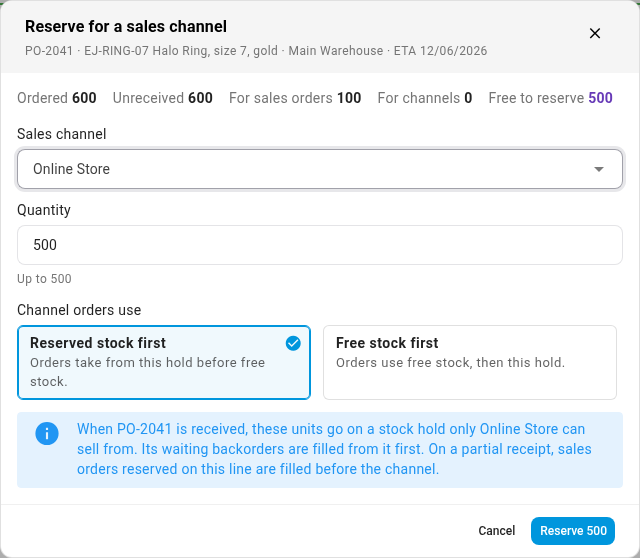
- Straight onto a hold. As the units are received, the channel's share goes onto a stock hold only that channel can sell from. Its own backorders are filled from it.
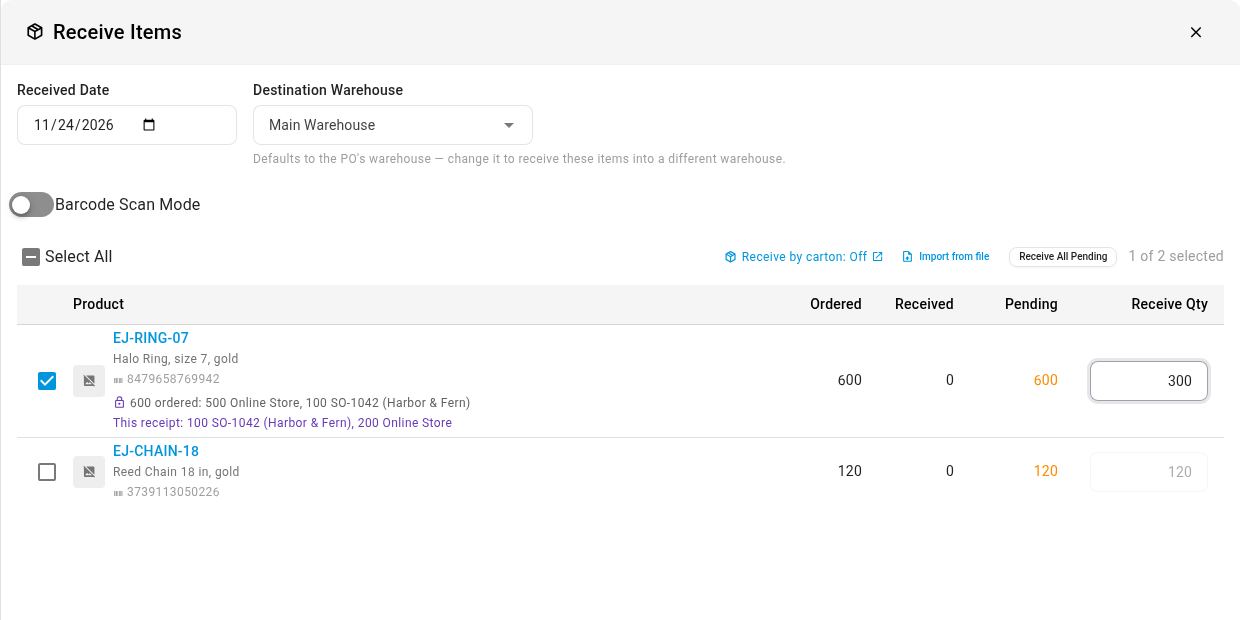
- Your receiving team sees who it's for. The receive screens show the split, and it follows the quantity they type.
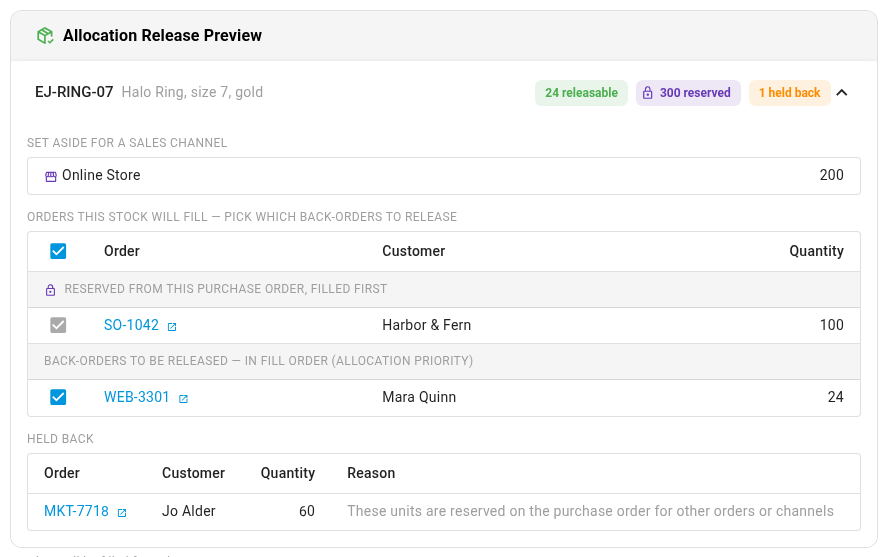
- Partial deliveries follow the plan. Reserved sales orders fill first, then the channel. The rest waits for the next delivery.
Reserve part of a line for a channel
On the purchase order, open the line's ⋮ menu and click Reserve for a sales channel…. Choose the channel, the quantity, and which stock its orders use first.
See the split as you receive
The Receive Items drawer, inbound shipments and Floor receive show who each line's units are for, for example "This receipt: 100 SO-1042 (Harbor & Fern), 200 Online Store".
Know what's held back, before you confirm
Allocation Release Preview lists reserved orders first, then the units set aside for the channel, and says why other backorders wait.
Where to find it
Open a purchase order under Purchasing → Purchase Orders, and use a line's ⋮ menu.
Full guide: Reserve incoming PO stock for a sales channel