Amazon AWD in the inbound wizard — send stock to AWD without leaving SKU.io
Sending stock to Amazon Warehousing and Distribution has meant leaving your inventory system: re-keying cases in Seller Central, downloading labels, emailing them to your supplier and then copying the tracking back by hand. Your purchase order, your stock and your AWD shipment all ended up in different places. Now the inbound wizard sends to AWD as well as FBA. Choose where the stock ships from and what to send, let Amazon check every case group, then confirm the order, send the labels to your supplier and add the carrier, all in SKU.io.
✨ What this means for you:
- One wizard for FBA and AWD. Pick AWD on the same screen you already use for FBA inbound plans.
- Start from a purchase order. Bring a PO's open lines straight into an AWD order instead of retyping them.
- Problems show up before you commit. SKU.io flags products that aren't ready for AWD, and Amazon's check runs on each case group before you confirm.
- Labels reach your supplier in one click, using an email you can edit.
- Every AWD order in one list, whether it came from the wizard, the Send Planner or Seller Central.
Choose AWD on the screen you already know
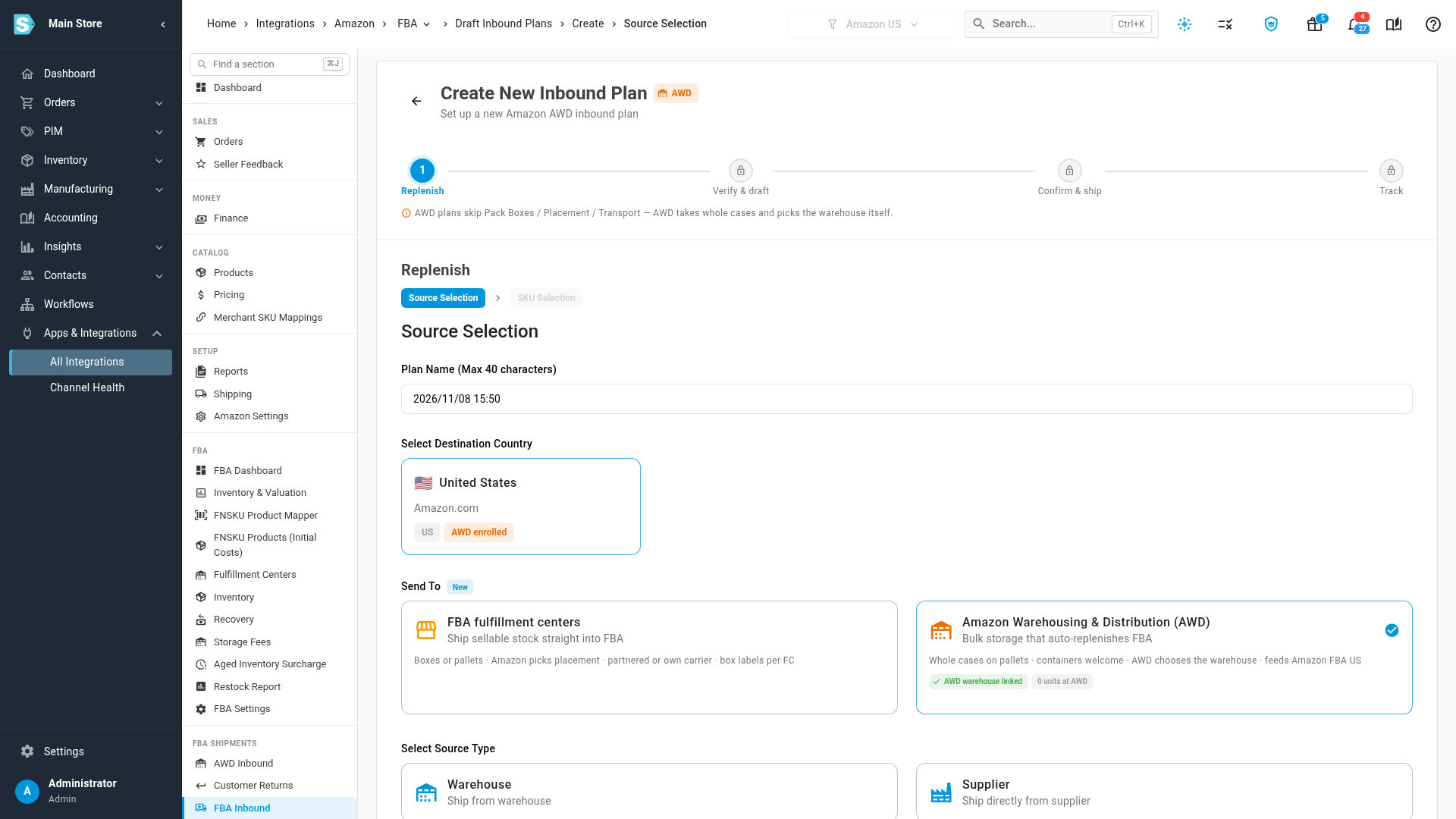
Open the inbound wizard and a new Send To choice sits next to FBA. Pick Amazon Warehousing and Distribution (AWD), then ship from one of your warehouses or directly from a supplier. AWD takes whole cases and chooses its own warehouse, so the wizard skips the box packing, placement and transport steps that FBA needs.
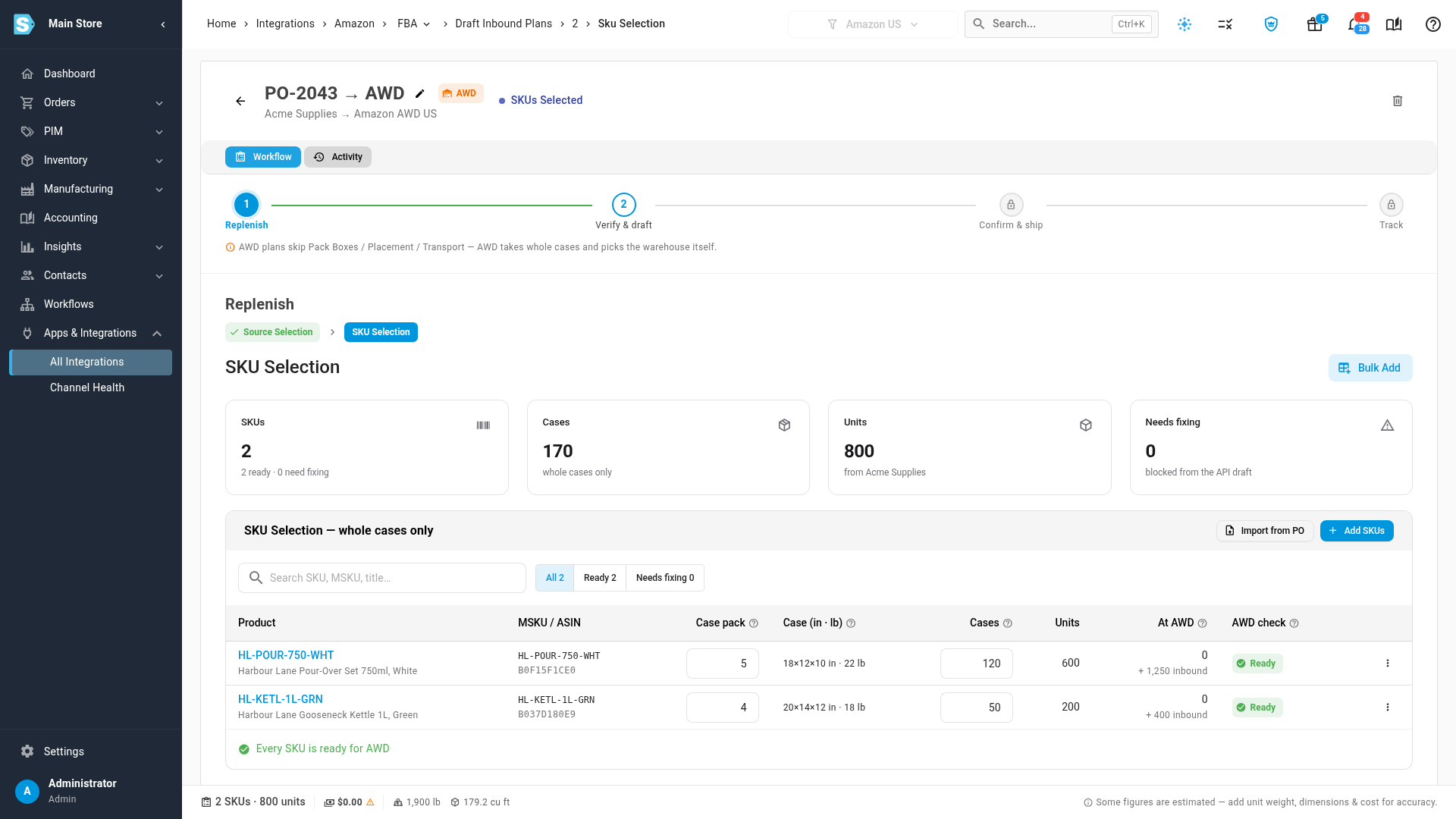
Build the order in whole cases
Add products one by one or bring them in from a purchase order. Each row shows the case pack, case size, number of cases, total units and what's already at AWD, with a Ready check so you can see what needs fixing. Missing case details can be added right from the wizard.
Already have the purchase order open? Click Send to Amazon, then Send to Amazon AWD, and its open lines come across for you. Send to Amazon FBA is on the same menu, and when Amazon splits that plan into several shipments, each shipment gets its own purchase order so receiving and costs stay correct.
Confirm, send labels and add the carrier
When you create the draft, Amazon checks each case group. If it rejects anything, you see which SKU and why, and you can fix it, remove it and retry, or finish in Seller Central. A draft changes nothing at Amazon until you confirm it.
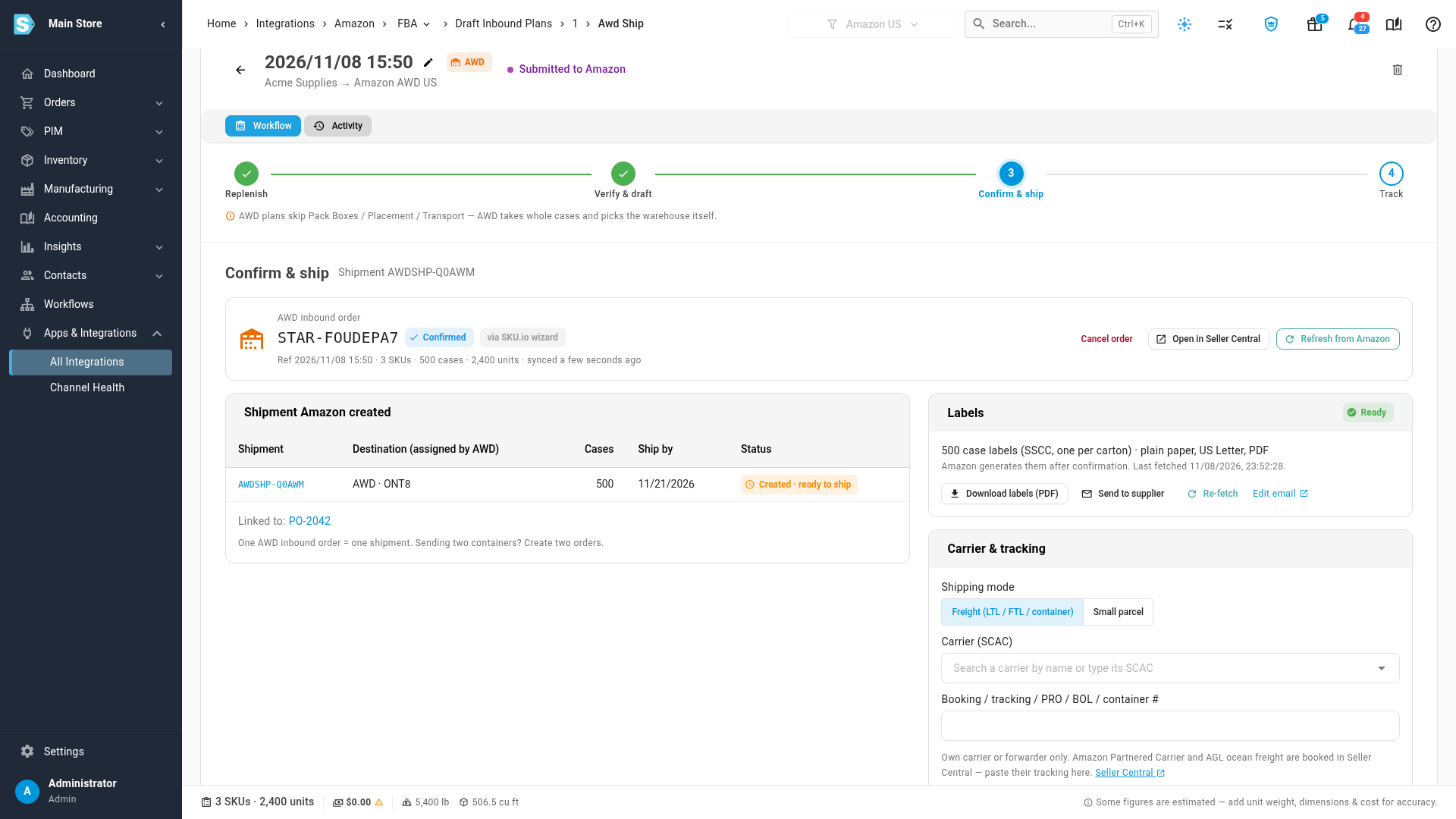
Once you confirm, the shipment, its assigned AWD warehouse and ship-by date appear on one page. Generate one case label per carton, download the PDF or send it to your supplier, then add your carrier and tracking and save it back to Amazon. Booking an Amazon Partnered Carrier or AGL ocean freight? Open in Seller Central takes you there to book it, and you paste the tracking back in.
See every AWD order in one place
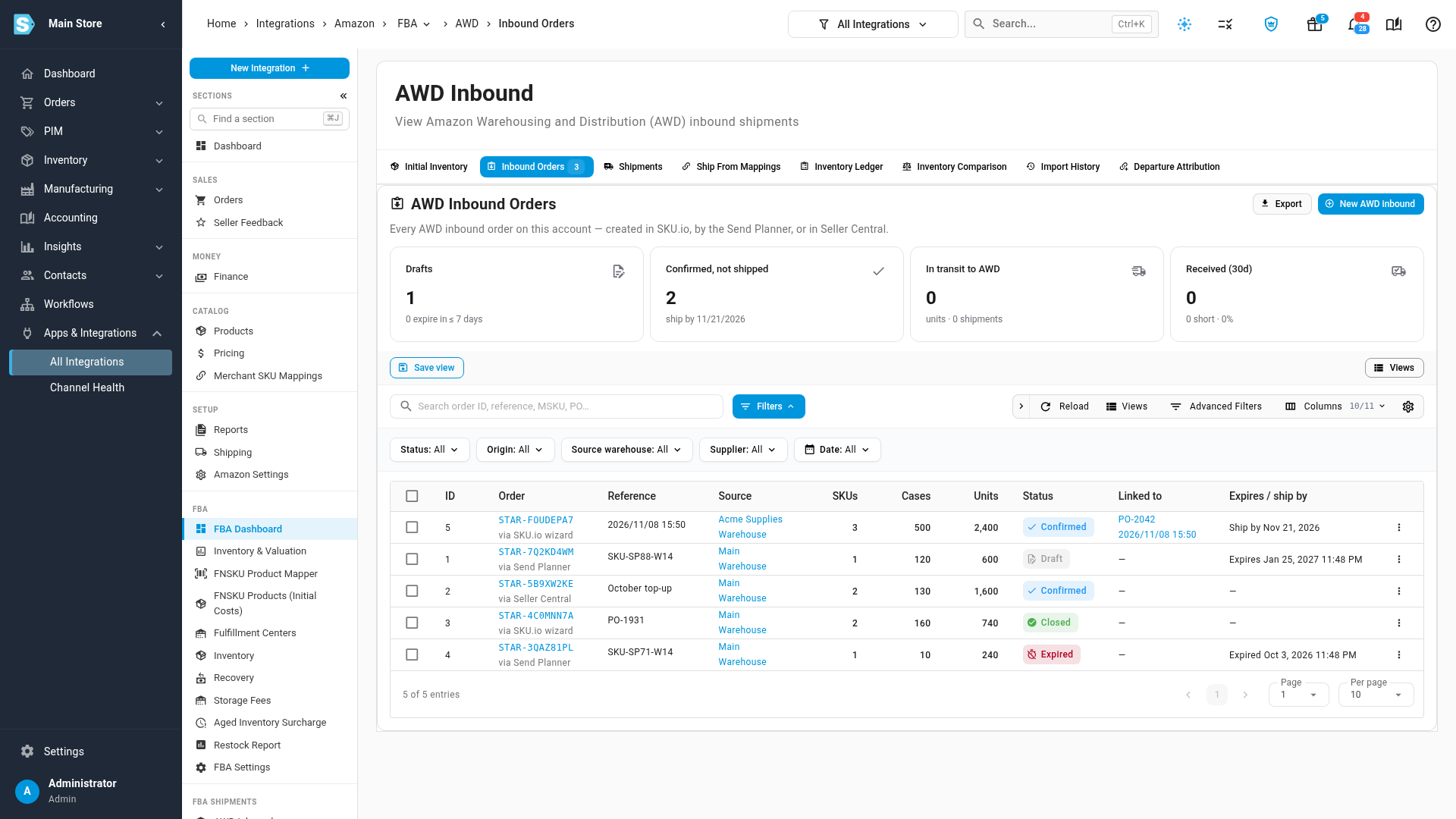
The new Inbound Orders tab lists every AWD inbound order on the account, with cards for drafts, orders confirmed but not shipped, stock in transit and what was received in the last 30 days. Each order shows where it came from and links to its purchase order, and Track follows the shipment from created through shipped, in transit, receiving and closed.
Where to find it
Go to Apps & Integrations, open your Amazon connection, click AWD Inbound, then Inbound Orders and New AWD inbound. You can also click Send to Amazon on an open purchase order. Your Amazon account needs to be enrolled in AWD, and AWD inbound is available for Amazon US.
Full guide: Send stock to AWD from the inbound wizard