Remove a saved AI provider key
Once you had saved an API key for an AI provider, there was no way to take it back out. Clearing the key field and saving kept the old key, so a key you had stopped using stayed on your account. Remove key on Settings → AI Assistant now deletes a saved provider key for good, and tells you first what that will do to your AI features.
✨ What this means for you:
- Delete a provider key you no longer use in two clicks.
- See before you confirm whether removing it will turn your AI features off.
- Only the account owner or an admin can remove the key your AI features run on.
Remove a key
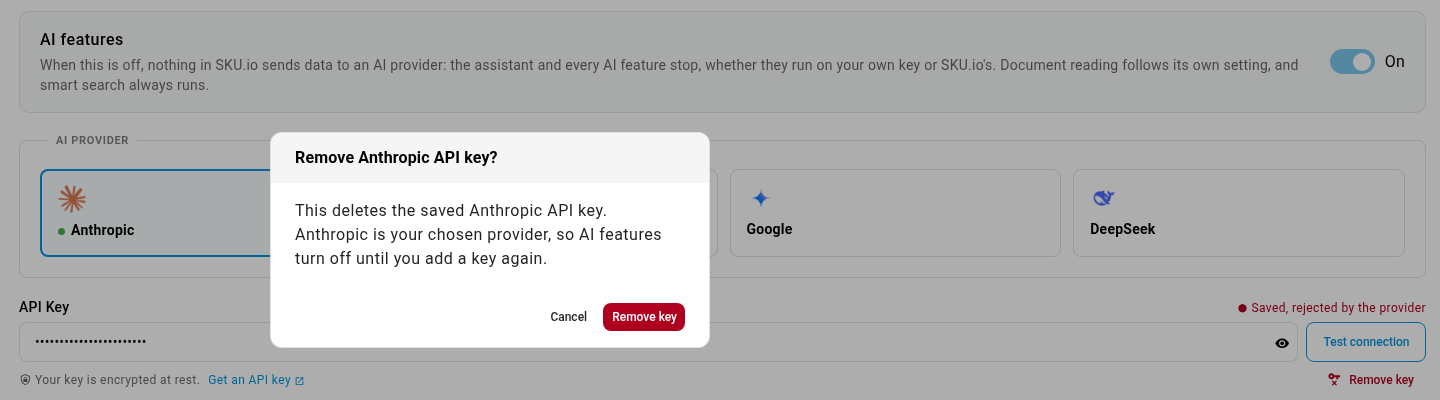
On the General tab of Settings → AI Assistant, select the provider and click Remove key under its API key field. A confirmation explains what removing it does. Click Remove key again to delete it, and the field then shows Not configured.
What happens to your AI features
AI features run on your own key for the provider you've chosen. If you remove that provider's key, the AI features switch turns off until you add a key again. Removing the key of another provider leaves AI on; any feature set to use that provider stops until it has a key again.
Because removing the chosen provider's key turns AI off for everyone, only the account owner or an admin can do it. Other team members see Remove key greyed out, with the reason when they hover over it.
Where to find it
Settings → AI Assistant → General, under the API Key field.
Full guide: AI & Automation