Bills for every supplier cost — enter, read, sync and track them in one place
Until now, a bill in SKU.io had to hang off a purchase order: freight, duty and other landed costs. Everything else your suppliers send, like the warehouse rent, the ad agency or the monthly 3PL fee, had to be entered in your accounting system, and again in SKU.io if you wanted it in your profit numbers. Bills now handles any supplier cost. Enter an expense bill with no purchase order, read it from the invoice, send it to Xero or QuickBooks, and track its cost against the products it relates to. If your team prefers to keep entering bills in Xero or QuickBooks, a new review finds the bills SKU.io doesn't know about yet and brings them in without changing anything in your accounting system.
✨ What this means for you:
- Enter each bill once. Expense bills and landed cost bills live on one Bills list, with a Type column so you can tell them apart.
- Know what a bill does to your books before you save it. A What this does to your books panel shows the debit and credit lines and the posting date, and states whether the bill reaches Xero.
- No accidental stock costs. An expense bill needs an expense account, and SKU.io refuses inventory and clearing accounts, so a service charge can't end up in your stock value.
- Choose who enters bills. Send bills from SKU.io to Xero or QuickBooks, keep entering them there, or keep them in SKU.io only, with exceptions by supplier.
- Bring in the bills you already have. Find bills in Xero (or QuickBooks) lists the bills SKU.io doesn't know about and lets you classify each one. Nothing is written back to your accounting system.
- Put overhead into product profit. Turn bill lines into cost entries, and let AI suggest how to allocate them. Nothing is allocated until a person confirms it.
- A more accurate Unallocated figure. Unallocated now counts landed cost bills only. Expense bills were never meant to be allocated to purchase lines, so if you had expense bills, this figure drops. Your landed cost bills are unchanged.
One list for every bill
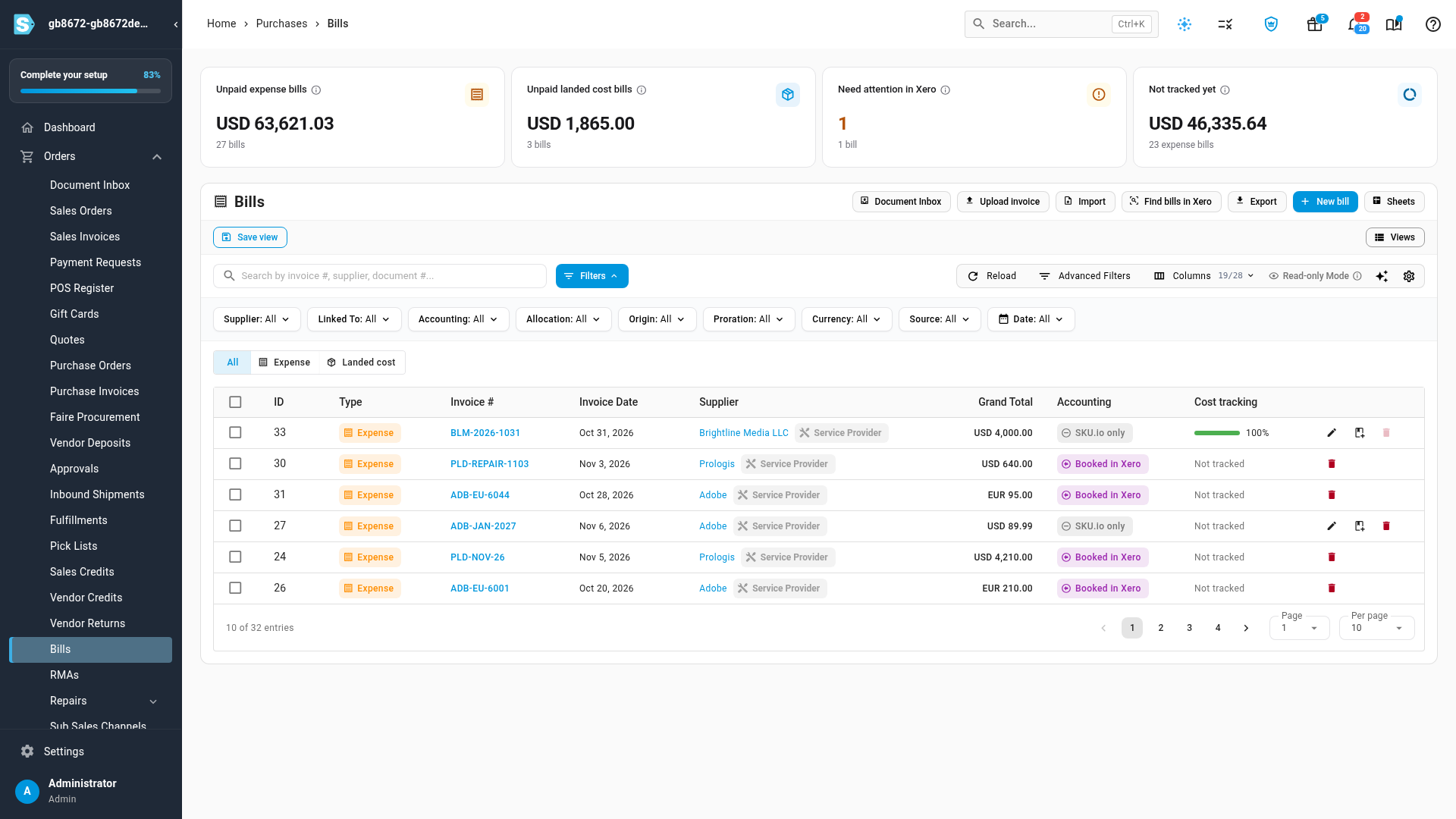
The Bills list (formerly Landed Cost Bills) shows both kinds of bill. Amber Expense bills are supplier costs with no purchase document. Blue Landed cost bills add freight, duty and similar charges to a purchase order's inventory cost, the same way they always have. Switch between All, Expense and Landed cost above the table.
Two new columns show where each bill stands. Accounting shows whether it's in Xero, booked in Xero, waiting on you, or kept in SKU.io only. Cost tracking shows how much of an expense bill is tracked against your products. The cards at the top separate unpaid expense bills from unpaid landed cost bills and count the bills that need your attention. Your existing filters and saved views keep working, and a new No purchase document option in the Linked To filter finds expense bills.
Enter a bill and see what it does to your books
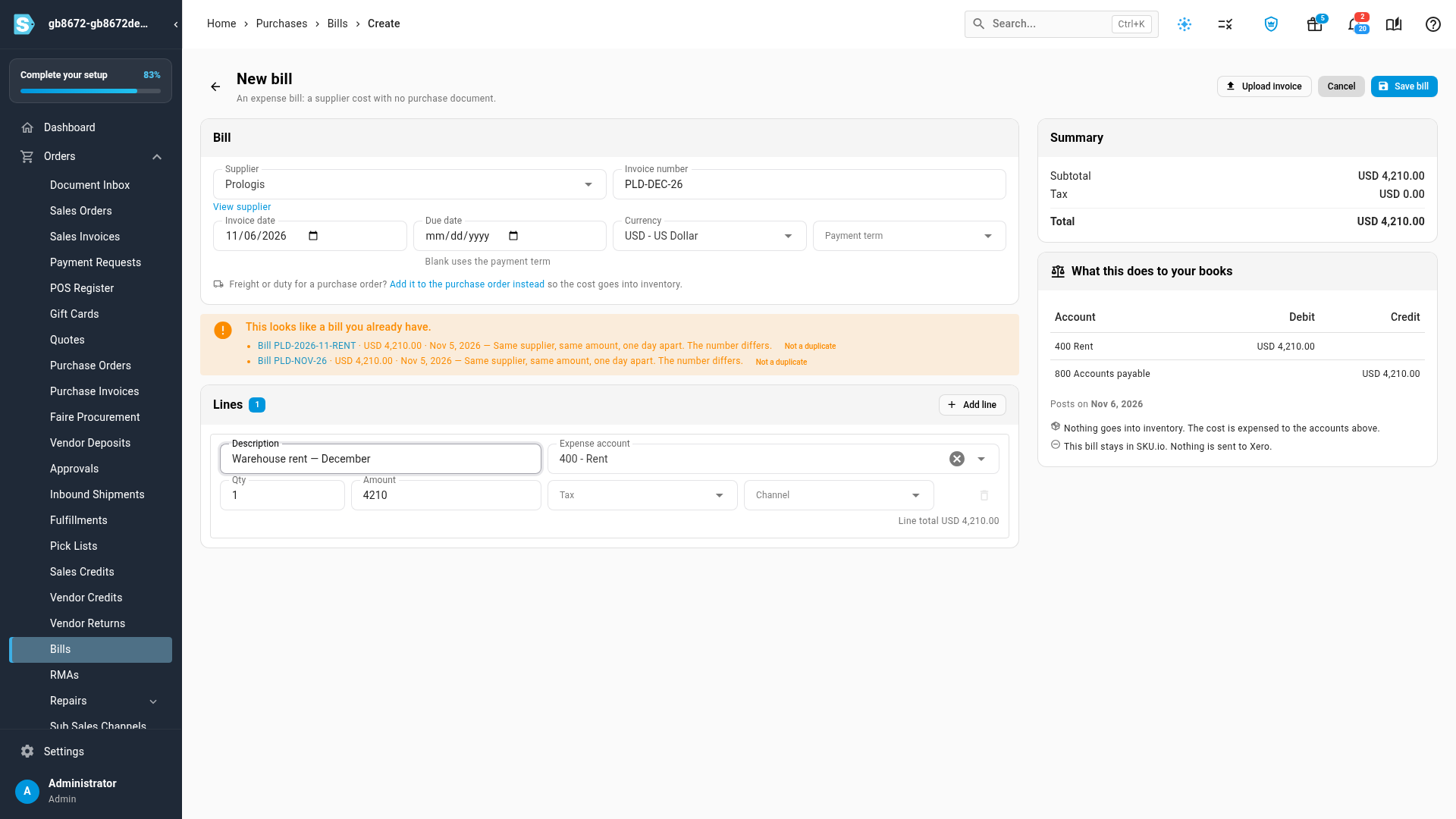
Click New bill to enter an expense bill: supplier, invoice number, dates, currency, payment term, and lines with an expense account, amount, tax and channel. The What this does to your books panel on the right updates as you type. It shows the accounts debited and credited, the date the bill posts, and whether it goes to Xero. If the bill is dated in a locked period, you see the first open day it posts on before you save.
SKU.io also checks for duplicates as you enter the bill. A bill from the same supplier with the same amount and a nearby date is flagged, and you can open it or mark it Not a duplicate. Invoice numbers only need to be unique for each supplier, so two suppliers can both send you an "INV-1001".
Expense bills are for service suppliers. If you pick a supplier that sells you stock, SKU.io points you to the purchase order instead, so freight and duty still go into inventory cost.
Start from the invoice
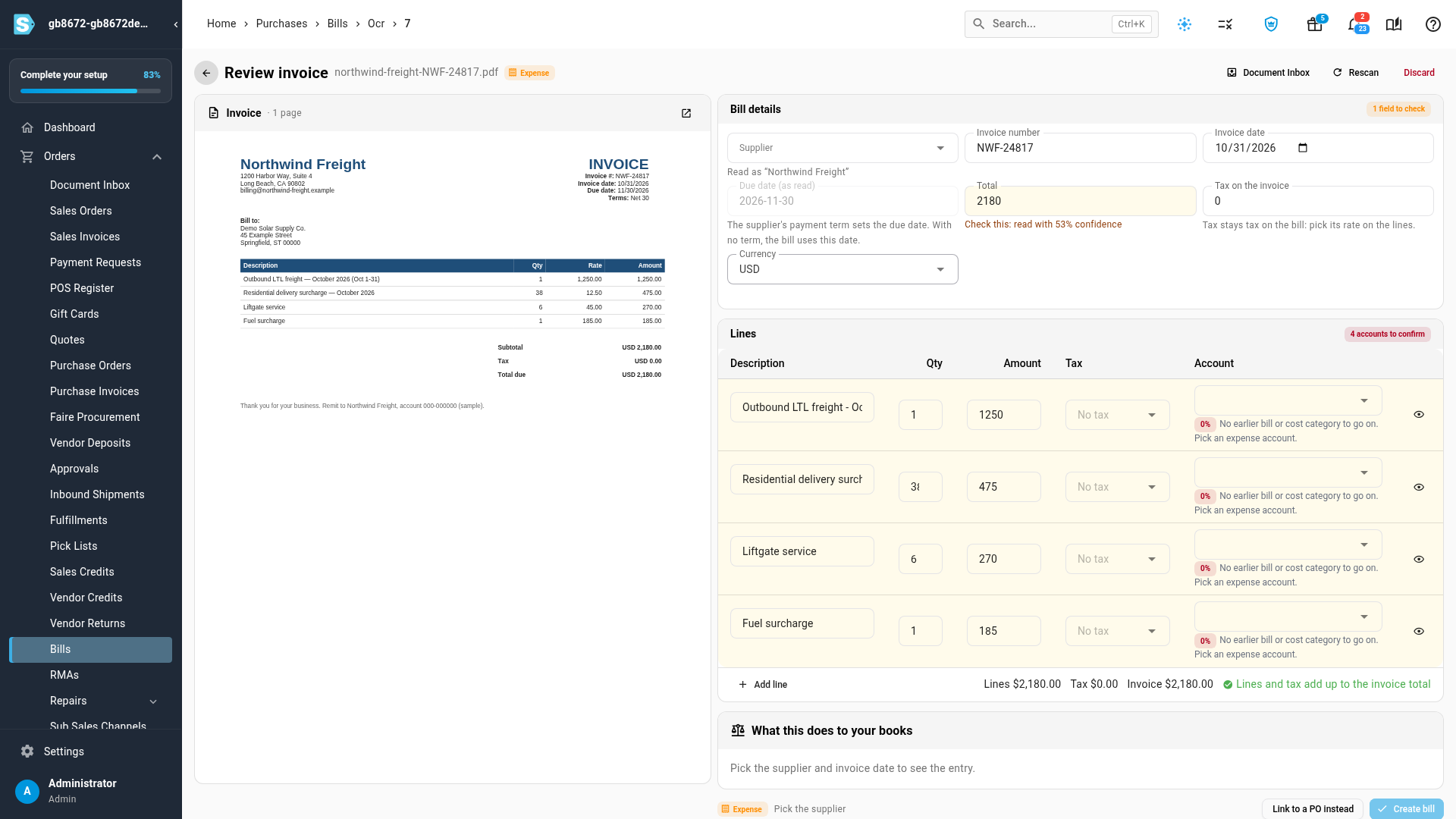
Have the PDF? Click Upload invoice and drop in the file. With invoice OCR turned on, SKU.io reads it and opens Review invoice, with the invoice on the left and a draft bill on the right: the supplier name as it was read, invoice number, invoice date, due date, total, tax and every line. A value SKU.io isn't sure of is highlighted and tells you how confident the read was, so you know exactly what to check. Each line needs an expense account. SKU.io suggests one when this supplier's earlier bills or a cost category point to it, and asks you to pick one otherwise. Create bill stays off until the lines and tax add up to the invoice total. The file stays attached to the bill.
When invoice OCR is off, the file is simply attached and you enter the bill by hand.
Decide who enters bills: SKU.io or your accounting system
Under Expense bills: who enters them? in your accounting sync settings, choose how expense bills are handled for your Xero or QuickBooks connection:
- Send to Xero / QuickBooks: enter bills in SKU.io, and SKU.io creates them in your accounting system. A Start from date leaves older bills alone.
- Keep entering in Xero / QuickBooks: your accounting system stays in charge. SKU.io never sends these bills, and the review below brings them in.
- Keep in SKU.io only: nothing moves.
Add a supplier rule when one supplier needs different handling from the rest. Bills that look like one already in your accounting system wait under Possible duplicates for you to decide. Landed cost bills keep their own separate switch, so your current setting carries over.
Find bills in Xero or QuickBooks
Find bills in Xero (or Find bills in QuickBooks) on the Bills list reviews your accounting system for bills SKU.io doesn't have yet, in three steps:
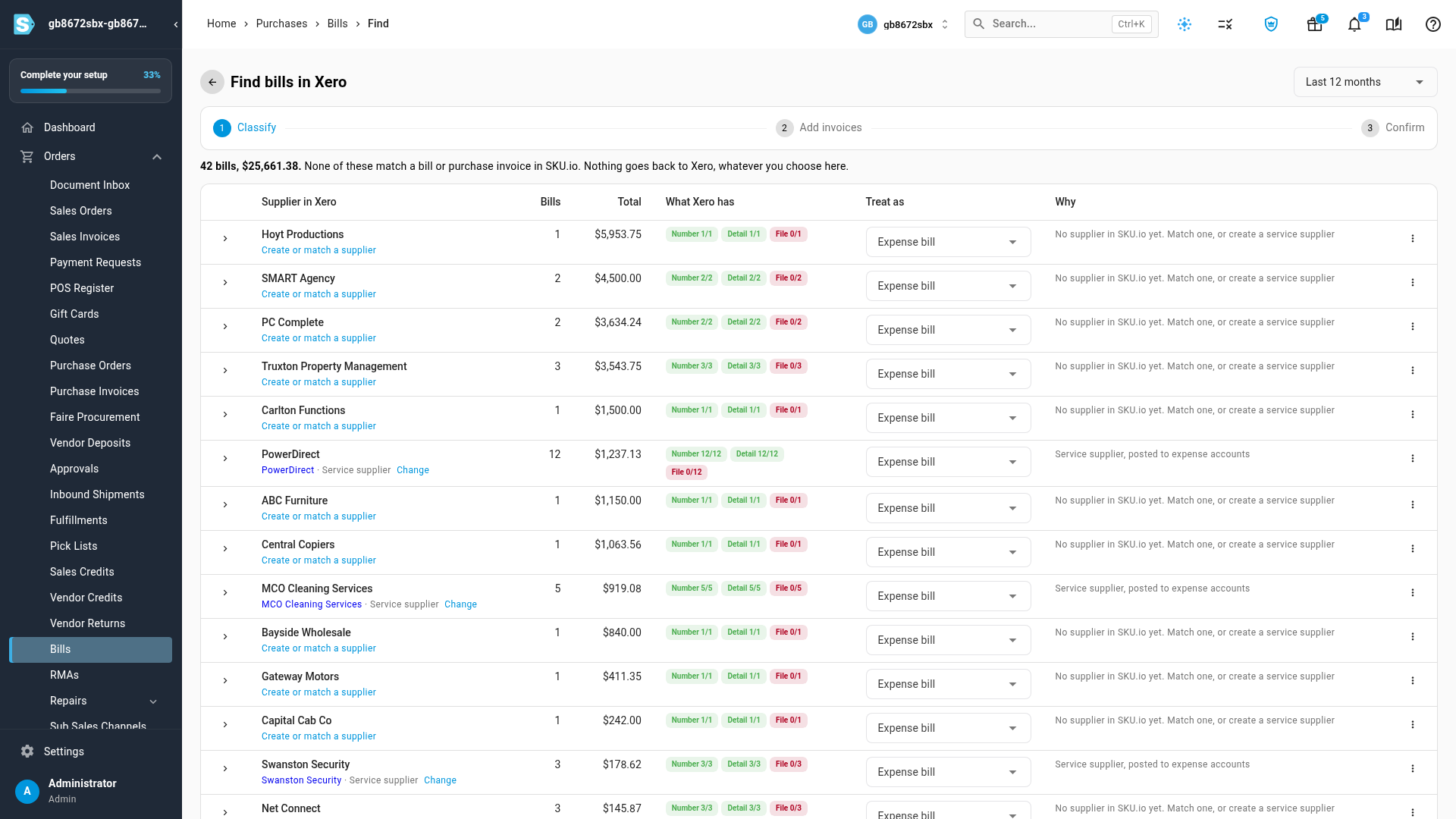
- Classify. Bills are grouped by supplier, with the number of bills and their total. What Xero has shows at a glance how many carry a number, line detail and a file, and Why explains the suggestion for each supplier. Choose Expense bill, Purchase invoice or Ignore under Treat as, expand a supplier to decide bill by bill, and Create or match a supplier when the supplier isn't in SKU.io yet. Save and finish later keeps your progress.
- Add invoices. Bills in accounting systems often carry little detail. Drop in the real invoices, and SKU.io matches them to the bills and keeps the extra detail for cost tracking. Your accounting system's amounts always stay as they are.
- Confirm. Review the counts and bring the bills in.
Nothing goes back to Xero or QuickBooks, whatever you choose. Bills brought in this way are marked Booked in Xero (or QuickBooks): their amounts, lines and payments stay in step with your accounting system, while you can still add documents and notes and track their cost. If a bill changes in your accounting system after you bring it in, the review lists the change and lets you choose what to do.
Track bill costs against your products
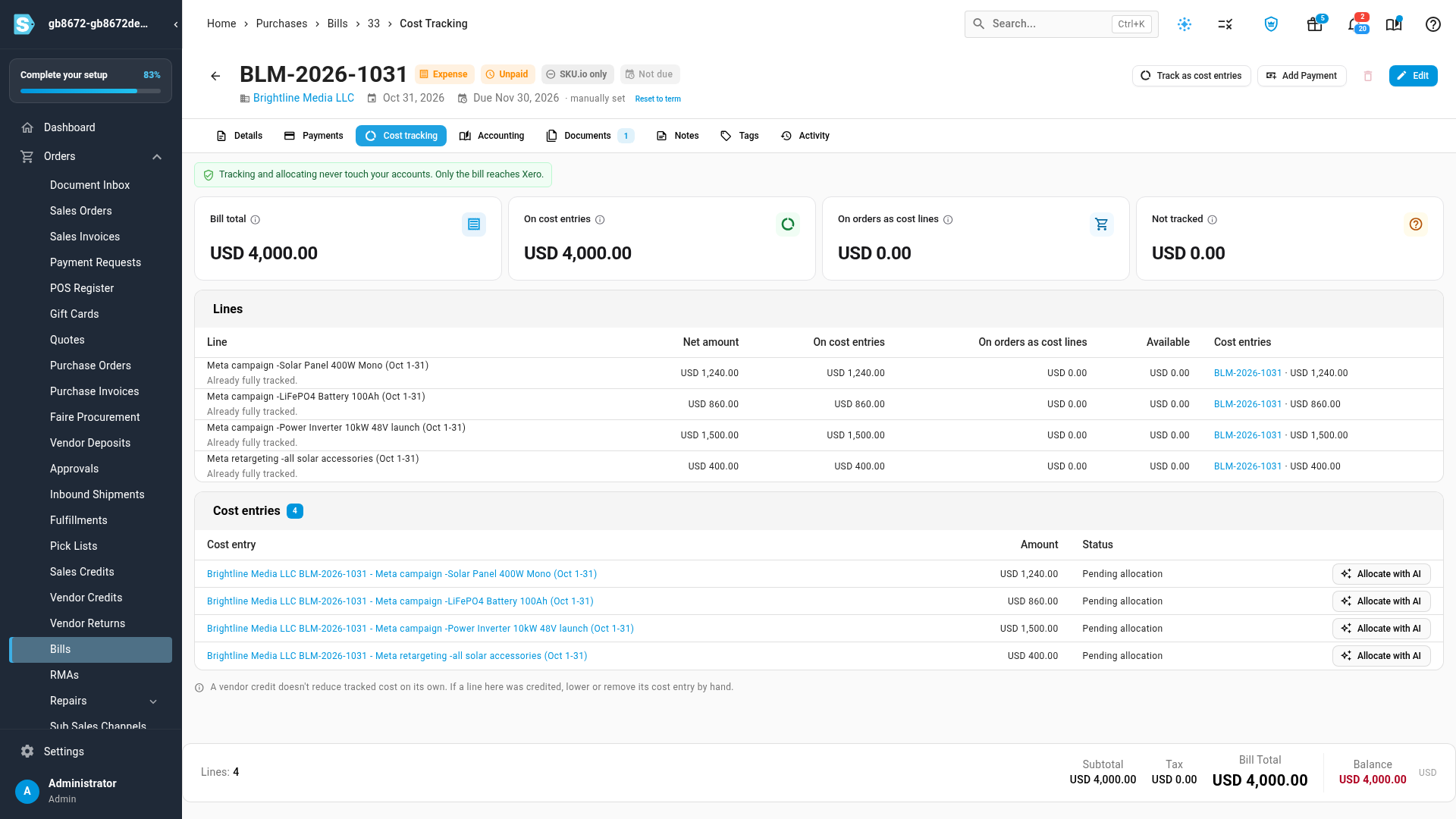
Click Track as cost entries on an expense bill to turn its lines into cost entries, then allocate them to products so marketing, storage and fulfillment fees show up in product profitability. The bill's Cost tracking tab shows how much of each line is tracked, how much is already on orders as cost lines, and how much is left. A dollar is never counted twice, and tax is left out. Tracking and allocating never touch your accounts; only the bill reaches Xero. Landed cost bills already count in inventory cost, so they can't be tracked this way too.
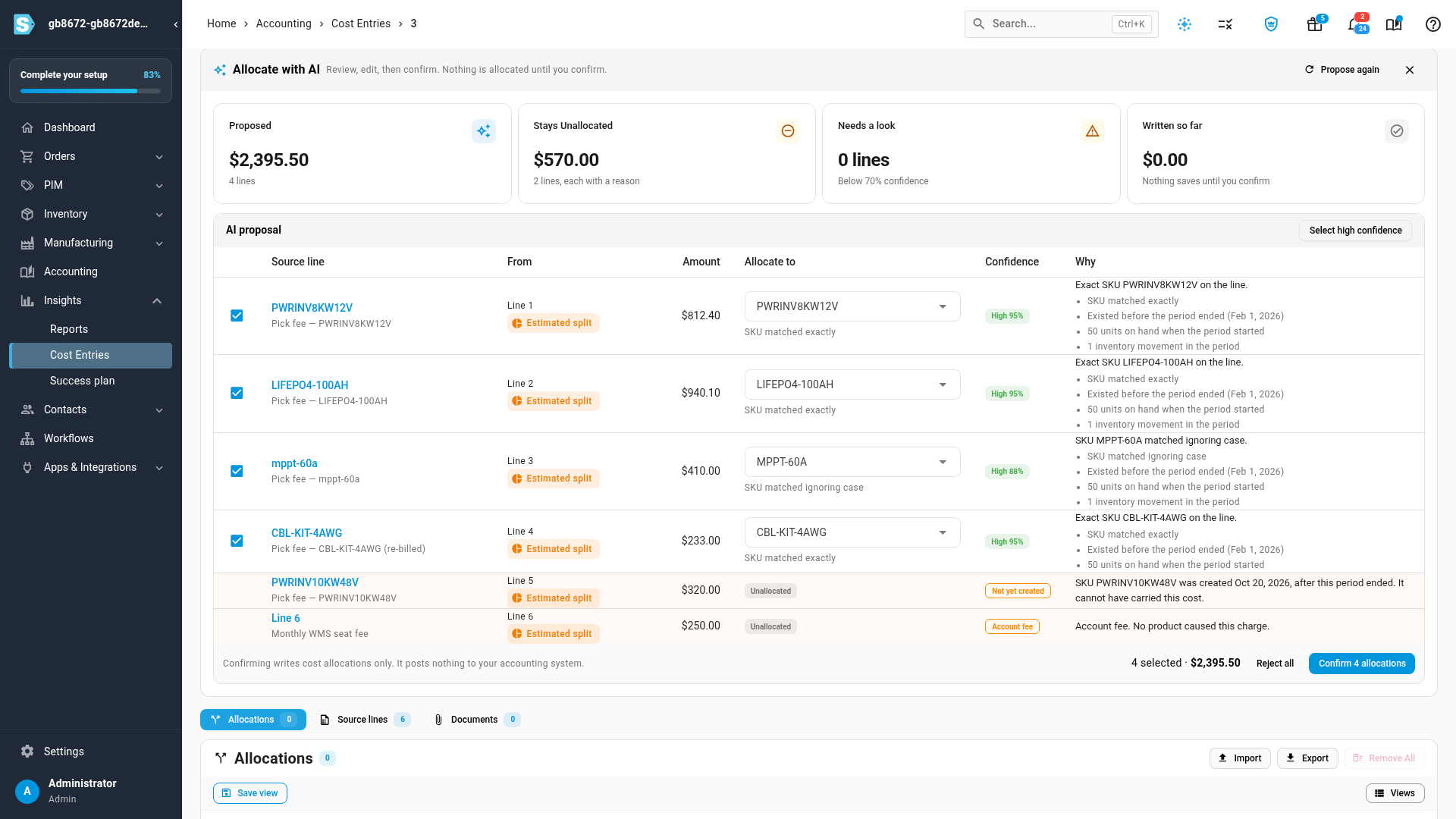
Allocate with AI suggests where each line of a cost entry belongs. Every suggestion shows the product, a confidence level and why: for example, the SKU matched exactly, the product existed before the period ended, and it had stock on hand. SKU.io only suggests products that existed and were active during the billed period. Lines it can't place stay unallocated with a reason, such as Not yet created for a product launched after the period, or Account fee for a charge no product caused. High-confidence lines start selected. Change any target you disagree with, then click Confirm allocations, or Reject all. Nothing is saved until you confirm, and confirming writes cost allocations only: nothing is posted to your accounting system.
Importing bills
Import Bills now handles expense bills too: leave Linked Document blank and give each line an expense account. Bill imports are all or nothing. If any row has a problem, nothing in the file is imported, and every row shows what needs fixing ("Nothing was imported. Fix the rows below and import again."). This means a half-imported file can never leave you with a partly updated bill. Bill payment imports still go row by row.
Where to find it
- Bills list: Orders → Bills.
- Enter an expense bill: Orders → Bills → New bill, or Upload invoice to start from a PDF.
- Review bills already in your accounting system: Orders → Bills → Find bills in Xero (or Find bills in QuickBooks).
- Choose who enters bills: Accounting → Settings → Sync, under Bills.
- Turn on invoice reading: Settings → Purchasing → Document OCR.
- Track and allocate a bill's cost: open an expense bill and click Track as cost entries, then use its Cost tracking tab.
- Landed cost bills: see Record landed cost bills.
Full guides: Enter an expense bill · Track an expense bill as cost entries · Choose how expense bills sync · Find bills in Xero or QuickBooks · Import bills