Set purchase order numbering and defaults
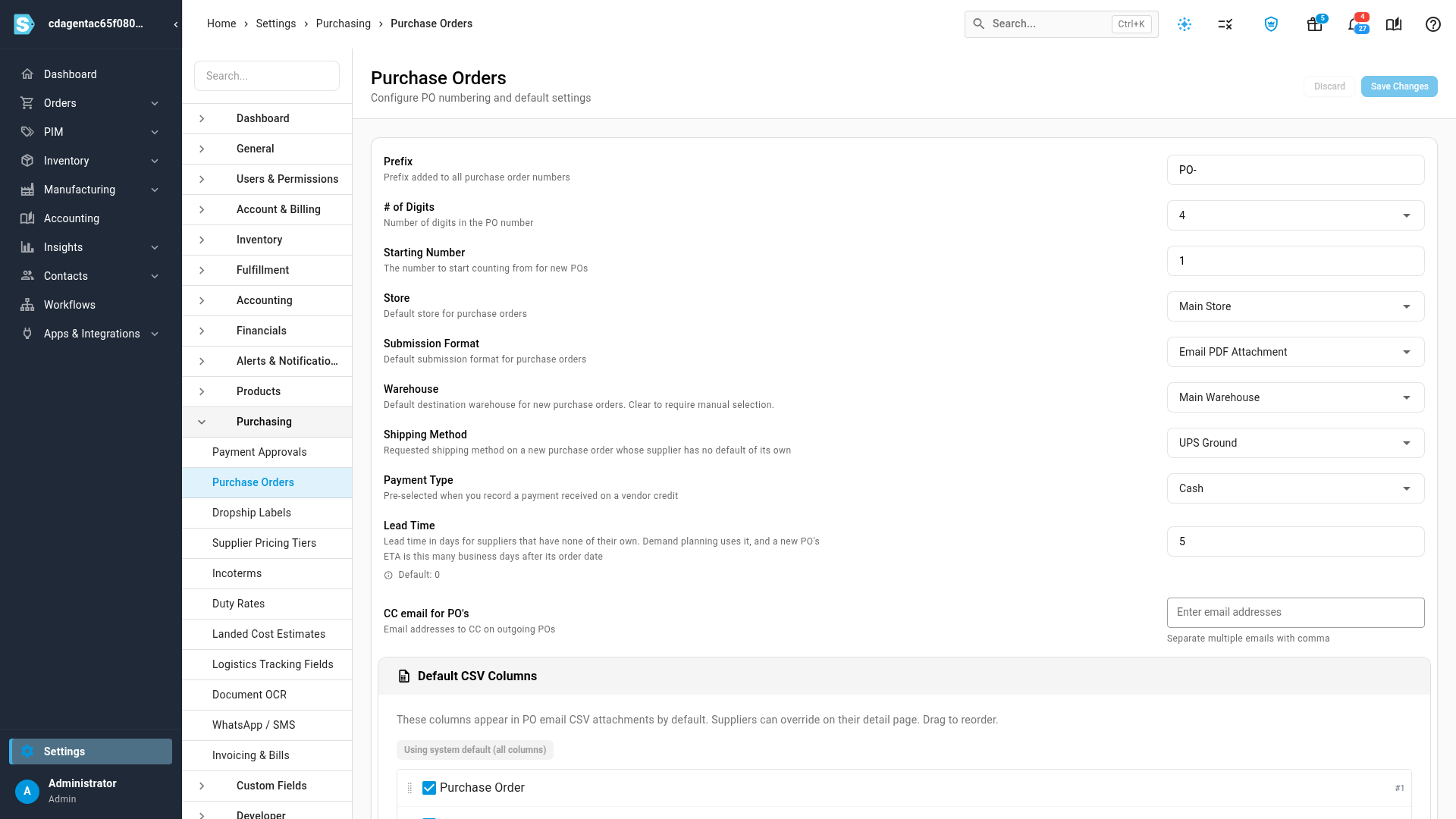
Settings → Purchasing → Purchase Orders decides how new purchase orders are numbered and what they start with: the store, the submission format, the destination warehouse, the shipping method and the expected arrival date. It also sets who is copied on purchase order emails, and which columns suppliers get in the attached item file.
Before you begin
- You need permission to change settings.
- A supplier's own purchasing defaults always win over these. You set them on the supplier's Settings tab. The settings here fill in only what the supplier leaves blank.
- Changes apply to purchase orders created from now on. Existing orders keep their numbers and details.
Steps
-
Click Settings at the bottom of the left sidebar.
-
Click the Purchasing card to expand it, then click Purchase Orders.
-
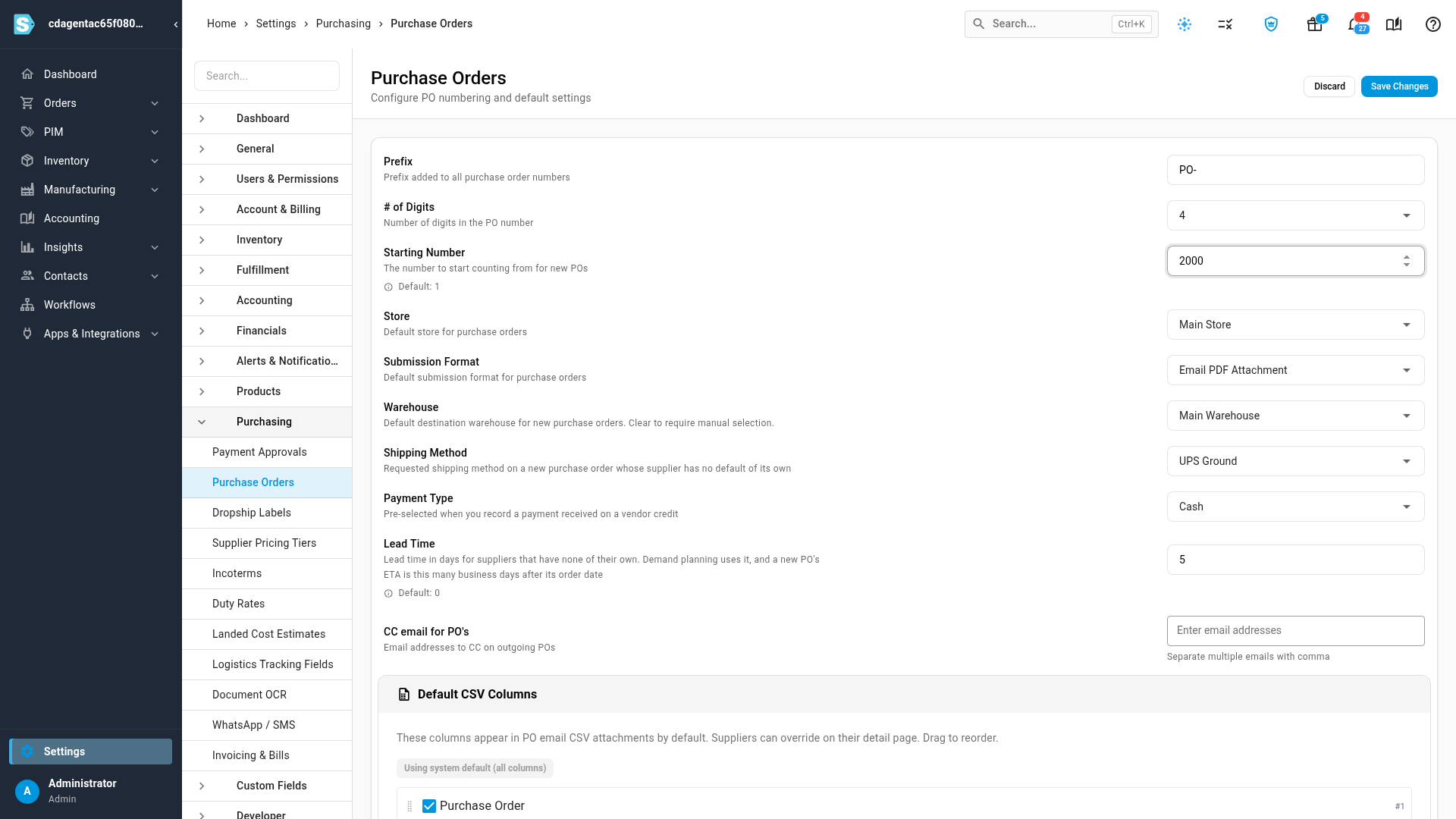
Set the numbering: Prefix, # of Digits and Starting Number.
-
Choose the defaults: Store, Submission Format, Warehouse, Shipping Method, Payment Type and Lead Time.
-
Under CC email for PO's, add any addresses to copy on every purchase order email.
-
Under Default CSV Columns, choose the columns suppliers get in the item file.
-
Click Save Changes at the top right. Settings saved successfully confirms it.
Numbering
| Setting | What it does |
|---|---|
| Prefix | Text that starts every number, such as PO-. Include any separator you want. |
| # of Digits | Minimum digits after the prefix, from 4 to 7. Shorter numbers are padded with zeros: purchase order 42 with 4 digits is PO-0042. Longer numbers grow past it. |
| Starting Number | The lowest number the next purchase order can get. Raise it to jump ahead, for example to carry on from your old system. |
Purchase orders share one running number. Each new order takes the next one, even after you change the prefix, so PO-0041 can be followed by BUY-0042. A Starting Number below your latest order has no effect, so numbers are never reused.
Defaults for new purchase orders
| Setting | What it does |
|---|---|
| Store | The store a new purchase order belongs to, when the supplier has no default store. |
| Submission Format | How a purchase order is sent to the supplier when you submit it, such as Email PDF Attachment, when the supplier has no format of its own. |
| Warehouse | The destination already selected in the New Purchase Order dialog. Clear it to make people pick a destination every time. |
| Shipping Method | The requested shipping method on a new purchase order, when the supplier has no default shipping method. |
| Payment Type | Pre-selected when you record a payment received on a vendor credit. |
| Lead Time | The lead time, in days, for suppliers that don't have one. A new purchase order's expected arrival date is set this many business days (Monday to Friday) after its order date. Demand planning uses the same lead time to work out when to reorder. |
Emailing purchase orders
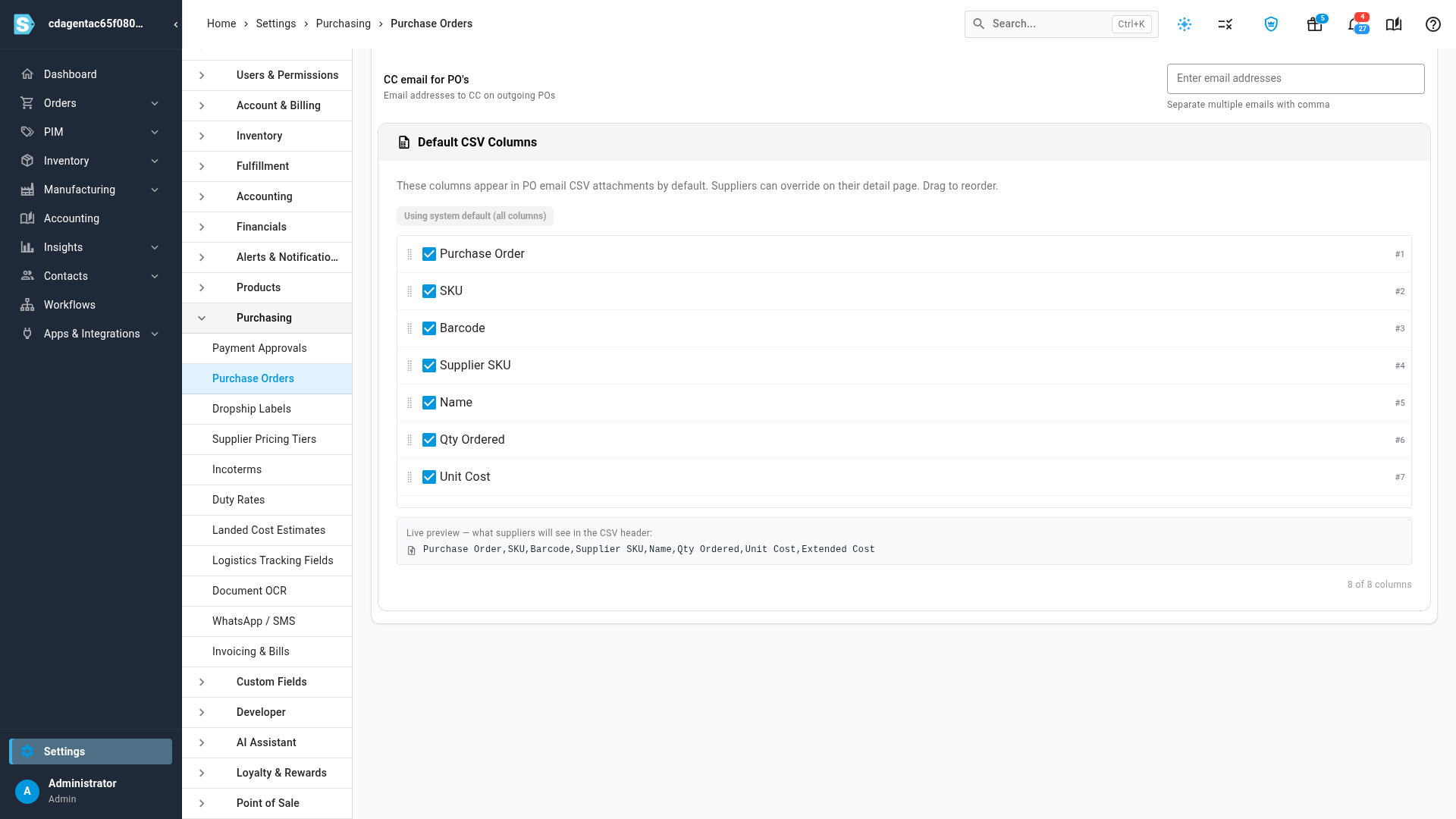
CC email for PO's copies its addresses on every purchase order you email to a supplier, and fills in the CC field of the send dialog. Separate several addresses with commas.
Default CSV Columns decides which columns, in which order, go into the item file attached to a purchase order email. It applies to the CSV and XLSX attachments, so it matters when the submission format includes one. Drag a column to reorder it, and untick one to leave it out. The Live preview shows the header row suppliers will see. Leave every column ticked to send them all. A supplier can have its own column set, chosen on its detail page.
| Column | What it holds |
|---|---|
| Purchase Order | The purchase order number |
| SKU | Your SKU for the product |
| Barcode | The product's barcode |
| Supplier SKU | The supplier's own code for the product |
| Name | The product's name |
| Qty Ordered | The quantity on the line |
| Unit Cost | The line's unit cost |
| Extended Cost | Quantity × unit cost |
Next steps
- Create a purchase order: create an order that starts from these defaults.
- Approve and submit a purchase order: send it to the supplier in the submission format you chose.
Video transcript
Purchase order settings set how new orders are numbered and what they start with. To get there, open Settings at the bottom of the left sidebar. Click the Purchasing card to expand it. Its list of purchasing settings opens below. Click Purchase Orders to open its settings page. Every purchase order number is the prefix, then a running number padded to the number of digits. The running number carries on even if you change the prefix. Starting Number is the lowest it can be, so raise it to jump ahead. The next settings fill in a new purchase order, and a supplier's own defaults always win. Store and Submission Format cover suppliers that have none of their own. Warehouse is the destination a new order starts with, and clearing it makes people pick one every time. Shipping Method and Lead Time set the requested shipping method and the expected arrival date. Add addresses under CC email to copy them on every purchase order you email. Default CSV Columns sets the columns, and their order, in the item file suppliers receive. Drag a column to reorder it, or untick it to leave it out. When you're done, scroll back up to the top of the page. Then click Save Changes at the top right. New purchase orders follow your settings, and existing ones keep their numbers.