Set up automatic SKU numbering
If you build SKUs from a code plus a running number, such as DW-26-1250 for the next drinkware product, SKU.io can keep the counters for you. You add a numbering rule for a product type, a primary category, or everything else. A new product saved without a SKU then takes the next number from its rule. A SKU you type yourself is always kept.
Before you begin
- You need the Settings Update permission (
settings.update) to add or change numbering rules. - Set up the product types or categories you want to number. See Manage categories.
- If you have been keeping SKUs in a spreadsheet, note the next number for each group, so the counters carry on from it.
Steps
- Go to Settings → Products → SKU numbering.
- Click Add rule (or Add your first rule when the list is empty).
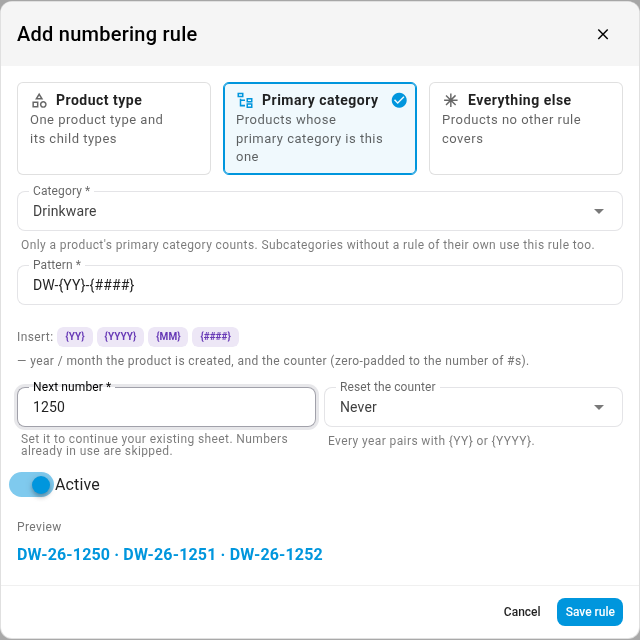
- Under Applies to, choose Product type, Primary category or Everything else.
- Pick the Product type or Category the rule numbers. Everything else needs no choice: it numbers new products that no other rule covers.
- In Pattern, type the code and add the tokens for the parts that change, for example
DW-{YY}-{####}. Click a token under the field to insert it. - In Next number, enter the number the next product should get. To carry on from your own sheet, enter the next number on it.
- To start the counter again at 1 each January, set Reset the counter to Every year.
- Check the Preview line. It shows the next three SKUs the rule will give.
- Click Save rule. Numbering rule added confirms it.
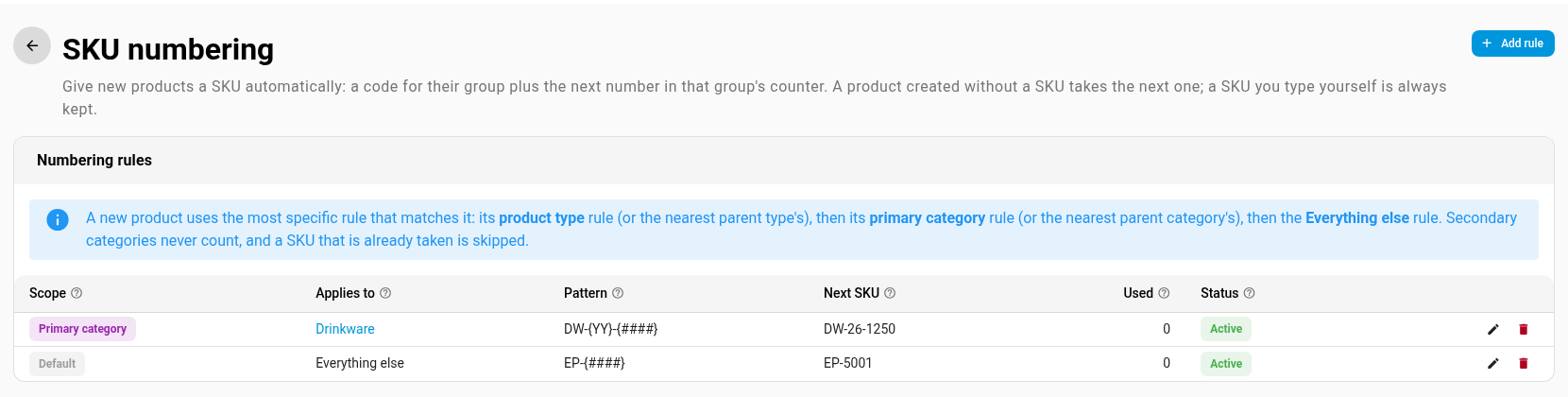
The rule appears in the Numbering rules list, with the Next SKU it will give and how many SKUs it has Used so far.
Pattern tokens
A pattern can use letters, digits, -, _, . and /, plus these tokens. It needs exactly one counter.
| Token | What it becomes |
|---|---|
{YY} | The two-digit year the product is created, such as 26 |
{YYYY} | The four-digit year, such as 2026 |
{MM} | The two-digit month, such as 03 |
{####} | The counter, padded with zeros to the number of #s. {####} gives 0042, and {###} gives 042. |
Which rule numbers a product
A new product uses the most specific rule that matches it:
- Its product type rule. A child type without a rule of its own uses its nearest parent type's rule.
- Its primary category rule. A subcategory without a rule of its own uses its nearest parent category's rule.
- The Everything else rule.
Secondary categories never count. You can have one rule per product type, one per category, and one Everything else rule. If no rule matches, the product still needs a SKU typed by hand.
How new products get their number
-
Add Product: the SKU field shows the next SKU from the rule that matches, with an Auto chip. To use a category rule, pick the product's Primary category in the dialog. It's optional, and only the lowest-level categories can be picked; a subcategory uses its parent's rule when it has none of its own. Picking a Product type or a Primary category updates the SKU shown. Leave the SKU field empty and click Save, and the product takes that number. Type a SKU to use your own instead. The Numbering rules link above the field opens this settings page.
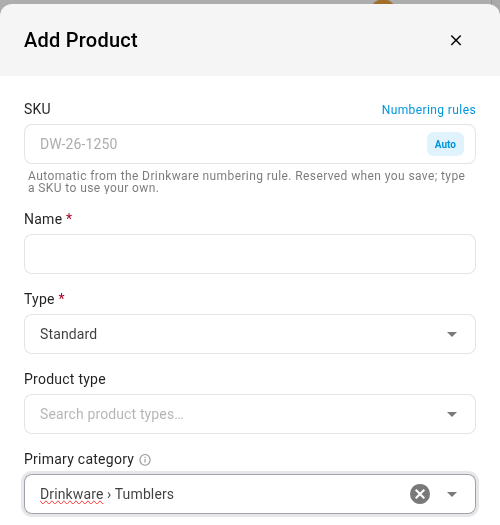
Save & Add Another keeps the product type and primary category for the next product, so a run of products in one category is numbered one after another.
-
Product import: a new row with an empty
skucolumn is numbered by the rule that matches itsproduct_typeandcategorycolumns. The import's review step says which rule will number each row and the SKU it will get. If no rule matches, the row fails with SKU is required (no SKU numbering rule matches this row). See Import products. -
API: a product created without a SKU takes the next number from its rule, the same way.
A number is only used when the product is saved. SKUs that are already taken, including a product's previous SKUs, are skipped.
Change, pause or delete a rule
- To edit a rule, click its pencil icon. You can change the pattern, the next number or the reset. Changing Next number moves the counter, and numbers already in use are still skipped.
- To pause a rule, edit it and switch Active off. While it's paused, its products fall through to the next matching rule.
- To delete a rule, click its delete icon. Products it already numbered keep their SKUs.
Next steps
- Create a product: add a product from the Add Product dialog.
- Import products: number a batch of new products in one file.
Video transcript
Automatic numbering gives each new product its next number, with no spreadsheet to keep. To set it up, open Settings at the bottom of the left sidebar, below your menus. Click the Products card, and its list of product settings opens underneath the card. Then click SKU numbering to open the page where your rules live. With no rules yet, every new product still needs a code typed in by hand. Click Add rule, at the top right of the page. A rule can number one product type, one primary category, or everything else that's left. Choose Primary category, so this rule numbers one category of products. Then pick Drinkware from the category list, at the top of your catalog. Type the pattern: a code, the year, and a four-digit counter. Set the next number to carry on from your own sheet. The preview shows the next three SKUs this rule will give. When it looks right, click Save rule to add it to the list. Next, add an Everything else rule, for the products that no other rule covers. Each new product follows its most specific rule. Product type comes first, then primary category, and Everything else comes last. Now go to the product list, under PIM and then Products in the sidebar. Click Add Product, at the top right of the list. The SKU field already shows the next number from the last rule, marked with an Auto chip. Pick a primary category: Tumblers, under Drinkware. The SKU switches to the next Drinkware number. Type a name for the product. Then click Save, at the bottom of the dialog. The new product is saved with that SKU, and its page opens. To use your own code instead, type it into the SKU field before you save.