Post a product video to TikTok
TikTok Posting sends your product videos to TikTok from SKU.io. Each store posts to its own TikTok account. You pick the product, upload its video, write the caption and choose who can see it, and SKU.io posts it straight to the profile, or sends it to the account's TikTok drafts so you can add music or effects in the TikTok app first.
Before you begin
- You can manage TikTok accounts and create TikTok posts. An administrator grants these on the Roles screen (the TikTok Posting permissions).
- You can sign in to the TikTok account the store should post to.
- The product exists in SKU.io, and you have its video: a vertical 9:16 clip works best.
Steps
-
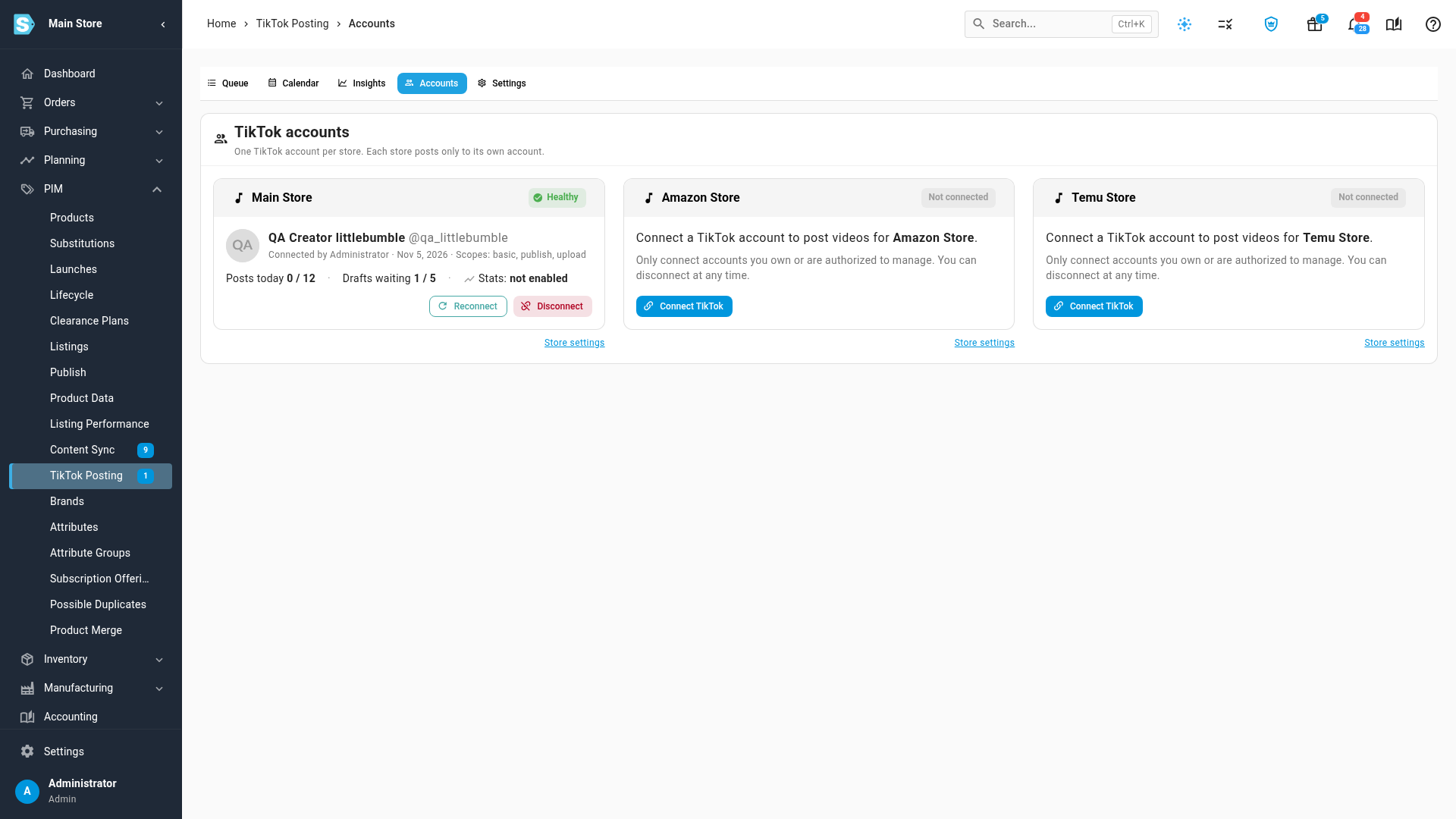
Go to PIM → TikTok Posting, and open the Accounts tab. Every store has its own card, and each store posts to its own TikTok profile.
-
On the store's card, click Connect TikTok. Sign in to TikTok, give permission, and you come back to this page. A connected card shows the account, its health and Posts today.
-
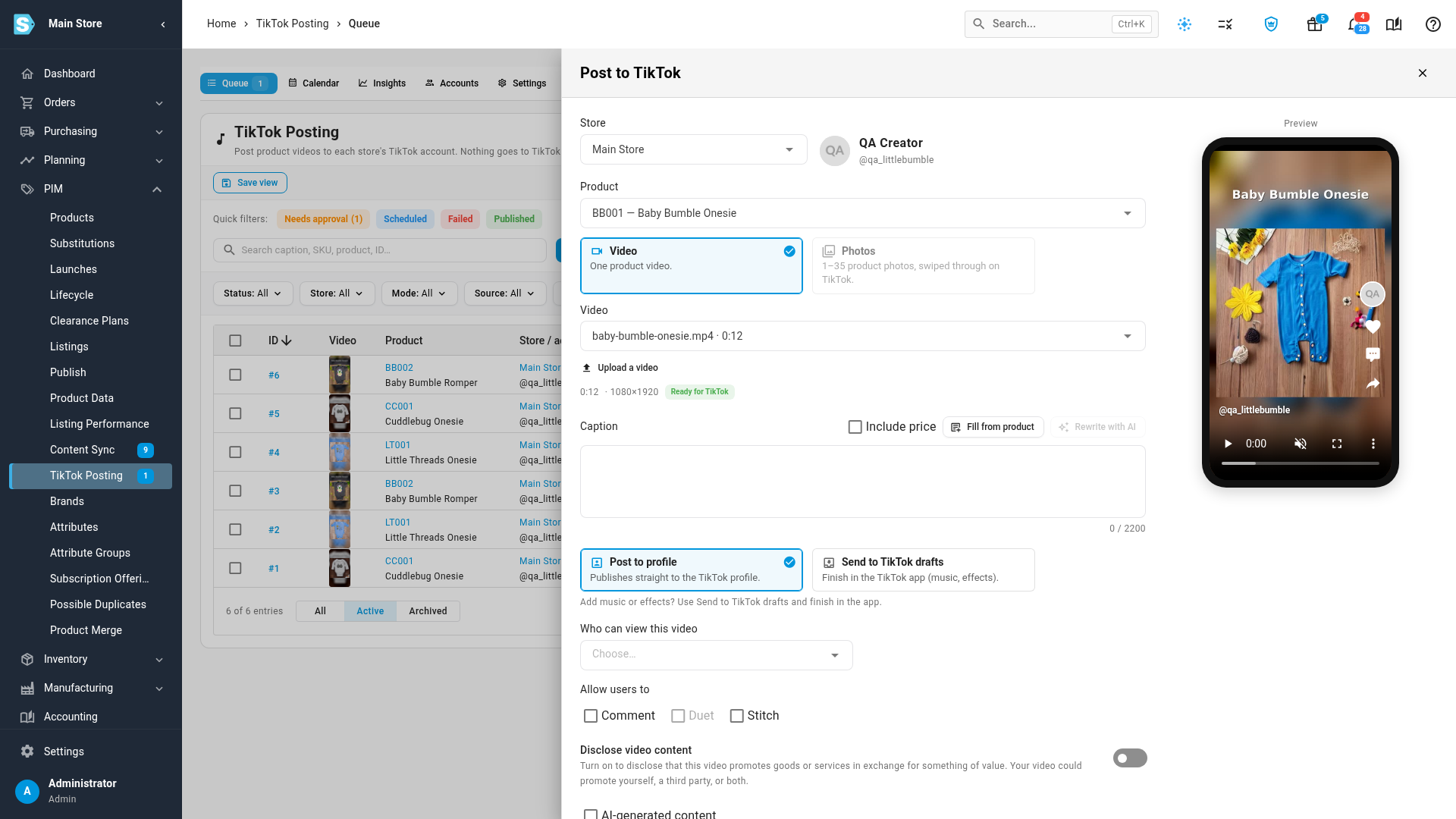
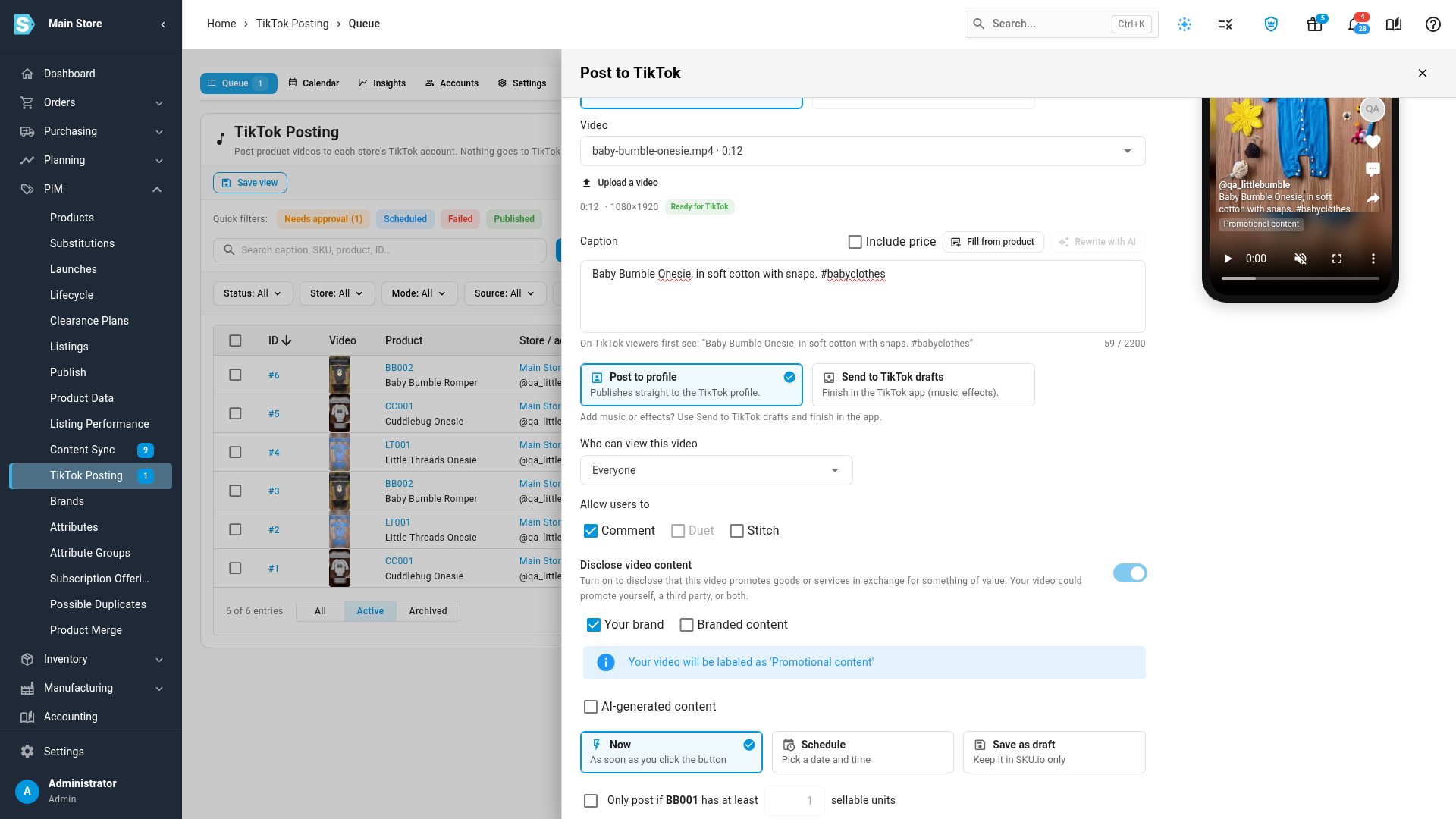
Open the Queue tab, and click New post. Check the store at the top of the form, then search for the product the video is about and choose it from the list.
-
Click Upload a video, and choose the file. SKU.io checks its length, size and frame rate, which takes a few seconds. When the video can be posted, it's marked Ready for TikTok.
-
Check which TikTok account receives the post, at the top of the form. The preview on the right shows how the video will look once it's live.
-
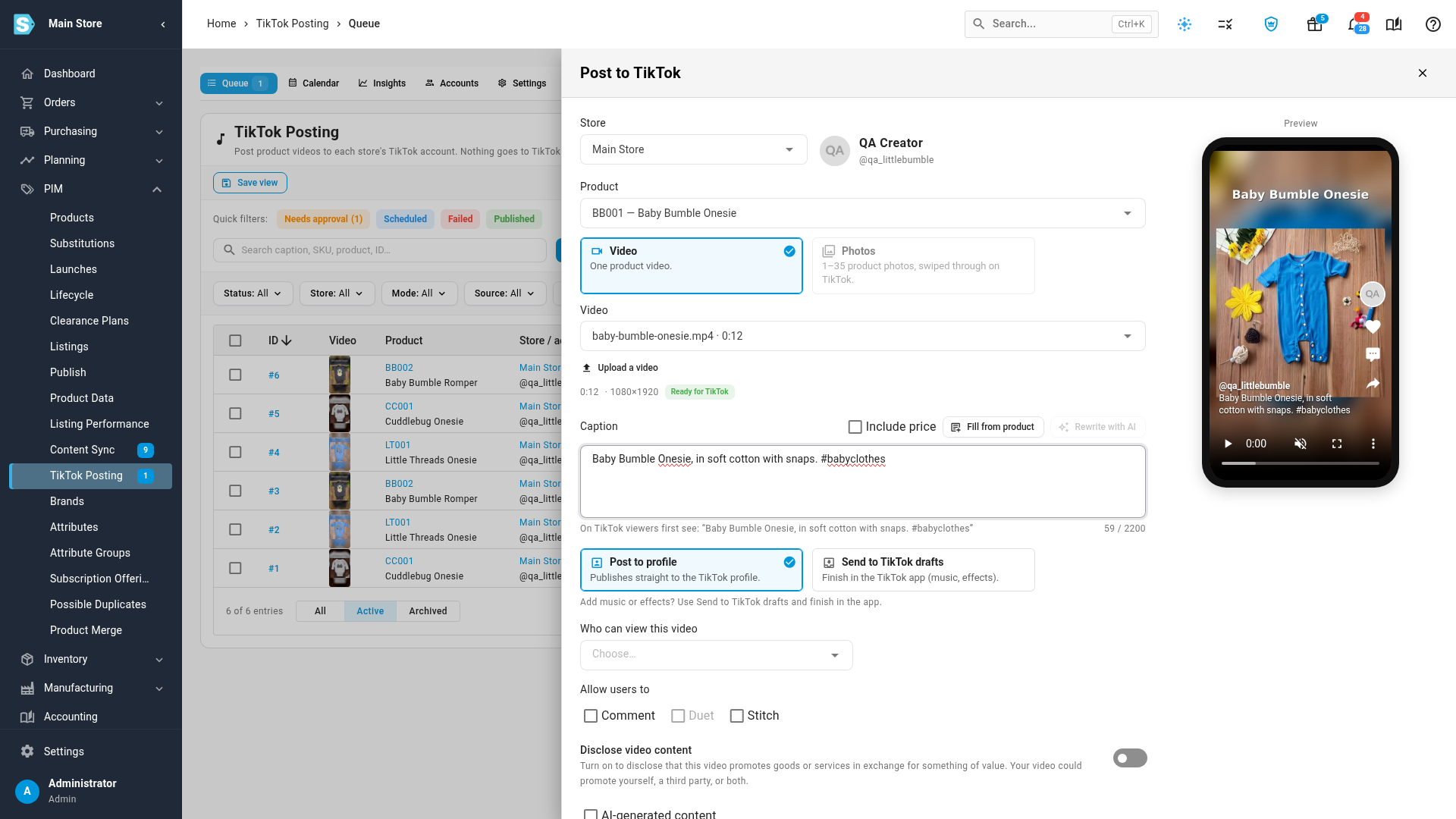
Click Fill from product to start the caption from the product's details, then edit the text any way you like. Add your hashtags here too, up to 2,200 characters in all.
-
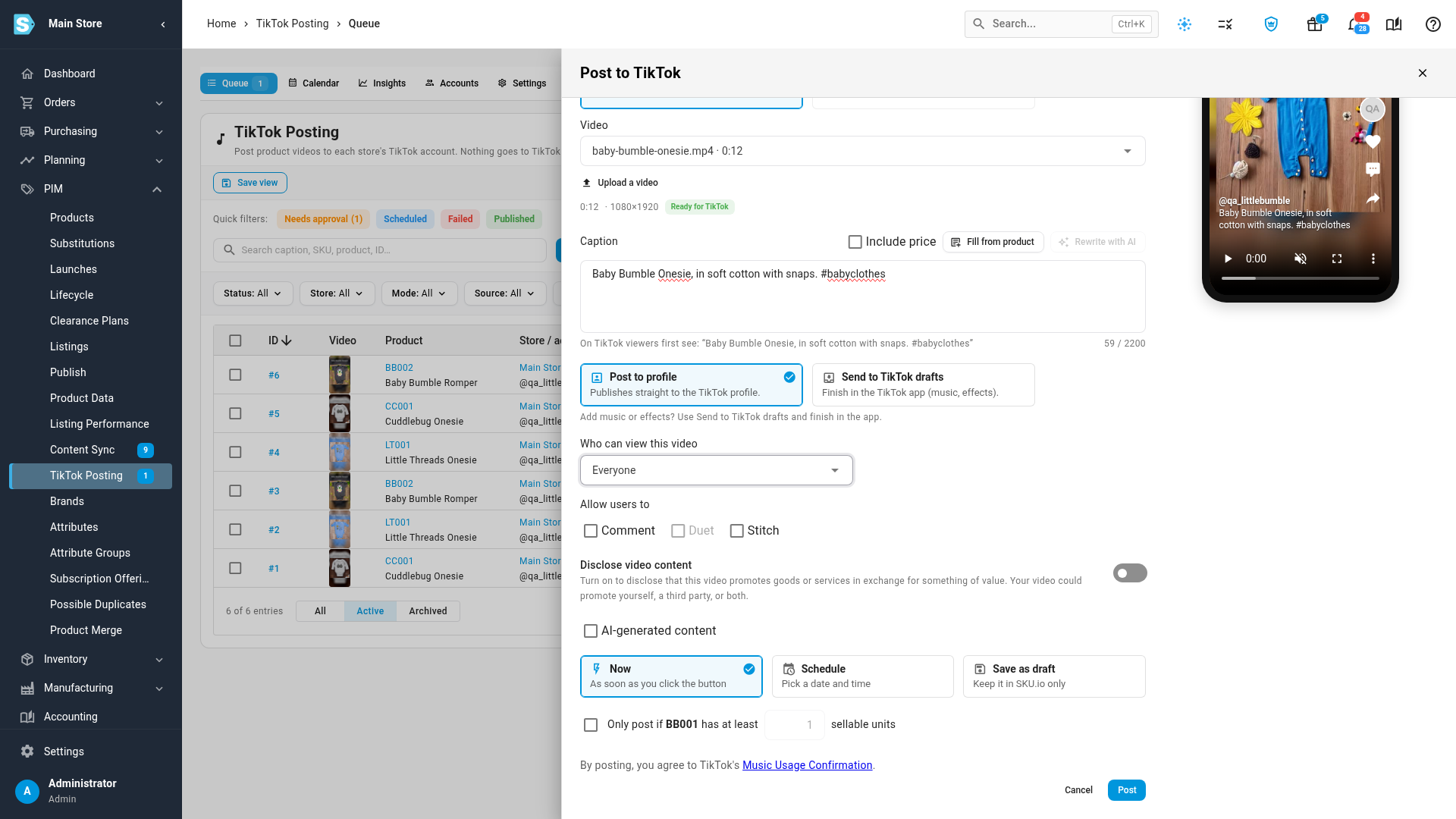
Choose where the video goes:
- Post to profile publishes it straight to the TikTok profile.
- Send to TikTok drafts puts it in the account's TikTok drafts, so you can add music or effects in the TikTok app and post it from there.
-
Open Who can view this video, and choose Everyone, Friends, Followers or Only me. TikTok lists only the options the account allows. There's no default: you choose it for every post.
-
Under Allow users to, tick what viewers can do, such as Comment. A dimmed box is switched off in the account's own TikTok settings.
-
If the video promotes your brand, turn on Disclose video content, and tick Your brand. TikTok then labels the video as promotional.
-
Leave When set to Now, read the agreement above the button, and click Post. SKU.io uploads the video and TikTok processes it, which can take a minute or two. You can close the panel: the post carries on in the queue. If you chose Send to TikTok drafts, the button reads Send to TikTok. If you can't approve posts yourself, it reads Submit for approval, and the post waits for someone who can.
-
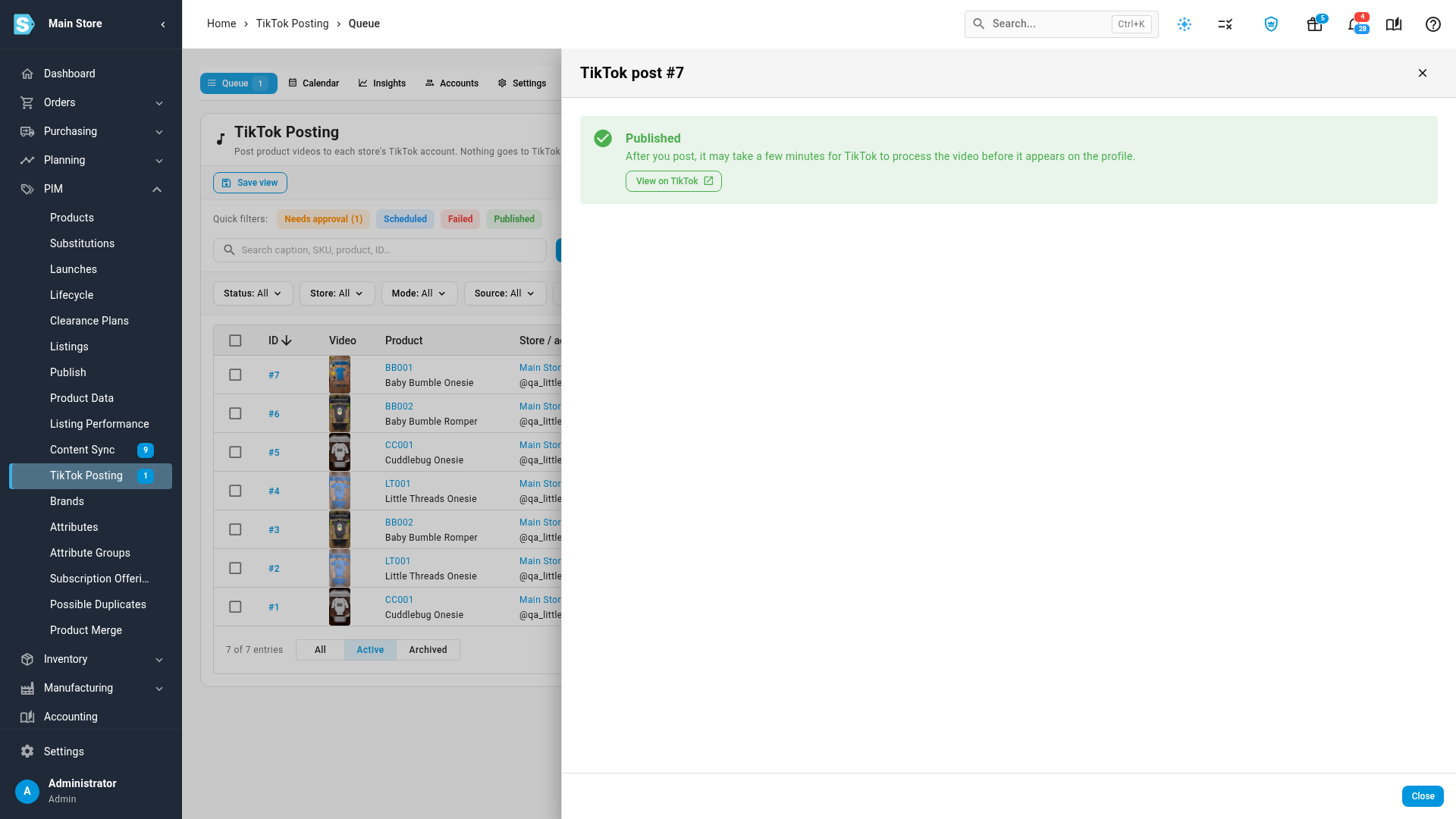
TikTok reviews each new video before it appears on the profile, usually in less than a minute. Once the video is live, the post shows Published, and View on TikTok opens it on TikTok.
If something goes wrong
- The video isn't marked Ready for TikTok. The message under the video says what TikTok won't accept, such as its length or frame rate. Export a new version of the clip and upload it again.
- A box under Allow users to is dimmed. That interaction is switched off in the account's TikTok settings. Change it in the TikTok app.
- You don't see the video on the profile. If you chose Send to TikTok drafts, open the TikTok app and post it from your drafts.
Next steps
Video transcript
To post product videos to TikTok, open PIM in the sidebar, and choose TikTok Posting. Then open the Accounts tab, which lists every store. Each one posts to its own TikTok profile.
To connect a store, click Connect TikTok on its card. You then sign in and give permission, and come back to this page. Once a store is connected, its card shows the account, its health, and today's posts.
Now open the Queue tab, which lists all your TikTok activity. Click New post to bring up the posting form. First, check the store at the top. Then search for the product the video is about. Type part of its name or code, and choose it from the list of matches.
Click Upload a video, and pick the video file. A vertical, nine by sixteen clip works best. SKU.io checks the file's length, size, and frame rate, which takes a few seconds. When all is well, the video is marked Ready for TikTok, and you can carry on with the post.
At the top, check which TikTok account receives the post. On the right, the preview shows how the video will look once it's live.
Click Fill from product to start the caption from the product's details. Then click in the text, and edit it any way you like. Add your hashtags here too, up to twenty two hundred characters in all.
Keep Post to profile to publish the video straight to the profile. To add music or effects in the TikTok app first, choose Send to TikTok drafts instead. Then open Who can view this video, and choose who can see the video. There is no default, so you always pick it yourself.
Under Allow users to, tick what viewers can do, such as Comment. A dimmed box is switched off in the account's own TikTok settings. If the video promotes your brand, turn on Disclose video content, and then tick Your brand. TikTok then marks it as promotional.
Leave When set to Now, and read the agreement above the button. When you are ready, click Post to send it off. SKU.io uploads the video, and TikTok processes it, which can take a minute or two. You can close this panel at any time, and the post carries on in the queue.
TikTok reviews each new video before it appears on the profile. This usually takes less than a minute. Meanwhile, you can keep working, and come back to the post later.
Once the video is live, the panel shows Published. The View on TikTok button links straight to the post.