Set up a standing order for a wholesale customer
A standing order is a customer's regular order, saved once: the same products, shipped to the same place, on a fixed rhythm such as every Tuesday and Friday, every two weeks on Monday, or the 1st of every month. SKU.io creates each dated sales order a set number of days before its delivery, prices it at the customer's prices on that day, checks stock and tells the customer's sales rep. You stop re-keying the same order every week, and nothing is forgotten.
Before you begin
- Your role needs the Standing Orders permissions. Roles that can create sales orders get them automatically.
- The customer exists, with a default shipping address. Each order ships there unless you choose another of the customer's addresses.
- The products have a price for the customer, through the customer's pricing tier or customer prices. A product with no price is ordered at 0 and the order is held for review.
Find your standing orders
Go to Orders → Standing Orders. The strip at the top adds up the deliveries due in the next 7 days and their value. Each row shows the customer, the schedule, the Next order with the day it gets created, the estimated value at today's prices, the status and the sales rep.
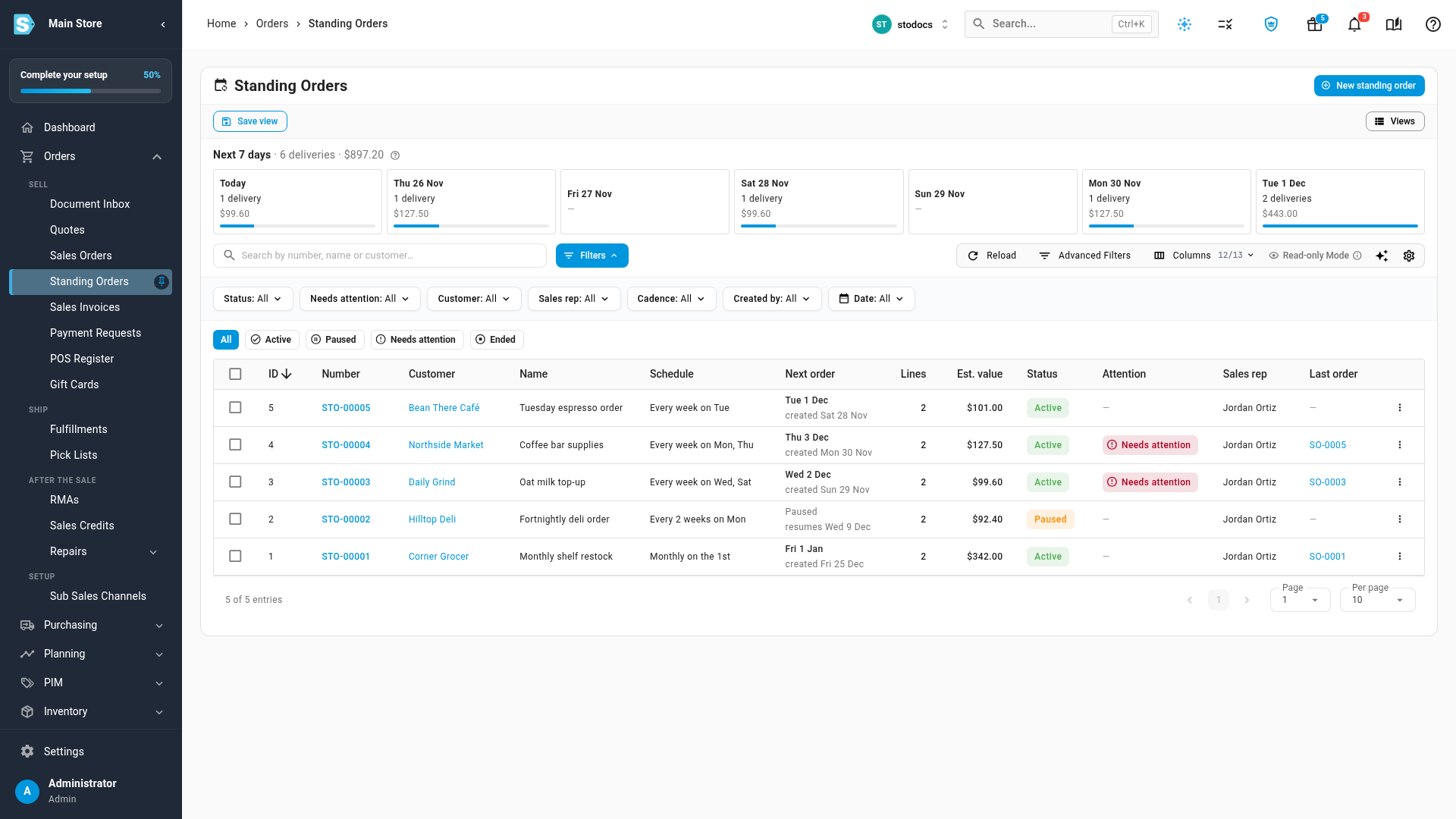
Use the chips above the table to show only Active, Paused, Needs attention or Ended standing orders. A customer's standing orders are also listed under Standing orders on the customer's page, which has its own New standing order button.
Steps
-
Go to Orders → Standing Orders and click New standing order.
-
Under Customer, search for the customer and pick it. Name is optional. Leave it blank and the standing order is named after its schedule, such as "Every week on Tue, Fri".
-
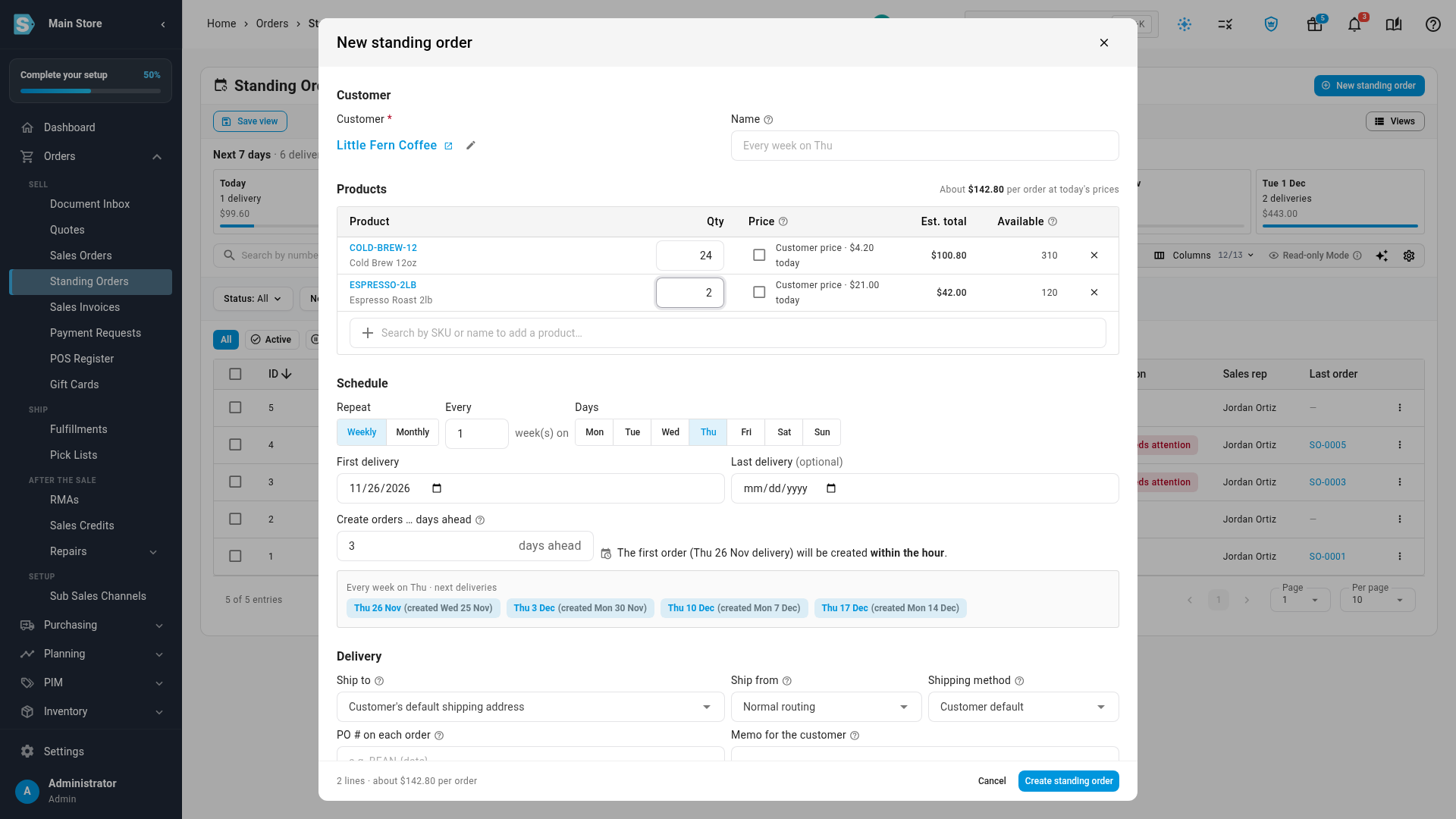
Under Products, search by SKU or name and click each product the customer orders.
-
Type each line's Qty. The Price column shows the customer's price today, the Est. total and how many are available now.
-
To charge a contracted price on every order instead of the customer's current price, tick the box in that line's Price cell and enter the fixed price.
-
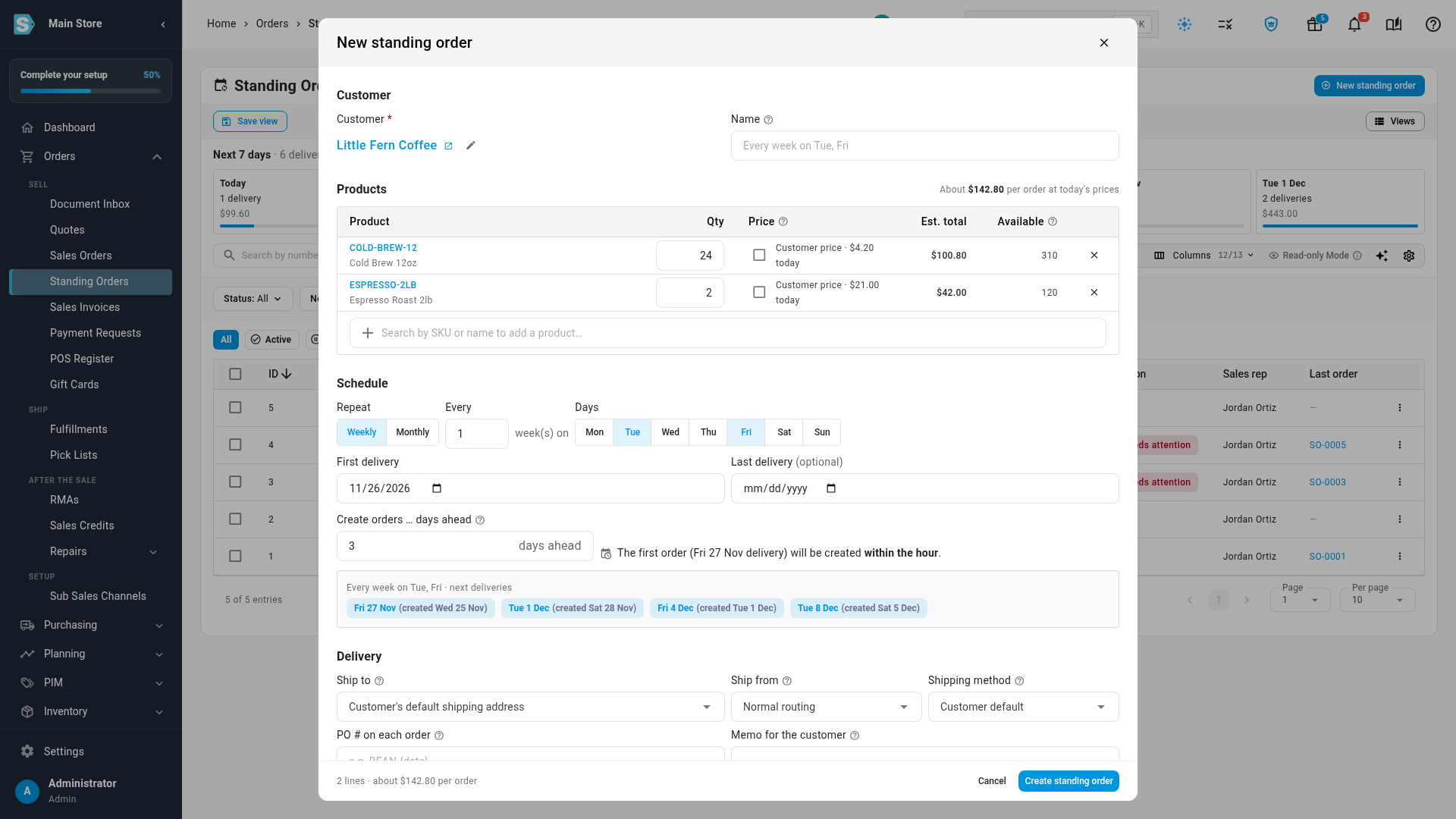
Under Schedule, choose Weekly or Monthly:
- Weekly: set Every to the number of weeks, then click each delivery day under Days.
- Monthly: set Every to the number of months, then choose the day of the month, or Last day. Days 29 to 31 move to the month's last day in shorter months.
-
Set First delivery, and Last delivery if the arrangement has an end date.
-
In Create orders … days ahead, enter how many days before each delivery its order is created. The default is 3. The preview under it lists the next deliveries and the day each order is created.
-
Under Delivery, check Ship to, Ship from and Shipping method. They start at the customer's defaults and normal routing. In PO # on each order you can type a pattern such as
BEAN-{date}, where{date}becomes each delivery date. -
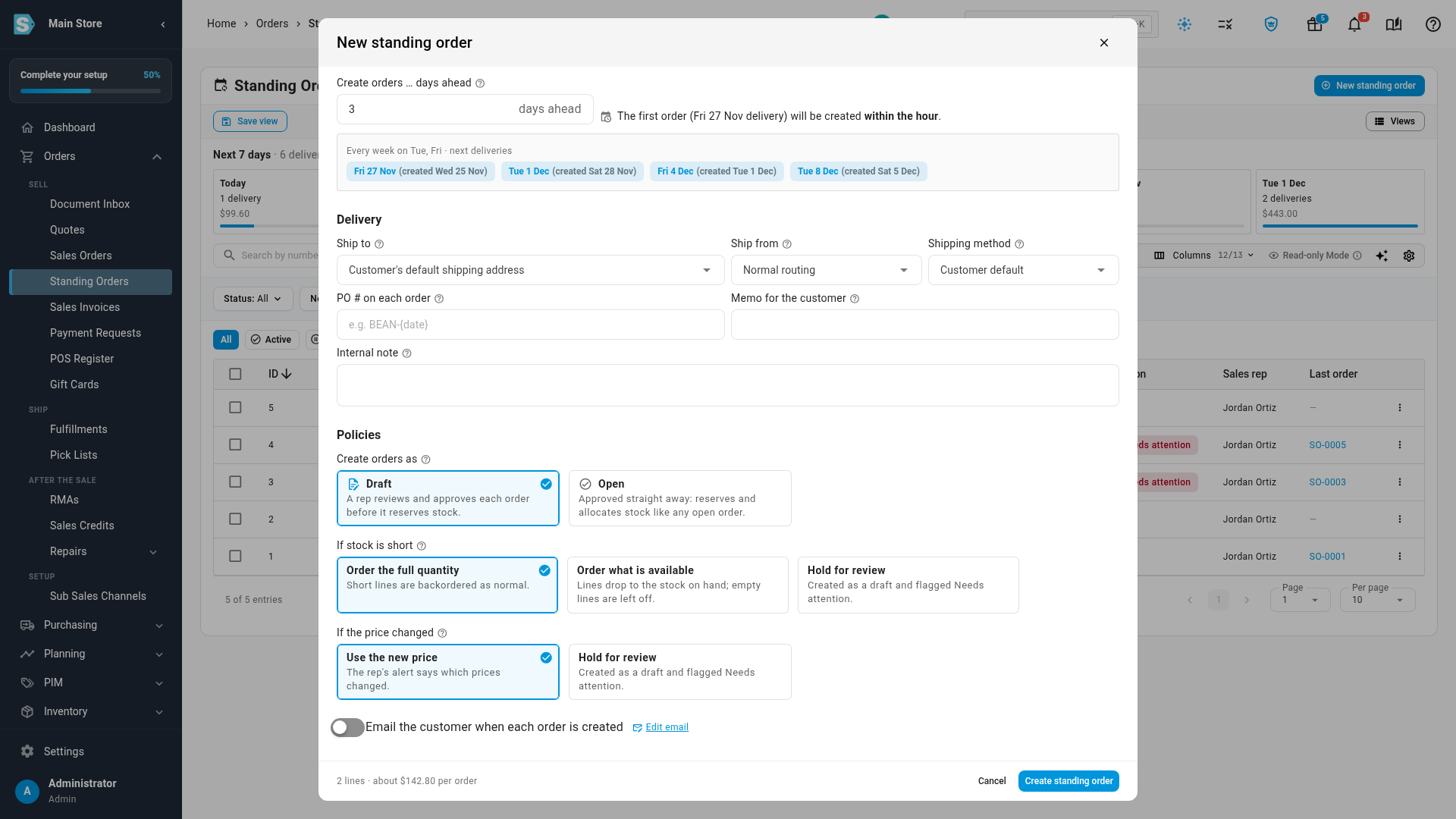
Under Policies, choose what happens on each order:
- Create orders as: Draft waits for a rep to approve each order before it reserves stock. Open approves it straight away, so it reserves and allocates stock like any open order.
- If stock is short: Order the full quantity backorders short lines as normal. Order what is available cuts lines to the stock on hand and leaves empty lines off. Hold for review creates the order as a draft and flags it Needs attention.
- If the price changed: Use the new price goes ahead, and the rep's alert lists the changed prices. Hold for review creates the order as a draft and flags it Needs attention.
-
To email the customer each time an order is created, turn on Email the customer when each order is created. Edit email opens the email's template.
-
Click Create standing order. The new standing order opens.
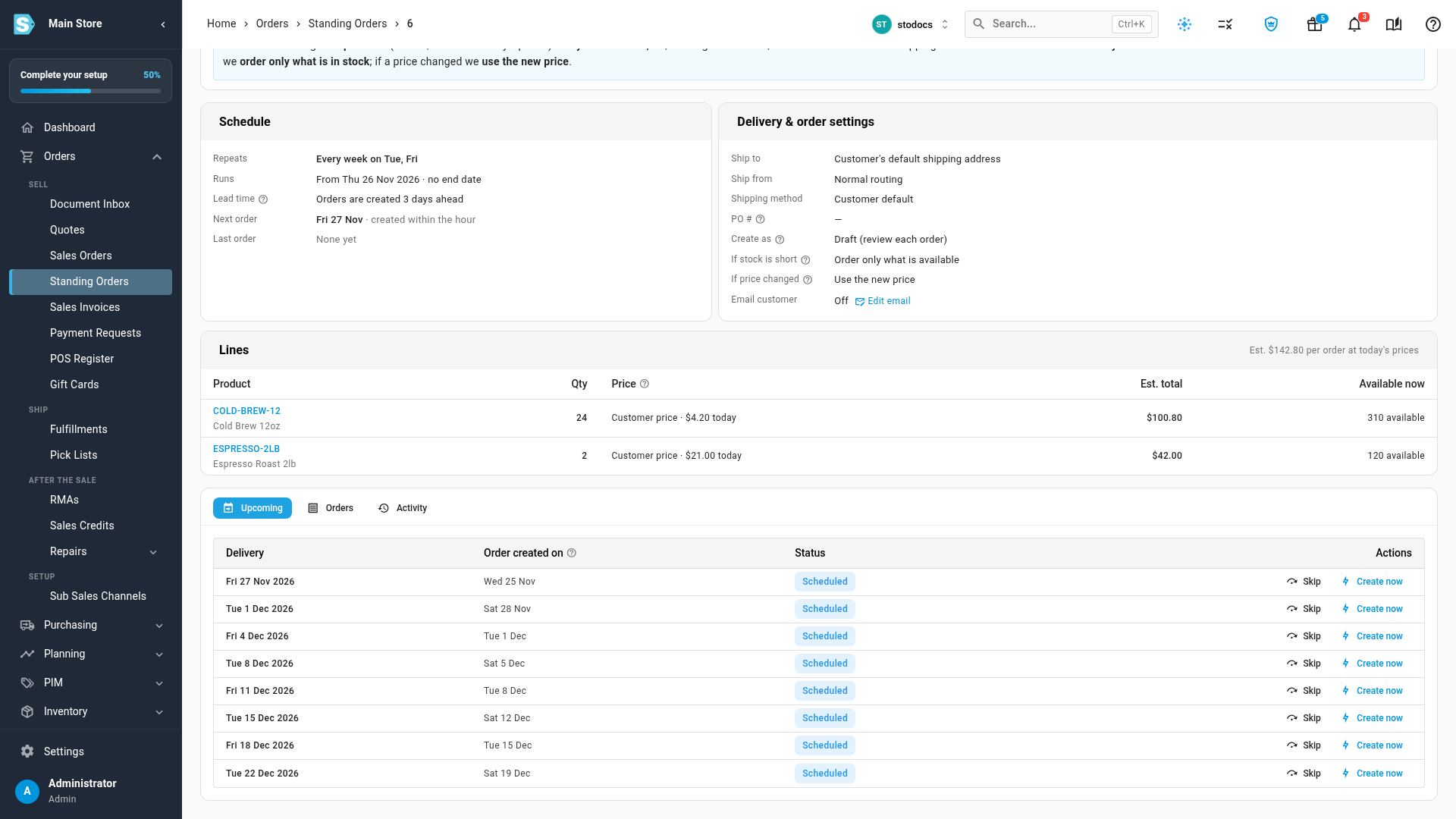
The page starts with a plain summary of what the standing order does. Lines shows each product's price source and today's price, and the stock available now in amber when it's short. The Upcoming tab lists the next deliveries, the day each order is created and its status.
Start from an existing sales order
When a customer's last order is the one they want every week, start from it.
- Open the sales order.
- Click More, then Make standing order.
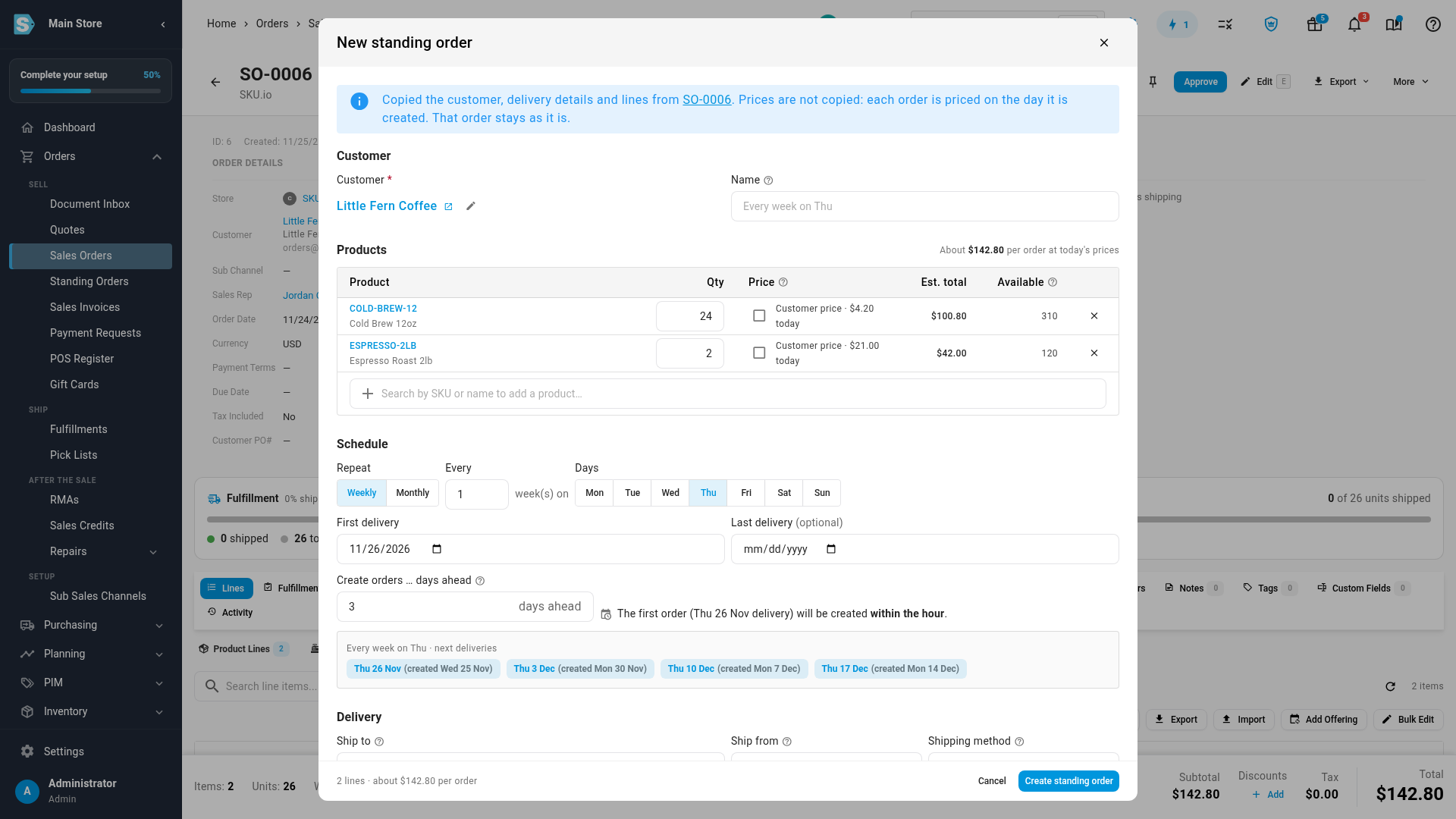
- The New standing order window opens with the customer, delivery details and lines copied from the order. Prices aren't copied: each order is priced on the day it's created. The sales order itself stays as it is.
- Set the schedule and policies, then click Create standing order.
What happens each time an order is created
SKU.io checks every hour for standing orders whose next order is due. For each delivery date that has reached its creation day, it:
- Prices each line at the customer's price that day, unless the line has a fixed price.
- Checks the stock available in the ship-from warehouse and applies If stock is short.
- Compares each price with the last order's price and applies If the price changed.
- Creates a sales order with the delivery date as its deliver-by date, tagged
standing-order. The order links back to its standing order, and it lists anything that happened on the way, such as a short line or a new price. - Tells the customer's sales rep. When one run creates more than 5 orders for the same rep, they arrive as one list.
Each delivery date gets one order, never two. If an order already created for a date is cancelled, that date isn't created again, so cancelling an order is also a way to skip it.
A change you make to a standing order applies only to deliveries whose order isn't created yet. Orders already created are ordinary sales orders: edit them on their own page. Every change is kept in the standing order's Activity tab.
Skip, pause or end
-
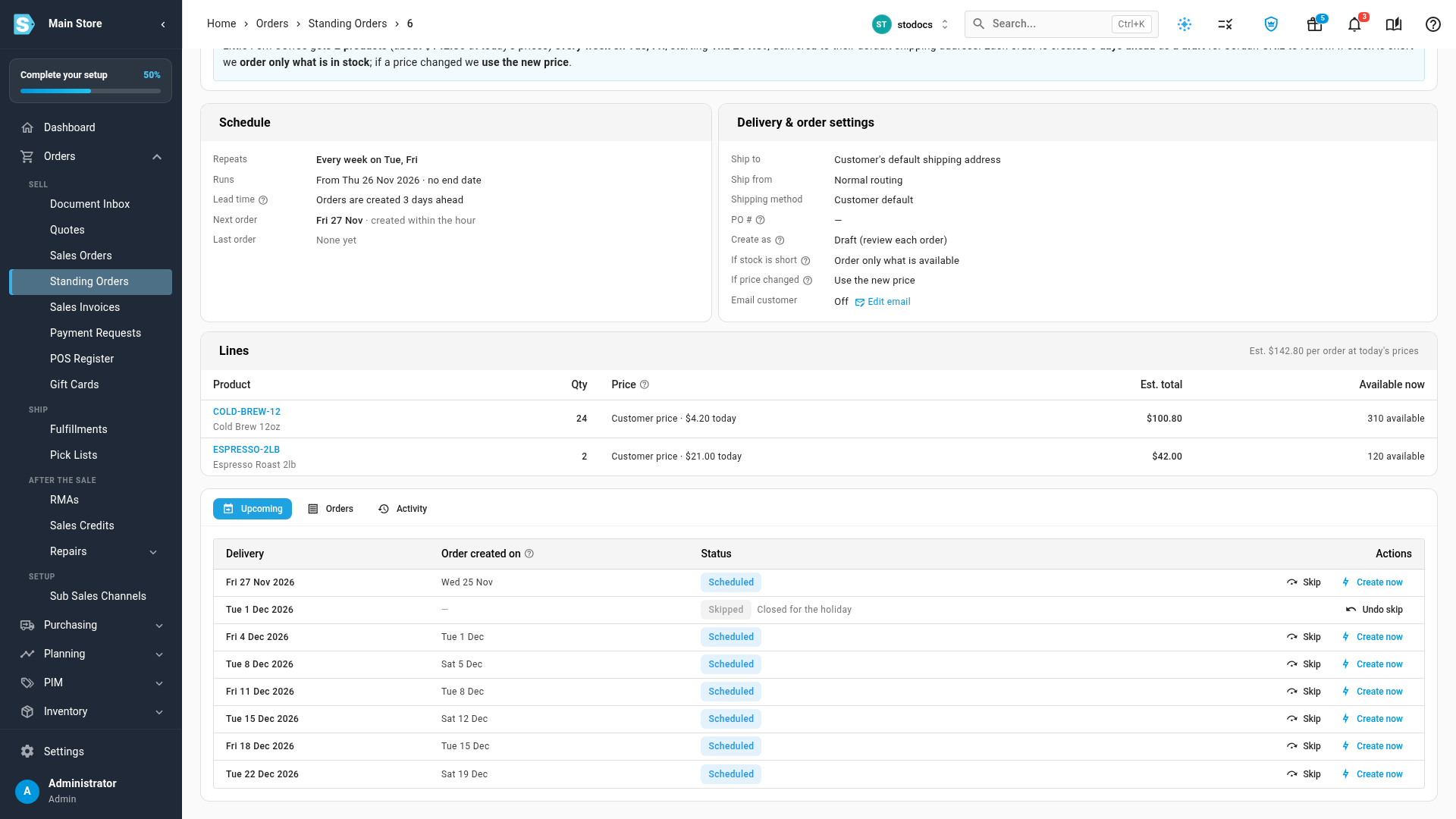
Skip one delivery: on the Upcoming tab, click Skip on that date's row, add a reason if you like, then click Skip date. No order is created for that date. Undo skip brings it back until the date passes. Skip next at the top skips the next delivery.
-
Create an order early: click Create next now at the top, or Create now on a date's row. The order is created right away at today's prices.
-
Pause: click Pause, choose Pause from and, optionally, Resume on. No orders are created for deliveries inside the pause. The standing order resumes by itself on the resume date, or when you click Resume.
-
End: click the ⋯ button, then End standing order. No more orders are created, and orders already created stay as they are. Delete appears in the same menu only while the standing order has never created an order.
Fix orders that need attention
A standing order shows Needs attention when one of its delivery dates needs someone:
| On the Orders tab | What happened |
|---|---|
| Held for review | The order was created as a draft for review: stock was short or a price changed (with the policy set to hold), the customer is on credit hold, a product had no price, or the total is below the customer's minimum order. |
| Failed | No order could be created, for example because none of its products can be ordered right now. |
| Missed | The date passed without an order. SKU.io doesn't create late orders by itself. |
To work through them:
- On the Standing Orders list, click the Needs attention chip.
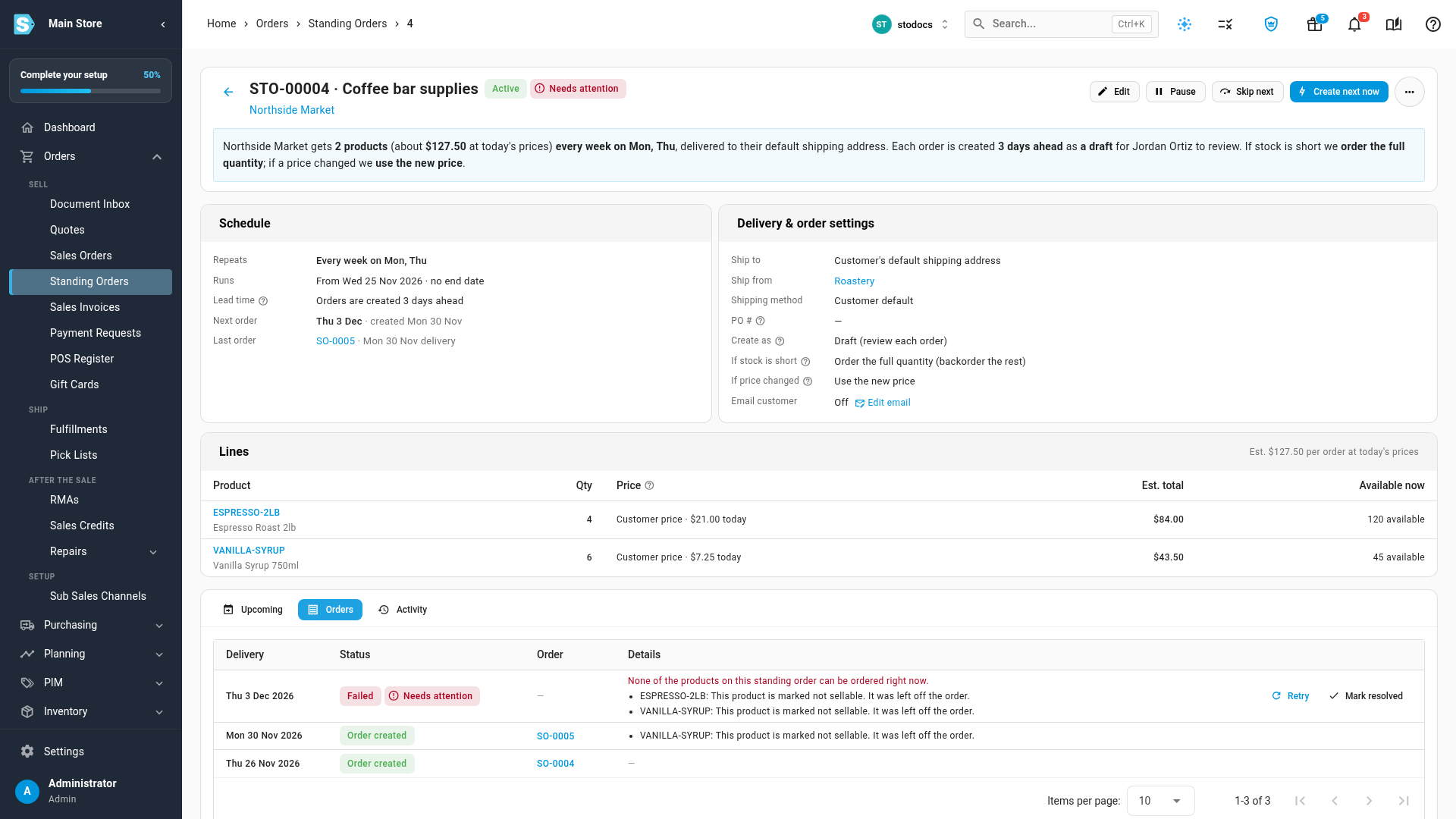
- Open the standing order and click the Orders tab. Each date shows its status and a plain explanation of what went wrong.
- Fix the cause, such as making the product sellable again or adding stock, then click Retry (or Create now on a missed date) and confirm. The order is created at today's prices.
- If no order is needed for that date, click Mark resolved instead.
A held order is an ordinary draft sales order: open it from the Order column, review it and approve it as usual.
The customer's sales rep gets an alert when an order is created and when a date needs attention. To add other people, subscribe them to the Standing Order: Order Created and Standing Order Needs Attention alerts.
Let buyers set up their own standing orders
If your customers order through your B2B portal, their buyers can set up and manage standing orders themselves.
- Go to CRM → Customers, click the Portal tab, then Portal settings.
- Under Standing orders, turn on Let buyers set up standing orders.
- In Create orders … days ahead, set the lead time for buyer-created standing orders. It's also the buyer's cutoff: changes after an order is created apply to the following delivery.
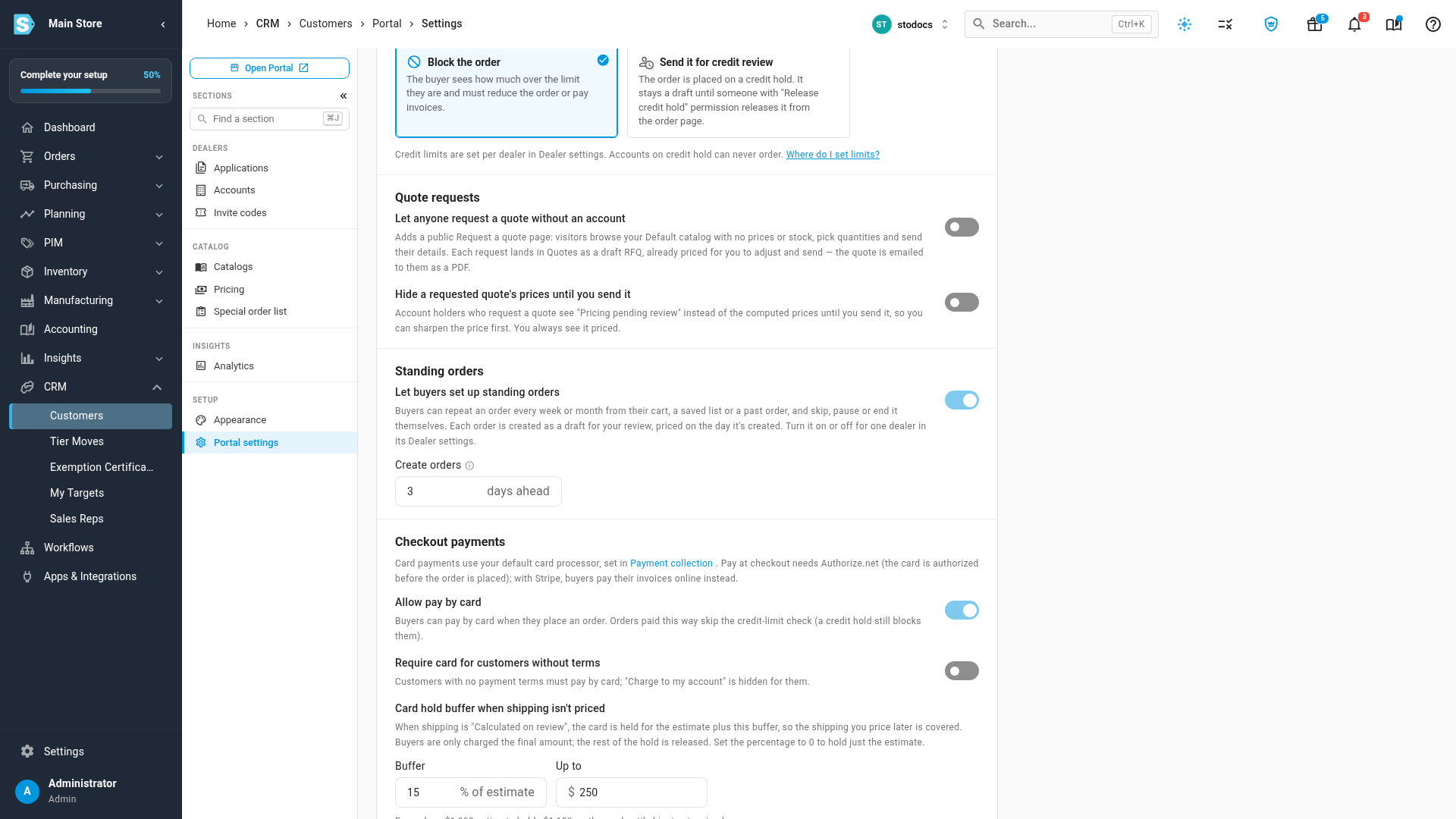
To turn it on or off for a single account, use the Dealer settings on that account.
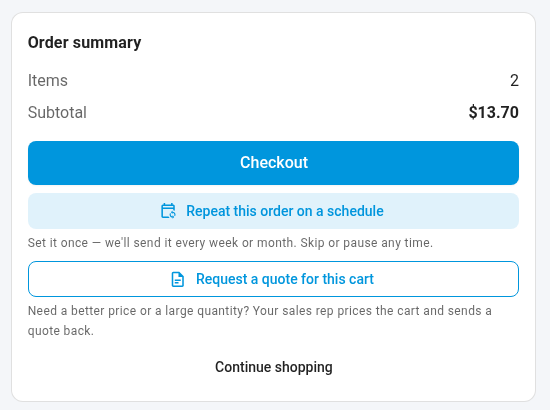
Buyers then see Standing orders in the portal menu. They can start one from their cart with Repeat this order on a schedule, or from a saved list or a past order with Repeat on a schedule. They choose the products, quantities, schedule and ship-to address. You set the lead time and the policies.
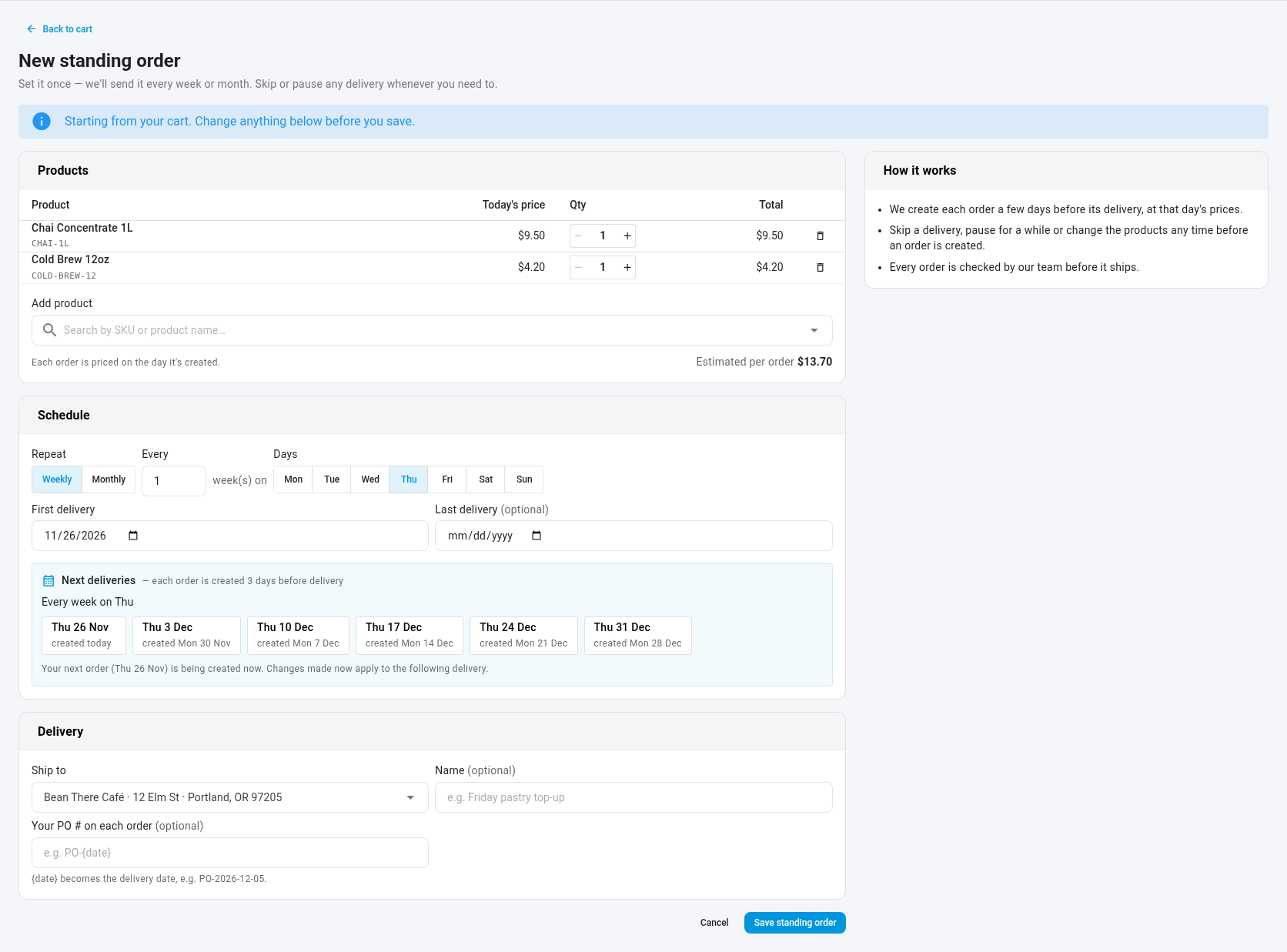
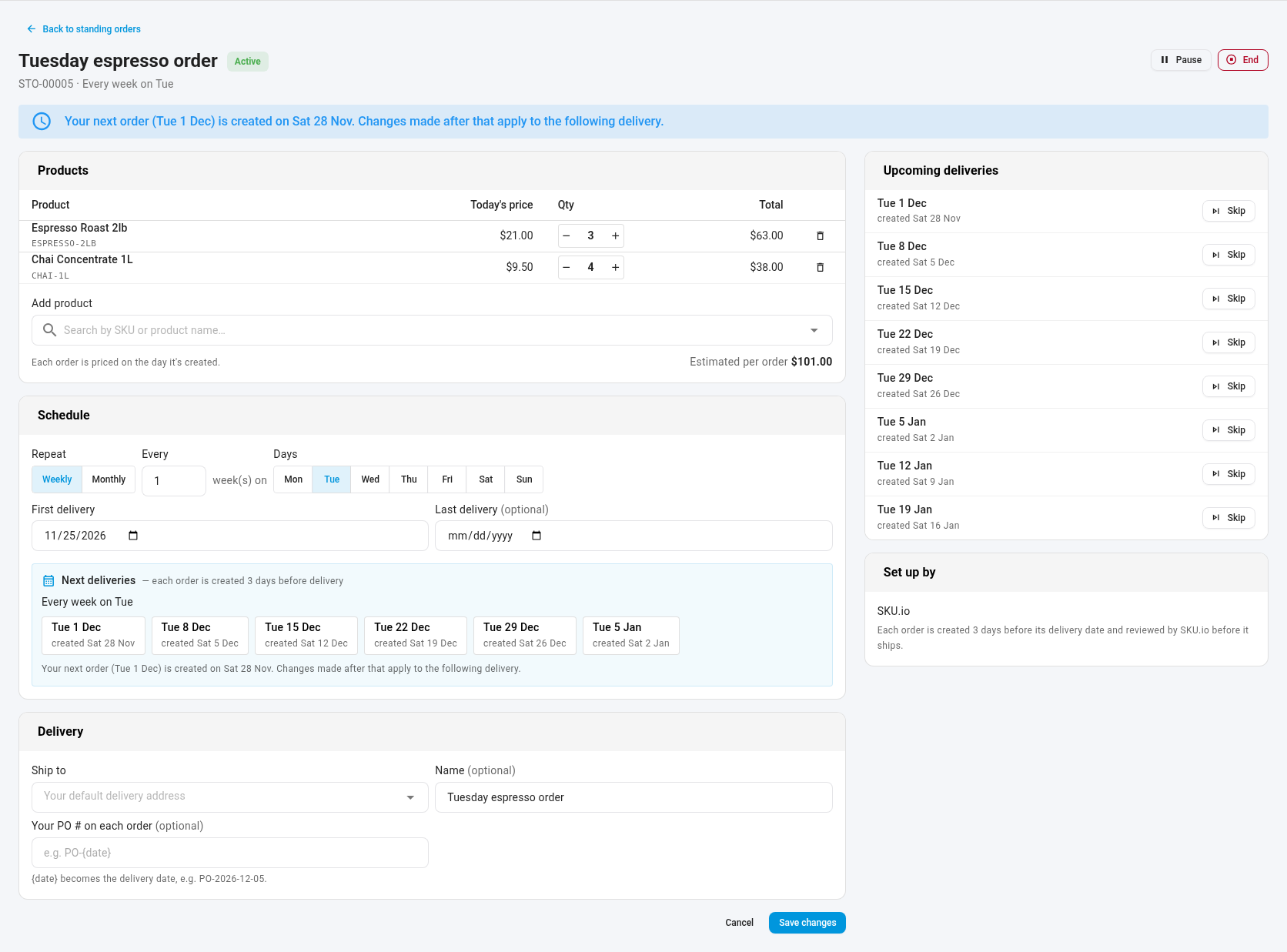
On an existing standing order, buyers can change the products, quantities, schedule and address, skip or un-skip a delivery, pause, resume or end it. A banner shows their cutoff, such as "Your next order (Tue 1 Dec) is created on Sat 28 Nov. Changes made after that apply to the following delivery."
What stays under your control:
- Orders from a buyer's standing order are always created as drafts, so your team reviews each one, as with portal checkout.
- Buyers see only products their catalog allows, and the account's minimum order value applies.
- If your approval rules say an order of that size needs approval in the buyer's company, the buyer can't save it. An approver or company admin on the account must set it up.
- Every change a buyer makes notifies the sales rep and appears in the standing order's Activity tab.
Next steps
Video transcript
A standing order sends a wholesale customer the same order on a fixed schedule. To see yours, open the Orders menu in the sidebar, then click Standing Orders. The strip at the top adds up the deliveries due in the next seven days. Each row shows the schedule, the next order, and the day it gets created. To set one up, click New standing order at the top of the page. The New standing order window opens. Start with the customer. Type part of the customer's name, then pick it from the list. Next, add the products this customer orders. Search by SKU or name, then click the product to add it. Add each of the other products the same way. Each line shows the customer's price today, and the stock available now. Now type the quantity on each line. Each order is priced again on the day it's created, so price changes flow through. To lock a contract price instead, tick the box and enter a fixed price. Next, set the schedule. Choose Weekly or Monthly, how often it repeats, and the delivery days. This café gets deliveries twice a week, so turn on those two days. The days ahead setting is the lead time. Orders are created that many days before each delivery date. The preview lists the next deliveries, and the day each order is created. Under Delivery, choose where orders ship to and ship from. Then set the policies. Draft orders wait for a rep to approve them. When stock is short, choose to order everything, order only what's in stock, or hold it. If a price changed, use the new price or hold the order for review. When it's all set, click Create standing order at the bottom to save it. The new standing order opens with a plain summary of what it does. Lines show today's price and the stock available now. The Upcoming tab lists the next deliveries and when each order is created. To skip one delivery, click Skip on its row. Add a reason if you like, such as a holiday closure, then click Skip date. No order is created for that date. If plans change again, Undo skip brings the delivery back. The buttons at the top act on the whole standing order. Pause stops orders between two dates. It starts on a date you pick, and can resume by itself later. Skip next skips just the next delivery. Create next now creates the next order straight away. To stop for good, click the three dots, and choose End standing order. When an order can't be created as planned, the standing order shows Needs attention. On the Standing Orders list, click the Needs attention chip. Now the list shows only the standing orders that need a look. Open the first one in the list. When it loads, click the Orders tab. Each date explains what happened. Here, none of its products could be ordered when the order was due. If no order is needed for that date, click Mark resolved to clear the flag. Otherwise, fix the cause first, then click Retry and confirm. The order is created at today's prices, and the date is cleared. You can also start from an existing sales order. Open Orders, then Sales Orders, and open the order you want to repeat. On the sales order, click More. Then choose Make standing order from the menu. The New standing order window opens, already filled in. The customer, delivery details and lines are copied from the sales order. Prices aren't copied, because each order is priced on the day it's created. Then set the schedule, and save the new standing order. Buyers can also set up standing orders in your B2B portal. In the portal settings, under Standing orders, turn on Let buyers set up standing orders. Buyers then repeat their shopping cart, a saved list, or an earlier order on a schedule. Their orders arrive as drafts for your review.