Review who has accessed your account
When outside staff such as an agency or a 3PL work in your account, you want to know who was let in, by whom, and when they were last there. The Access log records it for your account only. Each account's admins see their own log, and nothing about the other accounts a person belongs to.
Before you begin
- You need to be an Admin of this account, or have the users permission to view users.
Open the access log
- Go to Settings → Users & Permissions.
- Open the Access log tab.
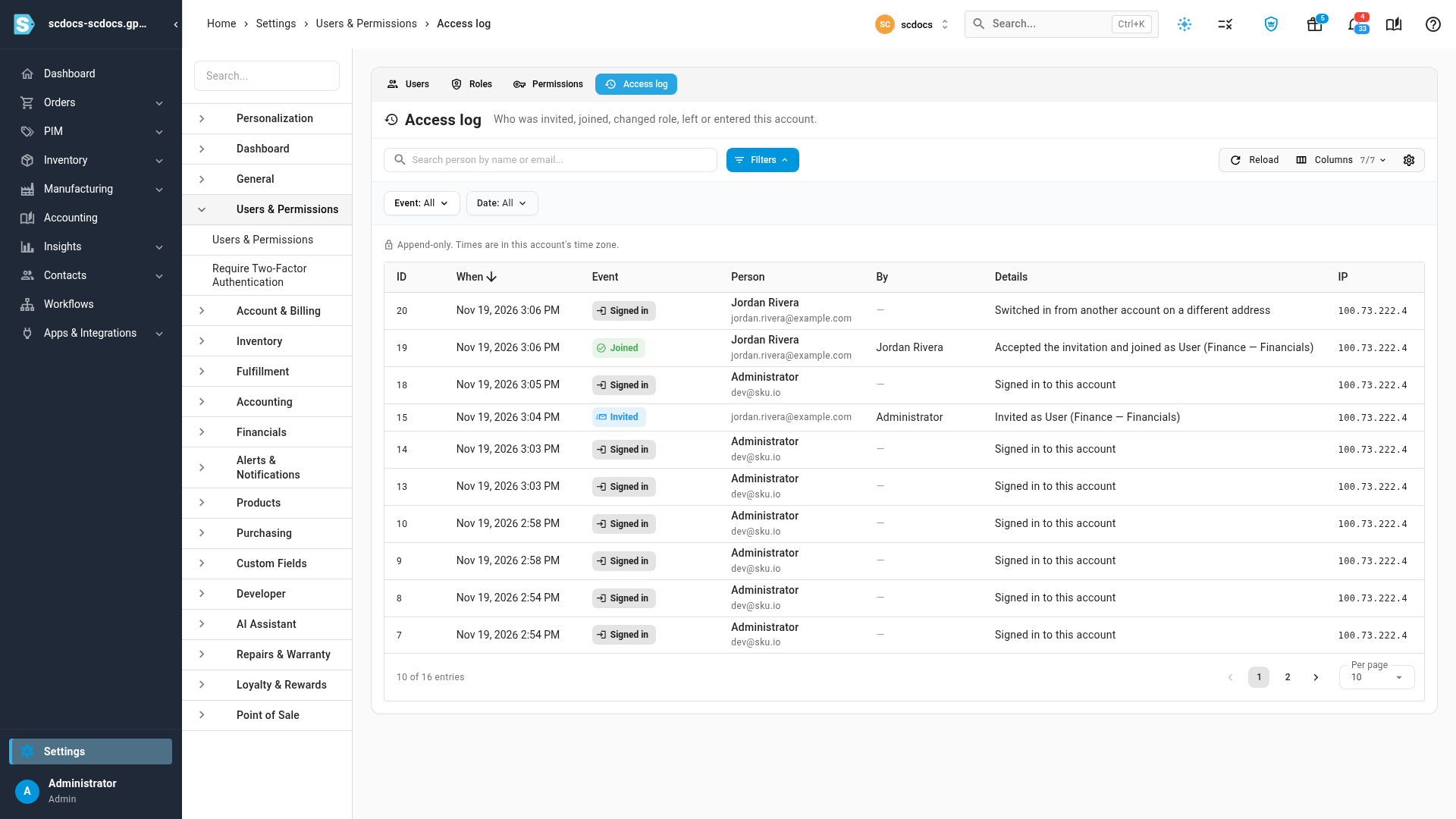
Each row shows When (in your account's time zone), the Event, the Person, By (who did it, when it was someone else), Details in plain words, and the IP address. The newest events are first. The log is append-only: nobody can edit or delete its rows.
To narrow it down:
- Search for a person by name or email.
- Click Filters, then pick an Event or a Date range.
What's recorded
| Event | When it's recorded | Example details |
|---|---|---|
| Invited | Someone is invited to the account. | Invited as User (Finance — Financials) |
| Invitation resent | An invitation is sent again. | |
| Invitation withdrawn | An admin withdraws an invitation. | |
| Invitation cancelled | An invitation is cancelled because the person changed their email address. | |
| Joined | The person accepts and joins. | Accepted the invitation and joined as User (Finance — Financials) |
| Declined | The person declines. | |
| Role changed | Their admin access or roles change. | What changed, from and to. |
| Removed | An admin removes them. | Who removed them, and any API tokens revoked. |
| Reactivated | A removed person is restored. | |
| Left | The person leaves the account themselves. | |
| Signed in | The person opens the account, by signing in or from the account switcher. | Signed in to this account, or Switched in from another account on a different address |
See one person's history
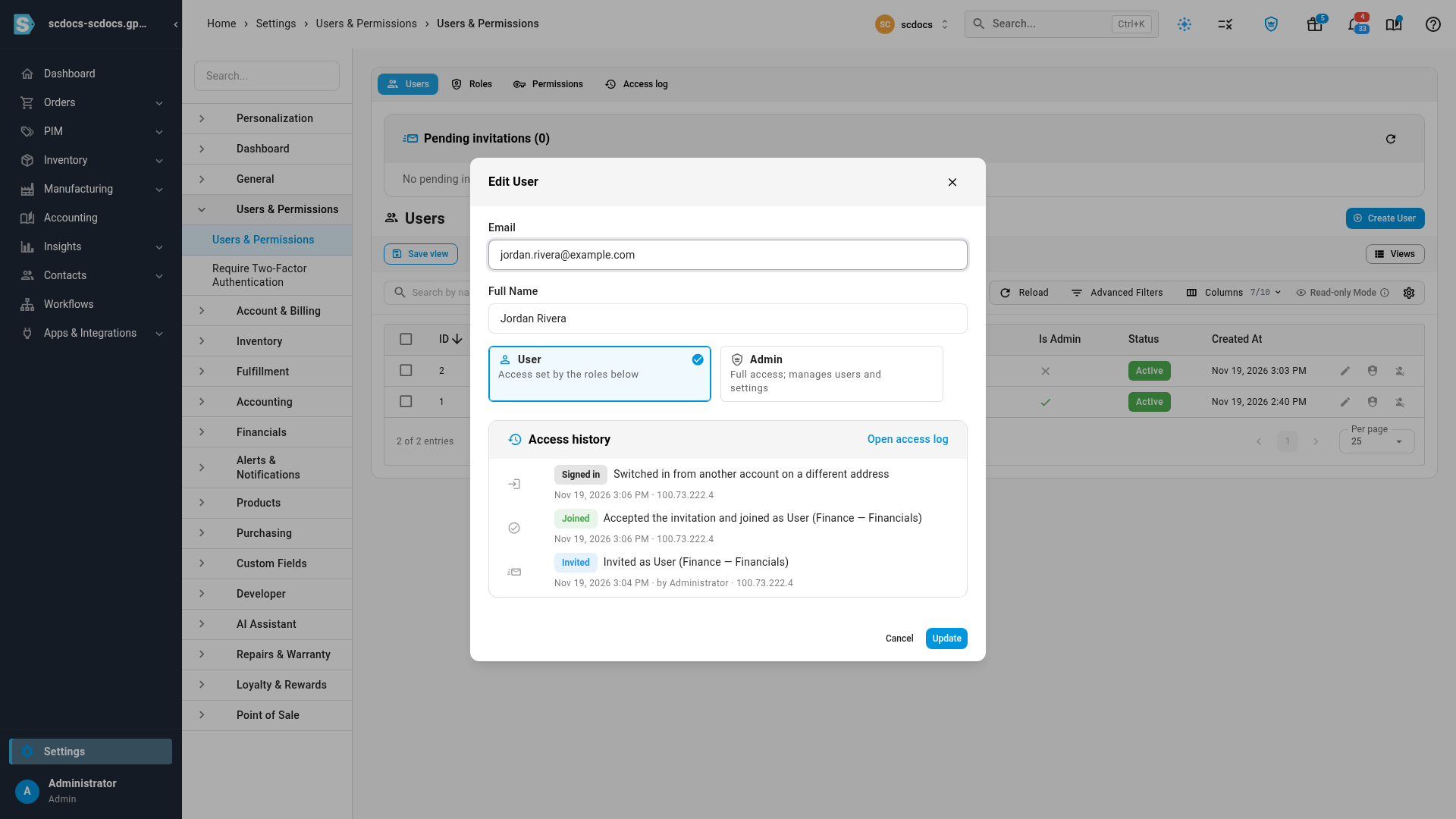
- On the Users tab, click the pencil icon next to the person.
- Read Access history, which lists their latest events.
- Click Open access log to see all of them in the log, filtered to that person.
Next steps
Video transcript
When outside staff work in your account, you want to know who was let in, by whom, and when, so start in Settings, under Users and Permissions, on the Access log tab. It records every invitation, join, role change, removal and sign-in for this account only. Each row says what happened, to whom, who did it, and when, in plain words. Here, one person was invited, accepted and joined, then signed in. For one person's history, go back to the Users tab, where everyone in this account is listed. Click the pencil beside them to edit them. Access history lists their latest events, with a link to the full log.