Switch between your SKU.io accounts
If you work for several brands, for example at an agency or a 3PL, each brand's SKU.io account can invite you. You sign in once, and the account switcher at the top of the page takes you between them. Your role is set separately in each account, so being an admin in one gives you nothing extra in another.
Before you begin
- Another account has to invite you. See Invite someone who already uses SKU.io.
Switch accounts
- Click the account name at the top of the page.
- Under Switch account, click the account you want. The ones you used most recently are at the top.
If an account requires two-factor authentication and you haven't set it up, you're asked to set it up when you open that account.
Accept or decline an invitation
When you have an invitation, a number appears on the account name.
- Click the account name at the top of the page.
- Under Invitations, read who invited you, the role and when the invitation expires.
- Click Accept to join. The account opens. Or click Decline.
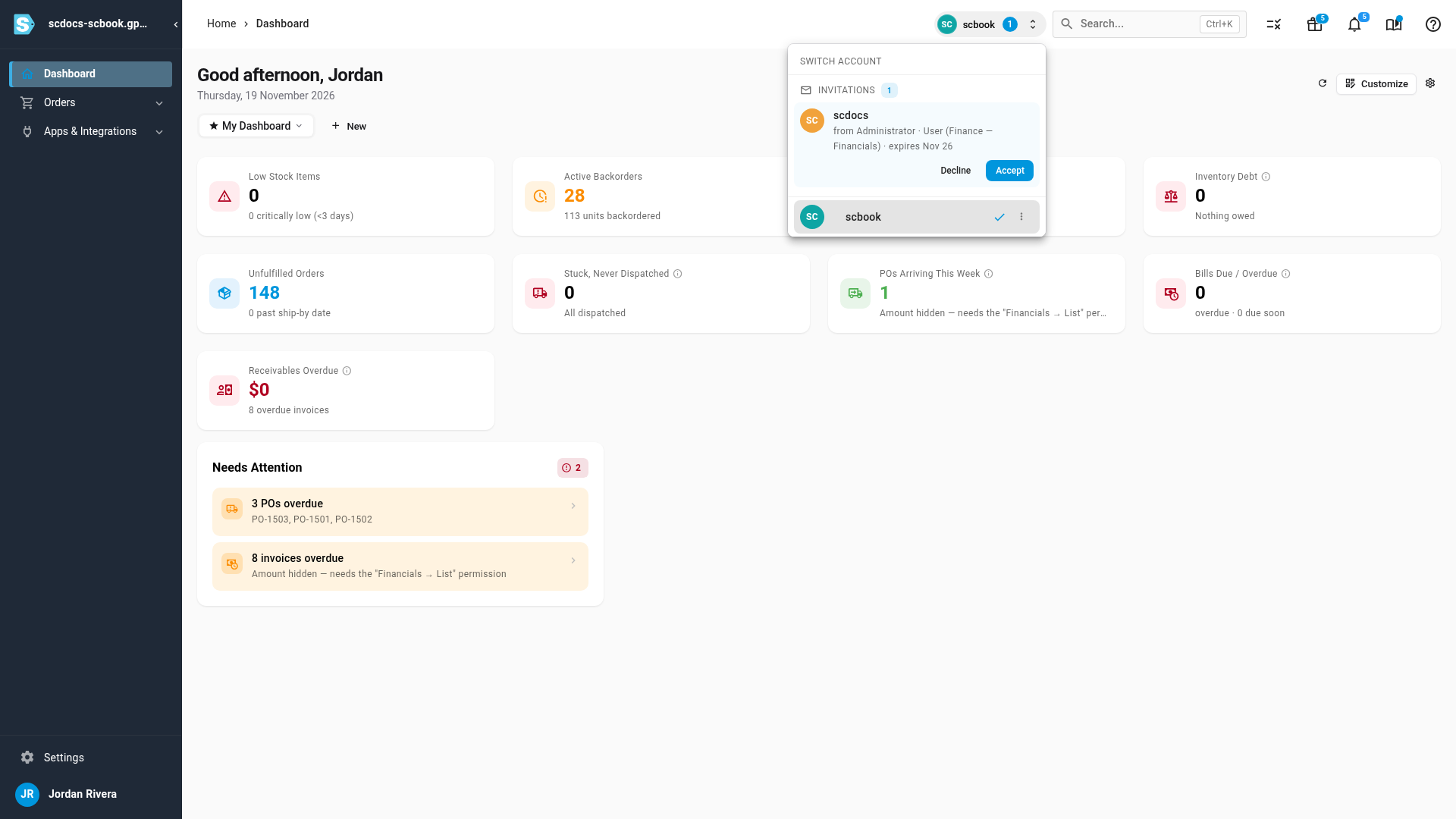
You can also accept from the link in the invitation email. Sign in as the person the invitation was sent to.
Leave an account
- Click the account name at the top of the page.
- Click the ⋮ next to the account you want to leave, then Leave account….
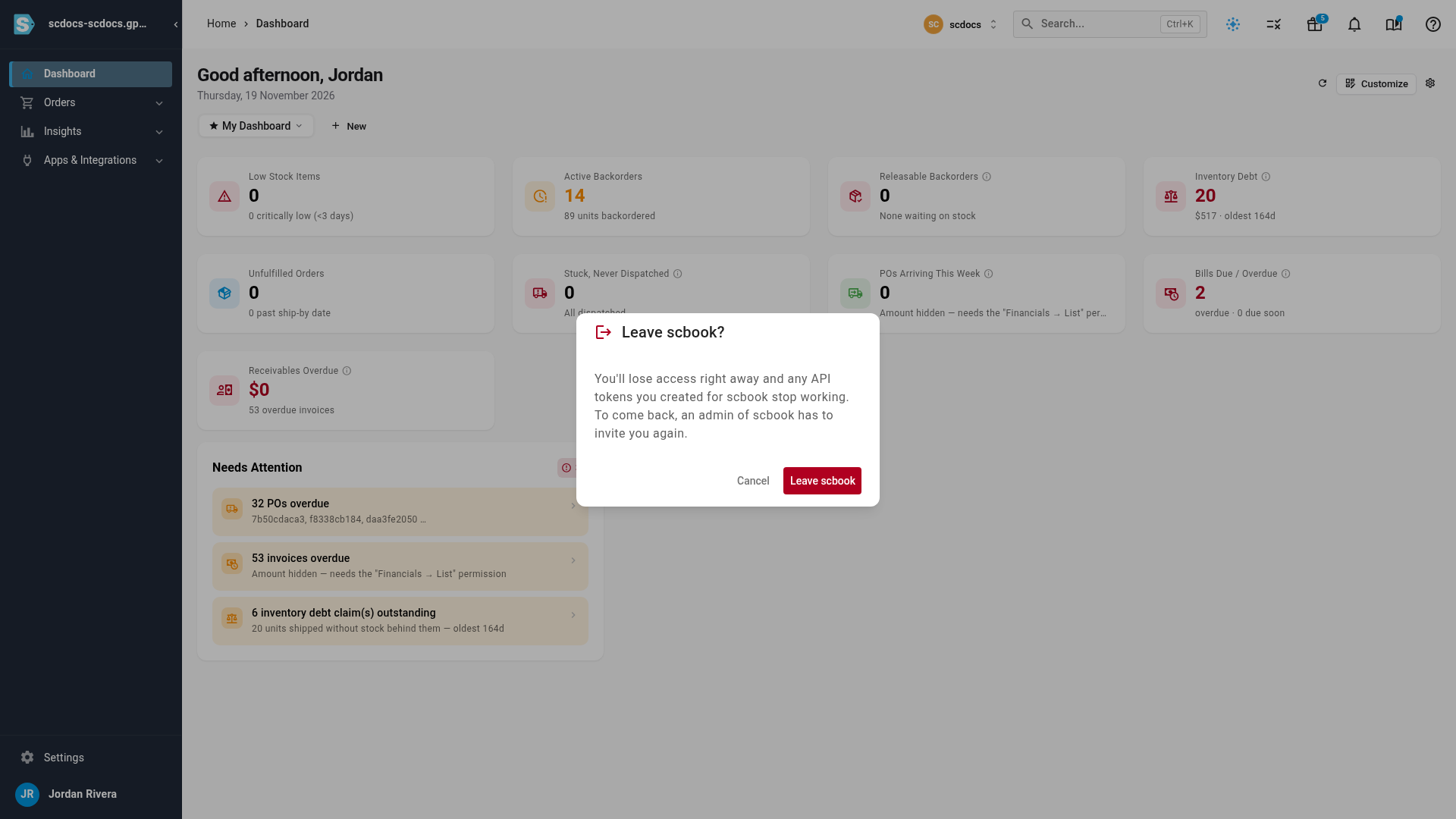
- Read the warning and click Leave account name.
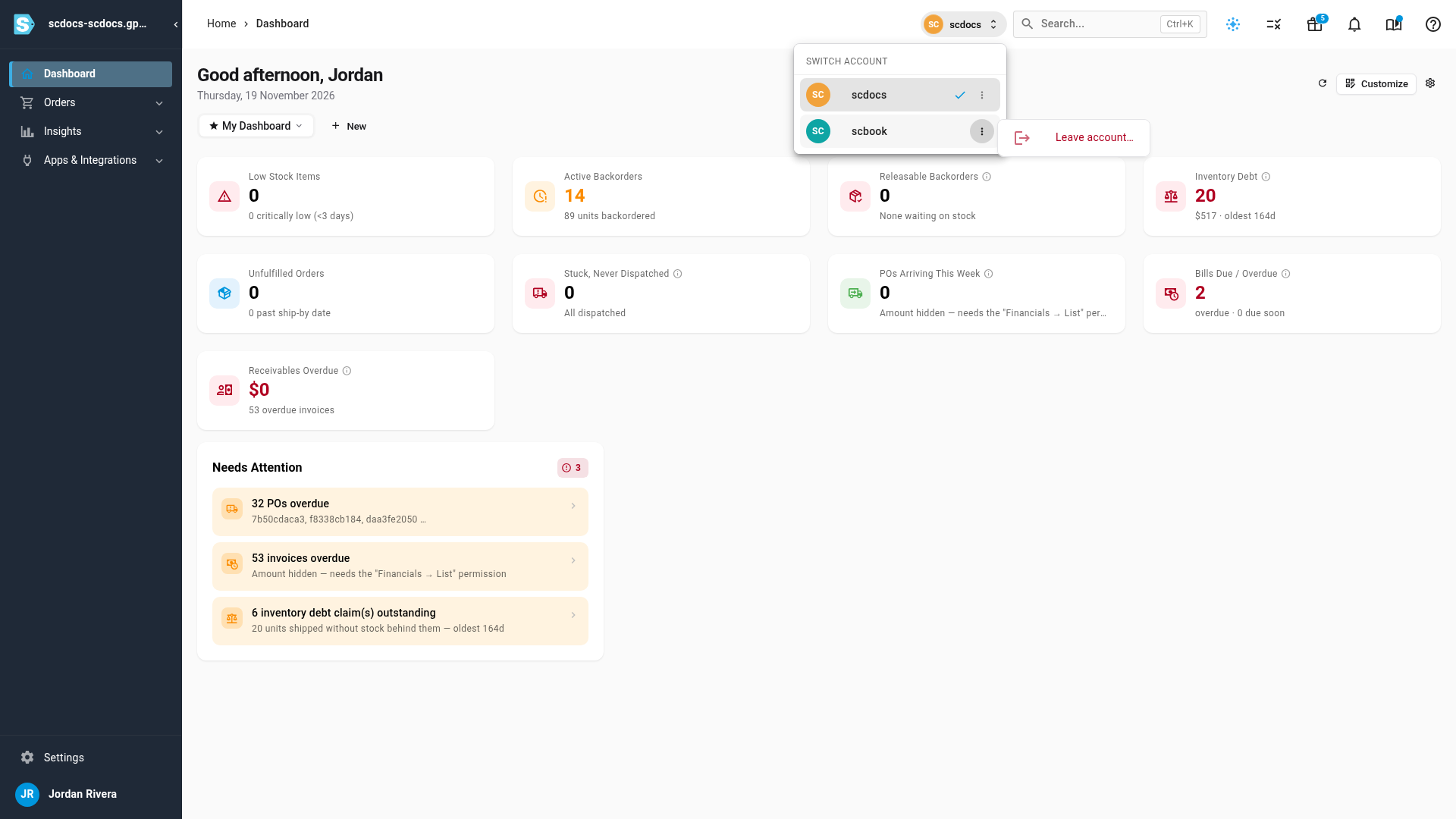
You lose access right away, and any API tokens you created for that account stop working. To come back, an admin of that account has to invite you again.
You can't leave the account you own, or your only account. Leave account… is greyed out, and hovering it says why, for example This is your only account.
Next steps
- Review who has accessed your account to see when you were invited, joined and signed in.
Video transcript
When another account invites you, a number appears on the account name at the top. Click it. Under Invitations, you see who invited you, the role, and when it expires. When you're ready to join, click Accept on the invitation. The account opens, with the role you were given. From now on, one sign-in reaches both accounts. Open the switcher, and click an account to move to it. The ones you used most recently come first. To leave an account, click the three dots beside it, and choose Leave account. You lose access straight away, so read the warning first. This time, click Cancel.