Invite someone who already uses SKU.io
Agencies, fractional operations staff and 3PLs often work across several brands, each with its own SKU.io account. You don't need to create a second sign-in for them. Add them by the email they already use: they get an invitation, and once they accept, your account appears in their account switcher. They keep one sign-in, and you decide their role in your account. Their role in other accounts doesn't carry over to yours, in either direction.
Before you begin
- You need to be an Admin of this account, or have a role that can manage users.
- Have the email address the person signs in to SKU.io with.
Send the invitation
- Go to Settings → Users & Permissions → Users.
- Click Create User.
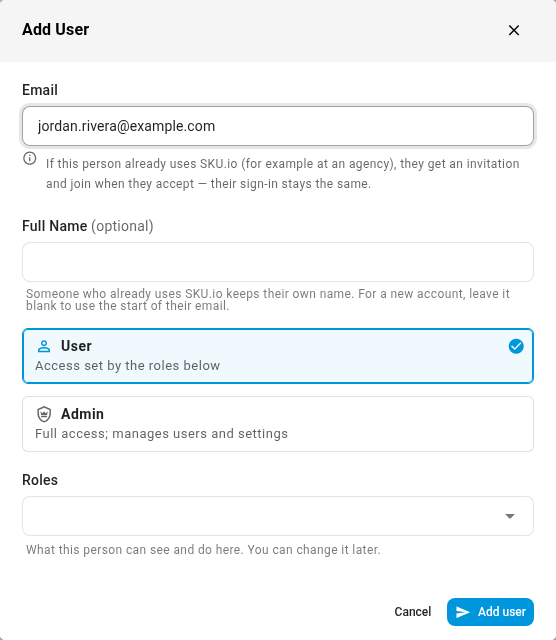
- Enter the person's Email. Full Name (optional) can stay blank: someone who already uses SKU.io keeps their own name, and a new account is named from the start of the email, for example dana.whitfield@… becomes Dana Whitfield.
- Under Role in your account, choose:
- User: their access comes from the roles you pick below.
- Admin: full access to this account, including users and settings.
- Under Roles, pick the roles that set what they can see and do here. You can change them later.
- Click Add user.
The message reads Invitation sent to their email whether or not the address already has a SKU.io account, so the form never reveals who uses SKU.io. What happens next depends on the address:
| The address… | What happens |
|---|---|
| doesn't use SKU.io yet | The person is added to Users straight away and gets an email to set up their password, as before. |
| already uses SKU.io | The person gets an invitation by email and appears under Pending invitations until they accept. Nothing in your account opens to them before then. |
| is already in this account | The form says the person is already in this account. |
Track pending invitations
Pending invitations sits above the Users list. It shows each invitation's Email, Role, Invited by, Sent date and when it Expires. With none, it reads No pending invitations. People you invite who already use SKU.io appear here until they accept.
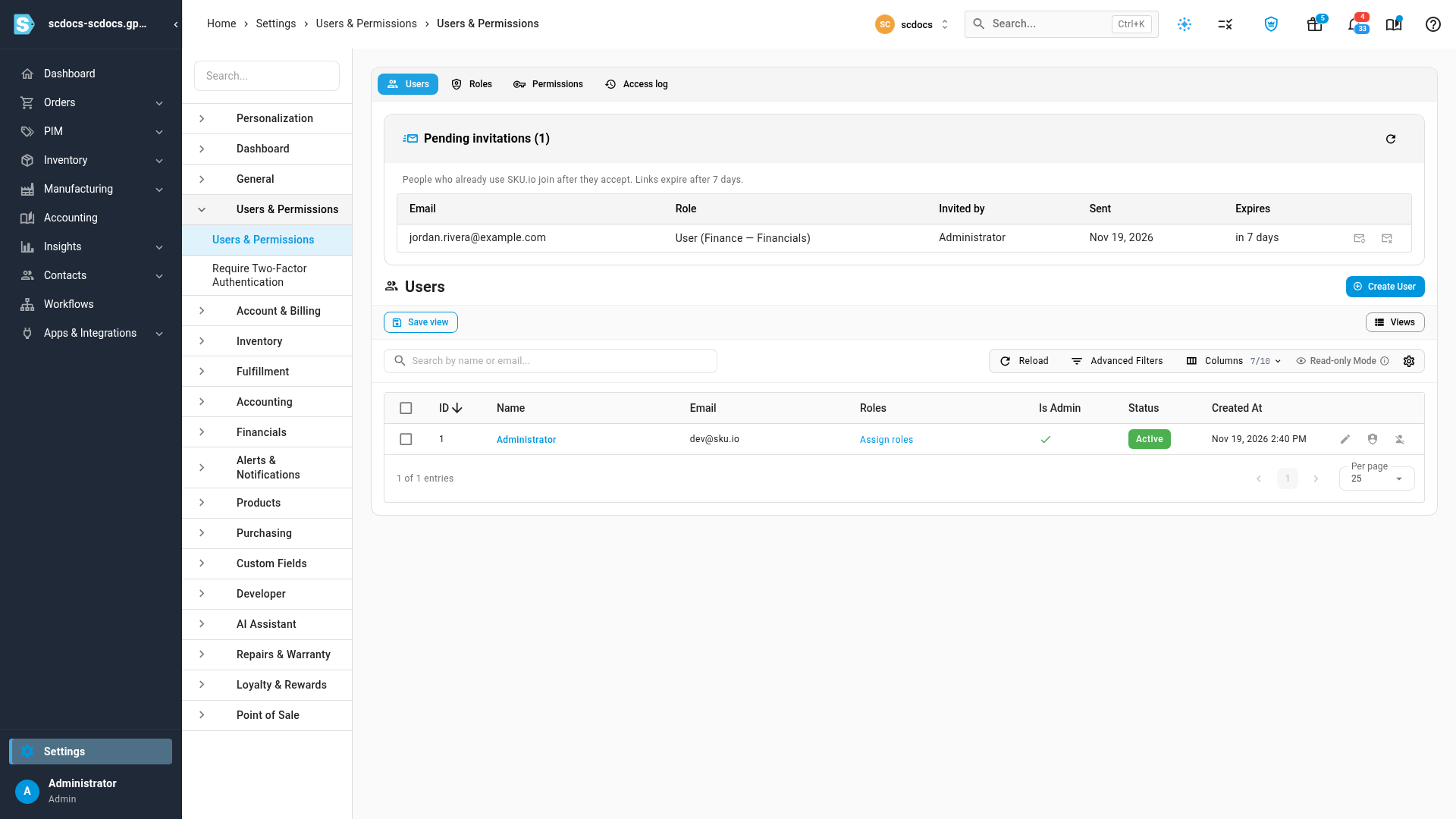
- Resend sends the email again and restarts the 7 days.
- Withdraw cancels the invitation. The link in the email stops working.
An invitation lasts 7 days and can be used once. It's cancelled if the person changes their email address before accepting. You can send up to 20 invitations an hour, and your account up to 100 a day.
How the person accepts
They accept in either of two ways, while signed in as themselves:
- From the account switcher. Their account switcher shows Invitations with your account, who invited them and the role, and Accept or Decline. See Switch between your SKU.io accounts.
- From the email. The link opens a page that says who invited them, the role and when the invitation expires, with Accept and Decline. If they're signed out, they sign in first. If they're signed in as someone else, the page says This invitation is for another account.
When they accept, they join with the role and roles you chose, and your account opens for them. If they decline, the invitation is closed for good; send a new one if they change their mind.
Change their role or remove them
Once they've joined, they're in your Users list like anyone else. Edit them to change User or Admin, or assign roles. Being an Admin applies only to the account where it's set: an admin of their own agency account is a User in yours unless you make them an admin here.
To remove them, delete them from Users. They lose access to your account right away, and any API tokens, connected apps and AI assistant connections they set up for your account stop working. Their other accounts aren't affected. To give them access again, invite them again.
Next steps
- Switch between your SKU.io accounts to see what the person sees.
- Review who has accessed your account to see the invitation, the join and every sign-in.
- Create a role to limit what outside staff can reach.
Video transcript
Agency and 3PL staff often work across several brands, and they can join yours with the sign-in they already have, so start in Settings, under Users and Permissions. Pending invitations sit above the list of users. Above the list, click Create User, and the Add User form appears. Enter the email they already sign in with, and their name. Choose their role in this account. Then pick the roles that set what they can see and do here. You can change their role and roles at any time. Click Add user. Because this person already uses SKU.io, they get an invitation instead of a new sign-in. It waits under Pending invitations, where you can resend or withdraw it, until they accept.