Set sales targets and track rep performance
A sales target says what a rep should sell in a month or a quarter: overall, or narrowed to one retailer, one brand, or one brand at one retailer. The Performance tab then shows each rep's actual sales against that number, with the percentage reached and what's still to sell, so you don't have to keep targets in a spreadsheet and re-key the actuals every month.
Before you begin
- You need at least one sales rep, with orders credited to them.
- Decide which orders count as a sale. Actual sales follow the same rules as your commission reports: by default, fulfilled orders, on the day they were fulfilled. Change it under Contacts → Sales Reps → Settings.
Add a target
-
Go to Contacts → Sales Reps and open the Targets tab.
-
Click Add Target.
-
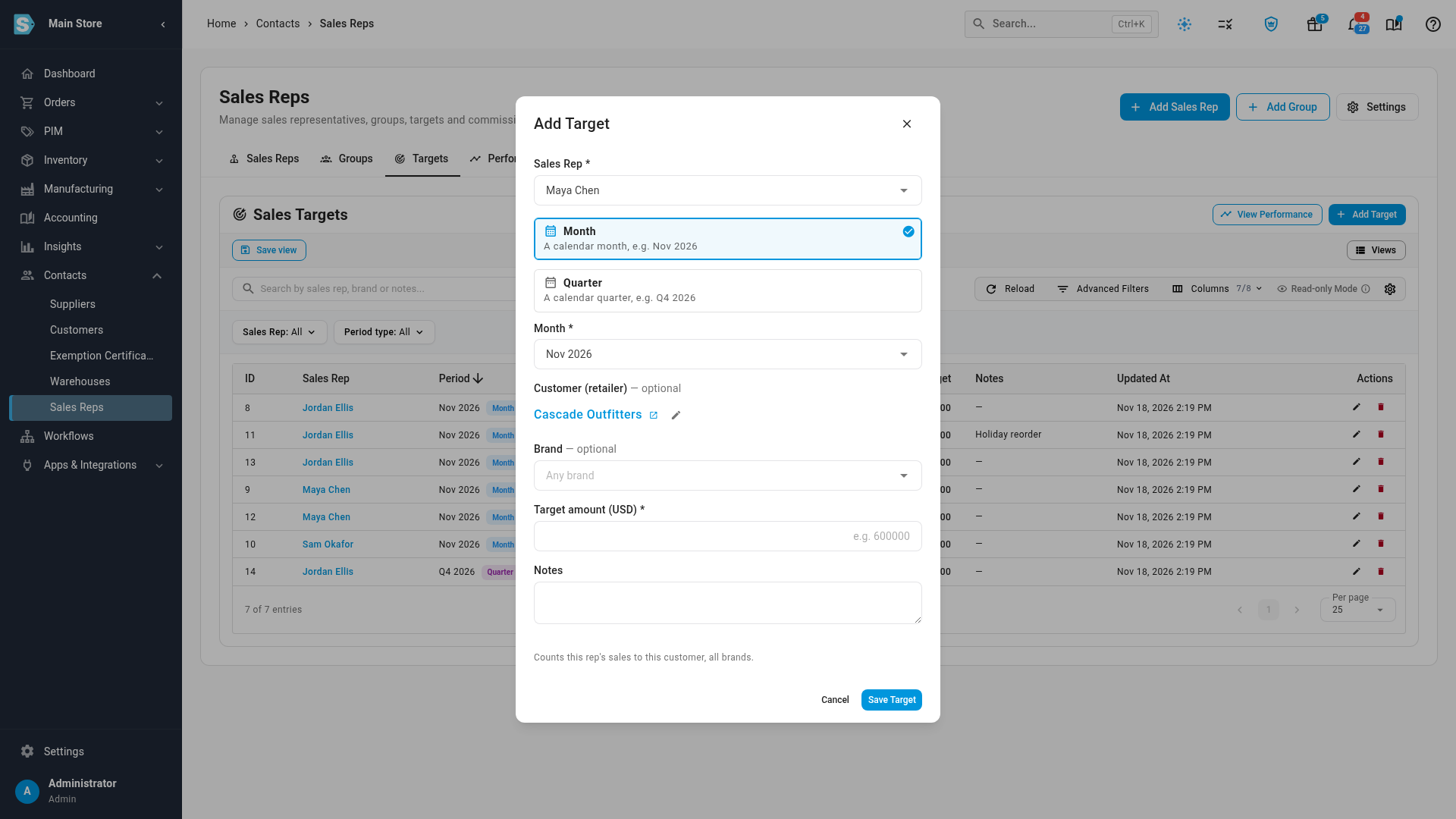
Choose the Sales Rep.
-
Choose Month or Quarter, then pick the period in the field below it.
-
Optionally, narrow the target:
- Pick a Customer (retailer) to set a target for the rep's sales to that customer.
- Pick a Brand to set a target for the rep's sales of that brand's products.
- Pick both for one brand at one retailer.
Leave both empty for the rep's overall target. The note at the bottom of the dialog says which kind of target you're setting.
-
Enter the Target amount, in your account's currency, and any Notes.
-
Click Save Target. Target saved. appears, and the target joins the list.
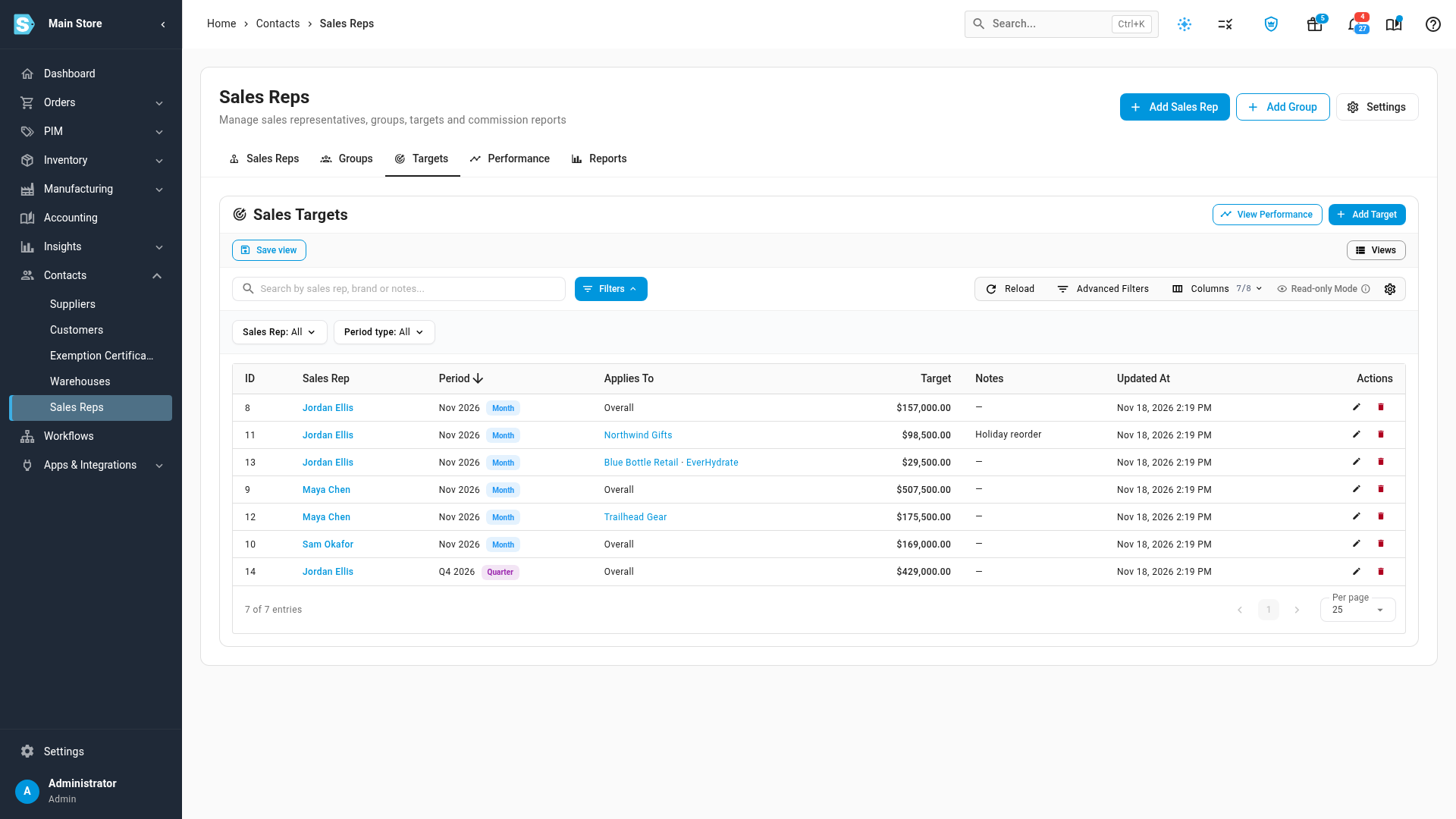
The Targets tab lists every target with its Period (a Month or Quarter chip), what it Applies To (Overall, a retailer, a brand, or retailer · brand) and the Target amount. Filter it by Sales Rep or Period type, or search by rep, brand or notes. To change or remove a target, use the pencil or bin icon on its row.
A rep can have one target for each combination of period, retailer and brand. If you try to add a second, the dialog says, for example, Maya Chen already has a November 2026 target overall — edit that one instead.
Compare actual sales with the target
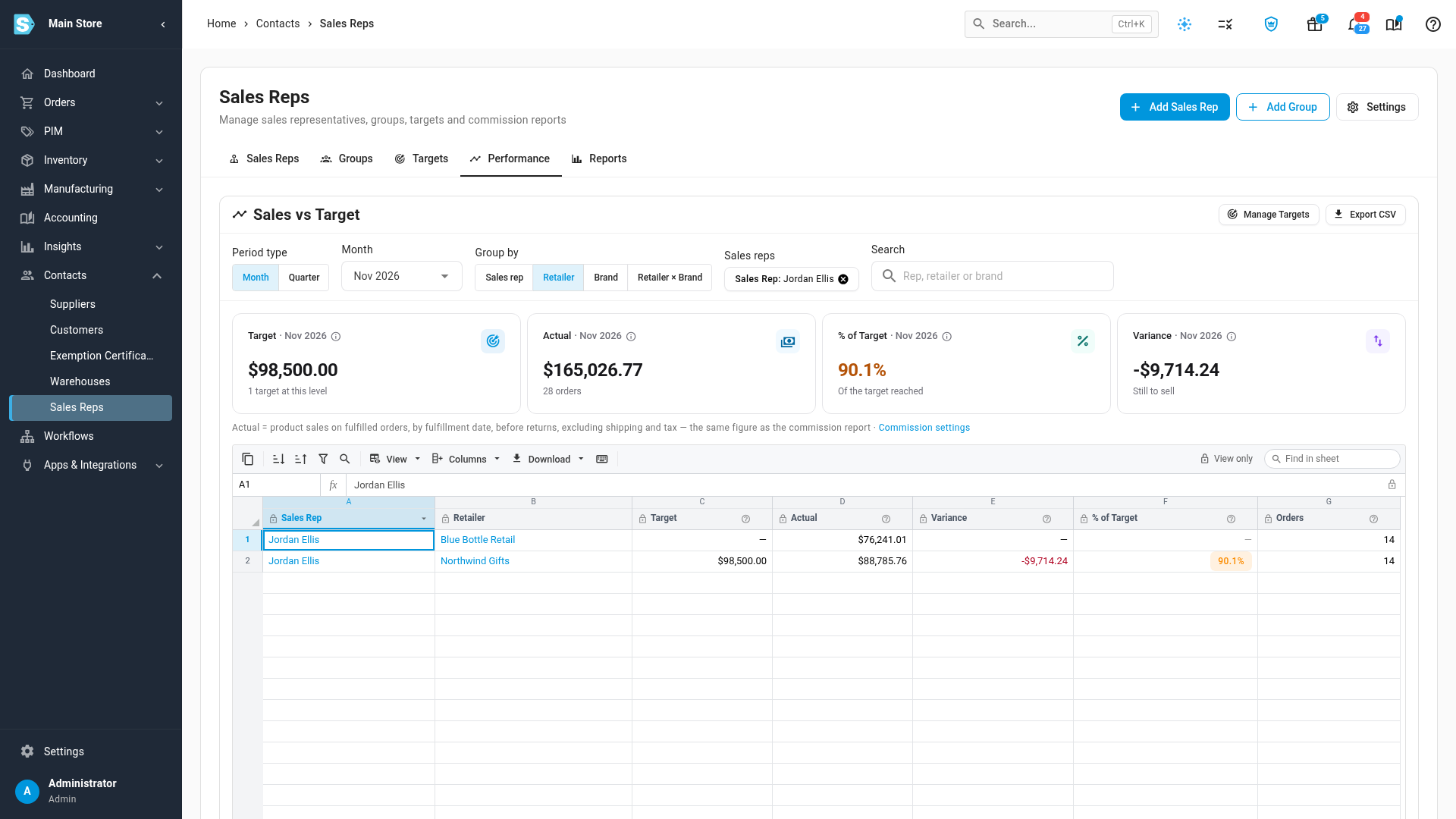
- Open the Performance tab, or click View Performance on the Targets tab.
- Choose the Period type (Month or Quarter) and the period. It opens on the current month.
- Under Group by, choose how to break the numbers down: Sales rep, Retailer, Brand or Retailer × Brand.
- Optionally, narrow it to some Sales reps, or search for a rep, retailer or brand.
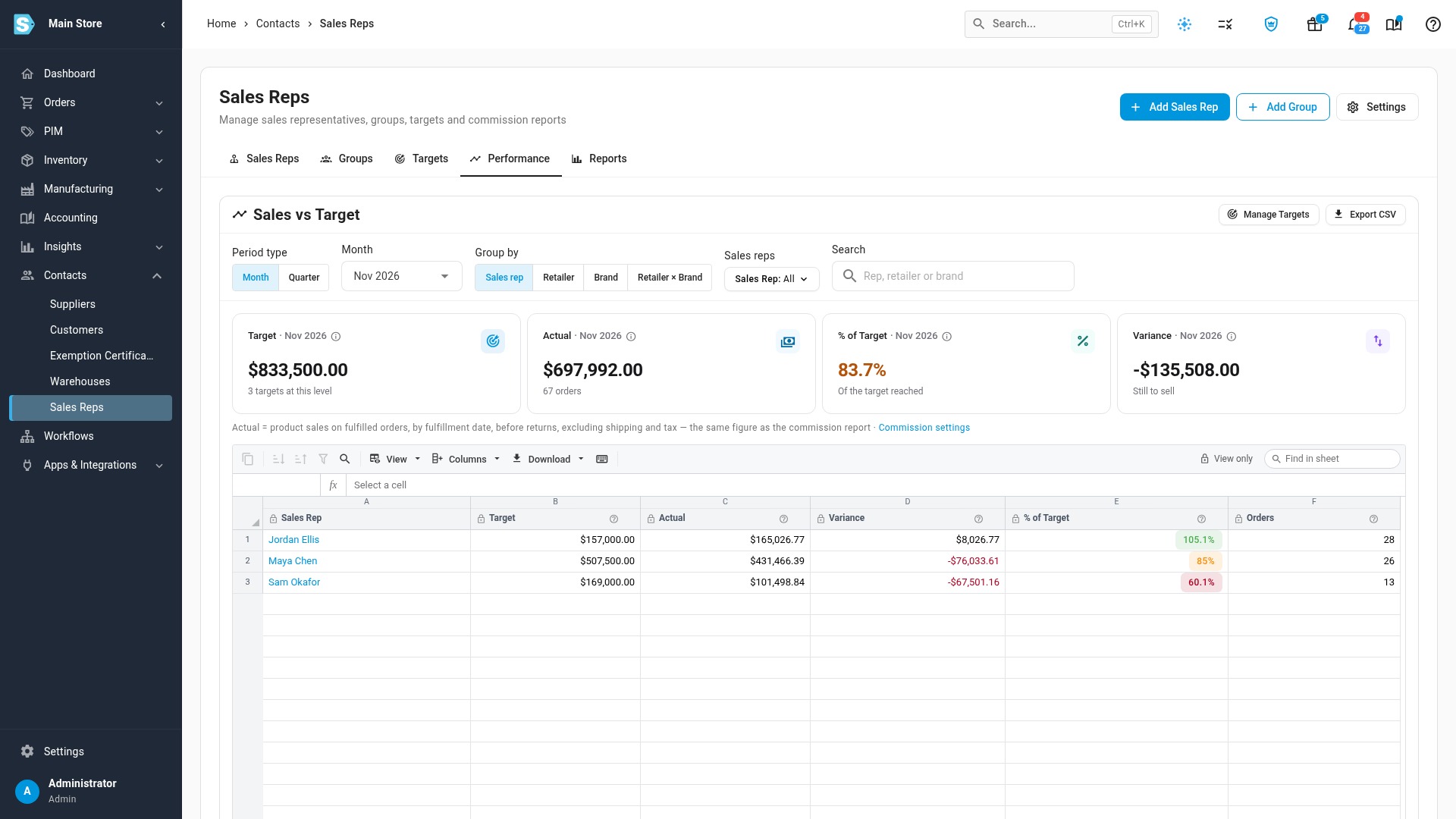
The cards along the top total the view: Target, Actual, % of Target and Variance (what's still to sell, or how far over target you are). Each row shows the same figures, and the % of Target chip is green at 100% or more, amber from 70%, and red below 70%.
The line under the cards says what Actual counts: product sales on the orders your commission settings count, before returns, without shipping or tax. It's the same figure as the commission report's total sales, so the two reports always agree. Click Commission settings to change it.
See where the sales came from
Group by Retailer, Brand or Retailer × Brand to see a rep's sales broken down. Every retailer or brand that sold shows up, even without a target of its own: its Target, Variance and % of Target show a dash. Products without a brand appear as No brand.
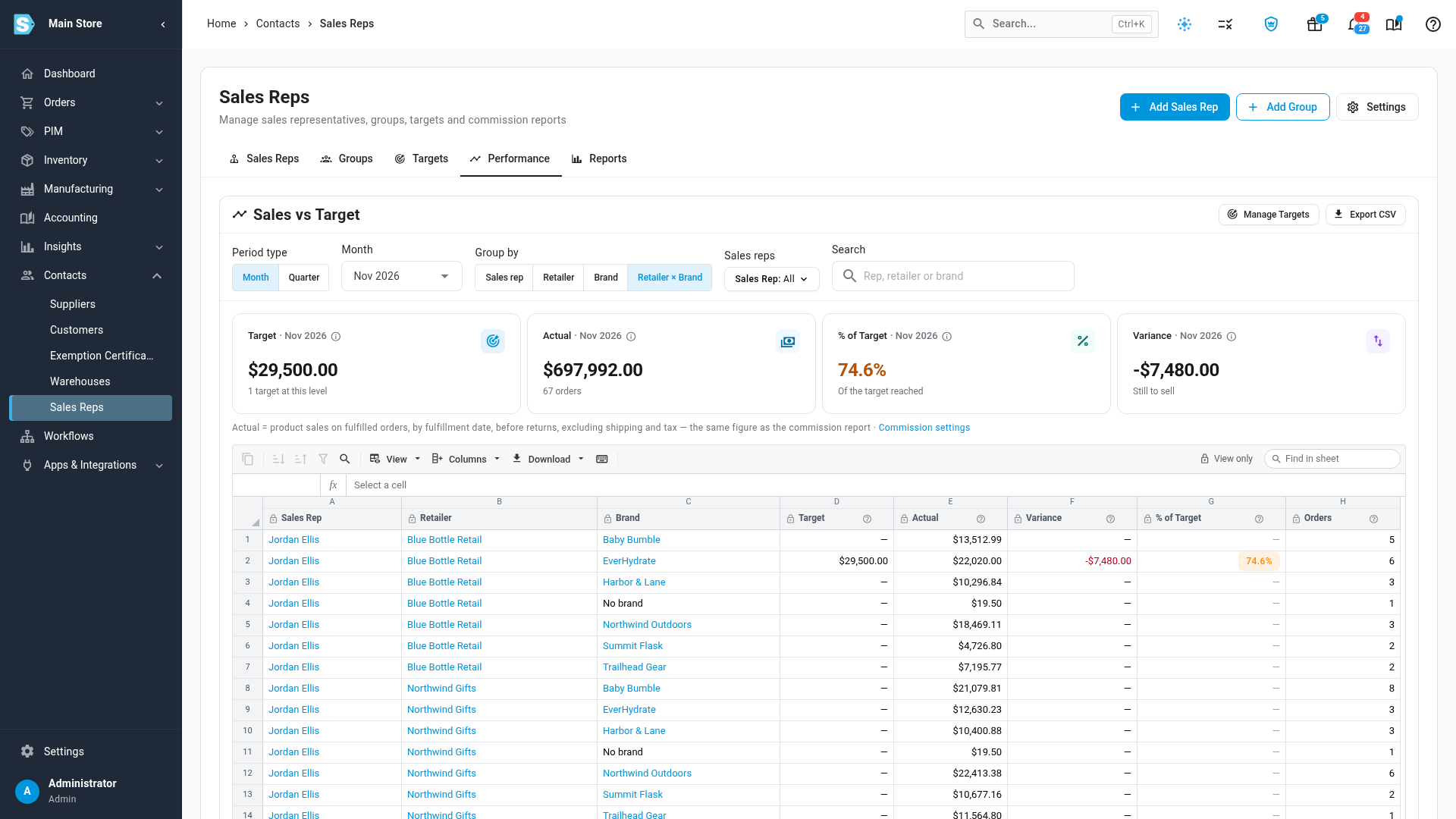
Each view compares only the targets set at its own level:
| Group by | Target compared |
|---|---|
| Sales rep | The rep's overall target |
| Retailer | Targets for a retailer, with no brand |
| Brand | Targets for a brand, with no retailer |
| Retailer × Brand | Targets for one brand at one retailer |
Targets at different levels are never added together, and in a breakdown the percentage and variance only count the rows that have a target. A month view uses month targets, and a quarter view uses quarter targets.
Drill into a rep and export
- On the Sales rep view, click a rep's name to open the Retailer view for just that rep. Your browser's back button returns to the summary.
- Click Export CSV to download the rows and columns on screen.
- Click Manage Targets to go back to the Targets tab.
Next steps
- Track sales rep commissions — set commission rates and decide which orders count.
- Manage sales reps — add reps and see the orders credited to them.
- Create & edit a customer — set a customer's default rep so their orders are credited automatically.