Manage quantity breaks across products
A quantity break lowers a product's price on a pricing tier once an order reaches a quantity. The Quantity Breaks list on Portal → Pricing shows every product that has breaks, one row per product, with each tier's ladder of prices and the lowest margin any of them earns. From it you can edit a product's breaks in place, give many products the same ladder in one go, or move breaks in and out with a spreadsheet.
To set one product's prices and breaks from the product itself, see Set a product's prices and quantity breaks. Both places edit the same breaks.
Before you begin
- You need permission to manage the customer portal to open Portal → Pricing, and the Products Manage pricing permission (
products.manage_pricing) to change breaks, apply a ladder, clear breaks or import them. - A ladder applied in bulk takes a percentage off each product's own price on the tier, so the products need a price on that tier. See Manage pricing tiers.
Find a product's breaks
- Go to Contacts → Customers, click the Portal tab, click Pricing, then click Quantity Breaks.
- Search by SKU or product name, or pick a tier in Pricing tier to list only the products with breaks on that tier.
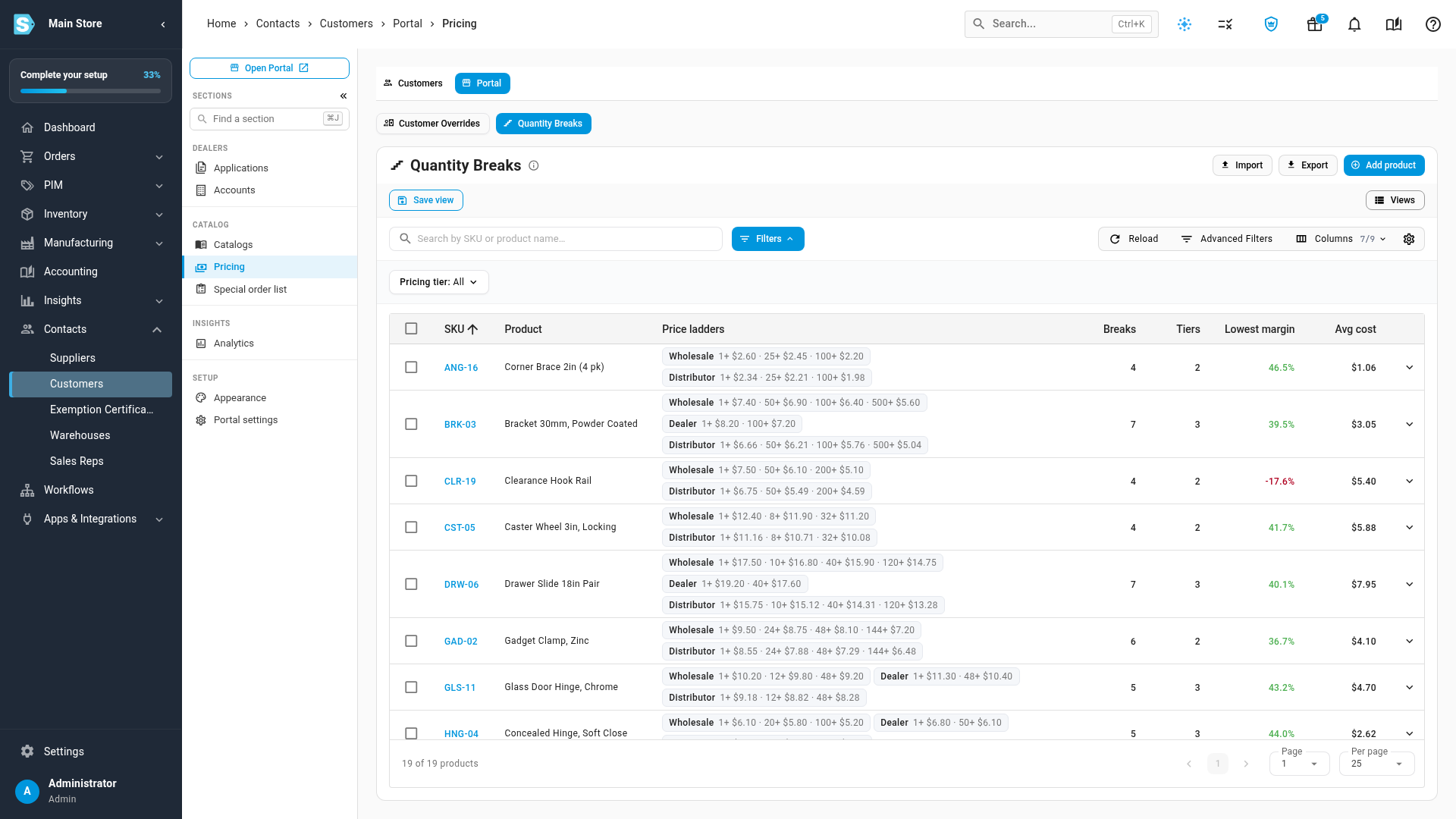
Each row shows:
| Column | What it shows |
|---|---|
| SKU | The product, which opens its Pricing tab. |
| Product | The product's name. |
| Price ladders | One chip per tier with breaks, such as Wholesale 1+ $20.00 · 10+ $19.00 · 25+ $18.00. With a tier picked in Pricing tier, only that tier's ladder shows. |
| Breaks | How many breaks the product has across all tiers, including those on calculated tiers. |
| Tiers | How many tiers have breaks. |
| Lowest margin | The thinnest margin any of the product's prices earns on its average cost, or on its default cost when it has no average yet: red below cost, amber below 20%. |
| Avg cost | The product's average cost. |
| Default cost and Updated | Hidden at first. Turn them on in Columns. |
Click the SKU, Product, Breaks, Tiers or Avg cost header to sort by it. Lowest margin can't be sorted; scan it for amber and red figures instead. Advanced Filters narrows the list further, by break count, cost or the date a product was updated, and Save as view keeps a set of filters for next time.
Edit a product's breaks
- Click the product's row, or the arrow at its end. The product's Pricing Tiers & Quantity Breaks grid opens under the row.
- Click Edit, change the prices and breaks, and click Save.
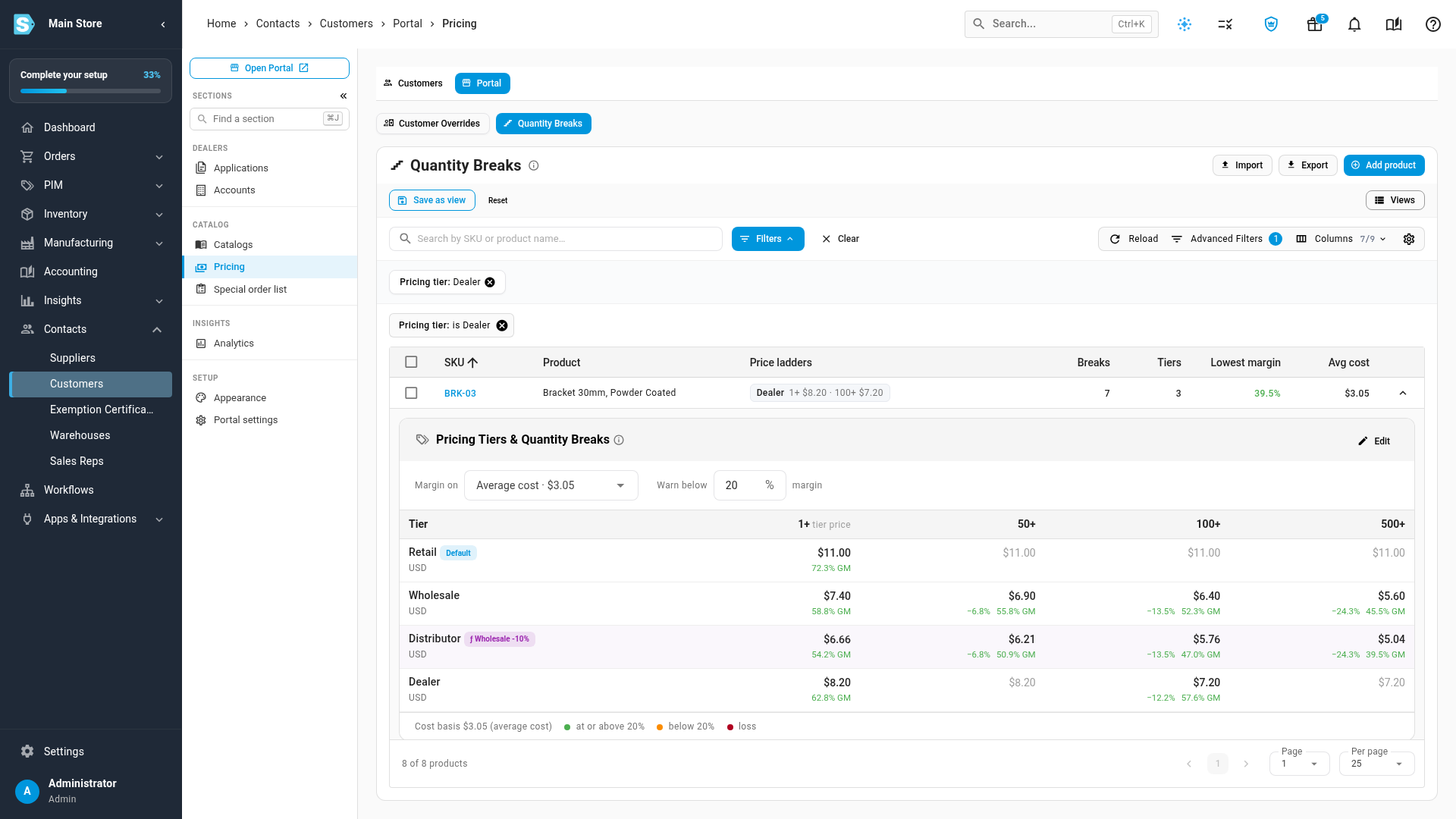
The grid works exactly as it does on the product's Pricing tab: one row per tier, one column per quantity, with the discount and margin under each price. See Set a product's prices and quantity breaks.
To give breaks to a product that has none yet, click Add product, search for the product and pick it. Its grid opens above the list, ready to edit, with empty 10+, 25+ and 50+ columns. Once you save, the product joins the list.
Give many products the same ladder
- Tick the products. To include every product the current search and filters match, click All Filtered in the bar above the list.
- Click Apply ladder.
- In Pricing tier, pick the tier. Calculated tiers aren't listed, because they follow their base tier.
- Set the breaks. Each one is a percentage off and the quantity it starts from. The window starts with 5% off from 10 units, 10% from 25 and 15% from 50. Change them, click Add break for another, or click × to remove one.
- Click Apply to n products.
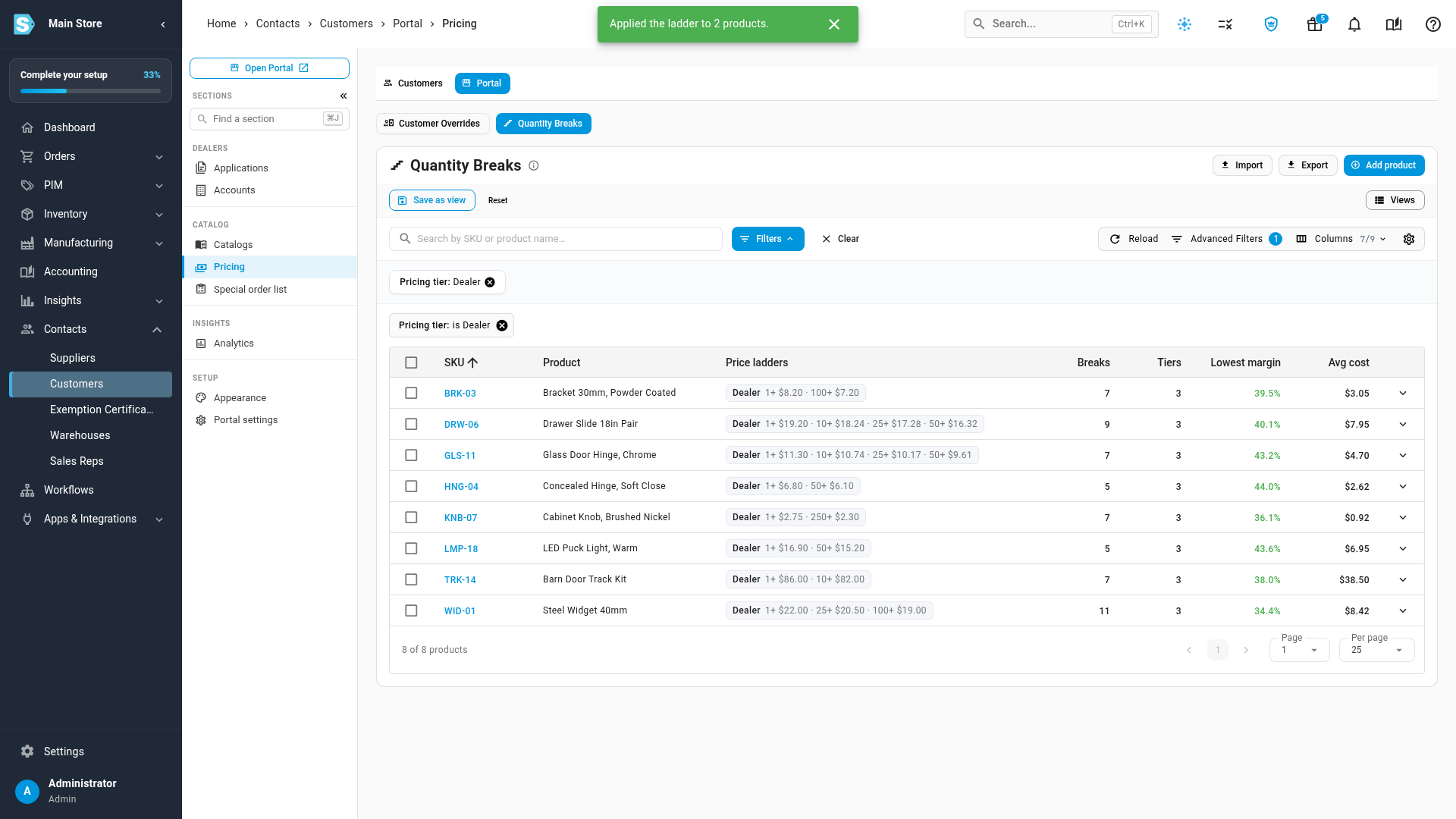
Each product's breaks on that tier are worked out from its own price on the tier. A product at $20.00 gets $19.00 from 10 units with 5% off, and one at $8.00 gets $7.60. The ladder replaces the tier's existing breaks on those products. A product with no price on the tier is skipped, and the message after you apply says how many were.
You can apply a ladder to at most 1,000 products at a time. If your filters match more, narrow them and run it in parts.
Clear breaks
- For many products: tick them, or pick All Filtered, then click Clear breaks and confirm.
- For one product: right-click its row and click Clear breaks.
Clearing removes every break you entered on every tier of those products. Their tier prices stay, and calculated tiers lose the breaks they followed.
Import or export breaks
Export downloads quantity-breaks.csv with every break you've entered, one row per tier, product and quantity. Breaks on calculated tiers aren't included, because they come from their base tier. The file uses the same columns the import reads, so you can change it and import it back.
To import:
- Click Import. Click Download Template for
quantity-breaks-import-template.xlsx, or use an exported file. - Fill in one row per break and save the file as
.xlsx,.xls,.csv,.tsvor.txt. - Upload it, then click Next: Map Columns. SKU.io matches your headers to its fields; correct any it got wrong.
- Click Next: Validate. Every row is checked without saving anything. Each one is marked as a new break, an update, a delete, a warning or an error.
- Click Import to apply the rows without errors. Rows with errors are skipped and listed.
| Column | Required | Format | Notes |
|---|---|---|---|
| Pricing Tier | Yes | Text | The tier's name, as in Settings → Pricing Tiers. Capitals don't matter. A calculated tier is refused: import its base tier's breaks instead. |
| SKU | Yes | Text | The product's SKU. Capitals don't matter. |
| Min Quantity | Yes | Whole number, 2 or more | The quantity the price starts at. The tier's own price covers 1, so set that on the product. |
| Price | Yes | Number from 0, or delete | The price per unit from that quantity. Type delete to remove the break at that quantity. |
How rows are matched:
- Pricing Tier, SKU and Min Quantity together identify a break. A row for a break that exists changes its price; any other row adds a break. Breaks not in the file are left alone, so a file can change one break without restating the whole ladder.
- A row is an error when the tier or SKU isn't found, the quantity isn't a whole number of 2 or more, the price isn't a number or
delete, the same tier, SKU and quantity appear twice in the file, or the tier would end up with more than 9 breaks. - A price higher than an existing break for a smaller quantity is a warning, not an error. The row still imports.
Things to know
- Breaks count whole units. An order of 9.5 units hasn't reached a 10+ break.
- Sales orders count the whole order. A sales order prices a product from its total quantity across every line of the order.
- Customer prices come first. A customer's own price or contract price beats a quantity break on their tier. See Set customer prices and volume breaks.
Next steps
- Set a product's prices and quantity breaks: the grid, margins and working a price out from a margin.
- Set customer prices and volume breaks: prices for one customer, and how a price is chosen.
- Relative pricing tiers: how a calculated tier follows its base tier's breaks.
Video transcript
To see every product's quantity breaks, open Contacts, then Customers, in the menu on the left. Click the Portal tab at the top of the page. Then click Pricing, in the sections on the left. Click Quantity Breaks, just above the list. Each row is a product. Price ladders shows every tier's breaks at a glance. Lowest margin shows the thinnest margin any of its prices earns, so a loss stands out in red. To focus on one tier, click Pricing tier above the list, and choose the tier you want. The list keeps only the products with breaks on that tier. Click a product to open its pricing grid right here. You edit it exactly as you would on the product itself. To give many products the same breaks, tick each one in the list, then click Apply ladder in the bar above it. Pick the tier, and set each break as a percentage off the tier price. Click Apply. Each product's breaks are worked out from its own price on that tier. To work in a spreadsheet, use Export and Import. The file has one row per tier, product and quantity.