Place a portal order for a customer
When a customer phones or emails an order, you can place it for them inside their own Customer Portal. Order as this dealer opens the portal as one of the customer's buyers, so the order uses exactly what they'd see: their catalog, their prices and quantity breaks, their stock and their delivery addresses. You build the cart and place the order, or leave the cart for the buyer to finish. The order is recorded as placed by you.
This is different from viewing the portal as a buyer, which is read-only.
Before you begin
- You need permission to manage the Customer Portal and to create sales orders.
- The customer must be active on the portal, with at least one active buyer. The button is greyed out, with the reason on hover, for an account that's pending, disabled, in preview or archived.
- If you're linked to a sales rep, the order is credited to you. Otherwise it keeps the customer's default rep.
Start an order session
- Go to Contacts → Customers and open the customer.
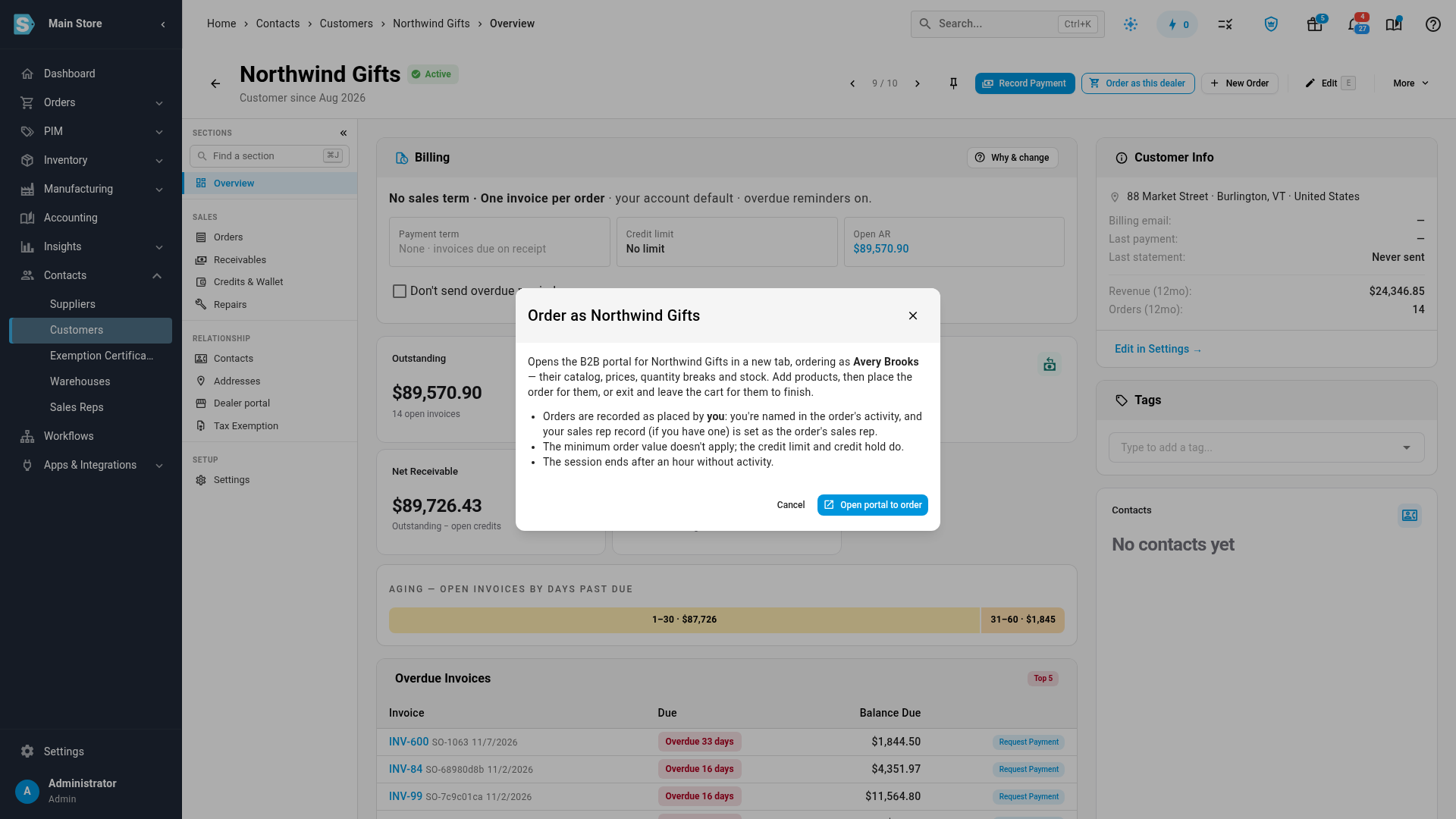
- Click Order as this dealer at the top of the page.
- Check the dialog. It names the buyer you'll order as, and reminds you that the order is recorded as placed by you, that the minimum order value doesn't apply while the credit limit and credit hold still do, and that the session ends after an hour without activity. If the buyer's cart already has items in it, the dialog says so: they'll be part of the order unless you remove them.
- Click Open portal to order.
To order as a particular buyer, open the customer's Dealer portal section and use the cart icon on that buyer's row under Buyers.
The portal opens in a new tab with a blue banner: Ordering as the buyer, staff order session, and orders are recorded as placed by you. The page header shows who you're Ordering for.
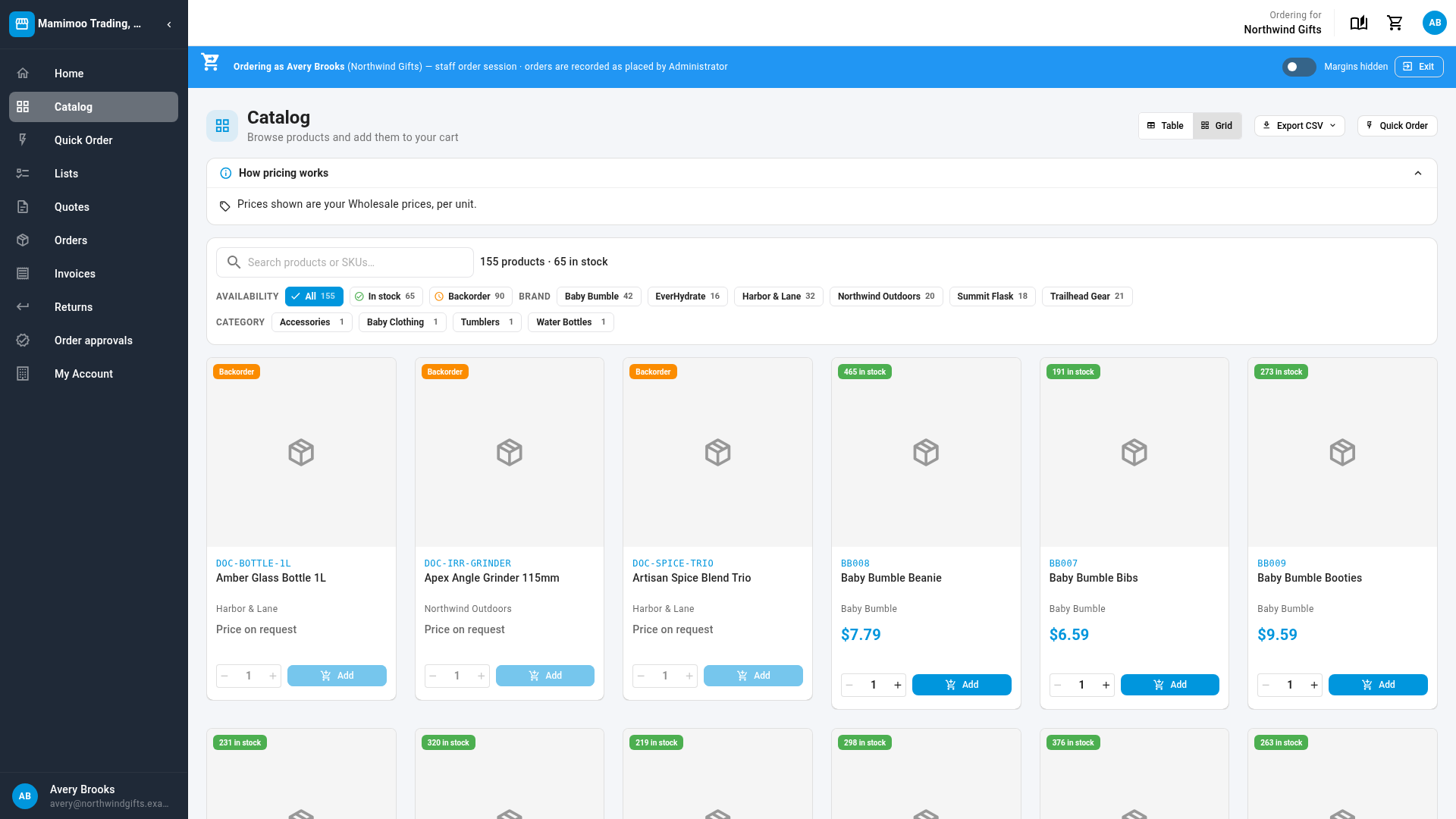
If you can see costs, the banner has a Show margins switch, and it starts on. Turn it off before you share your screen with the customer. The banner then reads Margins hidden.
Build the cart
Use the portal exactly as the buyer would:
- Catalog — search for a product, set the quantity and click Add.
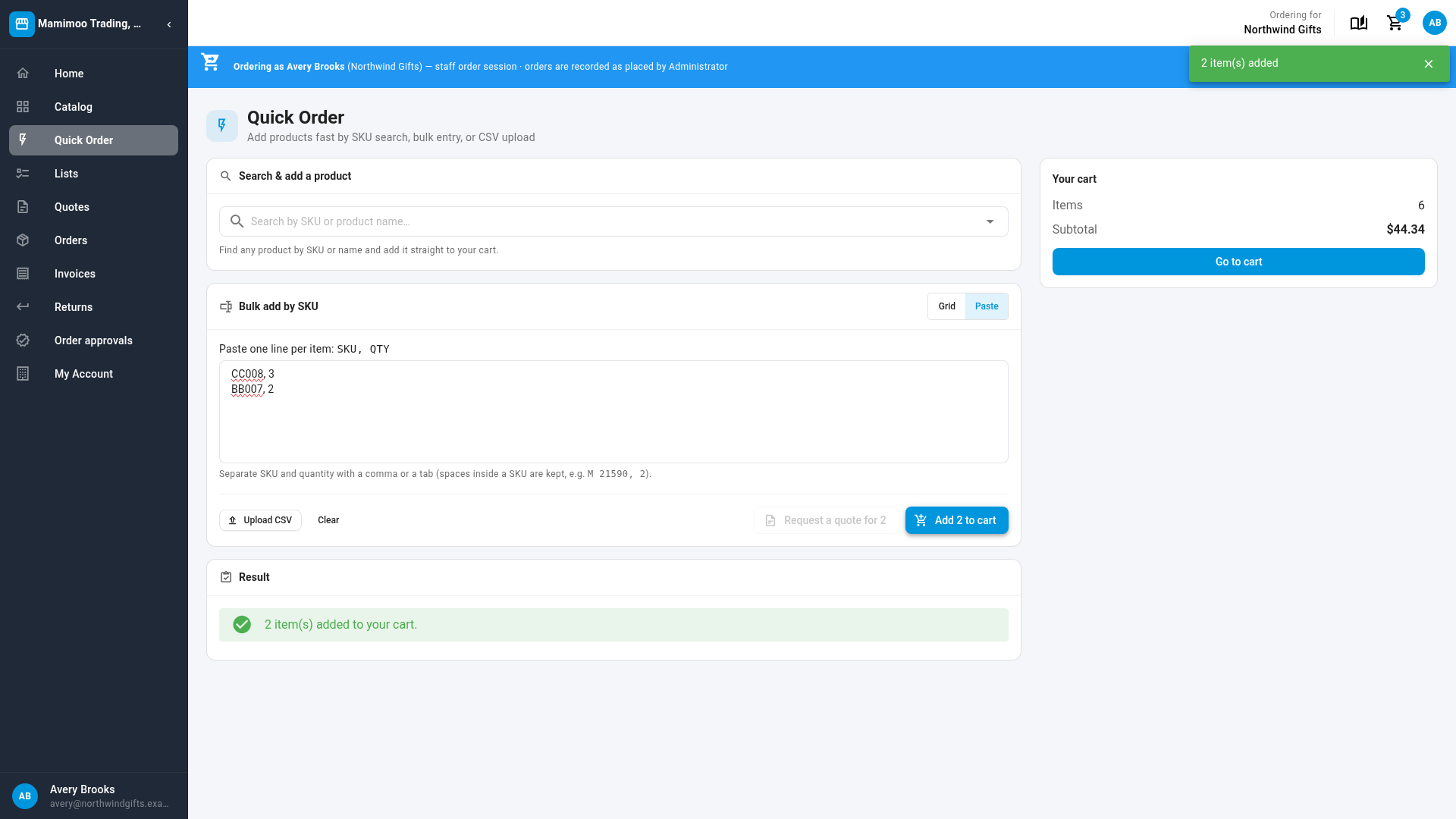
- Quick Order — choose Paste and paste one line per item: the SKU, a comma or a tab, then the quantity (for example
CC008, 3). A SKU with spaces in it, such asM 21590, 2, is kept whole. A line without a quantity adds one. Click Add … to cart. You can also upload a CSV from here. - Lists and past orders — add a saved list or reorder, as the buyer would.
Place the order
- Open the cart and click Checkout.
- Check the delivery address and shipping method.
- Click Place order for the customer, for example Place order for Northwind Gifts. A confirmation shows the new order's number.
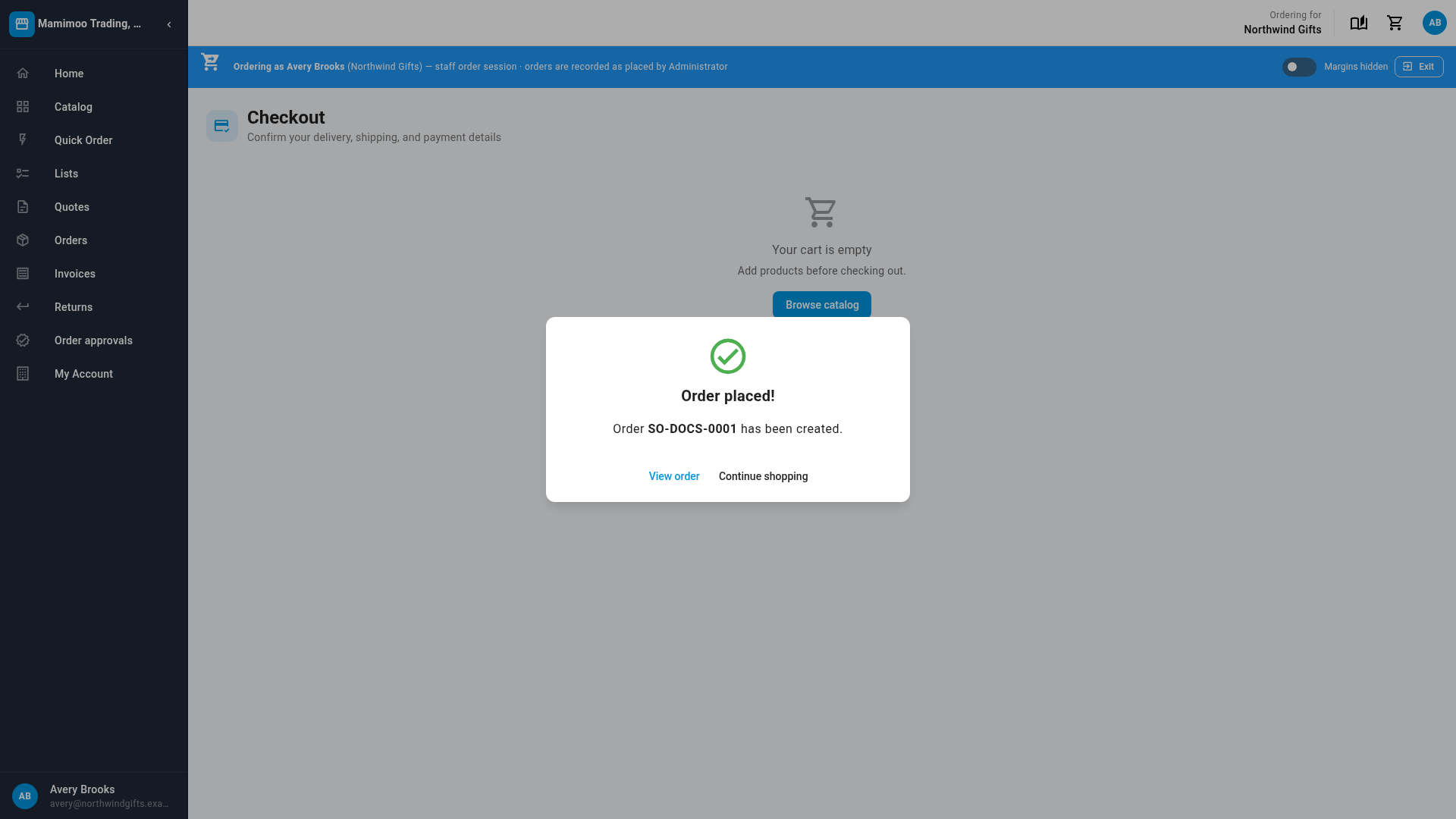
The order is created in Orders → Sales Orders for the customer, like any portal order. It's marked as placed for the customer by staff, credited to your sales rep (or the customer's default rep), and its activity says it was placed by you on behalf of the customer and buyer. The buyer sees it in their portal Orders and gets their usual order confirmation email.
The customer's own rules still apply: the credit limit and credit hold, and an approval policy, which sends the order for approval as it would for the buyer. The minimum order value doesn't.
Leave the cart for the buyer
To let the buyer review the order themselves, click Exit in the banner without checking out. Everything you added stays in the buyer's cart, ready for them to place.
What you can't do in an order session
An order session is for ordering. Anything that's the buyer's to do stays with them: quote requests, approvals, returns, payments, editing saved lists, feed and API keys, the address book outside checkout, notification preferences and dropship branding. Those controls are greyed out, and hovering one, such as Request a quote for this cart, says why.
A session ends after an hour without activity, or 8 hours after you started it, with the same Keep viewing warning as a read-only view. Starting a new session for the same buyer ends the previous one. Every session appears under Recent Staff Views in the customer's Dealer portal section, marked as an order session.
Next steps
- View the portal as a buyer — the read-only staff view.
- Set customer prices and volume breaks — the prices an order session uses.
- Set sales targets and track rep performance — see the orders you place counted against your targets.