Move from Extensiv Order Manager to SKU.io
Video chapters
- 0:00 Read the plan report
- 0:20 Resolve duplicate SKUs
- 0:34 Stock, history and open orders
- 0:47 Check the valuation
- 1:03 Opening stock in SKU.io
- 1:15 Tags and open purchase orders
- 1:32 Past orders as history
If you're leaving Extensiv Order Manager (formerly Skubana), SKU.io can load your account for you from Order Manager's own CSV exports. It brings across your products and bundles, suppliers, warehouses, opening stock at its real FIFO cost, open purchase orders, customers and, if you want them, your past orders.
Nothing is written until you've seen the plan. The first pass is a dry run that produces a plan report: a single page that shows what will load, what needs a decision from you, and what's wrong in the export. You fix what it finds, and only then is your account loaded. A valuation check then proves your opening stock in SKU.io matches Order Manager to the cent.
Your SKU.io onboarding contact runs the migration for you. This guide covers your part: the exports, the decisions, and checking the result.
Before you begin
- Set your inventory start date in Settings → Inventory. This is the day SKU.io takes over your stock. Opening stock is counted on it, and every order before it can only come across as history.
- Plan to take your final stock export on, or as close as possible to, that date.
- Ask your SKU.io onboarding contact to turn on the Order Manager migration for your account.
What moves, and in what order
The migration loads in a fixed order, so everything a record depends on is already there:
| Order Manager | Becomes in SKU.io |
|---|---|
| Products | Products. Labels become tags, custom fields become attributes. |
| Bundles and kits | Bundles, with their components. |
| Vendors and vendor products | Suppliers, and each product's suppliers with vendor SKU, cost, lead time and minimum order. |
| Warehouses | Warehouses. Your own and 3PL warehouses only. |
| Stock and its cost layers | One initial stock take per warehouse, one line per cost layer. |
| Open purchase orders | Draft purchase orders for what's still to arrive. |
| Customers | Customers. |
| Shipped orders (optional) | History orders that count in sales history and demand planning but never touch stock. |
What doesn't move:
- Listings and sales channels. You connect each channel in SKU.io, and its listings come from the channel. The migration only checks your listings, so a listing pointing at a missing SKU is flagged before cutover.
- Marketplace and dropship warehouses, such as FBA. SKU.io creates them when you connect the channel, and their stock comes from it.
- Open sales orders. These come in from your sales channel when you connect it, so they ship from SKU.io.
Steps
1. Export your data from Order Manager
Export each kind of record to its own CSV file and name the files exactly as below. Any file you leave out is simply skipped. The Order Manager export columns reference lists every column each file can hold, the header names it accepts, and which are required.
| File | One row per |
|---|---|
products.csv | Product, bundle or virtual product |
bundles.csv | Component of a bundle |
vendors.csv | Vendor |
vendor_products.csv | Vendor and product pair |
warehouses.csv | Warehouse |
stock.csv | Cost layer: units on hand from one receipt, at its cost |
purchase_orders.csv | Purchase order line |
customers.csv | Customer |
listings.csv | Channel listing |
orders.csv | Order line, for order history |
Send the files to your SKU.io onboarding contact, with the date your stock export was taken.
2. Read the plan report
Your onboarding contact runs a dry run, which writes nothing, and sends you the plan report. It opens in any browser and needs no SKU.io login.
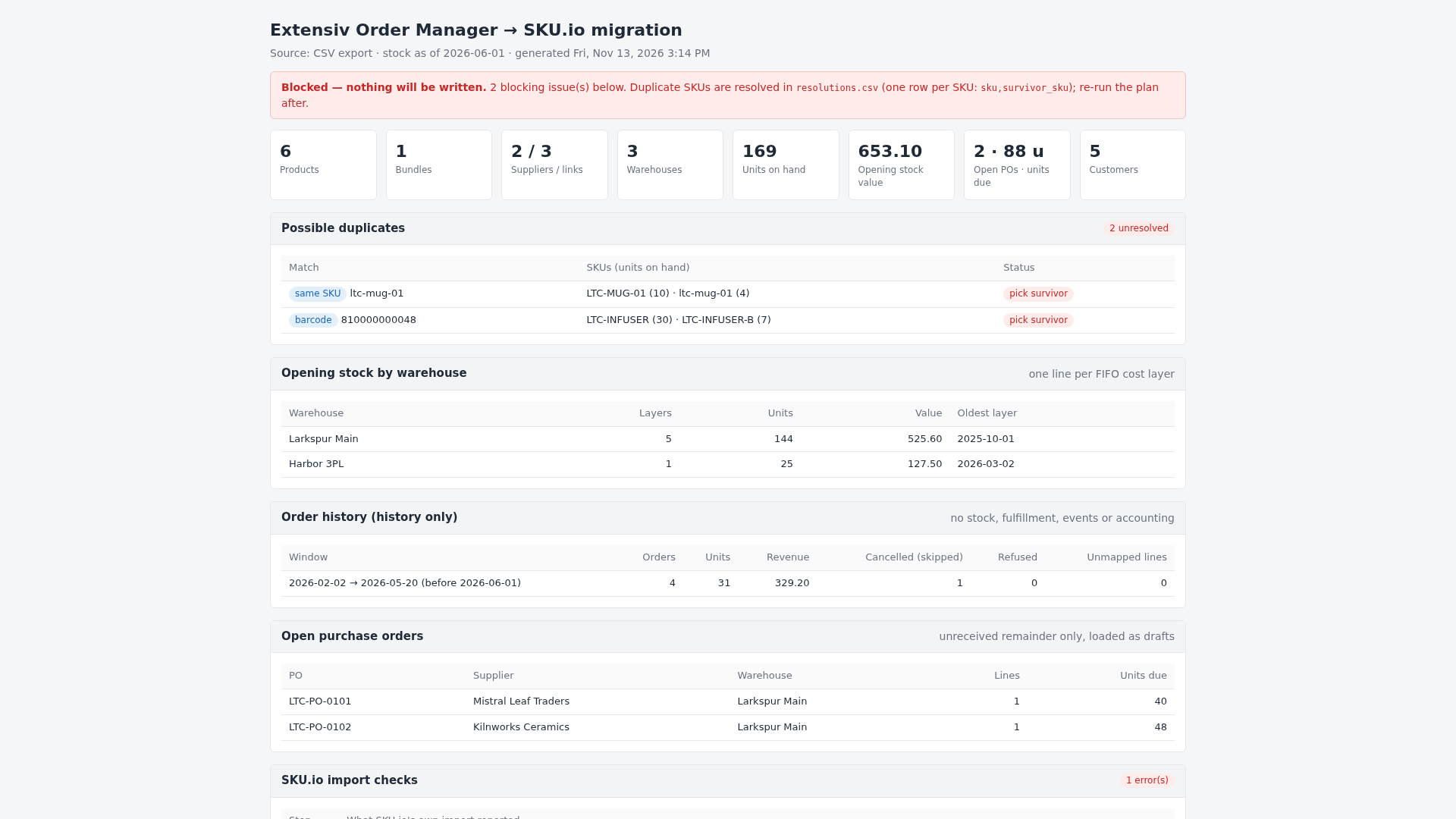
The banner at the top tells you where things stand:
| Banner | Meaning |
|---|---|
| Blocked — nothing will be written. | Something needs your decision first, usually duplicate SKUs. |
| Ready to load. | Nothing blocks the load. Read the warnings anyway. |
| Nothing to migrate. | No export files were found. |
Below it, the tiles count what will load: products, bundles, suppliers and supplier links, warehouses, units on hand, the value of your opening stock, open POs with the units still due, and customers. Then come the tables:
- Possible duplicates — SKUs that may be the same product. See step 3.
- Opening stock by warehouse — layers, units and value per warehouse, and the oldest layer.
- Order history — how many past orders will come across, and how many were skipped or refused.
- Open purchase orders — each open PO and the units it still has due.
- Issues — everything the migration found, by severity. Blocking stops the load, Error means that record won't load, and Warning tells you what it did instead.
3. Resolve duplicate SKUs
The migration never merges two products on its own. It finds three kinds of possible duplicate:
- same SKU: SKUs that differ only in case or spacing, such as
LTC-MUG-01andltc-mug-01. SKU.io holds one, so you must pick which survives. - barcode: two products sharing a barcode.
- name: two active products with the same name.
Each duplicate shows the units on hand behind every SKU, so you can see what's at stake. Any unresolved duplicate blocks the whole load.
Your onboarding contact sends you a resolutions file listing every SKU in every duplicate group,
with the survivor_sku column blank. For each SKU, enter the SKU that should survive:
- Enter another SKU to merge this one into it. Everything behind the merged SKU moves to the survivor: its stock layers, supplier links, open PO lines, bundle components and listings.
- Enter the SKU itself to keep it separate. This isn't allowed for SKUs that differ only in case.
Send the file back. The next dry run shows each group as resolved.
4. Fix what the report found, then export again
Errors are problems in your Order Manager data, so fix them there:
- Stock in no warehouse ("in limbo"): give it a warehouse, or those units won't load.
- Negative stock: correct it.
- Stock with no cost anywhere: give the layer, the default vendor or the product a cost.
- A bundle with a missing or broken component: fix the recipe, or the bundle is skipped.
Then take a fresh export for the real load, as close to your inventory start date as you can. The dry runs were a rehearsal; the load should use stock that's current.
5. Load your account
Once the plan report says Ready to load., your onboarding contact runs the load and sends you the final report. Its banner reads Loaded., and it adds two tables:
- Valuation check — for every warehouse, Order Manager's units and value next to the units and value SKU.io now holds in its FIFO layers. Every row should read as matching. Anything off by more than a cent is reported as an error.
- What was written — how many records each step created, updated, left unchanged or skipped, with the import number for each, so you can find it in your import history.
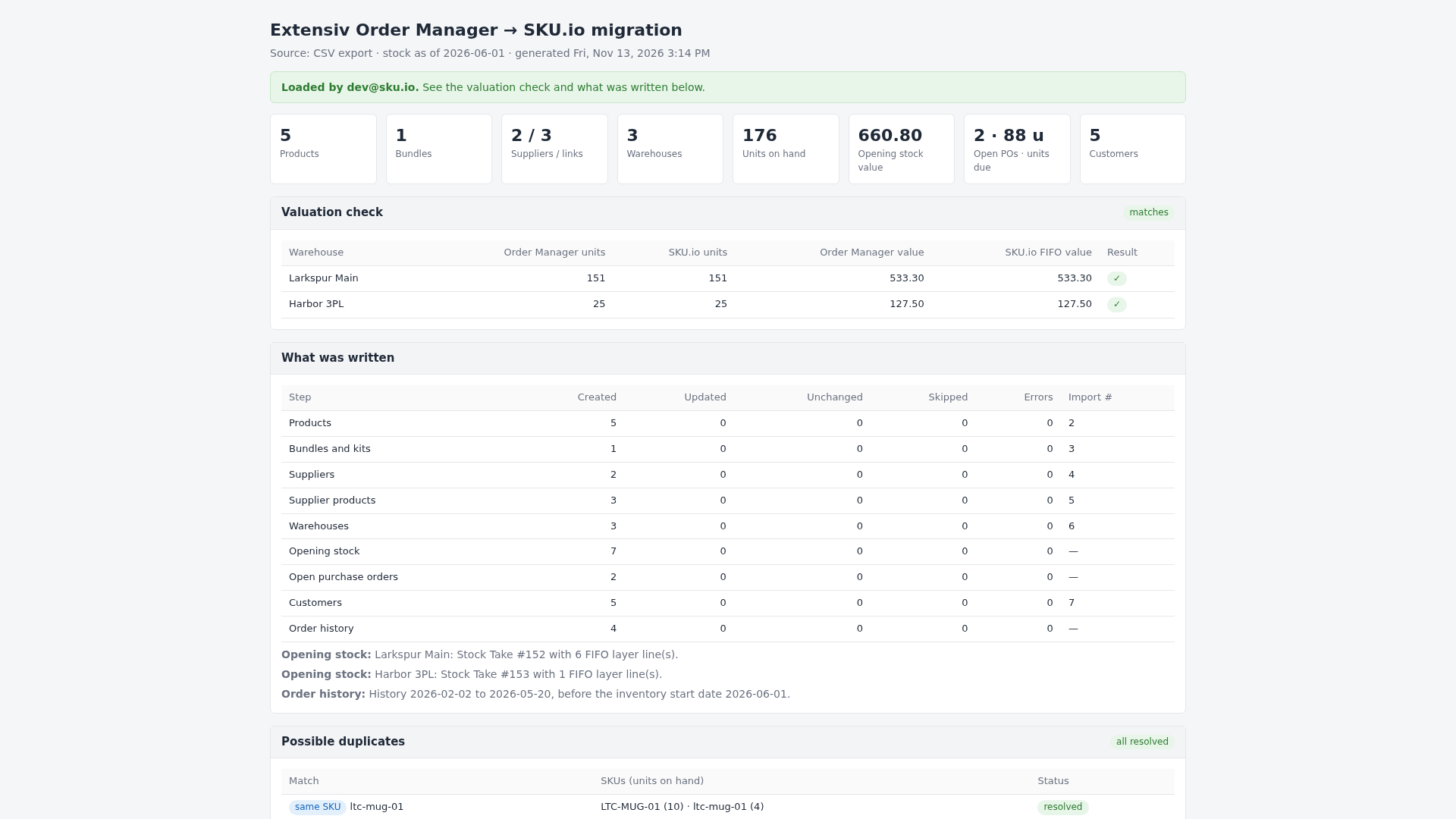
The load is safe to repeat. Products, suppliers, warehouses and customers are matched on their name or SKU, a warehouse that already has its opening stock is skipped, and a past order is never imported twice.
6. Check the result in SKU.io
- Products (PIM → Products): open a product. Its Tags card holds your Order Manager labels, and Categories & Attributes holds its custom fields. A bundle's Composition section lists its components.
- Opening stock (Inventory → Stock Takes): each warehouse has a closed Initial Count, with one line per cost layer.
- Purchase orders (Orders → Purchase Orders): your open POs are drafts, holding only what hasn't arrived yet.
- Customers (Contacts → Customers).
- Past orders (Orders → Sales Orders): history orders are numbered
OM-…and taggedextensiv-om-history.
How opening stock keeps its FIFO cost
Order Manager keeps the cost of each receipt separately: 40 units bought at $3.90 and 60 bought later at $4.20 are two cost layers, not 100 units at an average. The migration keeps them apart. Each warehouse gets one Initial Count stock take with one line per layer, at that layer's own cost.
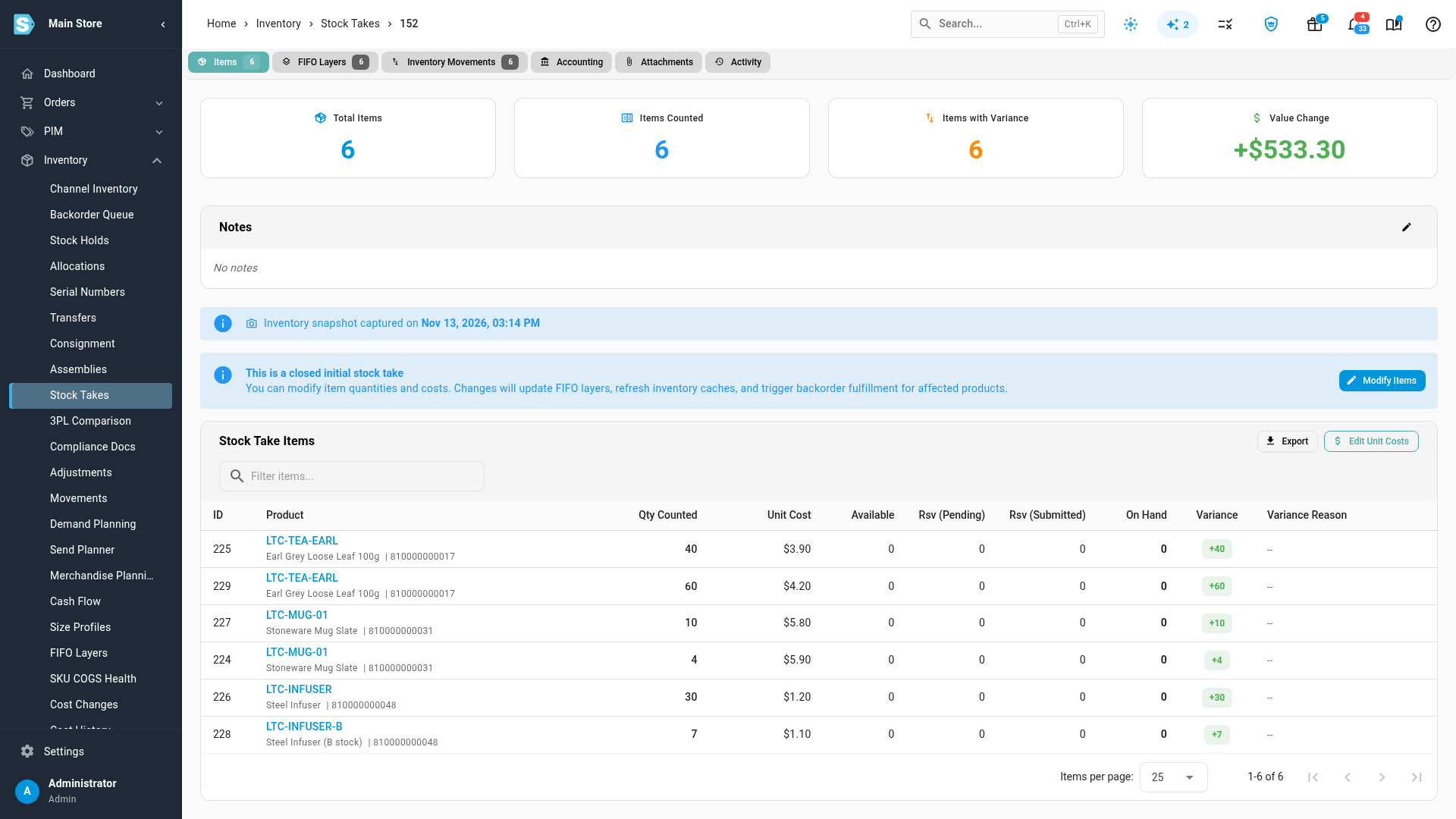
The layers load oldest first, using the received date from your export, so the oldest cost is the first one used up when you sell. In SKU.io every opening layer is dated to your inventory start date: you'll see them on the product's FIFO Layers section with that date and their own cost.
A few rules keep the value right:
- A layer with no cost takes the default supplier's cost, then the product's cost, with a warning. With neither, the layer is an error.
- A layer in a currency other than your account's is refused rather than loaded unconverted.
- Opening stock is all-or-nothing per warehouse. One bad layer holds back that warehouse, so its value can't load short. Fix the row and run the load again: warehouses that already have their opening stock are skipped.
- Stock recorded on a bundle is ignored, because SKU.io works out a bundle's stock from its components.
If you set the stock date and your inventory start date differently, the plan report warns you. The stock take is always dated to the inventory start date.
Open purchase orders
POs waiting on your supplier (AWAITING_…), pending delivery or partly delivered come across as
draft purchase orders, with each line holding only what's still to arrive: 100 ordered with 60
received loads as 40. A line that's fully received is left off, and a PO with nothing left to
arrive is skipped.
Each PO keeps its Order Manager number. Its internal note records the Order Manager status and the quantity already received, so the history isn't lost. Review the drafts and submit each one when you're ready to keep working it in SKU.io.
Labels, categories and custom fields
- Labels become tags on the product.
- Categories: the first of a product's categories that already exists in SKU.io becomes its primary category. Any others, and any that don't exist, become tags. No categories are created, so set up the ones you want before the load.
- Custom fields become product attributes with the same name. An attribute that doesn't exist yet is created. Blank values are skipped.
- Inactive products are only brought across when stock, an open PO or an active bundle needs them.
Order history
You can also bring across past orders, shipped before your inventory start date, as history. They count in sales history and demand planning, and customers can return items from them, but they never move stock, create fulfillments, or post to your accounting. Their tax always stays the amount Order Manager charged. See How Order Manager order history imports.
Next steps
- Order Manager export columns reference
- How Order Manager order history imports
- Set your initial inventory
Video transcript
Moving from Extensiv Order Manager starts with your Order Manager exports. SKU.io reads them and sends you a plan report first. The banner says where things stand, and this one is blocked, so nothing will be written yet. The tiles count everything that will load, down to the opening stock value. Possible duplicates are SKUs that may be the same product, with the units on hand behind each SKU. The migration never merges them on its own. In the resolutions file, you pick the survivor for each one, and send the file back. Opening stock is listed by warehouse, with its cost layers, units and value. Below that are the past sales that come across as history. Then the open purchase orders, with the units each one still has due. Once every duplicate is resolved and a fresh export is in, your account is loaded. The valuation check compares each warehouse with Order Manager. Units and value match to the cent. What was written lists every step, with its import number. Your opening stock is now a closed initial count for each warehouse. It holds one line per cost layer, each at its own unit cost, so the oldest units are used first. On each product, your old labels now show up as tags. Any category you haven't set up is added to this card. Open purchase orders arrive as drafts, holding only what is still to arrive. Review each one, and approve it when it is ready for your supplier. Past orders come across as history. They are closed, fulfilled and paid, and they keep the tax that was charged at the time. They count in demand planning, but never touch your stock.