Merge orders into one shipment
When a customer places a second order before the first one ships, you can send both in one package. Select the orders on the Sales Orders list and merge them. The warehouse or 3PL receives a single order, and every sales order still gets its own tracking number on its own sales channel.
Before you begin
- The Fulfillment Orders → Edit permission (
fulfillment_orders.update), together with Fulfillment Orders → View (fulfillment_orders.index). Without both, Merge Orders doesn't appear in the More menu. - Each order must be Open, with items still waiting to ship from one warehouse.
- No order can have been sent to the warehouse or shipping provider yet. To merge an order that has, see Merge orders already submitted to the provider.
- The orders must ship to the same address, from the same warehouse, through the same shipping provider.
Steps
-
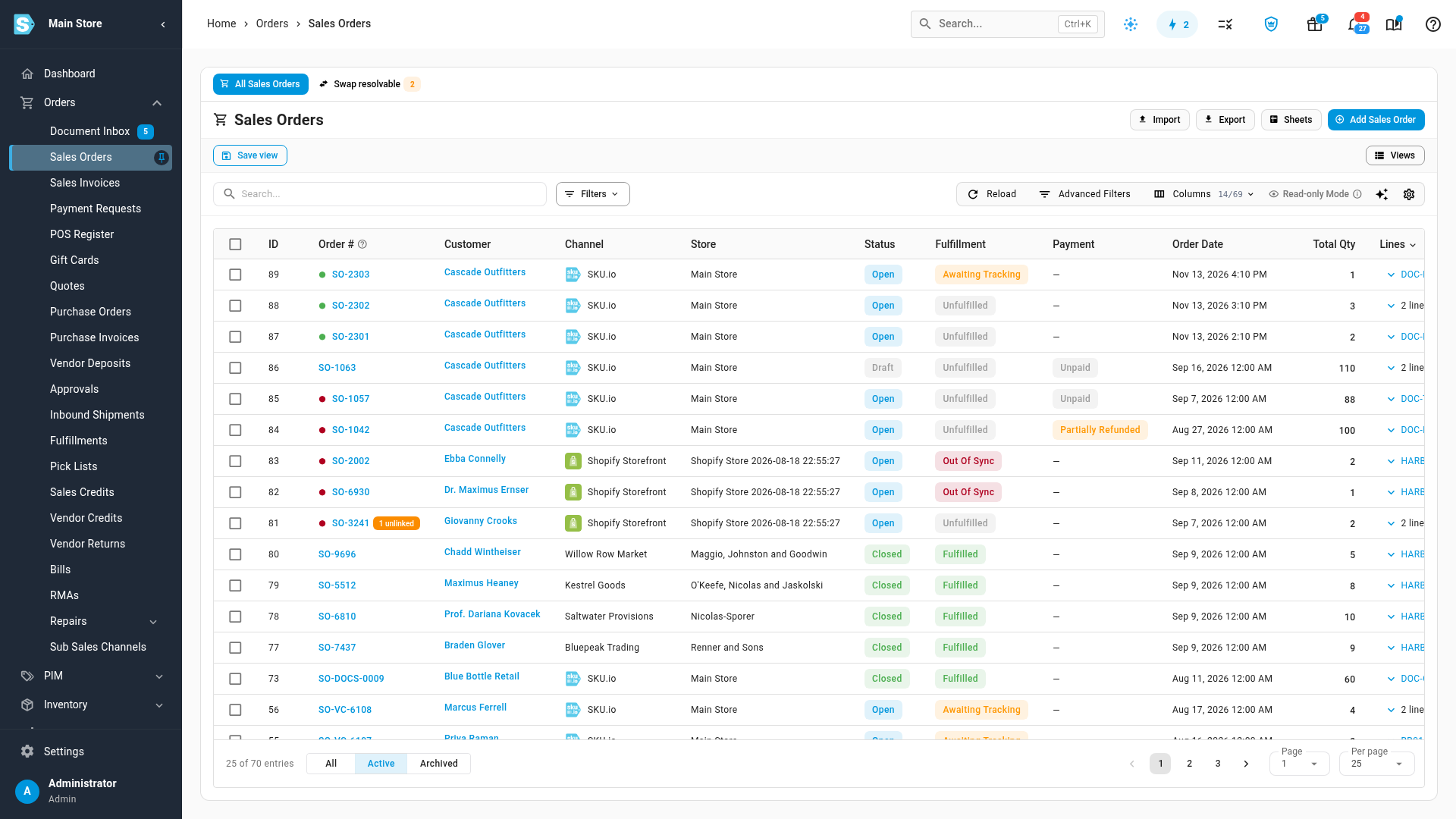
Go to Orders → Sales Orders.
-
Tick the checkbox on each order you want to ship together. You can select up to 50.
-
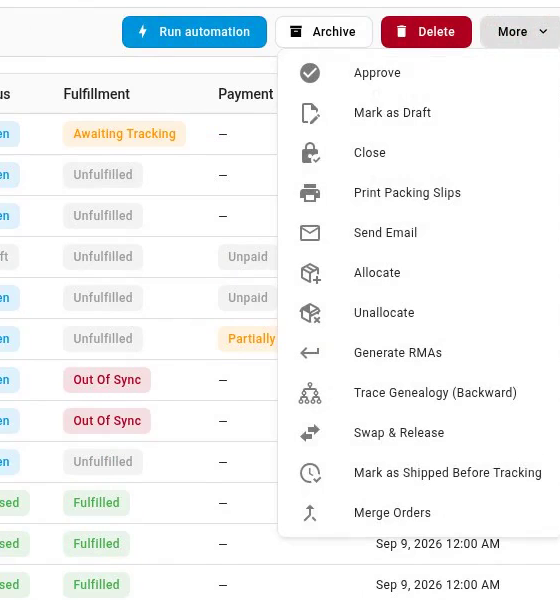
In the bar above the list, click More, then choose Merge Orders. The Merge Orders into One Shipment preview opens. Nothing changes until you confirm.
-
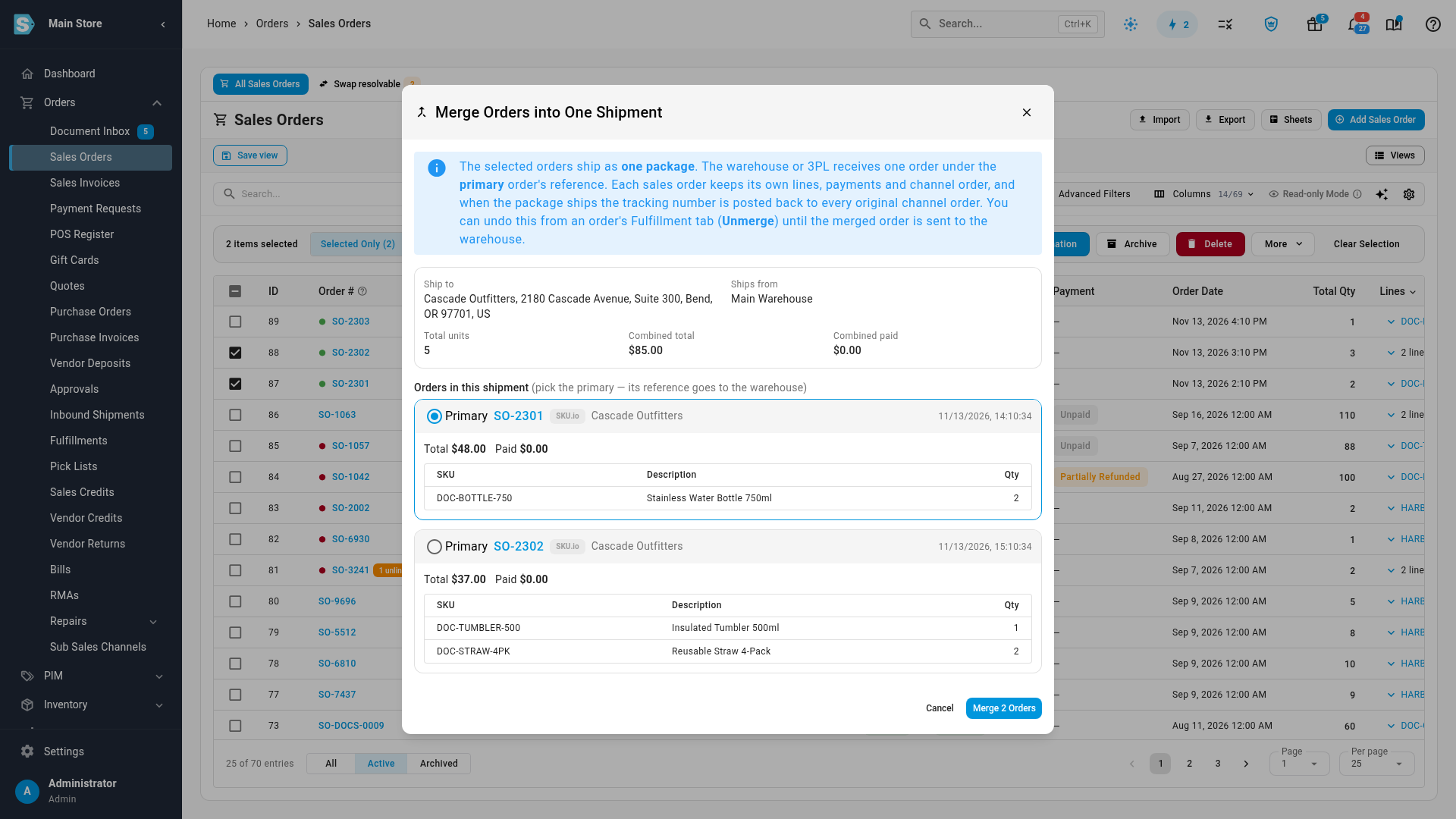
Review the preview:
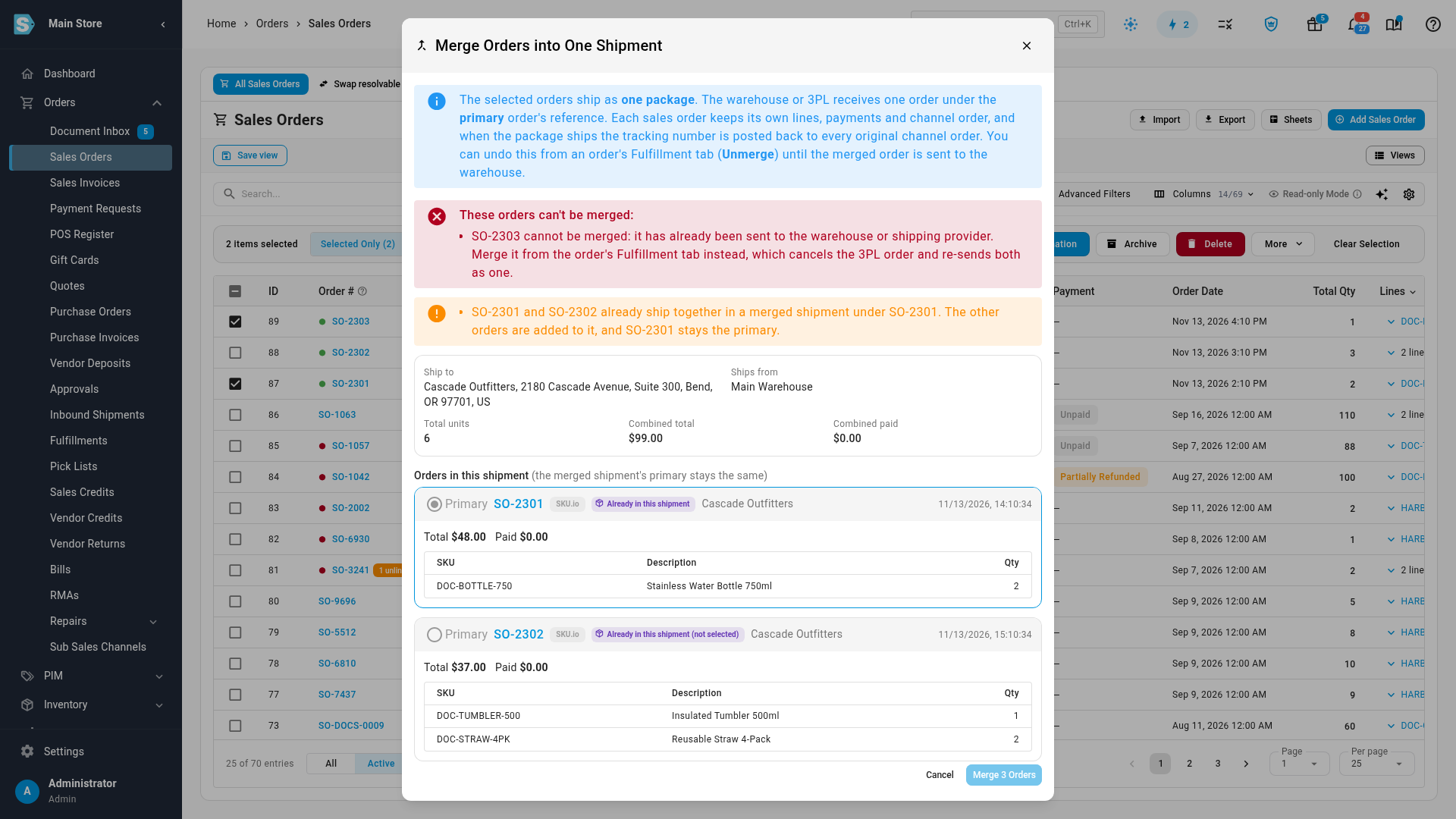
- Ship to and Ships from show the address and warehouse the package goes to and from.
- Total units, Combined total and Combined paid add up all the orders.
- Each order is listed with its sales channel, customer, order date, total and lines. Only the quantities still waiting to ship are counted.
-
Choose the Primary order. The warehouse or 3PL receives the package under the primary order's number. SKU.io picks the oldest order. To use another order's number, select Primary on that order.
-
Click Merge N Orders. SKU.io confirms with "Merged 2 orders into one shipment" (with your number of orders) and refreshes the list.
-
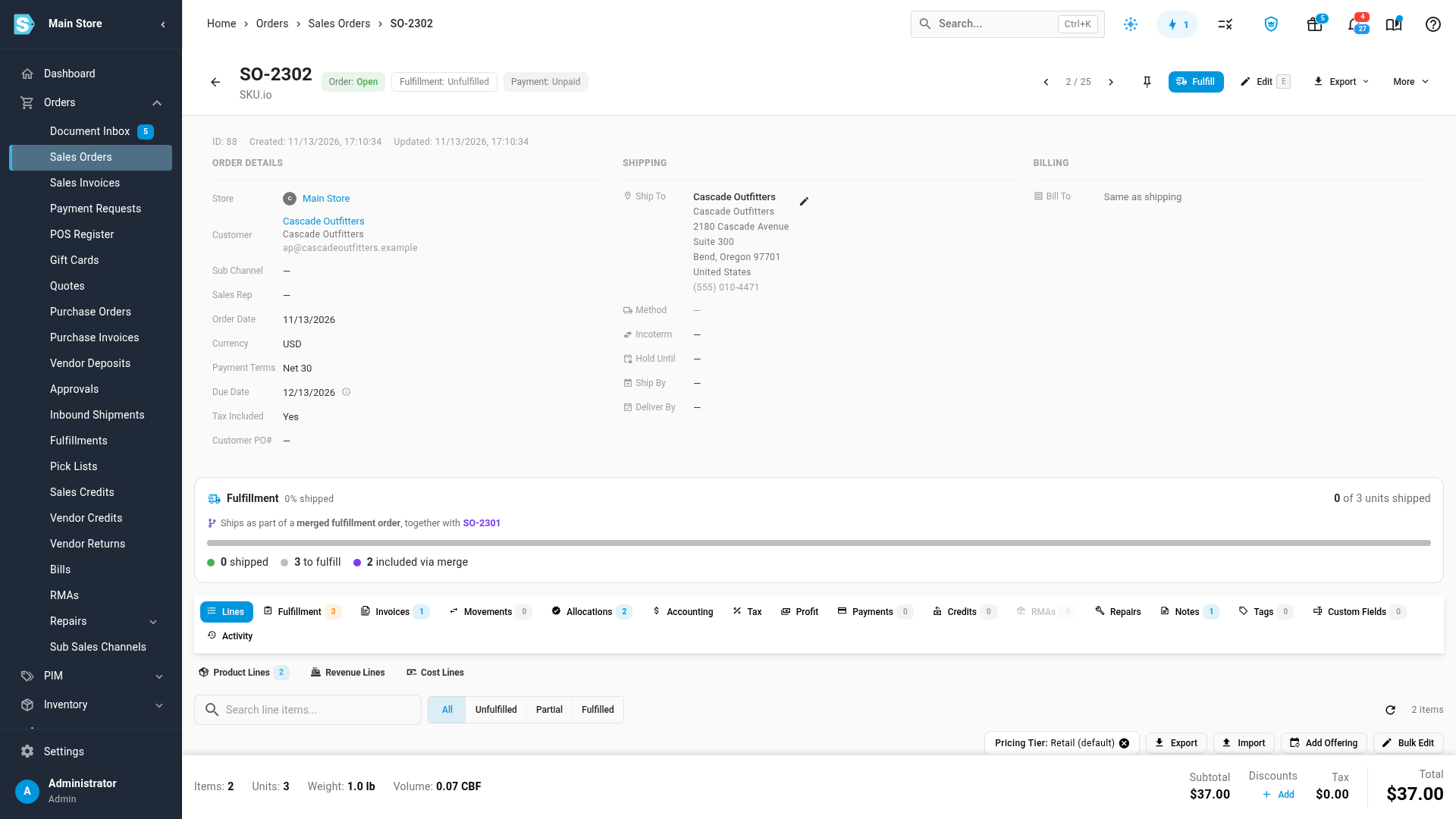
To check the result, open any of the orders. Its Fulfillment summary says it ships as part of a merged fulfillment order, together with the others. A note on each order records the merge and who made it.
What happens when the package ships
Merging combines the shipment, not the orders:
- Each sales order keeps its own number, lines, payments, invoices and status.
- When the warehouse or 3PL ships the package, SKU.io records the shipment on every order with the same tracking number.
- Each order sends that tracking number to its own sales channel. Two Shopify orders each get their own fulfillment with the shared tracking number.
Add an order to a merged shipment
Select an order from the merged shipment together with the new order, then choose More → Merge Orders again. SKU.io adds the new order to the existing shipment, and the shipment's primary order stays the same. The preview marks orders that are Already in this shipment.
When SKU.io refuses a merge
If any selected order can't ship with the others, the preview lists the reasons under These orders can't be merged, and the Merge button stays disabled. Common reasons:
| Reason in the preview | What to do |
|---|---|
| It has already been sent to the warehouse or shipping provider. | Merge it from the order's Fulfillment tab instead. That cancels the provider's order and re-sends both as one. See Merge orders already submitted to the provider. |
| The orders ship from different warehouses, or through different shipping providers. | Move one order's fulfillment to the other warehouse first. See Move a fulfillment order to another warehouse. |
| The orders ship to different addresses. | Only orders going to exactly the same address can share a package. Correct the shipping address if it's a typo. |
| The order is a draft, cancelled or closed, or has nothing left to ship. | Approve a draft first. Shipped, cancelled and closed orders can't be merged. |
| The order is split into several fulfillment orders, or ships from more than one warehouse. | Combine its fulfillment orders on the order's Fulfillment tab first, then merge. |
The preview also warns, without blocking, when the orders belong to different customers, come from different sales channels, or use different currencies.
Undo a merge
Until the merged shipment is sent to the warehouse, open any of its orders, go to the Fulfillment tab and click Unmerge. Each order goes back to shipping on its own.
Next steps
- Split, move, and merge fulfillments: the other ways to combine or reshape shipments, from an order's Fulfillment tab.
- Fulfill a sales order: send the merged shipment to the warehouse.
- Two-tier fulfillment: intent vs execution: how fulfillment orders and shipments relate.
Video transcript
To send several orders to a customer in one package, start from the left sidebar. Click Orders to open the group, and then choose Sales Orders. Once it loads, the list shows each sale with its status and fulfillment. Tick each order you want to ship together. They need the same delivery address, and the same warehouse. Then open the More menu, in the bar above the list. Near the bottom, choose Merge Orders. SKU.io checks them before anything changes. A preview opens first. It shows where the package goes, the warehouse it ships from, and the combined units and totals. Below that, each order is listed with its own lines. The oldest is the primary, so the warehouse receives the package under its number. To use a different reference, select Primary on another card. When everything looks right, click Merge 2 Orders. SKU.io combines them into one shipment, and confirms it at the top of the screen. Each sale keeps its own lines, payments and sales channel order. When the package ships, every one of them gets the same tracking number. To check the result, open either of the orders. The Fulfillment summary says it ships as part of a merged fulfillment order, together with the other order. You can add to a merged shipment the same way. Go back to Sales Orders, using the left sidebar. Tick one of the orders already in the shipment. Then tick the new sale you want to add to the shipment. Click the More button above the list again. Then choose Merge Orders, just like before. The preview opens again, and checks every order in the shipment. If an order can't ship with the others, SKU.io refuses the merge and says why. Here, the new sale already went to the warehouse. Until the shipment goes to the warehouse, Unmerge on the order's Fulfillment tab undoes a merge.