Let suppliers add tracking from the PO link
When a supplier ships with their own carrier, they can send you the tracking themselves. They open the link in your purchase order email and fill in the Shipped with your own carrier? card. The shipment then appears on your purchase order without anyone retyping it: an in-transit shipment you receive against on a stock order, or a shipment that goes on to your customer on a dropship order.
Before you begin
- The purchase order has been sent to the supplier, so they have its link. See Get a purchase order confirmed by the supplier.
- On a stock order, the card appears once the supplier has accepted the order. It doesn't appear on an order they rejected or asked to change, on a cancelled or closed order, or on an order to an Amazon FBA or AWD warehouse.
- On a dropship order, the card is there from the start. A dropship order that ships on a prepaid shipping label uses the label card instead.
- Your supplier needs no login. The link is the only access, and it opens this one order.
Steps
These steps are what your supplier does on the purchase order link.
-
Open the link in the purchase order email.
-
On a stock order, choose Accept as sent, enter a name, and click Submit response.
-
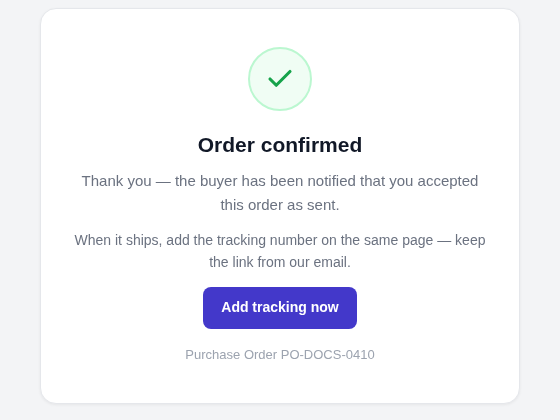
On the confirmation page, click Add tracking now. The same page opens with the tracking form ready. (Coming back later, scroll to Shipped with your own carrier? and click Enter my tracking number.)
-
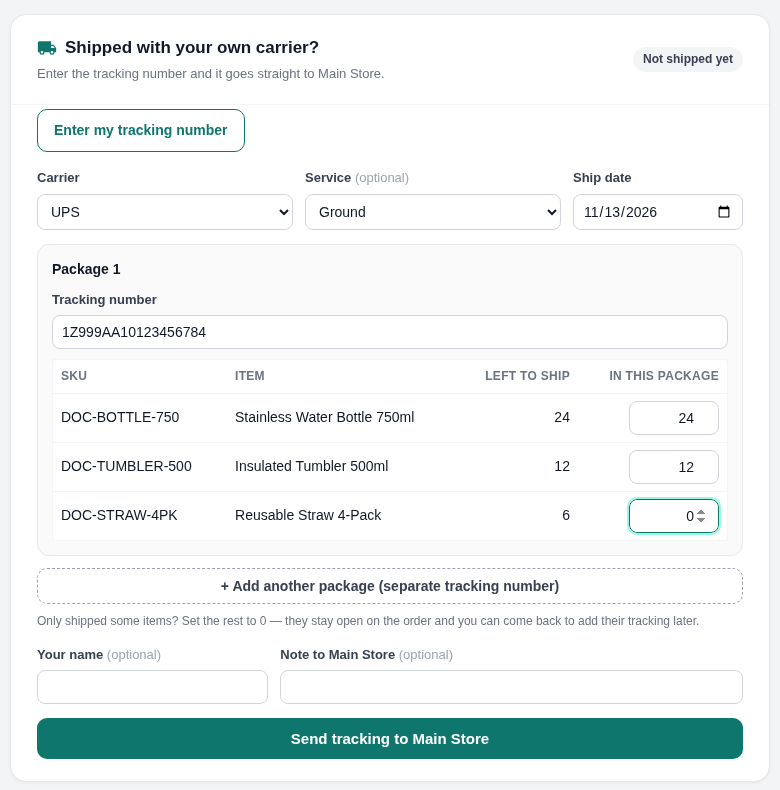
Choose the Carrier. If it isn't in the list, choose Other carrier… and type its name.
-
Optionally, choose the Service (the list shows that carrier's services only), and check the Ship date.
-
Under Package 1, enter the Tracking number.
-
In In this package, set how many of each item the package holds. Set an item to 0 when it ships later: it stays open on the order.
-
If the order went out in more than one box, click + Add another package (separate tracking number) and fill in each package the same way.
-
Optionally, enter Your name and a note to you, then click Send tracking to your store.
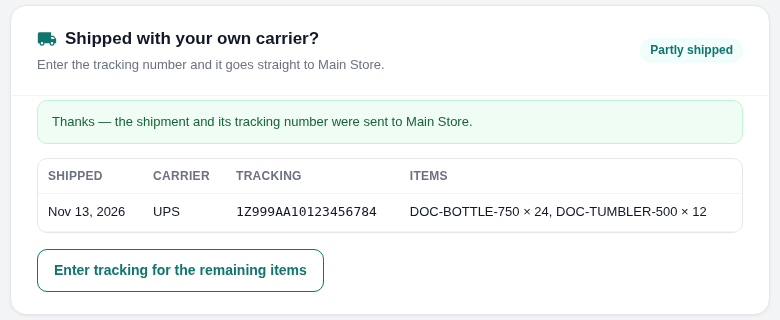
The card then lists the shipment with its carrier, tracking number and items, and reads Partly shipped or Shipped. Items left at 0 can get their own tracking later, from the same link: click Enter tracking for the remaining items.
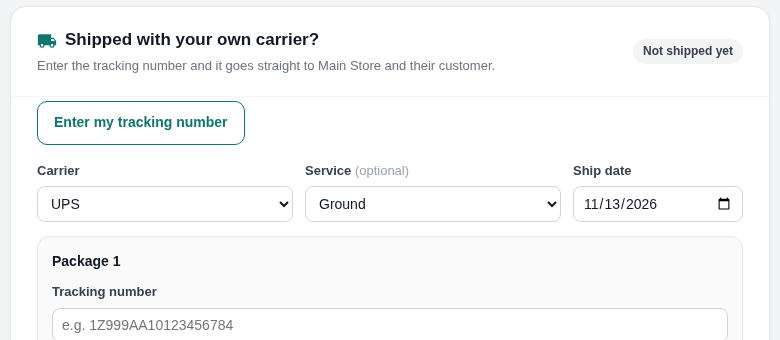
On a dropship order there's no accept step: the card is waiting below the order, and the carrier and service you asked for on the purchase order are already chosen. Its note says the tracking goes straight to your store and your customer.
What you see on your side
-
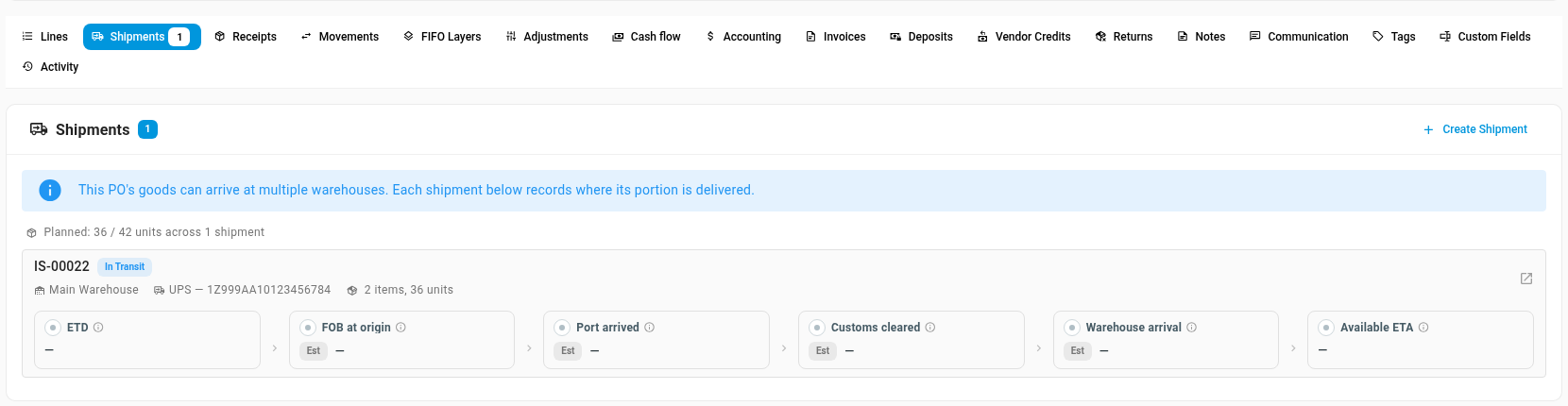
A stock order gets one in-transit inbound shipment for each package, carrying the tracking number, the carrier and service, the ship date and the package's items. It shows on the order's Shipments tab and in Inbound Shipments, and the order's shipment status reads Partially Shipped or Shipped To Warehouse. You receive against the shipment when the stock arrives.
-
A dropship order is shipped to your customer, exactly as when you click Ship on it yourself, and the tracking goes on to your sales channel.
-
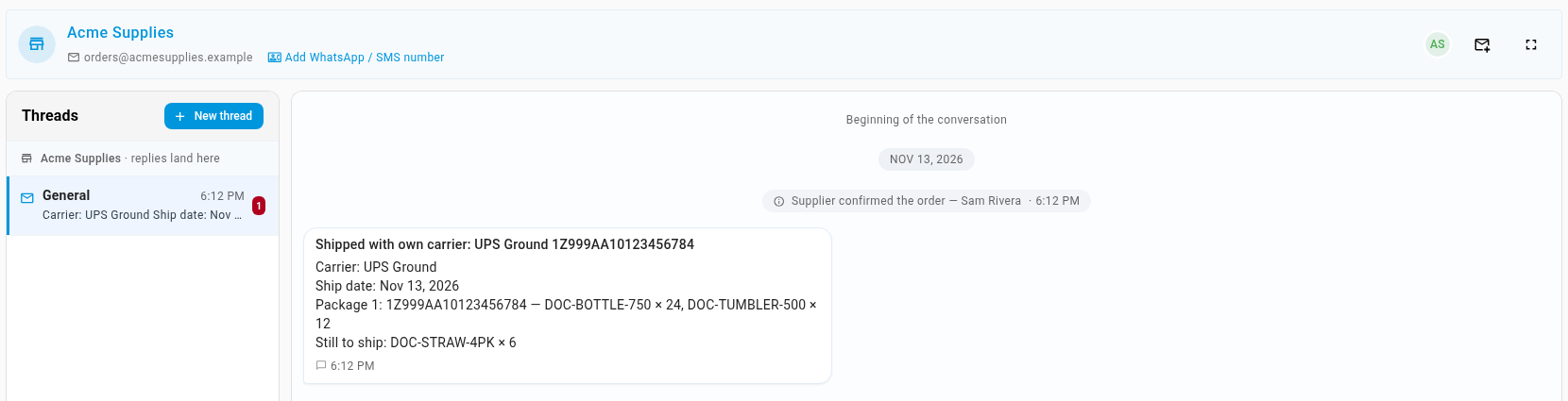
On both, an unread message arrives on the order's Communication tab. It names the carrier, the ship date, each package with its tracking number and items, and what is still to ship. The order's Activity tab records it too.
Things to know
- The same tracking number is never recorded twice. Sending a tracking number that's already on the order (from the supplier, or entered by you) with the same items does nothing more. The page says These tracking numbers were already recorded — nothing more to do. The same number with different items is refused, so a correction comes to you instead of being lost. Spaces, hyphens and capital letters don't make a number different.
- Quantities can't exceed what's left to ship. The card counts shipments you entered yourself, and the page says how many of an item are left.
- Package by package, all or nothing. If any package can't be recorded, none of them are, and the form keeps what the supplier typed.
- The ship date can't be in the future or before the order date.
- The carrier list is your store's carriers. Other carrier… records the name the supplier types.
Next steps
- Get a purchase order confirmed by the supplier
- Receive stock against a purchase order
- Send dropship vendors a shipping label
Video transcript
When your supplier ships with their own carrier, they can send you the tracking themselves. They open the link in your purchase order email, with no login needed. For stock, they accept it first: they add their name and submit the response. Once it's accepted, the confirmation page offers a shortcut, Add tracking now. It reopens the link with the form already open. Choose the carrier, and optionally its service. Check the ship date, which starts at today. Enter the package's tracking number. Then set how many of each item it holds. Anything set to zero stays open on the order, to ship later. If the order went out in several boxes, add another package for each tracking number. Then send it to your store with the button at the bottom. The page reloads, with the shipment listed in the card. The shipment is listed with its carrier, tracking number and items, and the order reads Partly shipped. Anything left at zero can be sent later, from the same link. A dropship order shows the same card, with no accept step. The carrier you asked for is already chosen. The tracking goes on to your customer and their sales channel. Now switch to your side of the order. The same purchase order now reads Partially Shipped, near the top. The Shipments tab holds an in-transit inbound shipment with the supplier's tracking number. You receive against it when the stock arrives at your warehouse. The supplier's update also arrives as an unread message on the order. It lists the carrier, each package with its tracking number, and what is still to ship.