Set inner packs and customer case pack rules
Some retailers don't take whole master cartons. A department store may want each master carton split into its sealed inner packs, or want everything shipped as inner packs only. You record the inner pack once on the product, then set a case pack rule for each retailer's customer. SPS Commerce auto-packing, the ship notice and the order flags all follow that rule.
Without a rule, nothing changes: a product packs by its case quantity, exactly as before.
Before you begin
- Connect SPS Commerce and link the retailer to its customer. See Link SPS Commerce retailers to their customers.
- Give each product its Case Quantity on its Shipping section. An inner pack must divide it evenly.
- To change a product's inner pack you need the Products Edit permission (
products.update). To change a customer's case packs you need permission to edit customers (customers.update).
Steps
- Go to PIM → Products and click the product.
- Choose Shipping in the product's sections.
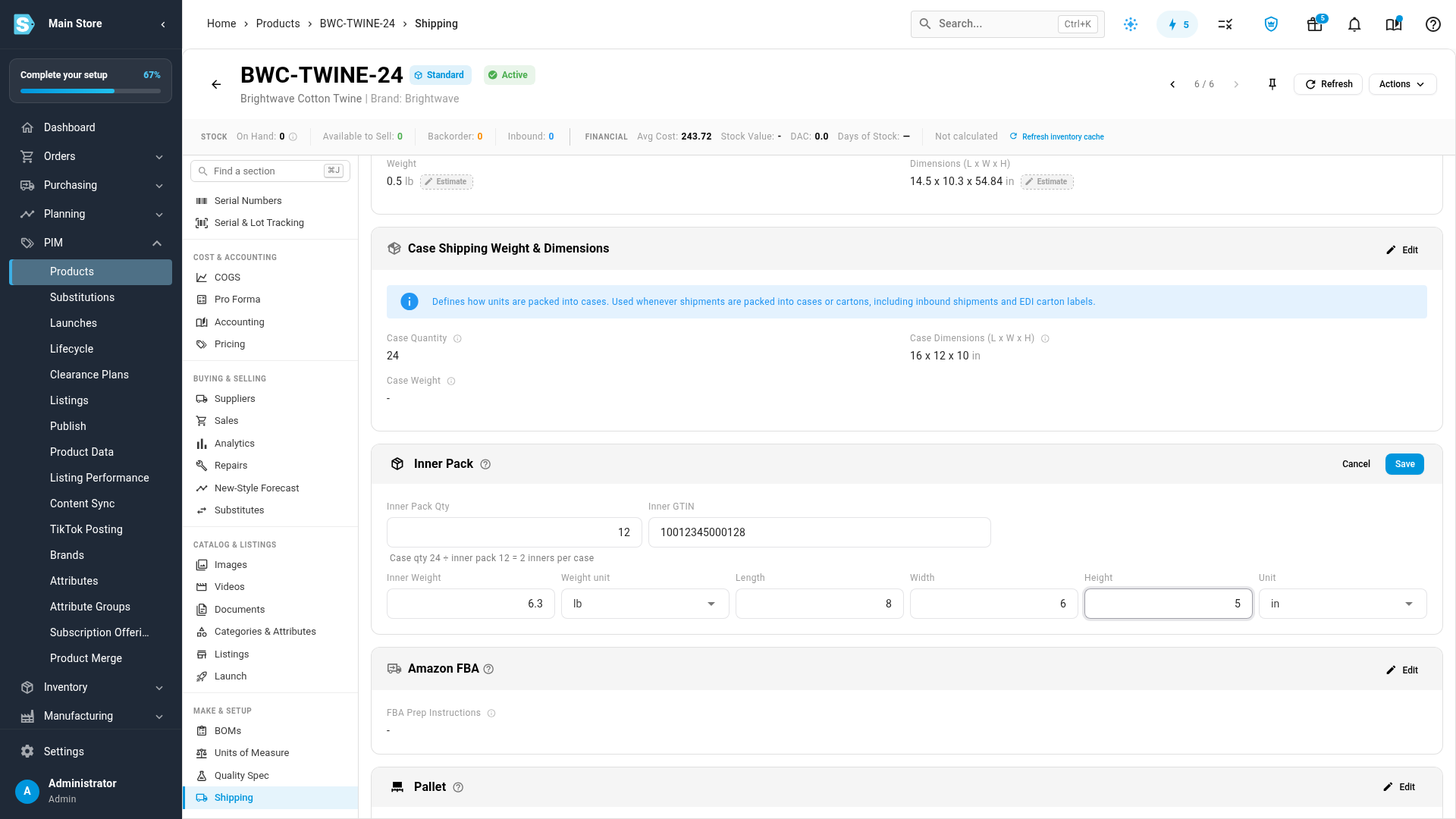
- On the Inner Pack card, click Edit.
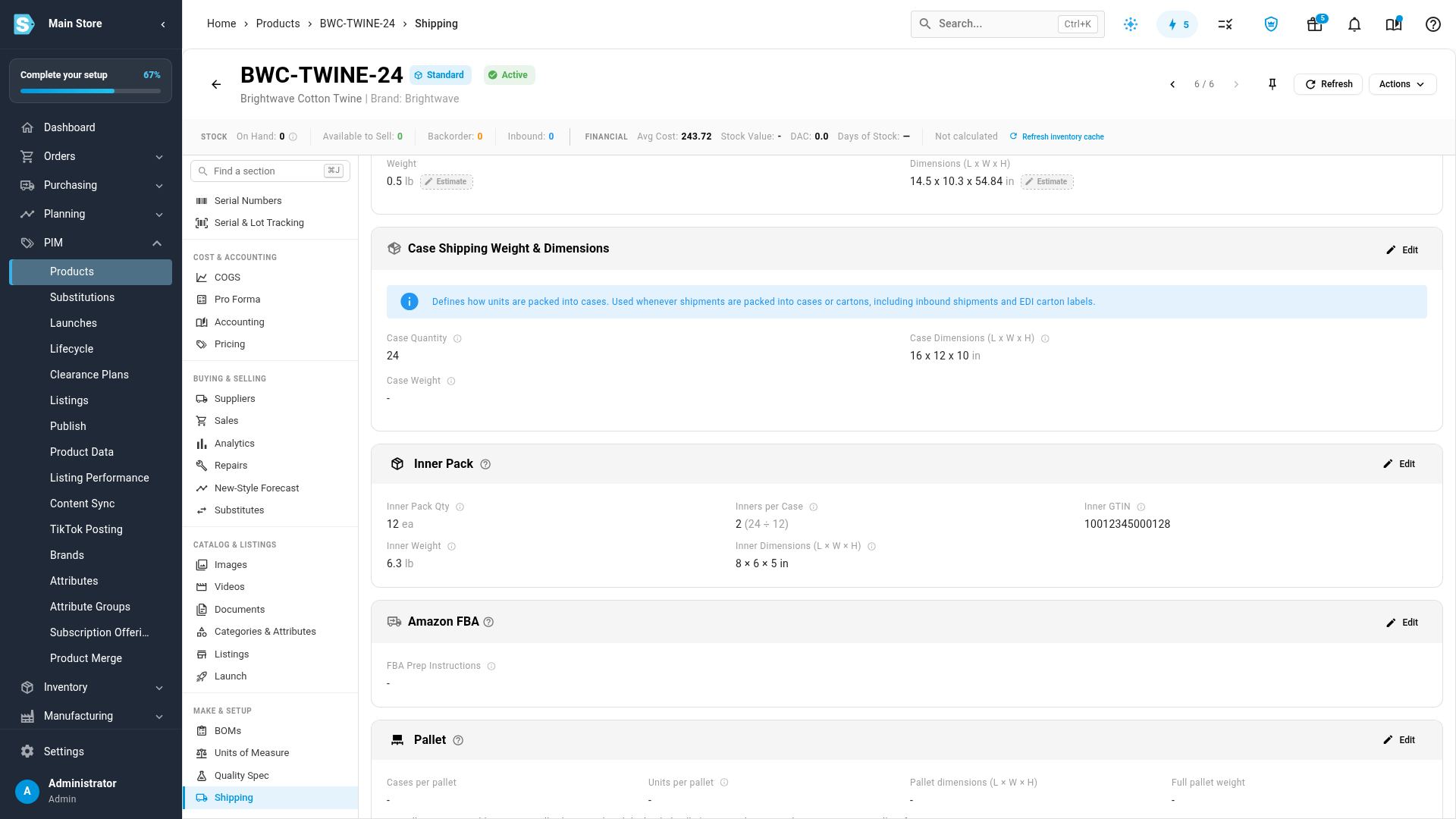
- In Inner Pack Qty, enter the number of units in one inner pack. The hint under the field shows the result, such as Case qty 24 ÷ inner pack 12 = 2 inners per case. The inner pack must be smaller than the case quantity and divide it evenly, or clicking Save shows the reason under the field, such as Inner pack (10) must divide the case quantity (24) evenly. A product with no case quantity takes any inner pack.
- Optionally, fill in Inner GTIN, Inner Weight and the inner's Length, Width and Height. An inner carton takes this weight and size when it's packed.
- Click Save. Inners per Case is worked out for you.
- Go to CRM → Customers and click the retailer's customer.
- Choose Case packs in the Setup group of the customer's sections.
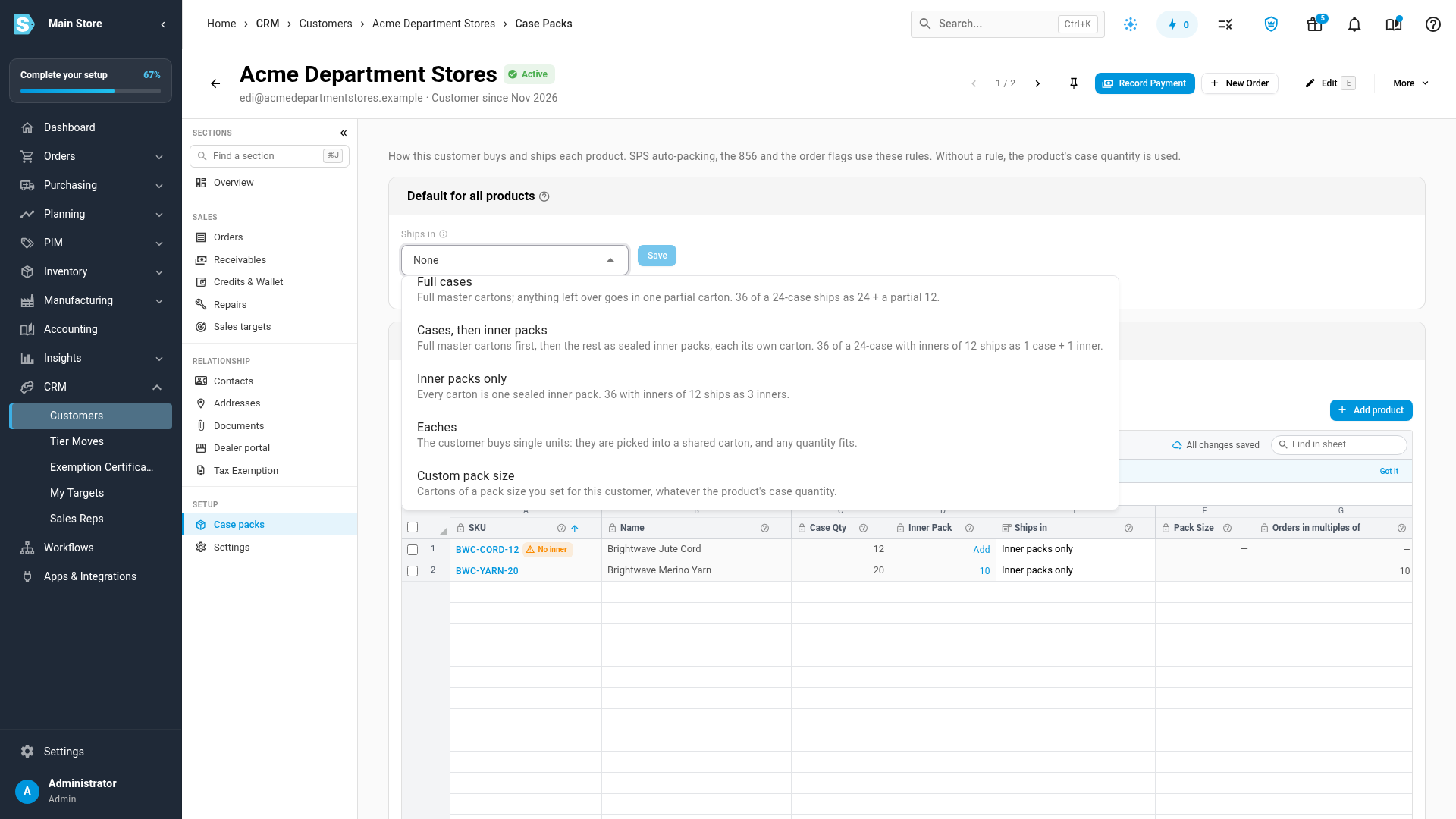
- Under Default for all products, choose how this customer ships from Ships in, then click Save. The default applies to every product without a rule of its own.
- To treat one product differently, click Add product, pick the product, choose its Ships in, and click Add rule. For Custom pack size, also enter the Pack size.
- On the shipment's Cartons tab, click Auto-pack by case. SKU.io builds the cartons from the rule.
- Check the cartons, then click Finalize packing. Every carton gets its own SSCC number.
Choose how a retailer ships
Ships in offers five ways to ship. Here is what each one makes from an order of 36 units of a product that comes 24 to a case, with inner packs of 12:
| Ships in | What gets packed | 36 units of a 24-case with inners of 12 | Orders should come in multiples of |
|---|---|---|---|
| Full cases | Full master cartons; anything left over goes in one partial carton | 1 case of 24 + a partial carton of 12 | The case quantity |
| Cases, then inner packs | Full master cartons first, then the rest as sealed inner packs, each its own carton | 1 case of 24 + 1 inner of 12 | The inner pack |
| Inner packs only | Every carton is one sealed inner pack | 3 inners of 12 | The inner pack |
| Eaches | Single units picked into a shared carton | One shared carton; any quantity fits | 1 |
| Custom pack size | Cartons of a pack size you set for this customer, whatever the case quantity | Cartons of the size you enter | The pack size |
Choosing None as the default means the customer has no default: each product ships by its case quantity unless it has a product rule.
Read the product rules
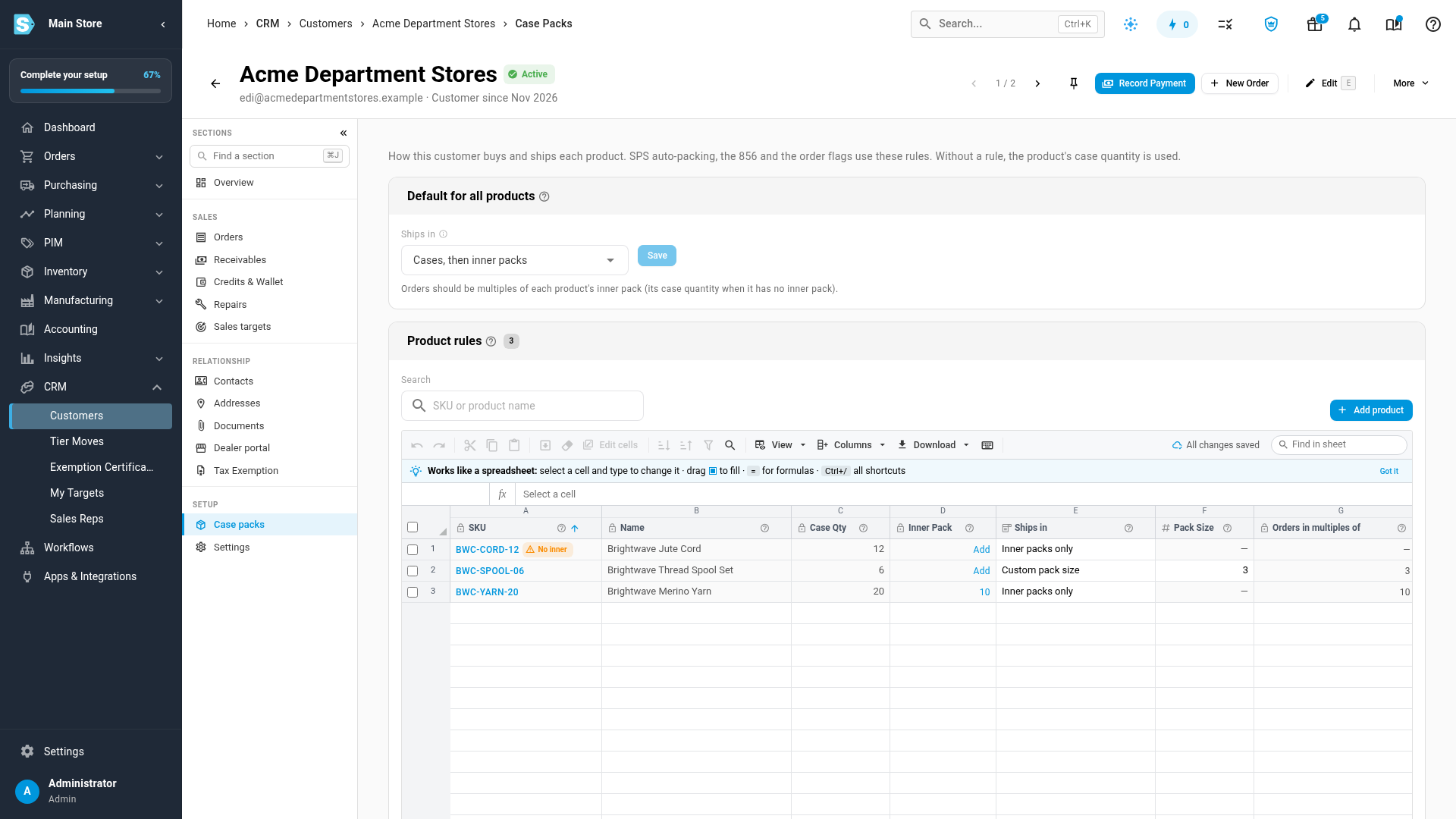
The Product rules table lists every product with a rule of its own. A product rule overrides the default for that product.
| Column | What it shows |
|---|---|
| SKU and Name | The product. Click the SKU to open it. |
| Case Qty | The product's case quantity. |
| Inner Pack | The product's inner pack. Click it to change it on the product's Shipping section, or click Add when it has none. |
| Ships in | How this customer ships the product. Change it right in the table. |
| Pack Size | The pack size, for Custom pack size only. |
| Orders in multiples of | The quantity orders should come in, worked out from the rule. |
A No inner chip on a product means its rule needs an inner pack the product doesn't have. Until you add one, Cases, then inner packs packs it as full cases, and Inner packs only puts it in a shared carton. Click the chip to add the inner pack.
To remove rules, select their rows and delete them. With every rule gone, the customer's orders pack by case quantity again.
Spot orders that don't fit the pack
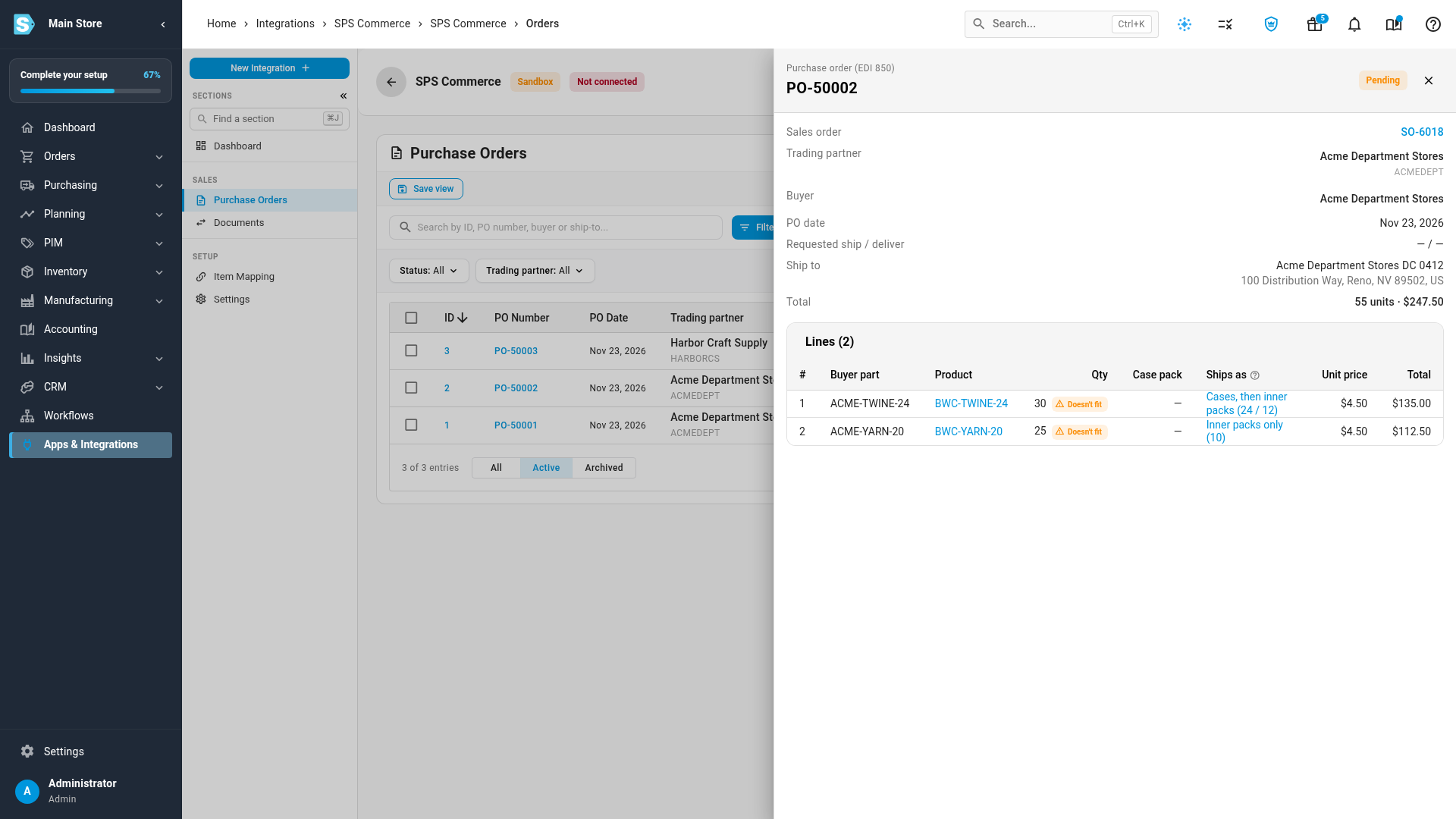
Retailer purchase orders show the rule before you ship. Go to Apps & Integrations → SPS Commerce, open Purchase Orders, and click an order. In the order's lines, the Ships as column names the rule each line follows, such as Cases, then inner packs (24 / 12). Hover it to see why; click it to change the customer's rule.
When a line's quantity isn't a multiple of what the rule expects, it shows a Doesn't fit flag. Hover the flag for the reason, for example Cases of 24, then inner packs of 12 (the customer's default rule), so orders should be multiples of 12. Without a rule, the flag compares against the product's case quantity, as before. The flag only warns you; it doesn't change any document.
How auto-packing builds the cartons
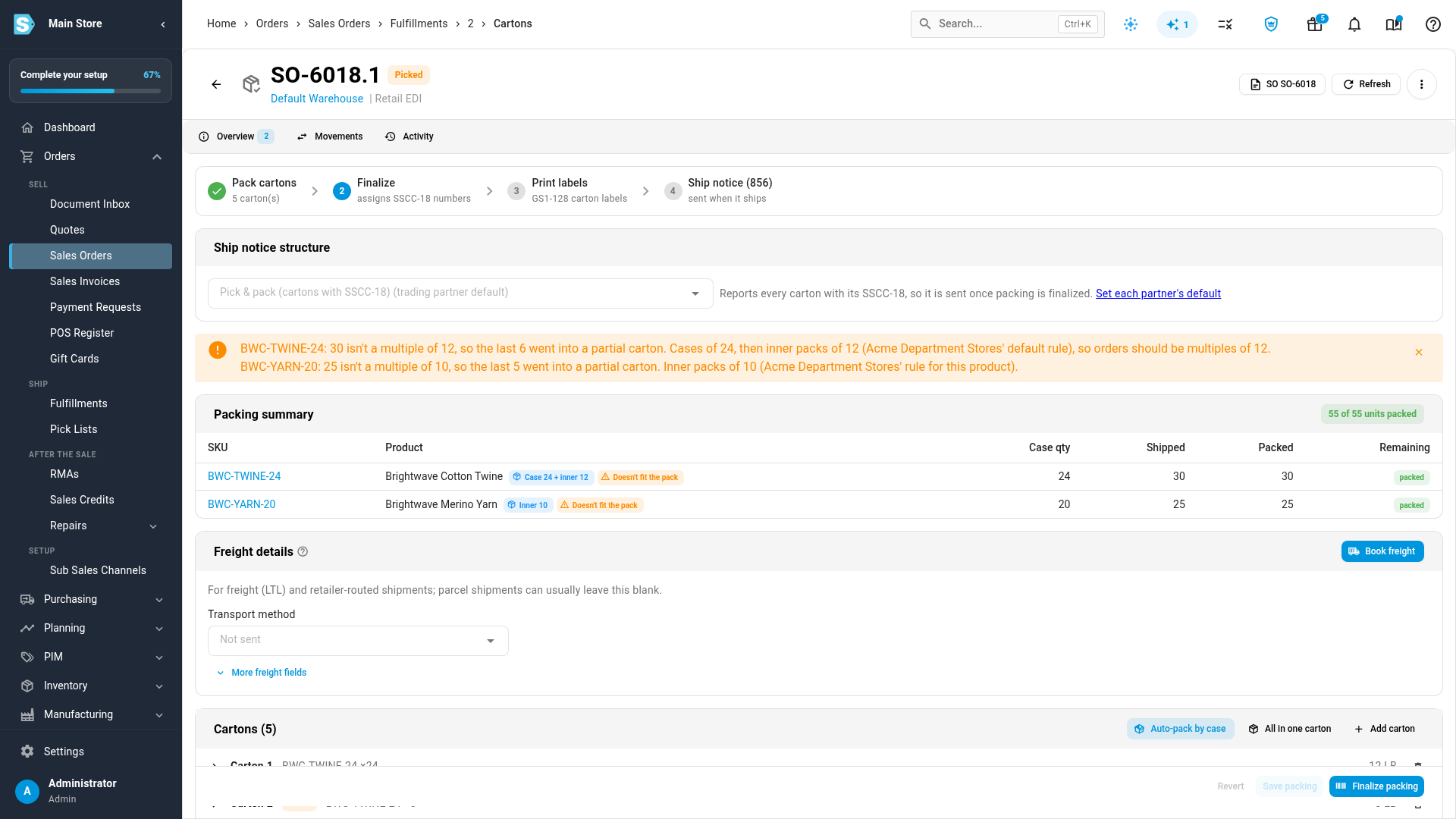
On the shipment's Cartons tab, each product in the Packing summary shows its pack, such as Case 24 + inner 12 or Inner 10, and a Doesn't fit the pack flag when its quantity doesn't fit. To open the tab, click Pack cartons on the shipment in the sales order's Fulfillment tab. See Pack and label SPS Commerce shipments.
When you click Auto-pack by case:
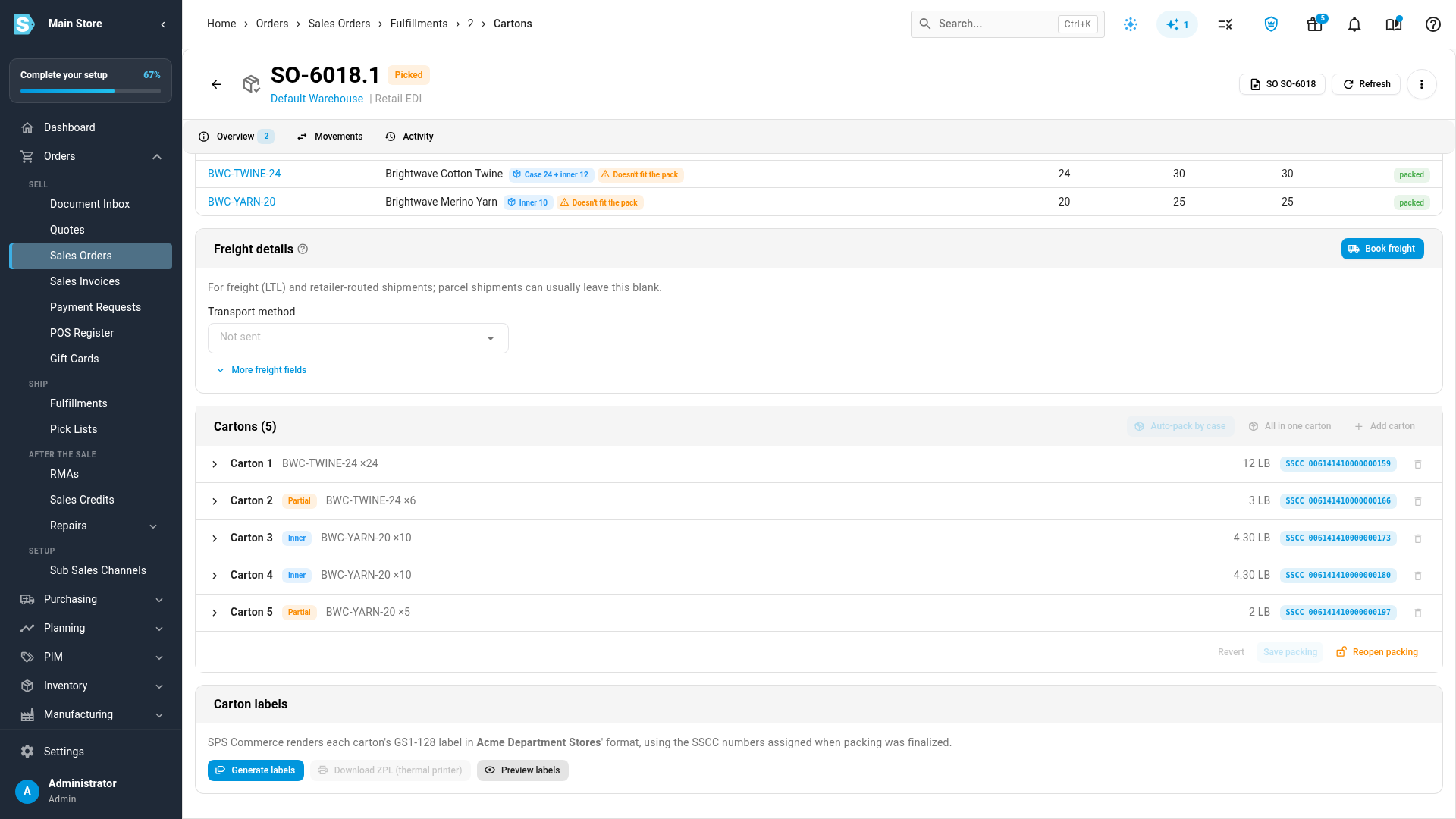
- Full master cartons are packed first, for Full cases and Cases, then inner packs.
- Each whole inner pack is its own carton, marked with an Inner chip. It takes the inner pack's weight and size when the product has them.
- Whatever is left over goes in one carton per product, marked Partial. A warning above the Packing summary names the product, how many went into the partial carton, and the rule.
- Products without a rule pack exactly as before, by their case quantity.
Finalize packing gives every carton, whether a full case, an inner or a partial, its own SSCC number. The ship notice then tells the retailer what each carton holds: a full case, an inner pack, a custom pack, or a partial carton. For a product shipped in full cases that has an inner pack, it also reports how many units are in each inner.
When the case quantity changes
If a product's case quantity is changed so that its inner pack no longer divides it, the save isn't blocked. Instead, the Inner Pack card turns red, and packing ignores the inner pack until you change one of them: rules that need the inner fall back as described under No inner above.

Import and export inner packs
The products spreadsheet import reads two inner pack columns. See Import products from a spreadsheet for the import itself.
| Column header | Required | Type | Accepted values | What it does |
|---|---|---|---|---|
Inner Pack Qty | No | Whole number | 1 or more, smaller than the case quantity, and dividing it evenly | Sets the inner pack. A blank cell removes the product's inner pack, including its GTIN. |
Inner Pack GTIN | No | Digits | 8, 12, 13 or 14 digits | Sets the inner pack's GTIN. A blank cell clears only the GTIN. |
How the columns behave:
- Leave a column out and nothing changes. A file that doesn't map either column leaves every product's inner pack alone.
- The case quantity it must divide is the row's own Case Quantity when the file has one, otherwise the product's.
- A GTIN without an inner pack quantity is a row error: Inner Pack GTIN needs an Inner Pack Qty.
- Bad values are row errors, such as Inner Pack Qty '2.5' must be a whole number of at least 1. or Inner Pack GTIN '123' must be 8, 12, 13 or 14 digits. An inner pack that doesn't fit the case gets the same message as the Inner Pack card, such as Inner pack (10) must divide the case quantity (24) evenly.
- The weight and size stay as they are. The import has no columns for them; set them on the product's Inner Pack card.
The products export adds Inner Pack Qty and Inner Pack GTIN next to the Case Qty column, under the same headers, so an exported file imports back unchanged. Show the Case Qty column before you export. See Export products.
Next steps
- Pack and label SPS Commerce shipments: print the carton labels and send the ship notice.
- Ship multi-store purchase orders by store: auto-packing applies the same rules store by store.
- Handle purchase orders from SPS Commerce
Video transcript
Some retailers want each master carton split into smaller sealed packs, called inner packs.
To set one up, open PIM in the sidebar and choose Products from its menu.
The product list opens, with every item in your catalog.
Click the product you want to set up from the list.
Its record opens on the overview, with its sections listed down the left.
Choose Shipping from those sections, the one that holds the case and pallet details.
The Inner Pack card sits just below the case details.
On the Inner Pack card, click Edit.
Enter how many units are in one inner pack.
It must divide the case quantity evenly, so 10 won't work for a case of 24.
Twelve does, which makes two inners per case.
If the inner has its own barcode number, add it in the box beside the quantity.
Then add its weight and size, so an inner carton gets the right weight on its label.
Click Save at the top of the card to keep the inner pack.
Inners per Case is worked out for you, from the case and the inner.
If the case quantity later changes so the inner no longer divides it, the card turns red, and packing ignores the inner pack.
Next, set how each retailer wants its cartons.
Open CRM in the sidebar, then choose Customers, the first item in the menu that opens below it.
The customer list opens, with every customer you sell to.
Click the retailer's customer in the list.
Its record opens on the overview.
Choose Case packs, in the Setup group of its sections, near the bottom of the list.
The default covers every product this customer buys.
Click the Ships in box to see the five choices it offers.
Say the order is 36 units, of a product with 24 to a case and 12 to an inner.
Full cases ships one case, plus a partial carton of 12 units.
Cases, then inner packs ships one case and one inner.
Inner packs only ships three inners.
Eaches picks single units into a shared carton.
Custom pack size uses a pack size that you choose for this customer.
Choose Cases, then inner packs, from the list.
Then click Save to keep it as this customer's default.
Orders should now come in multiples of each product's inner pack.
A product rule overrides the default for one product.
Click Add product to start a new rule for this customer.
Search for the product by its SKU or name.
Pick it from the list of matches when it appears below the box.
Under Ships in, click the list and choose Custom pack size this time.
Then enter the pack size, here three units.
Click Add rule, and the new rule joins the table.
Each row shows the multiple that this customer's orders should match.
You can also change Ships in right in the table, without opening the form again.
A No inner chip means the rule needs an inner pack that the product doesn't have yet.
Retailer purchase orders show the rule as well.
Click an SPS Commerce purchase order to see its lines.
The Ships as column names the rule each line follows.
Clicking a rule takes you straight to the customer's Case packs.
Thirty units don't divide into inner packs of 12, so this line is flagged Doesn't fit.
Hover the flag to see why.
On the shipment's Cartons tab, the same flags sit beside each product.
Click Auto-pack by case to build the cartons.
SKU.io packs full cases first, then inner packs.
Each inner is its own carton, with an Inner chip, and the inner's own weight and size.
Whatever is left over goes in one carton marked Partial, and a warning above the summary names the rule.
When the cartons look right, click Finalize packing.
Every carton, whether a case, an inner or a partial, gets its own SSCC number.
The ship notice then tells the retailer what each carton holds.