Exchange SPS Commerce documents as RSX JSON
SPS Commerce takes documents in two formats: RSX XML and RSX JSON. A new connection uses RSX XML. When SPS Commerce sets up your account for JSON (SPS may call it "JSON over the Transaction API"), change the connection's Document format to RSX JSON, so everything SKU.io sends arrives in the format SPS expects.
Before you begin
- Connect SPS Commerce.
- Confirm the format with your SPS Commerce contact. SPS has to expect the format you send, so switch only when SPS tells you to, usually during onboarding or testing.
- You need the Integrations Edit permission (
integrations.update).
Choose the document format
- Go to Apps & Integrations, type SPS in Search integrations, and choose SPS Commerce.
- Open your connection, then click Settings.
- Under Connection settings, open Document format and choose RSX JSON.
- Scroll to the end of Connection settings, and click Save Changes. Settings saved appears.
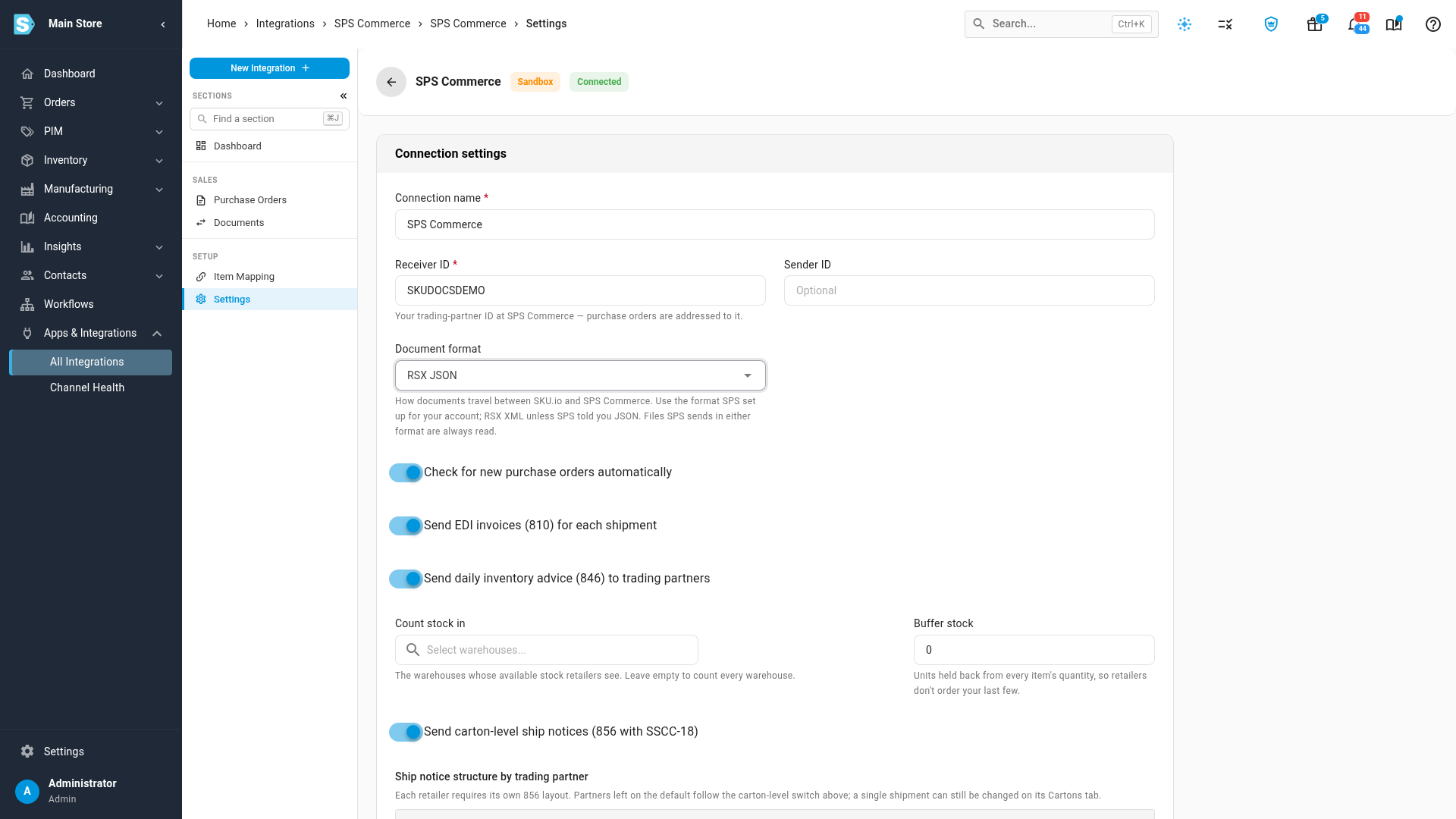
To go back, choose RSX XML and save again.
What changes
| RSX XML (the default) | RSX JSON | |
|---|---|---|
| Documents SKU.io sends: acknowledgments, ship notices, invoices, inventory advice, warehouse orders and the combined ship notice and invoice | Sent as XML | Sent as JSON |
| A document you resend from the Documents tab | Sent as XML | Sent as JSON, even if it first went out as XML |
| Everything SPS Commerce sends you: purchase orders, a 3PL's shipping advice, and replies to the documents you sent | Read in either format | Read in either format |
| A corrected shipping advice file you upload on the Documents tab | Either format | Either format |
You don't have to change anything else. Your purchase orders, sales orders and shipments look and behave the same in either format.
Download a document as XML or JSON
You can download any document the connection received or sent, in either format, whatever the connection uses. SPS Commerce support or a retailer's EDI team may ask for one in a specific format.
- Open your connection, and click the Documents tab.
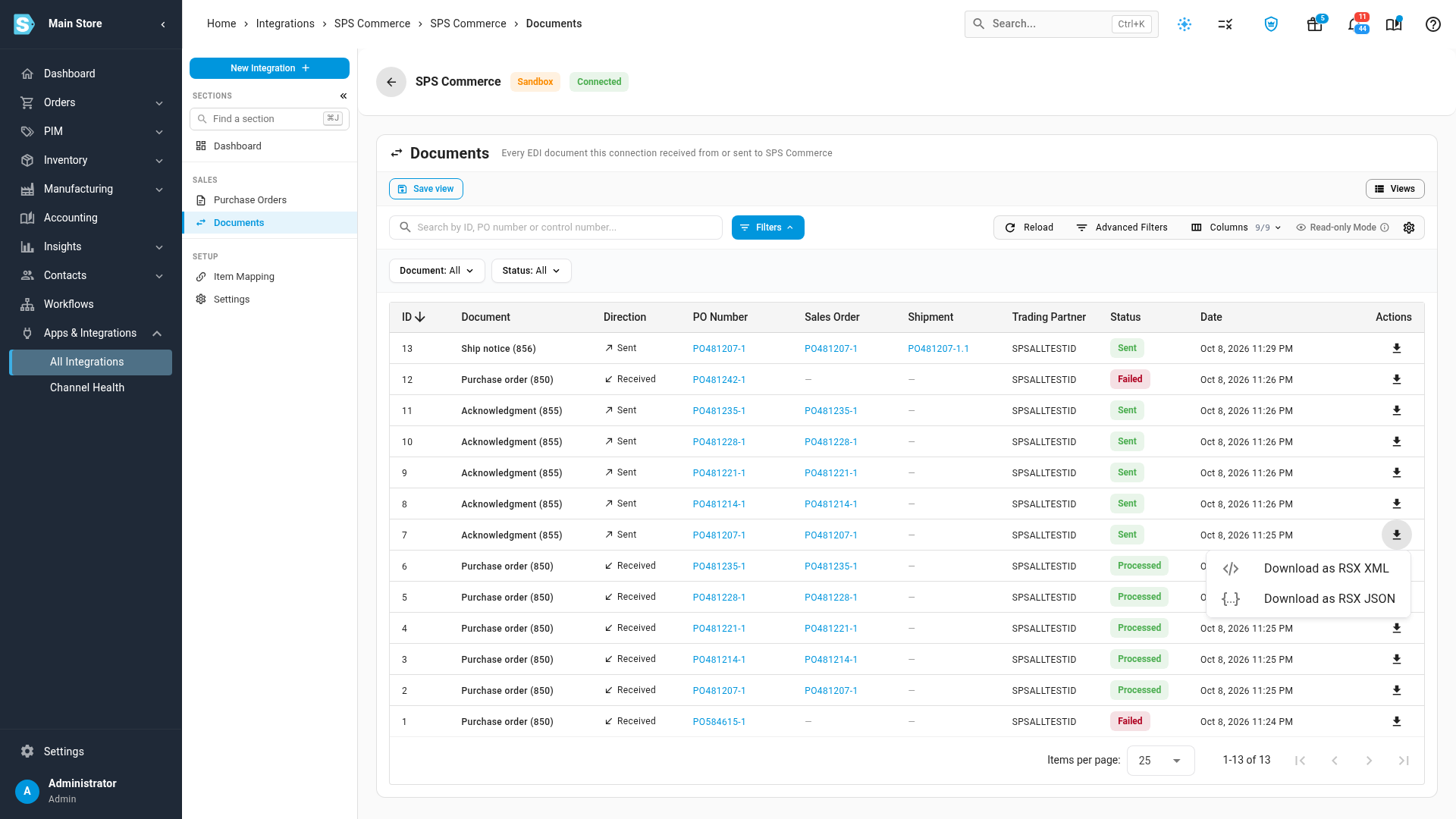
- Find the document, and click the download button at the end of its row.
- Choose Download as RSX XML or Download as RSX JSON.
The file is named after the document type and its control number, for example 855-ACK-PO481207-1.json.
Next steps
- Track and resend SPS Commerce documents: find a document, see why it failed, and send it again.
- Choose what SPS Commerce sends: turn on invoices, inventory advice and carton-level ship notices.
- How SPS Commerce EDI works
Video transcript
To choose a document format, open Apps and Integrations.
Search for SPS, and pick it from the list.
Then open your connection.
Its dashboard loads your recent purchase orders.
Click Settings, and the connection settings open.
Document format decides how SKU.io writes the files it sends.
SPS tells you which one your account uses.
To switch, pick RSX JSON from the list.
The field now shows the new format.
Scroll to the end of the connection settings, and click Save Changes.
Everything SKU.io sends now goes out in the new format.
Files from SPS are read either way.
To download a copy, open the Documents tab.
Each file you received or sent has its own row.
Click the button at the end of the row, and choose RSX XML or RSX JSON.