Choose what SPS Commerce sends
Every connection sends purchase order acknowledgments and ship notices. Whether it also sends invoices and inventory advice, and whether its ship notices list each carton, depends on what your retailers require. Your retailer's EDI requirements (usually a vendor guide from the retailer or SPS Commerce) tell you which ones to turn on.
Before you begin
- Connect SPS Commerce.
- For carton-level ship notices, you need your GS1 company prefix, the 7–10 digit number GS1 assigned you when you joined. It's on your GS1 membership account.
- To set a carton label template for a retailer, that retailer must have sent you at least one purchase order.
Open the settings
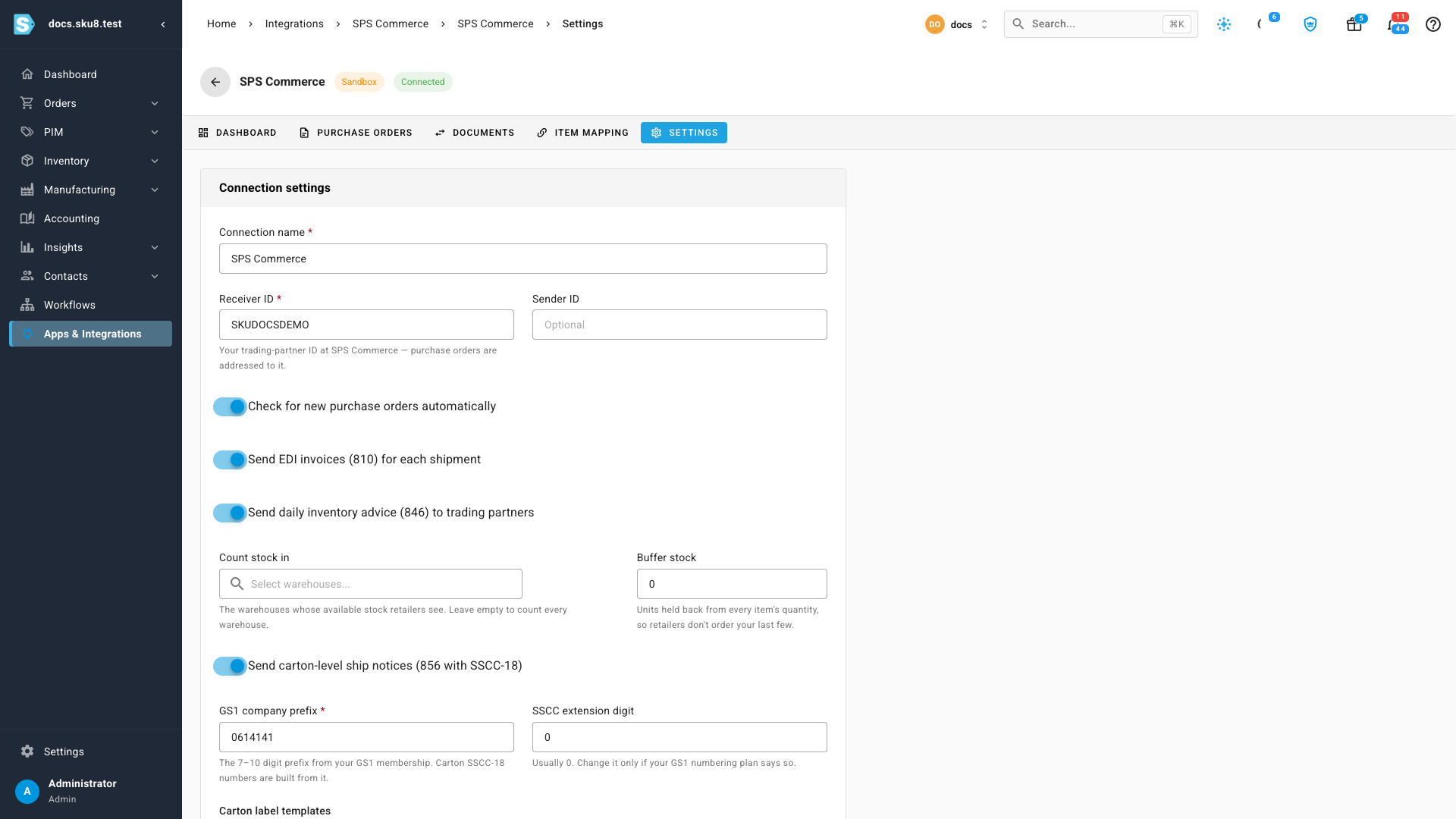
- Go to Apps & Integrations, search for SPS, and choose SPS Commerce.
- Open your connection, then click the Settings tab.
Hover over any switch to see what it does.
Send invoices
Turn on Send EDI invoices (810) for each shipment to bill retailers over EDI.
After a shipment's ship notice is sent, SKU.io sends one invoice for that shipment:
- The invoice number is the shipment number, for example PO481214-1.1, and the invoice date is the ship date.
- Each line bills the quantity shipped at the price on the retailer's purchase order, with the line's share of the order's tax.
- When the sales order has Payment Terms, the invoice carries them, including any discount for paying early.
Leave it off if you invoice this retailer another way, for example from your accounting system.
Send daily inventory advice
Turn on Send daily inventory advice (846) to trading partners so retailers know how many units they can order.
Once a day, at 5:00 UTC, SKU.io sends each retailer an inventory advice listing every item that retailer has ordered from you, with the quantity available. Two fields appear under the switch: Count stock in chooses which warehouses count (leave it empty for all of them), and Buffer stock holds units back from every item. See Send inventory advice to retailers.
Send carton-level ship notices
Retailer warehouses and distribution centers usually receive by scanning a label on each carton, so they expect the ship notice to list every carton with its SSCC-18 number. To send ship notices that way:
- Turn on Send carton-level ship notices (856 with SSCC-18).
- In GS1 company prefix, enter your prefix. SKU.io builds every carton's SSCC-18 number from it, and never reuses one.
- Leave SSCC extension digit at 0 unless your GS1 numbering plan says otherwise.
- Under Carton label templates, choose the Label template each Trading partner requires. SPS Commerce holds a template for every retailer's label format; the list shows the templates on your SPS Commerce account.
With carton-level ship notices on, each shipment's ship notice waits until you pack its cartons and finalize the packing. See Pack and label SPS Commerce shipments.
A retailer appears under Carton label templates after its first purchase order arrives. Until then, the table says so.
Save your changes
Click Save Changes. The page shows Unsaved changes until you do, and Revert puts back what was saved.
Turning a switch off stops new documents of that kind. Documents already sent stay on the Documents tab.