Link SPS Commerce retailers to their customers
A retailer such as a department store chain sends you purchase orders for many distribution centers (each a DC) and stores. When you link the retailer's trading partner to its customer in SKU.io, every purchase order from that retailer becomes a sales order for that one customer, and each new DC or store it ships to is added to the customer's addresses. Without a link, an order for a DC SKU.io hasn't seen before can create a second customer for the same retailer.
Before you begin
| Requirement | Why it's needed |
|---|---|
| SPS Commerce is connected | See Connect SPS Commerce. |
| The retailer has sent you at least one purchase order | Trading partners appear on the Settings tab only after their first purchase order arrives. |
| The retailer exists as a customer | You choose it from your customers. If it doesn't exist yet, create it first. If the retailer already has two or more customers, merge them and link the one you keep. |
Steps
- Go to Apps & Integrations, search for SPS, and choose SPS Commerce.
- Open your connection, then click the Settings tab.
- Scroll to the Customer by trading partner card. It lists each trading partner that has sent you a purchase order.
- On the partner's row, click Customer, type part of the customer's name in Search customers, and choose the customer.
- Click Save Changes. Until you do, the card shows Unsaved changes; Revert throws them away.
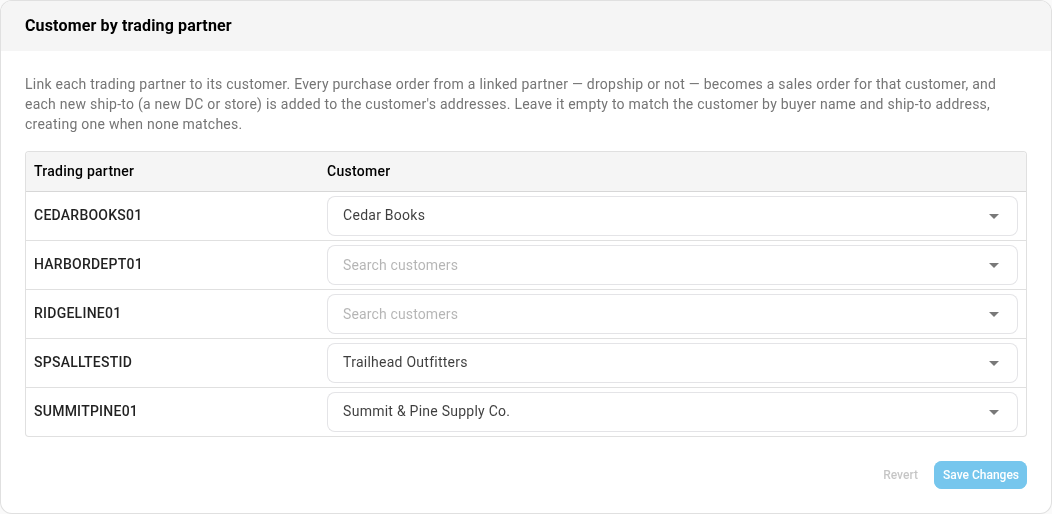
The link applies to purchase orders that arrive after you save. Sales orders already created keep the customer they were created with.
To remove a link, clear the partner's Customer box and click Save Changes.
What happens to a linked retailer's purchase orders
Every purchase order from a linked trading partner, dropship or not, becomes a sales order for the linked customer. SKU.io never creates a new customer from the retailer's name.
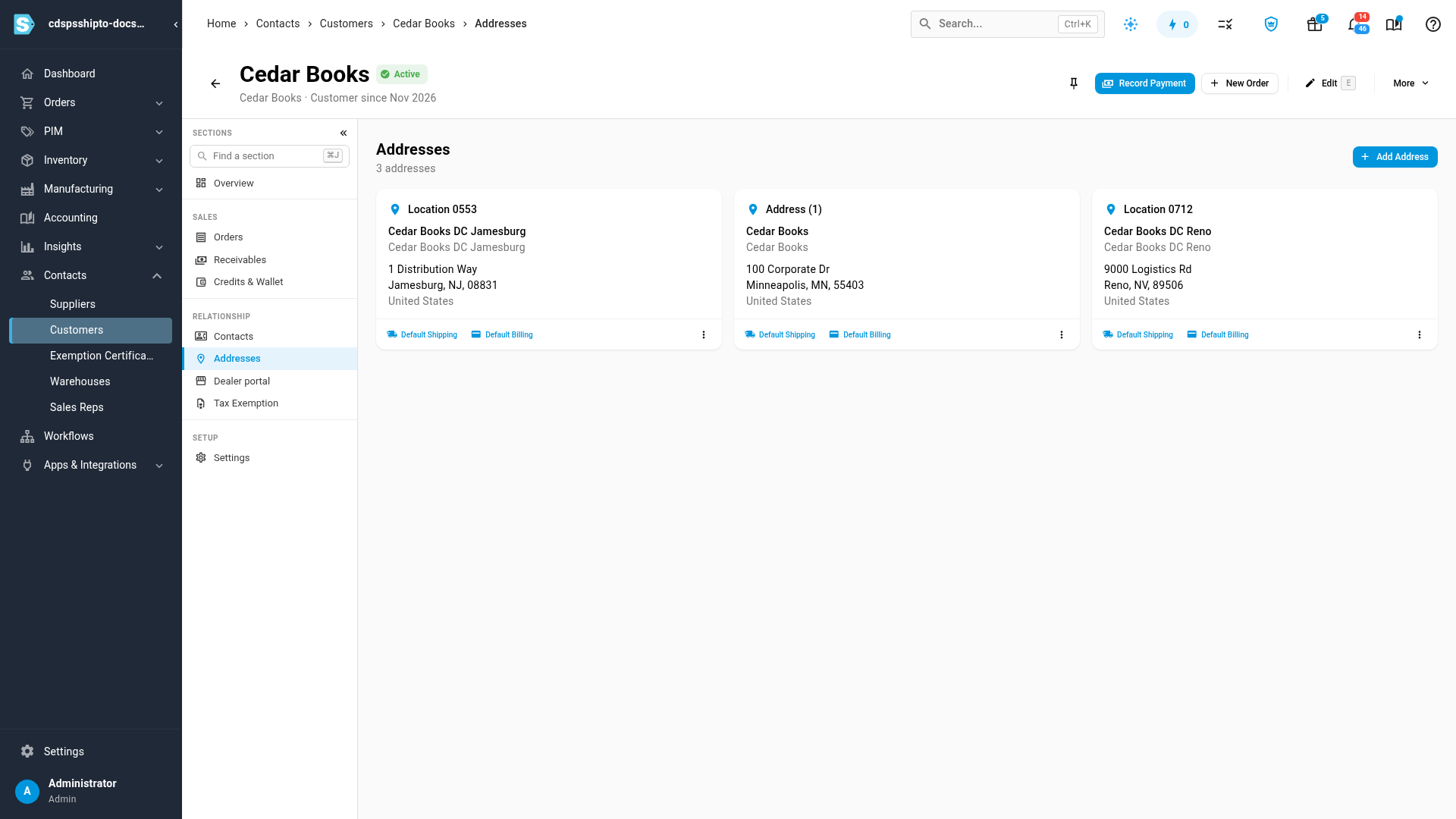
For an ordinary purchase order, the ship-to on the purchase order (the DC or store, with its address) becomes the sales order's shipping address and is added to the customer's addresses. You see them when you go to Contacts → Customers, open the customer, and click Addresses. Each ship-to is handled like this:
- A DC or store the customer already has. When the address is already in the customer's Addresses section, SKU.io uses it. It isn't added a second time.
- A new DC or store. SKU.io adds its address to the same customer, so your next order for that DC can use it.
- A DC the retailer numbers. When the purchase order carries the retailer's location ID for the ship-to, SKU.io saves the address under that location, for example Location 0553, recognizes it on later orders, and sends the number back on the ship notice. See The retailer's location ID.
A dropship purchase order ships to the retailer's shopper instead, so the shopper's address isn't added to the customer. With dropship turned on for the linked customer, the order ships blind under the retailer's branding. See Ship SPS dropship purchase orders blind.
What happens when a retailer isn't linked
When a trading partner has no customer chosen, SKU.io looks for an existing customer with the retailer's name and the purchase order's ship-to street address and ZIP code. It uses the first customer that matches. When none matches, it creates a new customer with that name and the ship-to as its address.
That works while a retailer ships everything to one place. A retailer with several distribution centers ends up with one customer per distribution center, all with the same name: the first order for each new DC creates another one.
Fix duplicate customers
When a retailer already has several customers, one per distribution center:
- Merge the duplicate customers into the one you want to keep. Their orders and addresses move to that customer.
- Link the retailer's trading partner to the customer you kept, as in Steps.
From then on, new distribution centers are added to that customer instead of creating more duplicates.
Next steps
- Handle purchase orders from SPS Commerce: how a purchase order becomes a sales order.
- Ship SPS dropship purchase orders blind: set a linked retailer's dropship purchase orders to ship under its branding.
- Merge duplicate customers: fold a retailer's extra customers into one.
Video transcript
Retailers send purchase orders for many distribution centers.
Link each one to its customer, and they all land in one place.
This is your connection's Settings tab.
It groups its options into cards.
Scroll to the card called Customer by trading partner.
Each retailer gets a row once it sends its first order.
Cedar Books is already linked to its customer.
Ridgeline isn't linked yet.
Under Customer, click the box and type the retailer's name.
The search runs as you type, and can take a few seconds.
Customers whose names match appear below the box.
Pick its entry from the matches, and it fills the box.
Click Save Changes to keep the link.
Saving takes a moment, and the note beside Revert disappears once it's stored.
The link applies to purchase orders that arrive after you save.
From now on, each new distribution center is added to this retailer's addresses.
Here's the Cedar Books customer.
Its addresses hold each distribution center once, saved under the retailer's location number.