Send inventory advice to retailers
Retailers use inventory advice to decide how much to order and to stop ordering what you can't ship. With inventory advice on, SKU.io sends each retailer one every day, so its buyers always work from your current stock.
Before you begin
- Connect SPS Commerce, and receive at least one purchase order from the retailer.
Turn on inventory advice
- Go to Apps & Integrations, search for SPS, and choose SPS Commerce.
- Open your connection, then click the Settings tab.
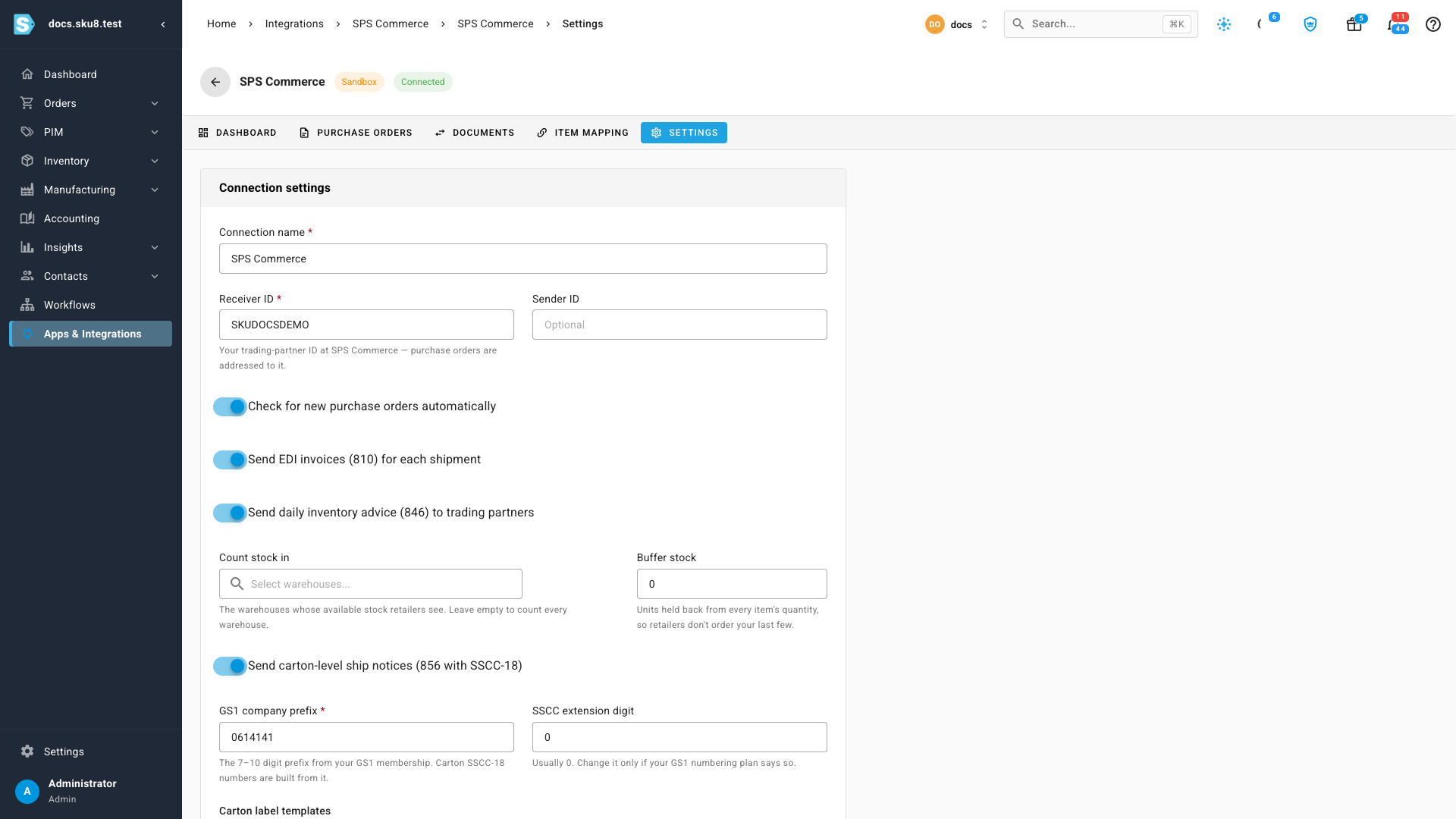
- Turn on Send daily inventory advice (846) to trading partners.
- In Count stock in, choose the warehouses whose stock retailers should see. Leave it empty to count every warehouse.
- In Buffer stock, enter how many units to hold back from every item, so retailers don't order your last few. Leave it at 0 to report everything available.
- Click Save Changes.
What each retailer receives
Once a day, at 5:00 UTC, SKU.io sends every retailer that has ordered from you its own inventory advice:
- Which items. Every product the retailer has ever ordered from you on a purchase order through this connection. A product joins a retailer's list with its first order, and items you haven't mapped to a product aren't included.
- Which quantity. The quantity available to sell in the warehouses you chose under Count stock in (or in every warehouse), in whole units, less the Buffer stock. The quantity is never below zero.
Every retailer gets quantities worked out the same way. To change what they see, change Count stock in or Buffer stock and save; the next day's inventory advice uses the new settings.
Check that it was sent
On the connection's Documents tab, set Document to Inventory advice (846). Each retailer gets one row a day, with its Trading Partner and Status. Download a row to see exactly which items and quantities were sent. A failed one can be resent from the same row. See Track and resend SPS Commerce documents.