Ship multi-store purchase orders by store
Some retailers order for many stores or distribution centers on one purchase order: a line of 120 units might say 36 for store 0004, 48 for store 0221 and 36 for store 0723. Their ship notice must then say which store every unit and every carton is for. SKU.io keeps each store's quantity when the purchase order arrives, and sends the ship notice split by store for the retailers you set up that way.
Before you begin
- Connect SPS Commerce.
- For a split-by-store ship notice with cartons, set up carton-level ship notices first: your GS1 company prefix and the retailer's Label template. See Choose what SPS Commerce sends.
- Check the retailer's 856 guide (from the retailer or SPS Commerce) for the ship notice structure it requires, and how it names a store.
- The retailer must have sent you at least one purchase order, so it appears in the settings.
How a multi-store purchase order arrives
When a purchase order line lists quantities for several stores, SKU.io keeps each store's quantity:
- The sales order gets one line per store, so each store's quantity can be packed and shipped on its own. The line's description names its store.
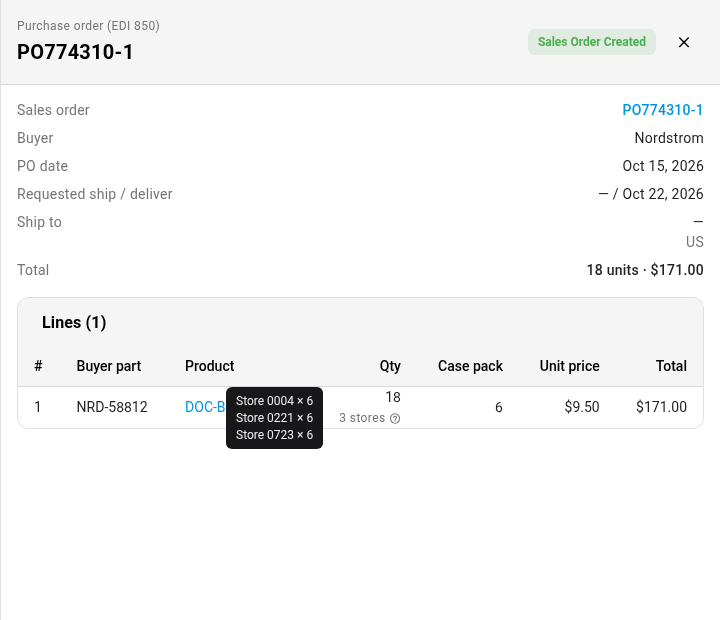
- On the connection's Purchase Orders tab, open the purchase order: each line shows how many stores it's for, for example 3 stores. Hover over it to see every store's quantity.
When a line's store quantities don't add up to the quantity ordered, SKU.io keeps that line whole rather than guess, and it can't be shipped split by store.
Choose the retailer's ship notice structure
- Go to Apps & Integrations, search for SPS, and choose SPS Commerce.
- Open your connection, then click the Settings tab.
- Under Ship notice structure by trading partner, find the retailer and choose its Ship notice structure:
- Split by store / DC — pick & pack sends one order level per store, with every carton and its SSCC-18 number under the store it's packed for.
- Split by store — order / item sends one order level per store, listing what shipped to each store without cartons.
- Under Store address type, choose how the retailer's guide names each store: Z7 (mark-for, the default), BY or MA.
- Click Save Changes.
Retailers you leave on the default follow the Send carton-level ship notices switch. Store address type is available only for a retailer whose ship notice is split by store. See Choose what SPS Commerce sends for every structure.

Pack each carton for one store
- Open the sales order, click its Fulfillment tab, and open the shipment.
- Click the Cartons tab.
The Ship notice structure card shows the structure this shipment is sent with, and the Packing summary has a Store column. Each line in a carton shows its store too.
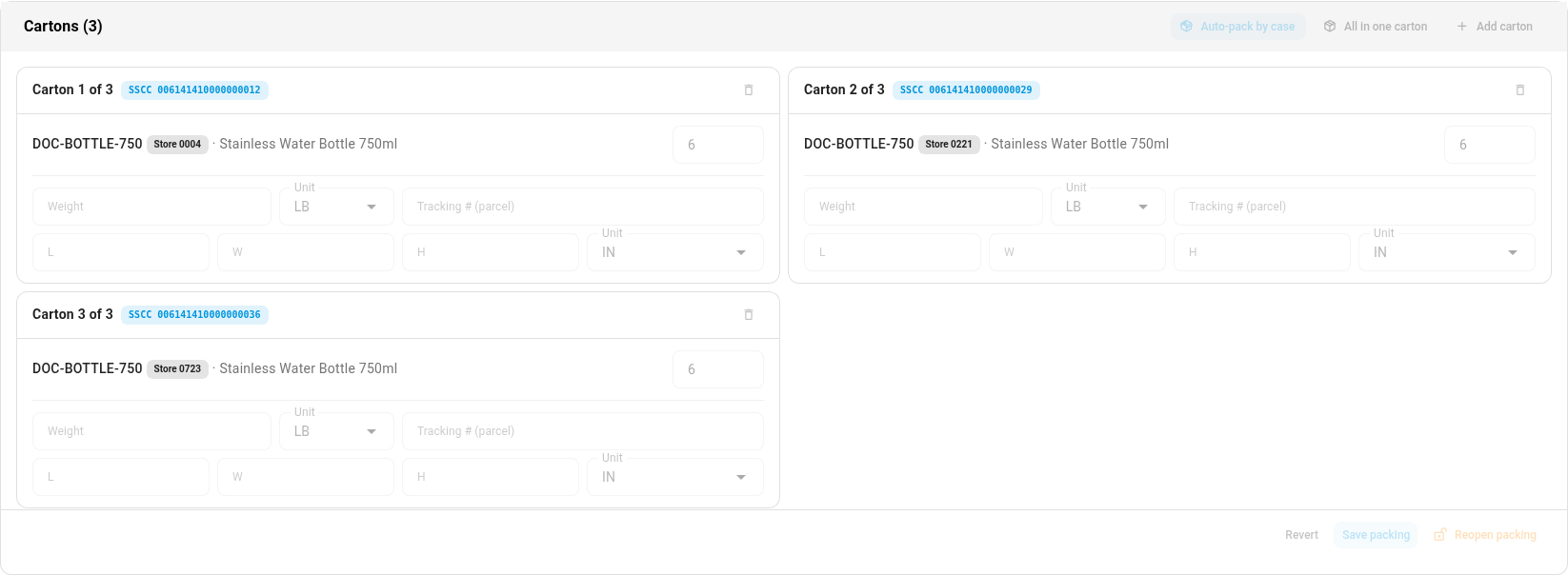
- Pack the cartons so that each carton holds one store's items:
- Click Add carton for each store.
- In each carton, use Add item to this carton. Every item in the list names its store, for example DOC-BOTTLE-750 · Store 0004 · 6 left, and the list only offers what's still left to pack. When a single line is left, a new carton fills itself with it.
- Click Save packing, then click Finalize packing. Every carton gets its SSCC number.
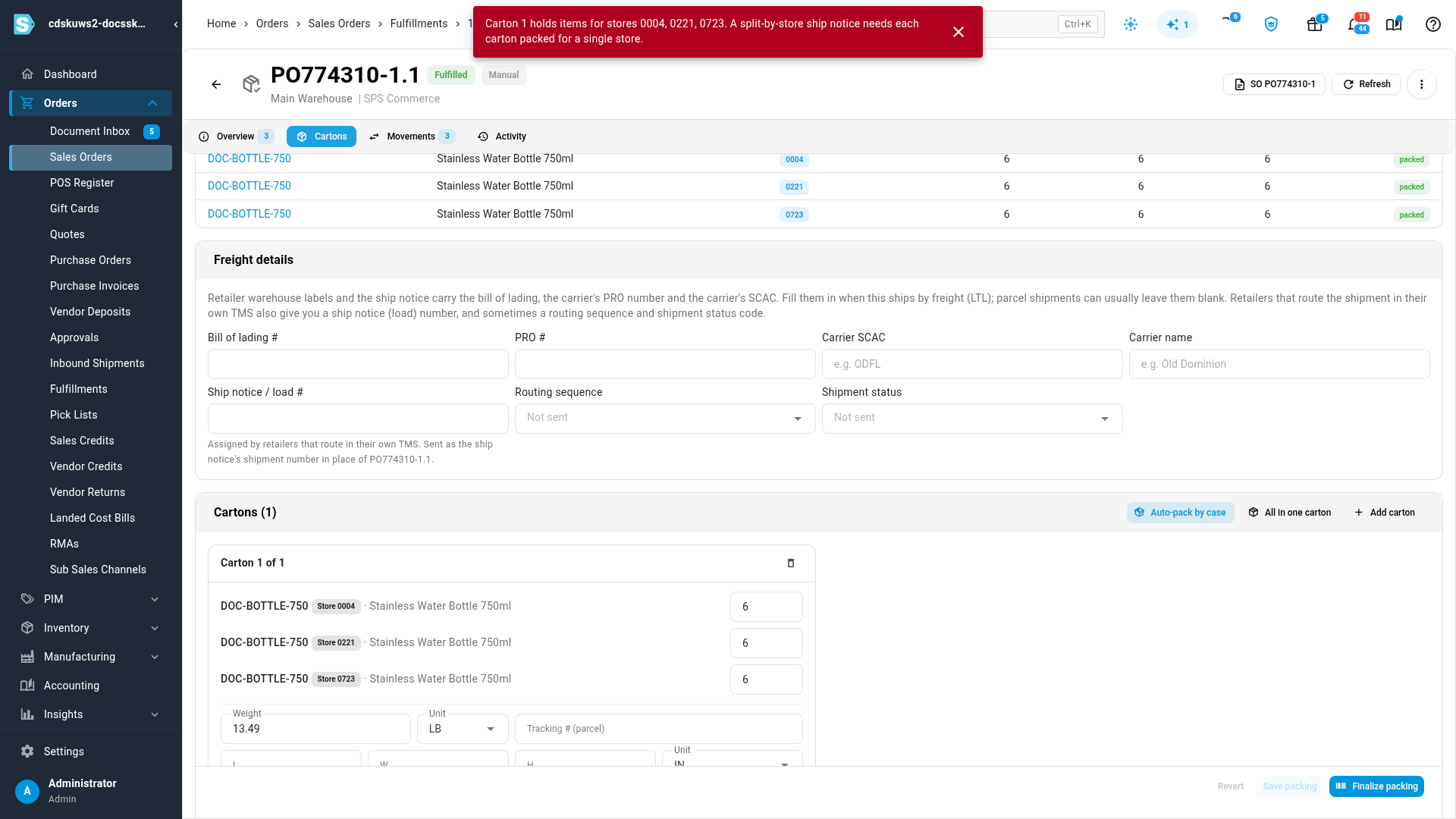
A carton that mixes stores can't be finalized. Finalize packing says which carton it is and which stores it holds, for example Carton 1 holds items for stores 0004, 0221, 0723. Move the items so each carton holds one store, save, and finalize again. All in one carton and Auto-pack by case pack without regard to store, so check their cartons before you finalize.
Then print the labels and ship as usual. See Pack and label SPS Commerce shipments.
Send one shipment with a different structure
The retailer's setting applies to all of its shipments. To send one shipment another way, for example a single-store shipment the retailer wants without cartons:
- On the shipment's Cartons tab, choose a structure in the Ship notice structure card. SKU.io says Ship notice structure changed for this shipment.
- To go back to the retailer's structure, clear the choice. SKU.io says Using the trading partner's ship notice structure.
You can't change the structure while you have unsaved packing changes (save or revert them first), or after the shipment's ship notice has been sent.
What the retailer receives
When the shipment ships, its ship notice goes out with one order level for each store. Each order level names its store with the store address type you chose and lists that store's items (and, with pick & pack, its cartons). The invoice, when invoices are on, bills each line against the purchase order line it came from.
If SKU.io can't tell which store a shipped line is for, it holds the ship notice and says why: A split-by-store ship notice cannot tell which store … is for. This happens when the line's store quantities didn't add up, or when the purchase order arrived before SKU.io kept store quantities. Choose a structure that isn't split by store for that shipment.
Next steps
- Pack and label SPS Commerce shipments
- SPS Commerce reference: every structure, store address type and message.
Video transcript
Some retailers order for many stores on a single purchase order.
Open Apps and Integrations, search for SPS, and choose it from the list of integrations.
Then open your connection, and once its dashboard has loaded, click the Settings tab at the top.
This is where each trading partner's ship notice is set up.
Under Ship notice structure by trading partner, pick each partner's layout from its 856 guide.
Split by store, DC, pick and pack sends one order level per store, with every carton under its store.
Store address type sets how each location is named in the notice.
Then click Save Changes, and the setting applies to that partner's shipments.
On the Purchase Orders tab, open the multi-store order.
Each line shows how many stores it covers, and the tooltip lists every store's quantity.
Open its sales order from the link at the top, click the Fulfillment tab, then Fulfilled, and open the shipment by its number.
On its Cartons tab, each store has its own line, and the Store column names the store for every line.
Each carton may only hold items for one store.
Put everything into a single box and click Finalize packing, and it refuses, naming the stores inside.
So remove it, and add a separate box for each store instead.
Every item in the picker names its store, so choose the first store's item for this carton.
Then add a second carton, and choose the next store's item from the same list.
The list only offers what is still left to pack, so nothing goes into two boxes.
The last box fills itself with whatever is left, which is the third store's line.
Every line in a carton carries a chip with its location, so one glance confirms the split.
Click Save packing to keep this layout.
Then click Finalize packing.
SKU.io checks that no box mixes stores before it assigns any numbers.
Each box now has its own SSCC-18 number.
The ship notice then goes out with one order level for every store, listing what that store receives.