Pack and label SPS Commerce shipments
When your SPS Commerce connection sends carton-level ship notices, every shipment to a retailer is reported carton by carton. You pack the shipment on its Cartons tab: SKU.io gives each carton an SSCC-18 number, SPS Commerce renders the retailer's GS1-128 label for each carton, and the ship notice goes out with exactly those cartons. Then the invoice follows.
Before you begin
- Turn on Send carton-level ship notices, enter your GS1 company prefix, and choose the retailer's Label template. See Choose what SPS Commerce sends.
- To pack by the case, give each product its case quantity: open the product, go to its Shipping section, and fill in Case Qty.
- Record the shipment on the sales order the way you fulfill any order. The Cartons tab appears on shipments of SPS Commerce orders.
Open the shipment's Cartons tab
- Open the sales order and click its Fulfillment tab.
- Click Fulfilled, then click the shipment number, for example PO481214-1.1.
- Click the Cartons tab.
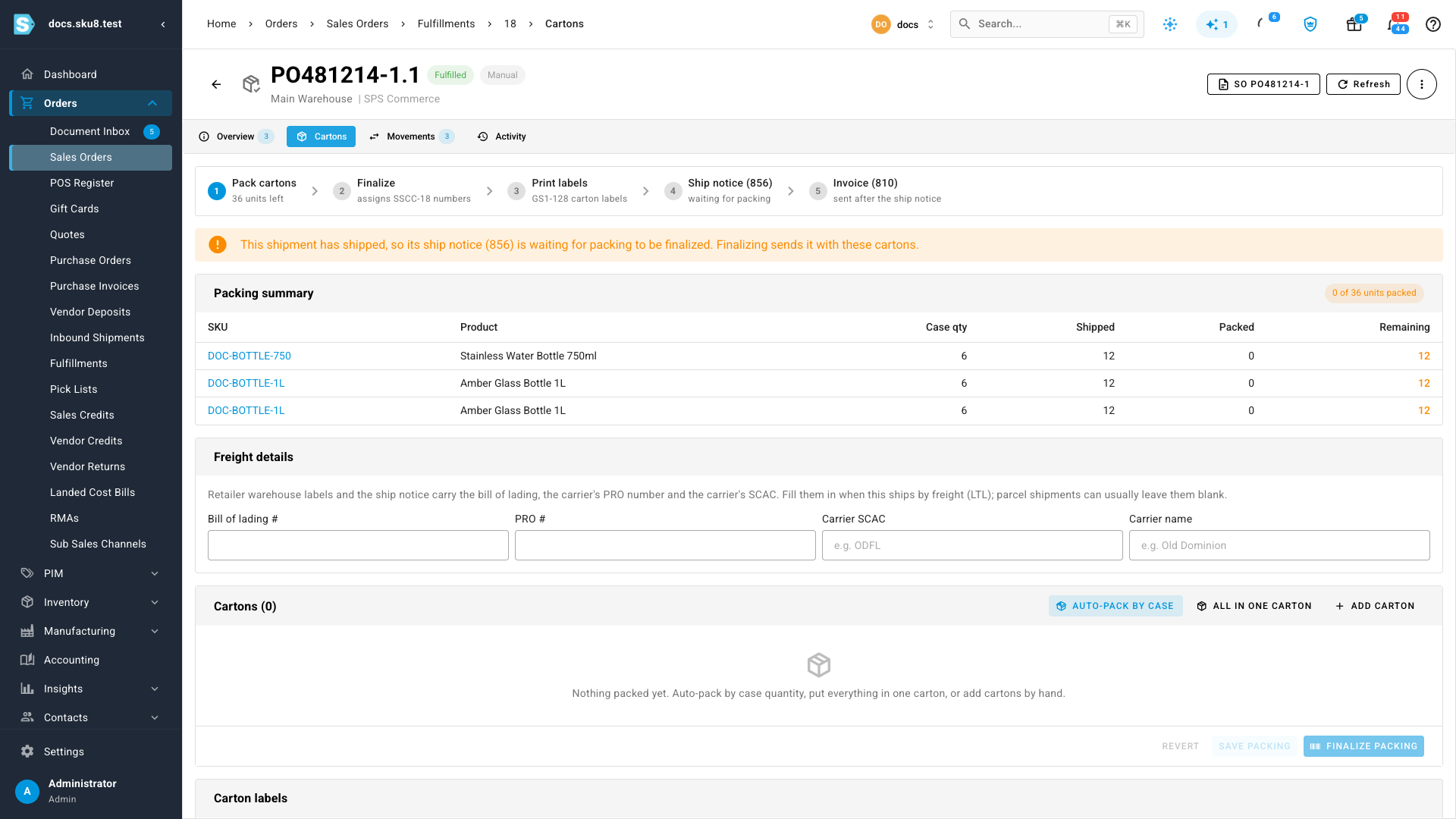
The steps across the top track where the shipment is: Pack cartons, Finalize, Print labels, Ship notice (856) and, when invoices are on, Invoice (810). If the shipment has already shipped, a banner says its ship notice is waiting for packing to be finalized.
Pack the cartons
- Pack the shipment one of three ways:
- Click Auto-pack by case to put each product in full cases of its Case Qty. A quantity that doesn't divide evenly leaves the remainder in a partial carton, and products without a case quantity share one carton. A warning lists either case.
- Click All in one carton to put the whole shipment in a single carton.
- Click Add carton to build the cartons yourself. Use Add item to this carton to add a product, and type its quantity.
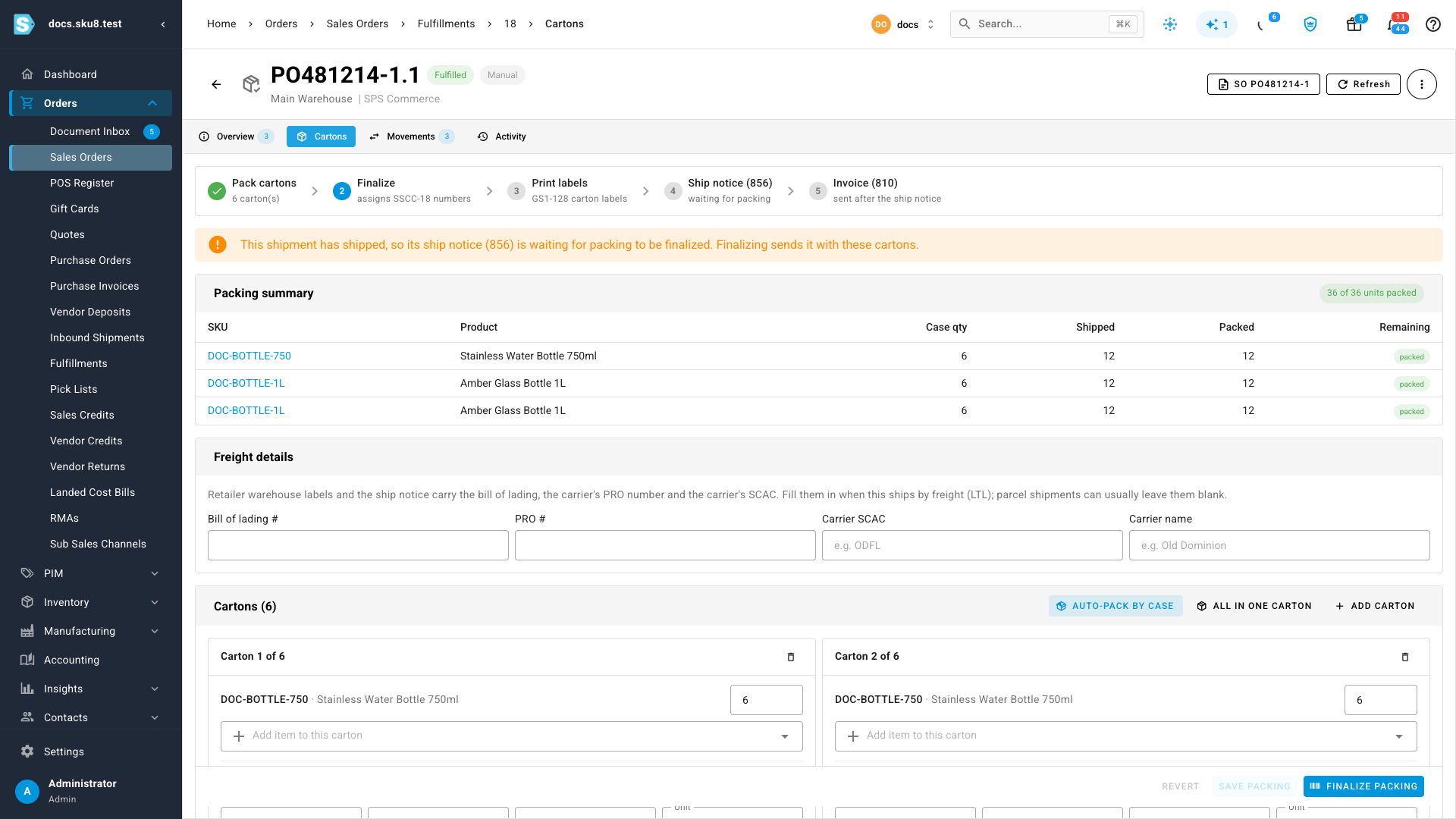
- Check each carton's Weight. Auto-pack fills it in from the products' weights; type over it with the scale weight if it differs. Add the carton's dimensions, and a Tracking # (parcel) when cartons ship by parcel.
The Packing summary shows how many units of each product are Shipped, Packed and Remaining, and the chip at the top turns green at, for example, 36 of 36 units packed. You can't pack more units than shipped.
Add the freight details
When the shipment goes by freight (LTL), the retailer expects the freight paperwork on the ship notice and on every label. Under Freight details, fill in:
- Bill of lading #, from the bill of lading the carrier signs.
- PRO #, the carrier's tracking number for a freight shipment.
- Carrier SCAC, the carrier's 2–4 letter code, for example ODFL for Old Dominion.
- Carrier name.
Parcel shipments can usually leave these blank, but some retailers' labels require them anyway. If label generation reports a missing field, fill it in here.
Save and finalize the packing
- Click Save packing.
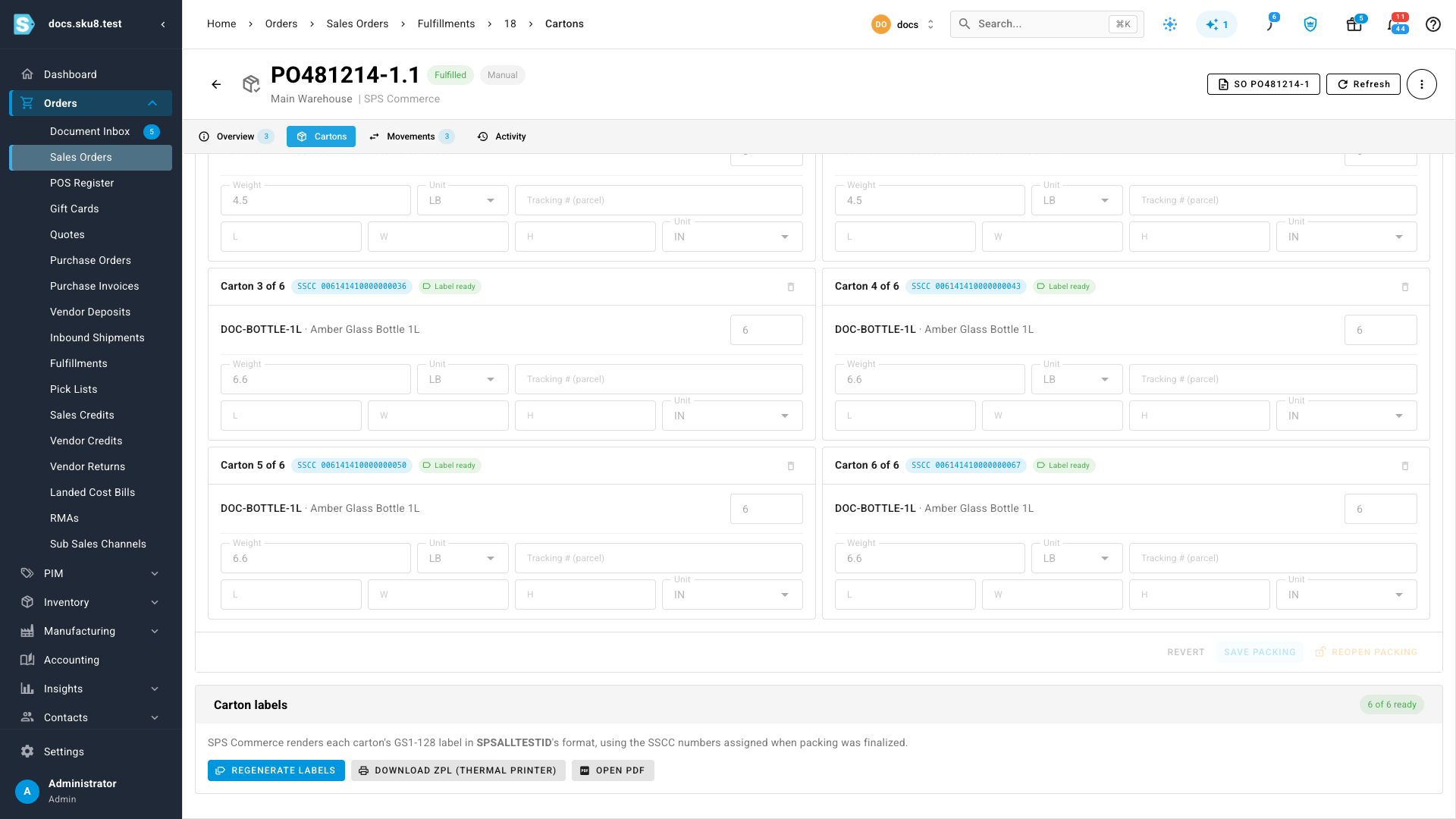
- Click Finalize packing. Every carton gets its SSCC number, shown on the carton.
When the shipment has already shipped, finalizing sends its ship notice straight away, and the invoice follows. When it hasn't shipped yet, the ship notice goes as soon as it does.
Finalize packing stays unavailable, with its reason on hover, until every shipped unit is packed, your changes are saved, and the connection has a GS1 company prefix.
Print the carton labels
- Click Generate labels. SPS Commerce renders each carton's label in the retailer's format, and each carton shows Label ready.
- Print them:
- Click Download ZPL (thermal printer) to get a file for a label printer.
- Click Open PDF to open the labels in your browser, ready to print on paper.
Open PDF asks SPS Commerce for the labels each time, so it works as soon as packing is finalized. Download ZPL uses the labels you generated. Click Regenerate labels after you change the freight details.
Change cartons after finalizing
Until the ship notice is sent, click Reopen packing to change the cartons. Reopening clears the cartons' SSCC numbers and labels; finalizing again assigns new ones, because an SSCC number is never reused.
Once the ship notice is sent, the cartons it reported are locked, and Reopen packing says so on hover. The retailer is already expecting those cartons.
Check the ship notice and invoice
The steps at the top show Ship notice (856) as sent to SPS and, when invoices are on, Invoice (810) as sent to SPS. If either fails, a red banner links to the connection's Documents tab, where you can see why and resend it. See Track and resend SPS Commerce documents.
On the shipment's Overview tab, Channel Submission shows the shipment as submitted once its ship notice is sent. Clicking Submit Now before the cartons are finalized tells you the ship notice is waiting for them, rather than marking the shipment as submitted.
Next steps
- Track and resend SPS Commerce documents
- SPS Commerce reference — every packing step and label message.
Video transcript
This Home Depot order came from SPS Commerce, and it has already shipped.
On its Fulfillment tab, click Fulfilled to list what went out.
Then click the shipment's number, shown in blue, to open its details.
When it opens, click its Cartons tab, which is where you pack everything into boxes.
Because this customer receives by carton, the ship notice waits until the cartons are packed.
The steps across the top track the progress of the shipment.
Click Auto-pack by case to fill full cases of each product.
SKU.io packs six cartons, and estimates every carton's weight for you.
This shipment travels by freight, so add the bill of lading, the PRO number, and the carrier's code.
The retailer reads them on every label and on the ship notice.
Click Save packing to keep your changes.
Then click Finalize packing to lock the cartons in.
Every carton gets its own SSCC-18 number.
The ship notice and the invoice are sent to SPS Commerce at the same time.
Scroll down past the cartons, and click the Generate labels button.
SPS Commerce renders each one in this customer's own format.
When they're all ready, download a file for a thermal printer.
Or choose the PDF to print on ordinary office paper.
Back at the top, the ship notice and the invoice are both now sent.
The cartons are locked, because your customer expects exactly those boxes.