Ship SPS dropship purchase orders blind
This page is about shipping your retailers' orders to their customers. If your supplier ships orders for you, see Create a dropship request.
Some retailers send you dropship purchase orders over SPS Commerce: you ship the order straight to the retailer's customer, the shopper who bought from the retailer. When you map the retailer's trading partner to its customer in SKU.io, and that customer has dropship turned on, each dropship purchase order becomes a dropship order that ships blind: the packing slip carries the retailer's name and logo, never yours, and no prices.
Before you begin
| Requirement | Why it's needed |
|---|---|
| SPS Commerce is connected | See Connect SPS Commerce. |
| The trading partner has sent you at least one purchase order | Trading partners appear on the Settings tab only after their first purchase order arrives. |
| Dropship is turned on for the retailer's customer, with EDI (SPS dropship POs) ticked as an intake route | With dropship off, a dropship purchase order becomes an ordinary order with no retailer branding. With dropship on but EDI (SPS dropship POs) unticked, the purchase order fails. See Set up dropship for a retailer. |
The retailer doesn't need a portal login to send you dropship orders over EDI.
Map the trading partner
- Go to Apps & Integrations, search for SPS, and choose SPS Commerce.
- Open your connection, then click the Settings tab.
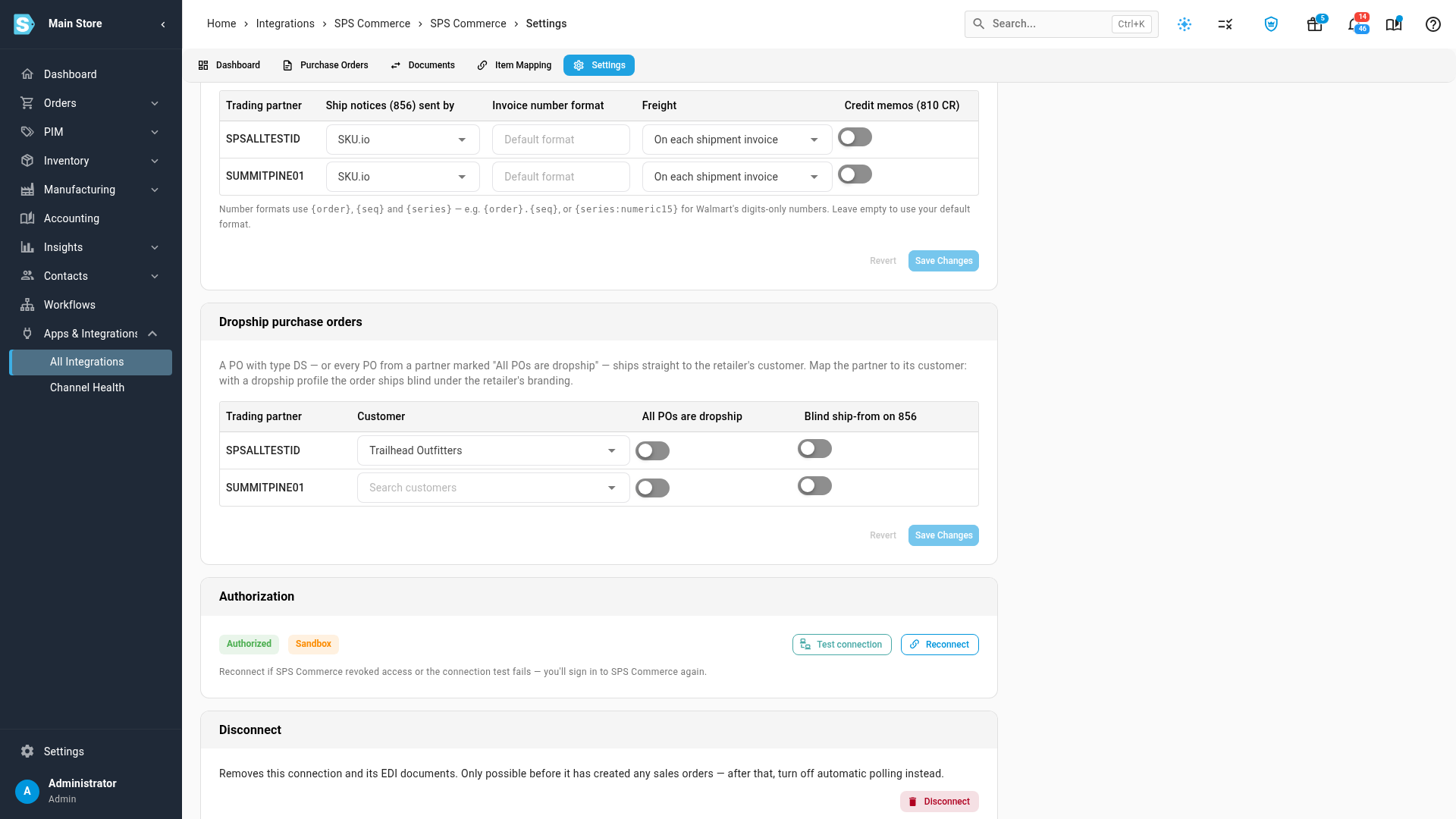
- Scroll to the Dropship purchase orders card. It lists each trading partner that has sent you a purchase order.
- On the partner's row, under Customer, search for and choose the retailer's customer.
- If every purchase order from this partner is a dropship order, turn on All POs are dropship. Leave it off when the partner marks its dropship orders with the dropship order type (DS) and sends ordinary orders too.
- If the partner's dropship rules require the ship notice to name the retailer as the ship-from party, turn on Blind ship-from on 856. The ship notice (856) then names the retailer as ship-from instead of your warehouse.
- Click Save Changes. Until you do, the card shows Unsaved changes; Revert throws them away.
What happens to a dropship purchase order
A purchase order is a dropship order when its order type is DS, or when it comes from a partner set to All POs are dropship. When its partner is mapped to a customer that has dropship turned on, SKU.io creates a dropship order for that customer:
- The purchase order number becomes the retailer order number, the number the retailer knows the order by.
- The ship-to (ST) address becomes the retailer's customer's address, used for that order only. Three-letter country codes are converted.
- A gift note in the purchase order becomes the gift message on the packing slip, up to 500 characters.
- The bill-to (BT) address stays on the order as the retailer's billing address.
- The order doesn't wait for portal order approval, and it gets a ship-by date like any other dropship order.
- Every dropship rule applies: the products, prices, stock, address and destination checks in the Dropship orders reference.
The acknowledgment (855), ship notice (856) and invoice (810) go back to SPS Commerce as for any other purchase order. See Handle purchase orders from SPS Commerce. From there, you work the order like any other dropship order. See Work dropship orders.
When the retailer's branding isn't applied
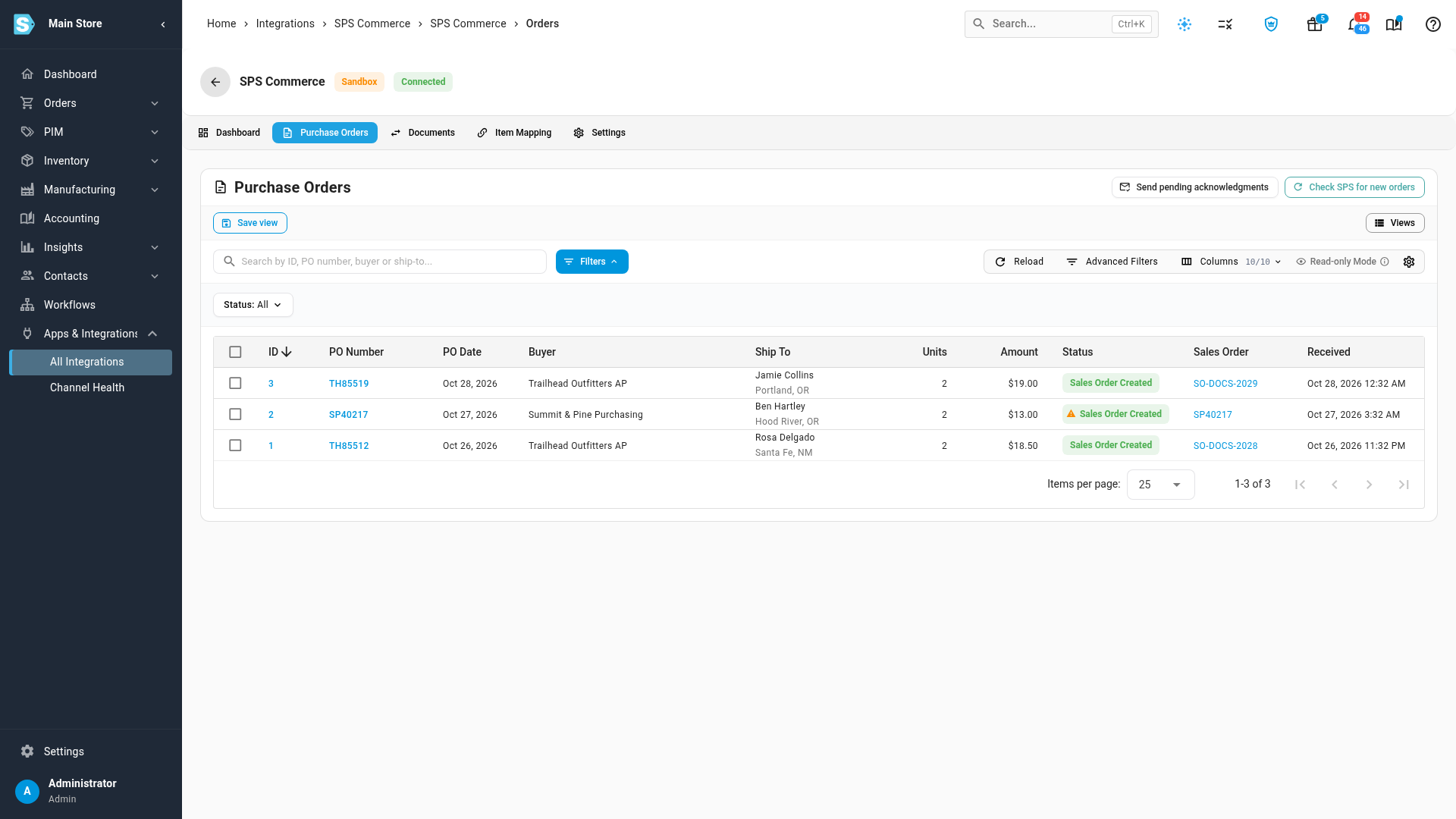
When a dropship purchase order can't be matched to a customer with dropship turned on, SKU.io still creates the sales order, as an ordinary order without the retailer's branding. On the Purchase Orders tab, its status shows a warning icon. Hover over the status to read why; the same note is added to the sales order.
| Warning | What to do |
|---|---|
| Dropship PO received but trading partner … is not mapped to a customer — branding not applied. | Map the partner to its customer on the Settings tab, as above. |
| Dropship PO received but the customer doesn't have dropship enabled — branding not applied. | Turn on dropship for that customer from its Dropship tab in Customer Portal. See Set up dropship for a retailer. |
A mapped dropship purchase order always uses the mapped customer. When the partner isn't mapped, the order's customer comes from the purchase order's bill-to (BT) party, the retailer. SKU.io never makes a customer from the shopper's ship-to name.
Mapping the partner or turning on dropship applies to purchase orders that arrive afterwards. An order that already arrived stays an ordinary order.
When a dropship purchase order fails
When the customer has dropship turned on but the order breaks a dropship rule, the purchase order is Failed, and no sales order is created. Hover over its status to read the reason, for example:
- EDI dropship orders aren't turned on for this account — ask your supplier.: tick EDI (SPS dropship POs) on the customer's Dropship tab.
- X can't be dropshipped.: the product isn't one this retailer may dropship.
- Dropship orders ship within US only. …: the ship-to is in another country, and the retailer isn't allowed international dropship.
Next steps
Video transcript
Some retailers send you dropship purchase orders, for you to ship to their shoppers.
To set this up, open Apps and Integrations, then All Integrations.
When the page loads, search for SPS, then click the app in the list.
Open your connection from its card.
Then click the Settings tab along the top.
The page groups its options into cards.
Scroll down to the card called Dropship purchase orders, near the bottom of the page.
Each trading partner gets a row once it sends its first order.
This one is already mapped to Trailhead Outfitters.
The next partner isn't mapped yet.
Under Customer, click the search box and type the customer's name.
Pick the right one when it shows up in the list.
If all of this partner's orders are dropship, turn on All POs are dropship.
Nothing is stored yet, and the card flags it in orange.
Click Save Changes to keep the mapping.
From now on, this partner's dropship orders ship blind, under the retailer's own branding.
Now open the Purchase Orders tab, next to Dashboard along the top.
Trailhead's arrived as dropship sales orders.
One that came in before its partner was mapped gets no branding.
Hover over the warning on its status to read why.
Here, the trading partner isn't mapped to a customer, so branding wasn't applied.