Track and resend SPS Commerce documents
Every purchase order you receive and every acknowledgment, ship notice, invoice and inventory advice you send is listed on the connection's Documents tab. Use it to confirm a document reached SPS Commerce, to answer a retailer who says they never got one, and to resend one that failed.
Before you begin
Find a document
- Go to Apps & Integrations, search for SPS, and choose SPS Commerce.
- Open your connection, then click the Documents tab.
- Narrow the list:
- Type a purchase order number in the search box to see everything for that order, from the purchase order to its invoice.
- Set Document to one type, such as Invoice (810).
- Set Status to Failed to see only what didn't go through.
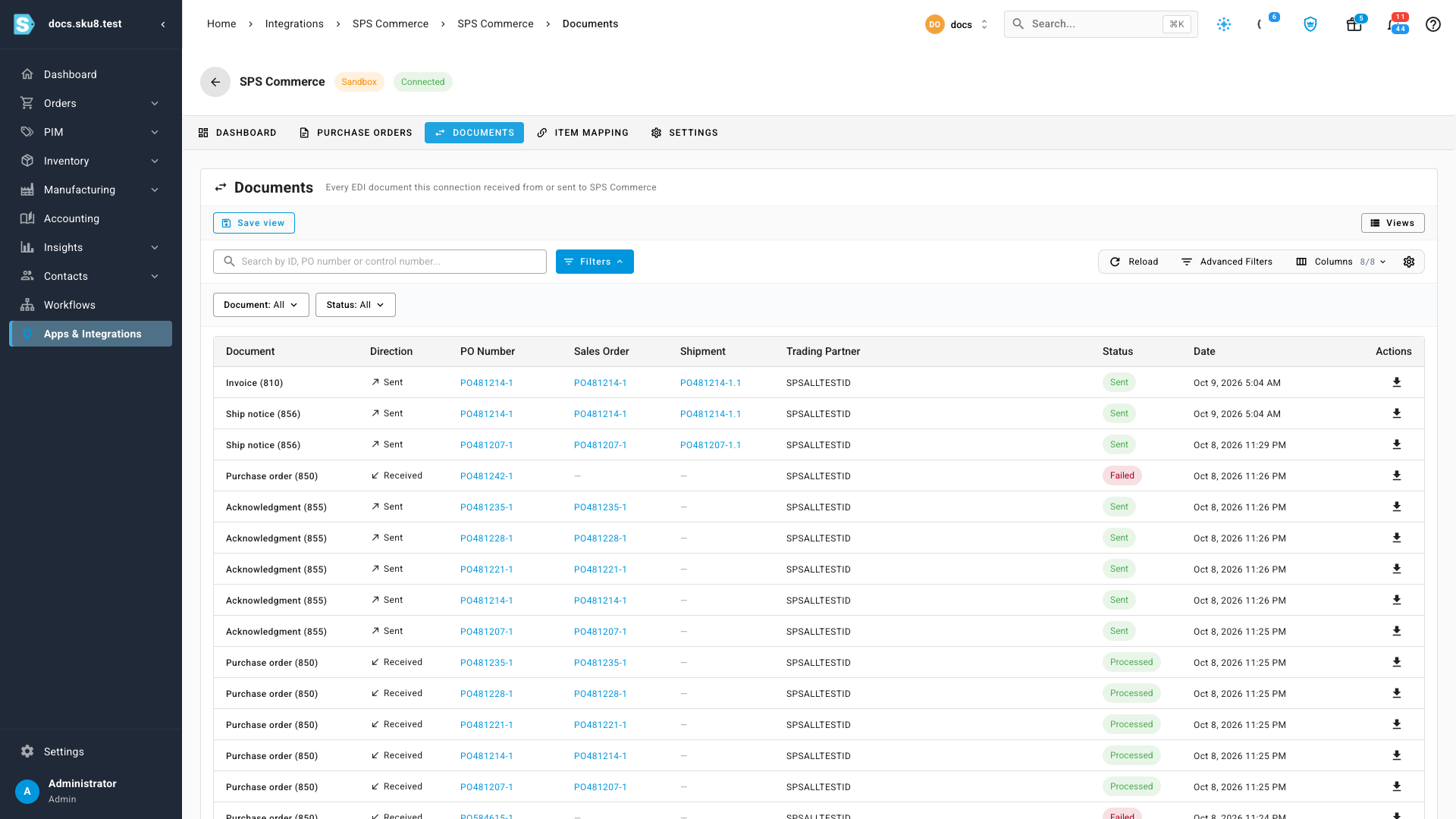
Each row shows the Document and whether it was Received or Sent, the PO Number, the Sales Order and Shipment it belongs to, the Trading Partner, its Status and the date it was received or sent. The PO number, sales order and shipment are links. Hover over a document's name to see what that kind of document is for.
You can also get here from elsewhere:
- On the connection's Dashboard, click Acknowledgments sent (855) or Ship notices sent (856) to list just those documents.
- On a shipment's Cartons tab, a failed ship notice or invoice shows a red banner with a link to its documents.
See why a document failed
A document that SPS Commerce didn't accept shows Failed. Hover over Failed to read the reason SPS Commerce or the connection gave, for example a rejected field or an expired sign-in.
Fix the cause first. An expired sign-in needs a reconnect (see Connect SPS Commerce); a document rejected for its content usually means data on the order needs correcting.
Resend a document
- Find the failed document.
- Click Resend on its row.
The document goes back to Sending and is sent again in the background; refresh the list to see it change to Sent. Resend appears only on documents you sent that failed. A received purchase order can't be resent; use Retry on the Purchase Orders tab to convert a failed one again.
You can also resend a shipment's ship notice from the shipment itself: on its Overview tab, click Submit Now next to Channel Submission.
Download a document
Click the download button at the end of a row to save the document exactly as it was exchanged with SPS Commerce, as an XML file. SPS Commerce support and your retailer's EDI team may ask for it when you troubleshoot together.
Next steps
- SPS Commerce reference — every document and status.
- How SPS Commerce EDI works