Choose where a retailer's ship-to address comes from
Most retailers put the address you ship to in the Ship To (ST) section of their purchase orders, and that's where SKU.io reads it by default. Some retailers use a different section. Target, for example, puts the distribution center it wants the goods at in the buying party (BY) section, which some purchase orders label Ordered By. For a retailer like that, choose the section once, and every purchase order from it ships to the right place.
Before you begin
- Connect SPS Commerce.
- The retailer's trading partner has sent you at least one purchase order. Trading partners appear on the Settings tab only after their first purchase order arrives.
- Find out which section the retailer puts the ship-to address in. The retailer's purchase order (850) guide says so, or ask your SPS Commerce contact.
Steps
-
Go to Apps & Integrations → All Integrations, search for SPS, and choose SPS Commerce.
-
Open your connection, then click the Settings tab.
-
Scroll to the Purchase order ship-to card. It lists each trading partner that has sent you a purchase order.
-
On the partner's row, open Ship-to address comes from and choose the section the retailer uses:
Option Choose it for ST — Ship to (default) Most retailers. Every trading partner starts here BY — Buying party (Target DCs) Target, which sends its distribution center as the buying party Z7 — Mark-for party A retailer whose purchase order guide names the mark-for party as the ship-to 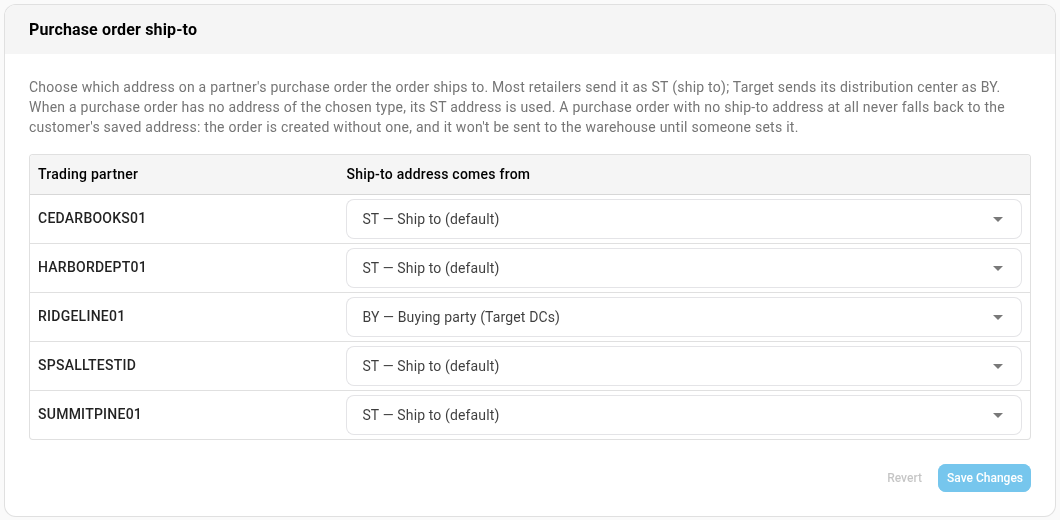
-
Click Save Changes. Until you do, the card shows Unsaved changes, and Revert puts back what was saved.
What happens to the retailer's purchase orders
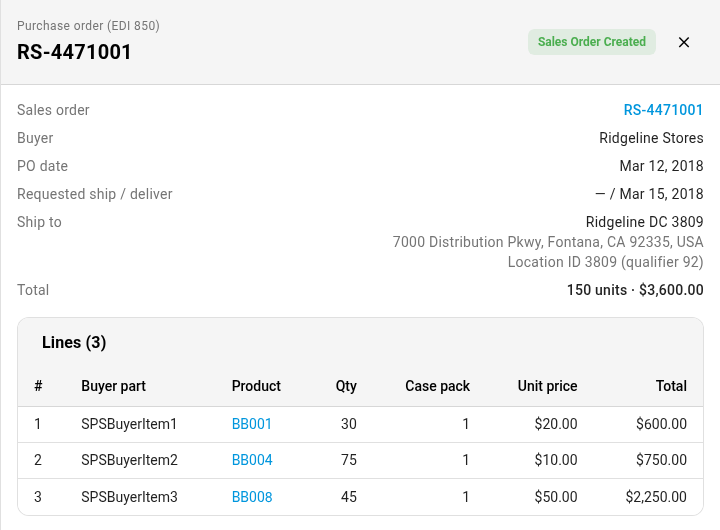
When a purchase order from the retailer arrives, the sales order's ship-to name and address come from the section you chose. The acknowledgment (855), ship notice (856), invoice (810) and carton labels use that same address. When that section also carries the retailer's own number for the distribution center, the purchase order shows it under the address as Location ID. See The retailer's location ID.
To check, open the retailer's purchase order on the Purchase Orders tab. Its Ship to shows the address the order ships to.
When a purchase order doesn't have the section you chose, SKU.io uses its Ship To address instead.
The setting applies to purchase orders that arrive after you save it. Sales orders that already exist keep their address.
When a purchase order has no ship-to address
Sometimes a purchase order has neither the section you chose nor a Ship To address. SKU.io never fills the gap with the customer's saved address, because that could send the goods to the wrong distribution center.
- The purchase order names a store or DC code. Some retailers send only the store's code, with no address. SKU.io looks the code up in the connection's Location directory, also on the Settings tab, and ships to the address listed there. When the code isn't listed, the purchase order is Failed and names the missing code. Once you add the code to the directory, the purchase order is tried again automatically.
- The lines ship to several different stores. SKU.io creates one sales order per store, each numbered after the purchase order with the store's code added, for example HD-9001002-0569, and each shipping to that store's address from the Location directory. When a store isn't listed, the purchase order is Failed with a reason naming the missing stores, and it's tried again once you add them. When a line's store quantities don't add up to what it orders, the reason starts Ship-to location unclear: create the store orders by hand, or ask the retailer to send the purchase order again.
- The purchase order has no address and no code. SKU.io creates the sales order without a shipping address, and adds this note to it: The retailer's purchase order (850) had no ship-to address, so this order has none. Set the shipping address before it ships — it was not copied from the customer.
A sales order with no shipping address doesn't go to a warehouse that dispatches through a shipping or fulfillment provider. Its auto-dispatch stops with Shipping address incomplete. To release it, set the order's shipping address. See View and edit a sales order. Then dispatch the order. See Set up fulfillment dispatch.
Next steps
- Handle purchase orders from SPS Commerce: map items and follow purchase orders through to their sales orders.
- Ship multi-store purchase orders by store: purchase orders that order for several stores at once.
- SPS Commerce reference: every status and message.
Video transcript
Retailers don't all put the delivery address in the same place on their purchase orders.
You can tell SKU.io which section each one uses.
Open Apps and Integrations from the menu on the left, then choose All Integrations.
Type SPS into the search box, and click the app when it appears.
Open your connection from its card.
Then click Settings, in the list of sections along the side.
The page groups the connection's options into cards.
Scroll down to the Purchase order ship to card.
Each trading partner has its own row here, set to Ship To by default.
Ridgeline sends its distribution center as the buying party.
On its row, open the drop-down, and choose BY from the list.
Then click Save Changes, at the bottom of the card, to keep the new setting.
Now open Purchase Orders, from the list of sections along the side.
Click one of the retailer's purchase orders.
Its Ship To is the distribution center that Ridgeline named as the buying party.