Send SPS orders to a 3PL by warehouse order
Some 3PLs take their orders through SPS Commerce. For those, SKU.io sends the 3PL a warehouse order (940) when an order is released, and records the shipment when the 3PL's shipping advice (945) comes back. You set this up once per 3PL warehouse and once per retailer. Every other retailer keeps the usual ship notice flow.
The 940 and 945 file layouts are not confirmed with SPS Commerce. Until SPS Commerce provides the real layouts, don't turn this flow on for a live retailer. The 3PL warehouses (940 / 945) card shows the same warning. The first real files may need changes in SKU.io before they work.
How the flow works
- You release an order to a linked warehouse. SKU.io sends the 3PL a warehouse order. Nothing counts as shipped yet.
- The 3PL ships it and sends shipping advice through SPS Commerce.
- SKU.io records the shipment, with its tracking and ship date, and takes the stock out of inventory.
- The retailer's ship notice goes out from SKU.io, or from the 3PL, depending on the setting below.
Before you begin
- Connect SPS Commerce. A retailer appears in the settings after its first purchase order arrives.
- Create the 3PL's warehouse in SKU.io, if you haven't already.
- Get these from the 3PL or SPS Commerce:
- The 3PL's SPS trading partner ID.
- Its warehouse code, if it uses one.
- Whether it accepts cancellation files.
- Whether it sends the retailer's ship notice itself.
Link the 3PL's warehouse
- Go to Apps & Integrations, search for SPS, and choose SPS Commerce.
- Open your connection, then click Settings.
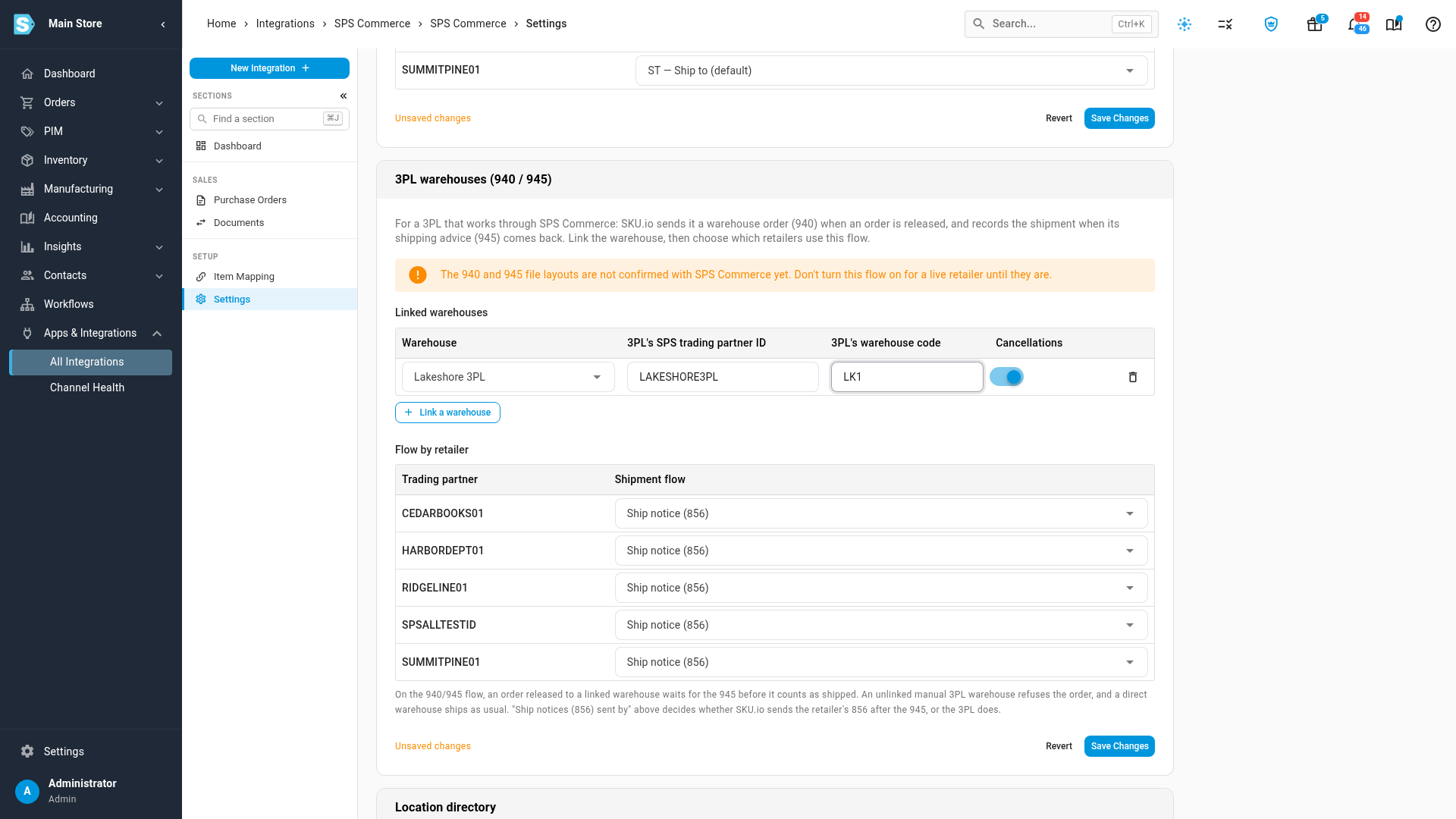
- Scroll to the 3PL warehouses (940 / 945) card.
- Click Link a warehouse.
- Under Warehouse, choose the 3PL's warehouse.
- Enter the 3PL's SPS trading partner ID. Save Changes stays unavailable until the row has a warehouse and an ID.
- Enter the 3PL's warehouse code, if it has one. Otherwise leave it blank.
- Set Cancellations:
- On (the default): cancelling a released order sends the 3PL a cancellation 940.
- Off: SKU.io refuses the cancel until someone has spoken to the 3PL. You then void the order locally.
Move the retailer onto the flow
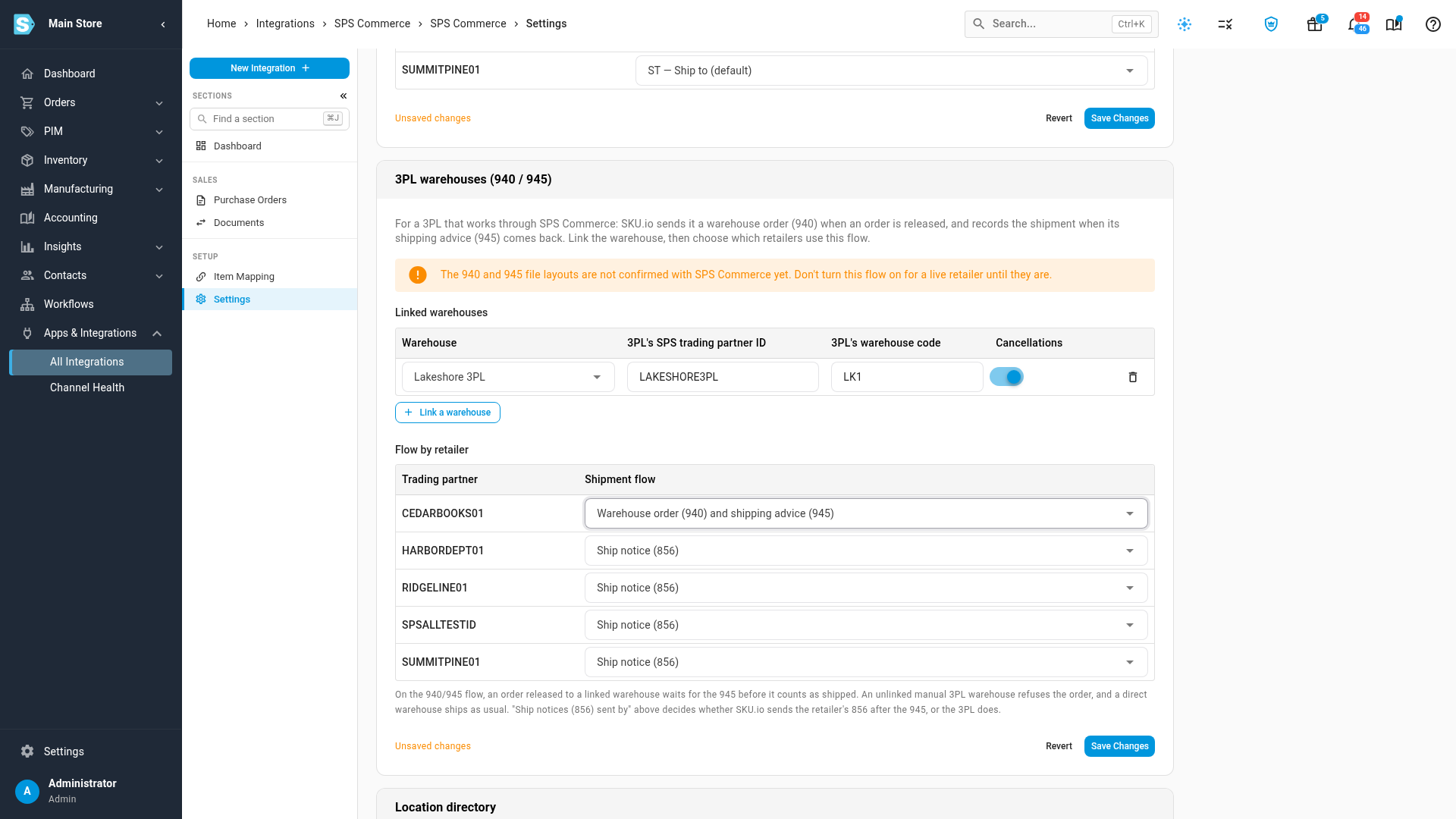
- Under Flow by retailer, find the retailer's trading partner ID.
- Under Shipment flow, choose Warehouse order (940) and shipping advice (945).
Leave a retailer on Ship notice (856) to keep the usual flow. The setting applies to the whole retailer, not to one warehouse.
Choose who sends the ship notice
Retailers still expect a ship notice (856). Choose who sends it:
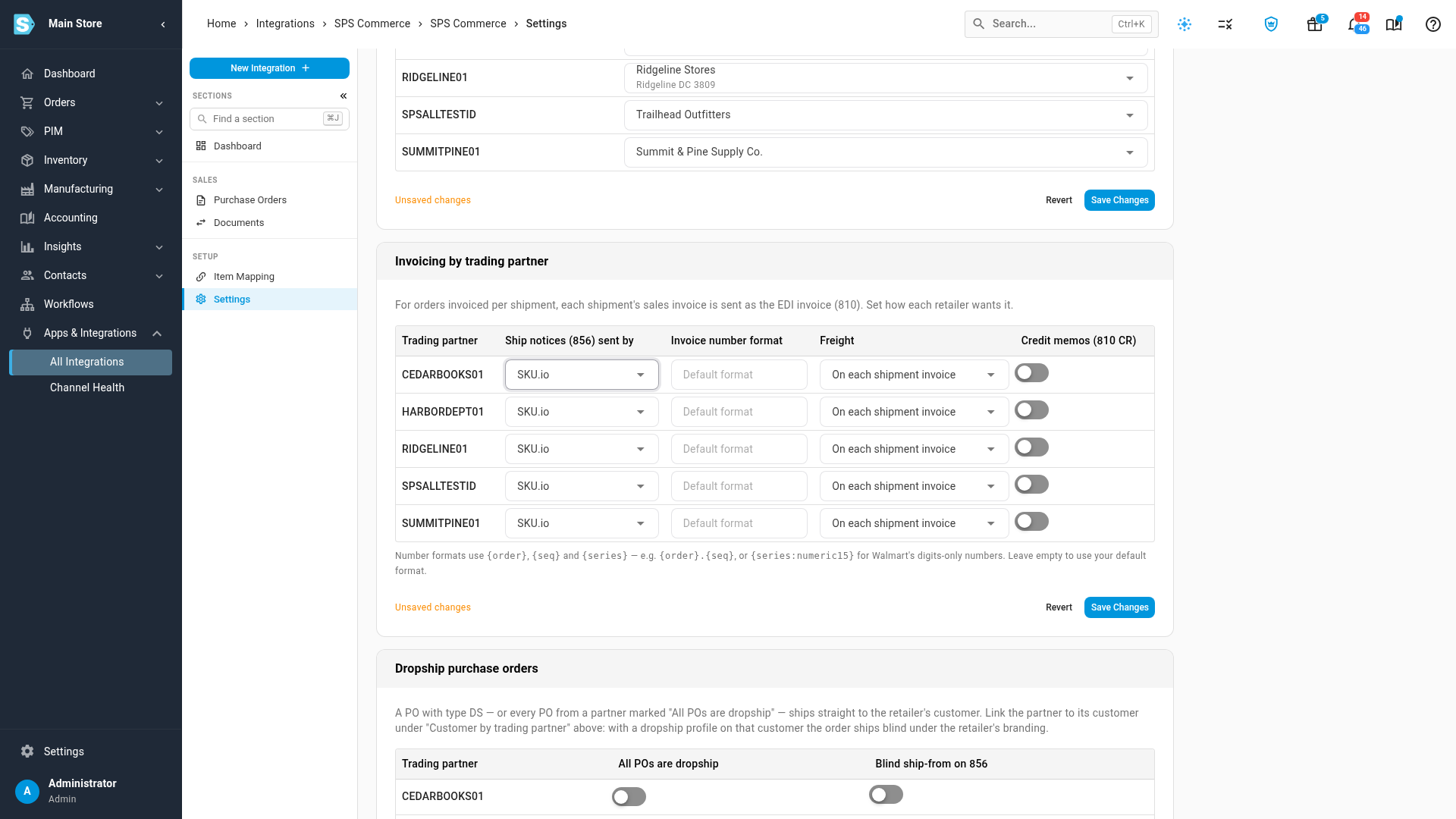
- Scroll up to Invoicing by trading partner.
- Find the retailer, and set Ship notices (856) sent by.
| Ship notices (856) sent by | On this flow |
|---|---|
| SKU.io (the default) | SKU.io sends the ship notice after the shipping advice is recorded |
| An outside 3PL | SKU.io sends no ship notice for these orders. The 3PL sends it |
If you send invoices, SKU.io still sends the invoice (810) for the shipment, whichever you choose here.
If the retailer needs carton-level ship notices from SKU.io, the ship notice waits until the shipment's cartons are packed, because shipping advice doesn't list cartons. See Pack and label SPS Commerce shipments.
Save your changes
Click Save Changes. The change applies to orders you release from then on.
What happens to the retailer's orders
For a retailer on the warehouse order flow, the warehouse an order is released to decides what happens:
| Warehouse | What happens |
|---|---|
| Linked to a 3PL on this card | SKU.io sends the warehouse order. Nothing ships until the shipping advice arrives |
| A manual 3PL warehouse that isn't linked | The order is refused, so it can't be marked shipped with no warehouse asked to ship it |
| A direct warehouse, or a 3PL connected another way | The order ships the way that warehouse usually does |
If a retailer's orders can go to more than one 3PL, link each one before you move the retailer onto this flow. An order released to an unlinked manual 3PL shows this message: <Warehouse> isn't linked to a 3PL in the SPS Commerce settings, so no warehouse order (940) can be sent. Link it under 3PL warehouses, or route this order to another warehouse, then submit again.
Keep these limits in mind:
- Merged orders can't go out this way, because a warehouse order names one order. Unmerge them, then submit each one.
- Edits after release don't reach the 3PL. SKU.io doesn't send an updated warehouse order, so tell the 3PL yourself.
Next steps
- Read SPS warehouse orders and shipping advice
- Handle an SPS shipping advice alert
- Choose what SPS Commerce sends
Video transcript
Some 3PLs work through SPS Commerce. SKU.io sends them a warehouse order, and they report back with shipping advice. You set this up on your connection's Settings tab, in the 3PL warehouses card. Read this warning first. SPS Commerce hasn't confirmed the file layouts yet. Until it does, don't turn this flow on for a live retailer. Click Link a warehouse, and choose your 3PL's warehouse. Then enter its SPS trading partner ID. You can leave the warehouse code blank. Leave Cancellations on if the 3PL accepts cancellation files. With it off, SKU.io refuses the cancel until you've spoken to the 3PL. Under Flow by retailer, find the retailer. Click its shipment flow, then choose warehouse order and shipping advice from the list. From now on, nothing counts as shipped until the 3PL reports back. Next, decide who tells the retailer it shipped. Under Invoicing by trading partner, find the ship notice column. Leave SKU.io, and it goes out after the shipping advice. Choose An outside 3PL if the 3PL handles that itself. Finally, click Save Changes. Every other retailer stays on the usual flow.