Handle purchase orders from SPS Commerce
Once SPS Commerce is connected, purchase orders from your retailers arrive in SKU.io and become sales orders without you re-keying anything. Your part in it is small: when a retailer orders an item SKU.io can't match to one of your products, you map it once.
Before you begin
- Connect SPS Commerce.
- The products your retailers order need to exist in SKU.io.
How a purchase order becomes a sales order
SKU.io checks SPS Commerce every five minutes (or when you click Check SPS for new orders on the Purchase Orders tab). For each new purchase order, it matches every line to one of your products:
- If the retailer sent your own SKU as the vendor part number, the line matches that product.
- Otherwise it uses the product you mapped to the retailer's part number on an earlier order.
When every line matches, SKU.io creates the sales order straight away. It uses the purchase order number as the sales order number and the retailer as the customer, and it copies the ship-to address and the requested delivery date. The order is open and allocated like any other sales order.
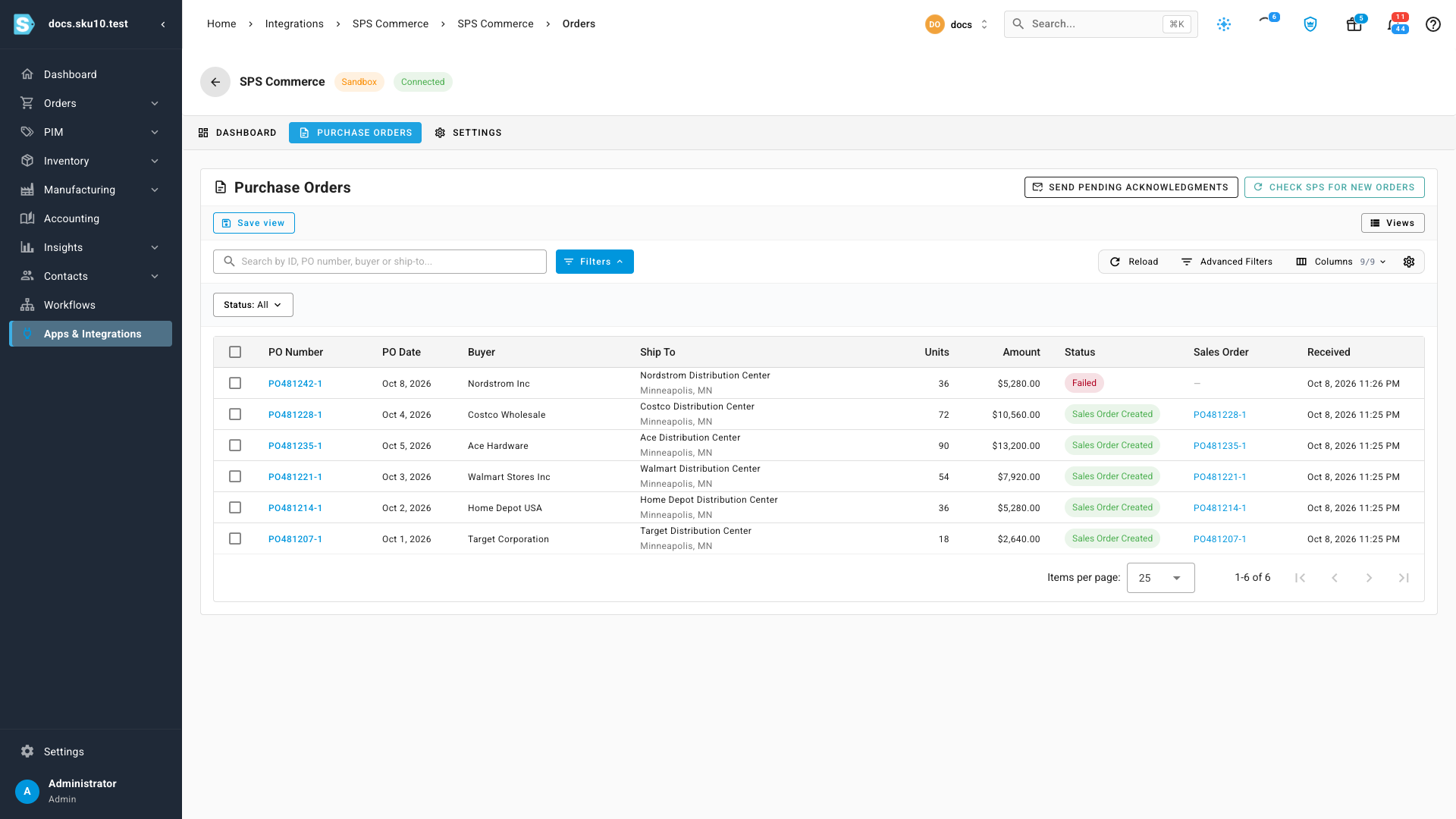
When any line doesn't match, the purchase order is Failed and waits for you.
Open your connection
- Go to Apps & Integrations, search for SPS, and choose SPS Commerce.
- Open your connection. Its Dashboard opens.
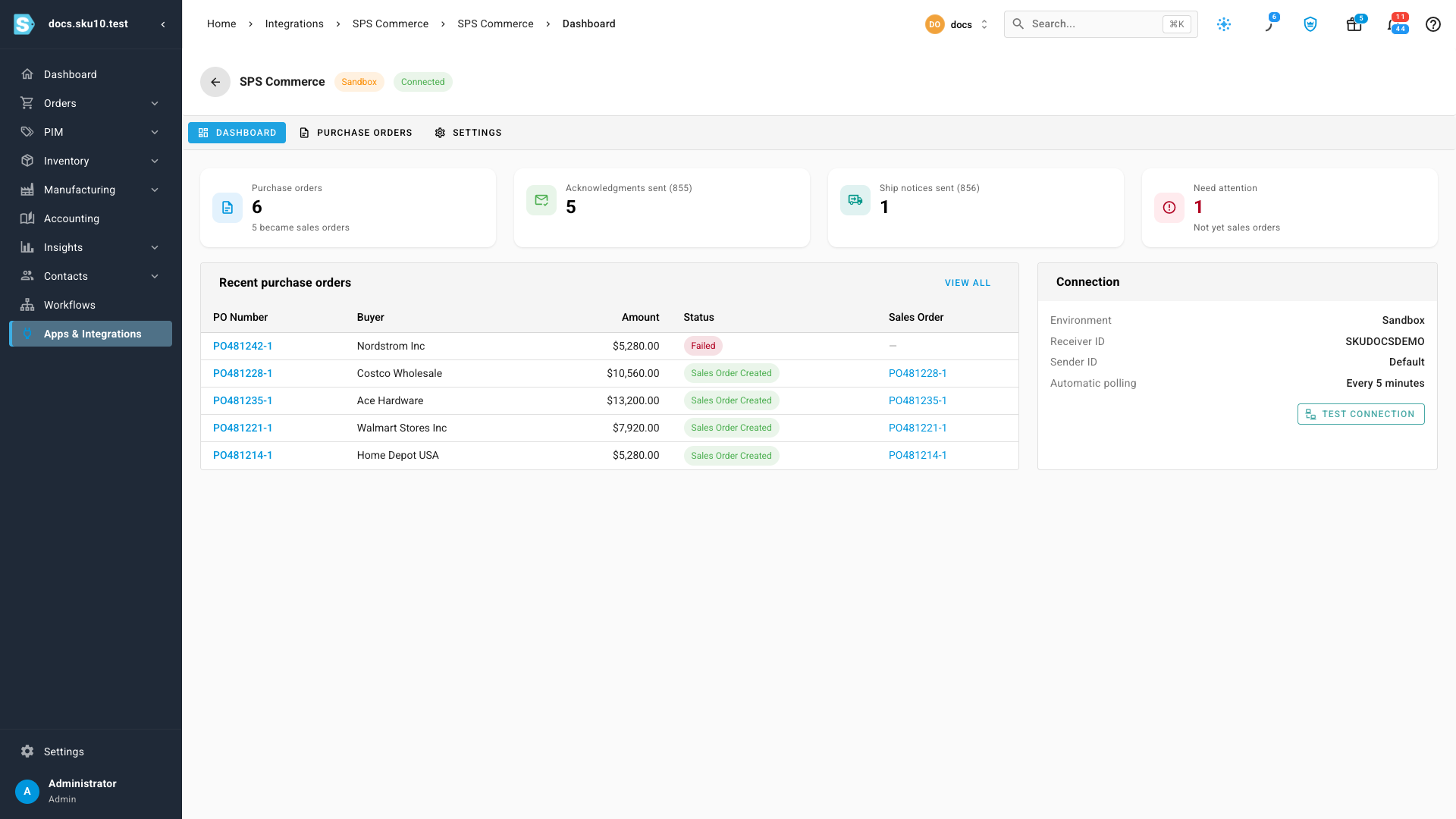
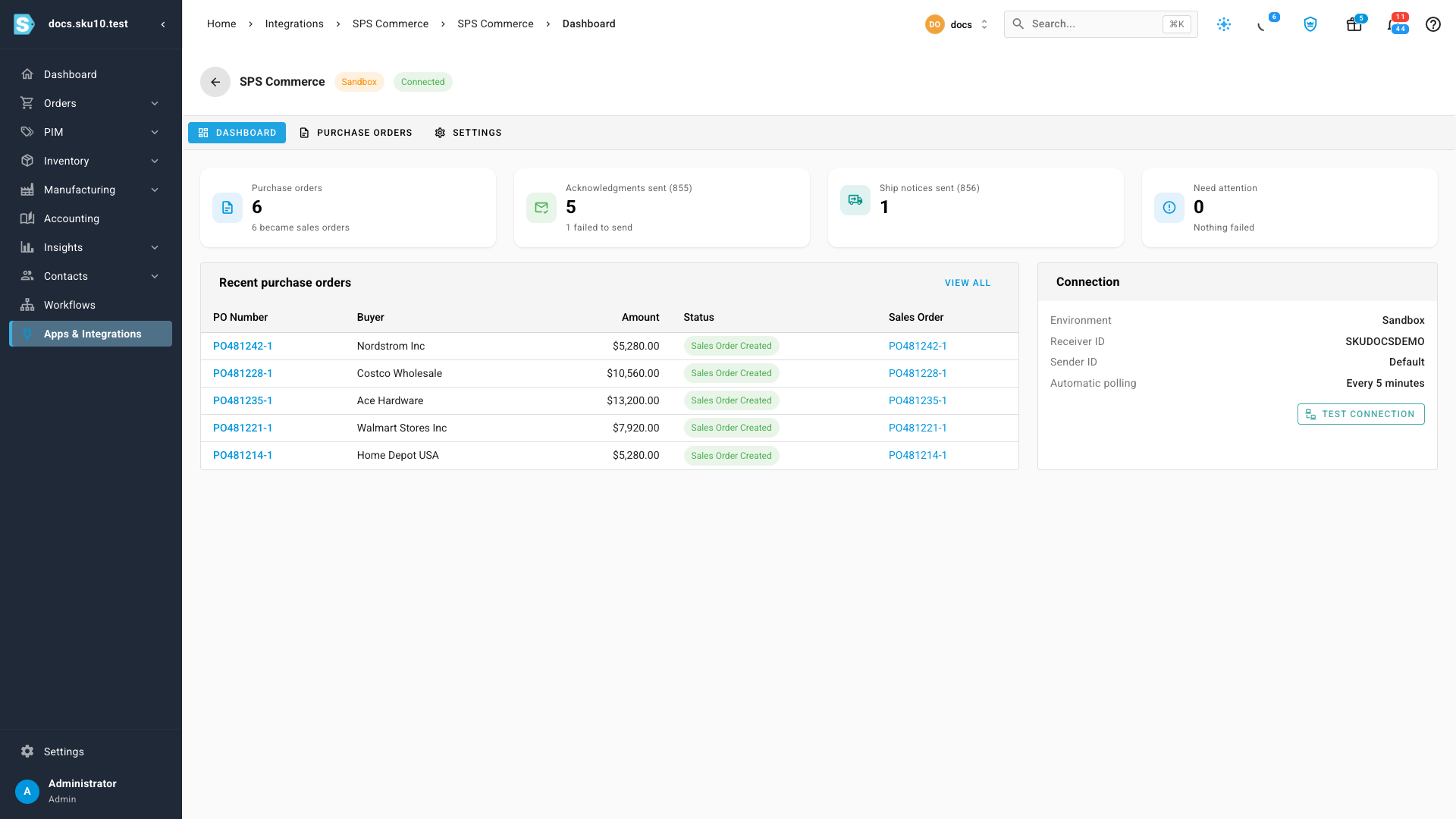
The dashboard counts your Purchase orders and how many became sales orders, the Acknowledgments sent (855), the Ship notices sent (856), and the orders that Need attention.
Map an item SKU.io doesn't recognize
-
On the Dashboard, click Need attention, or open the Purchase Orders tab and set Status to Failed.
-
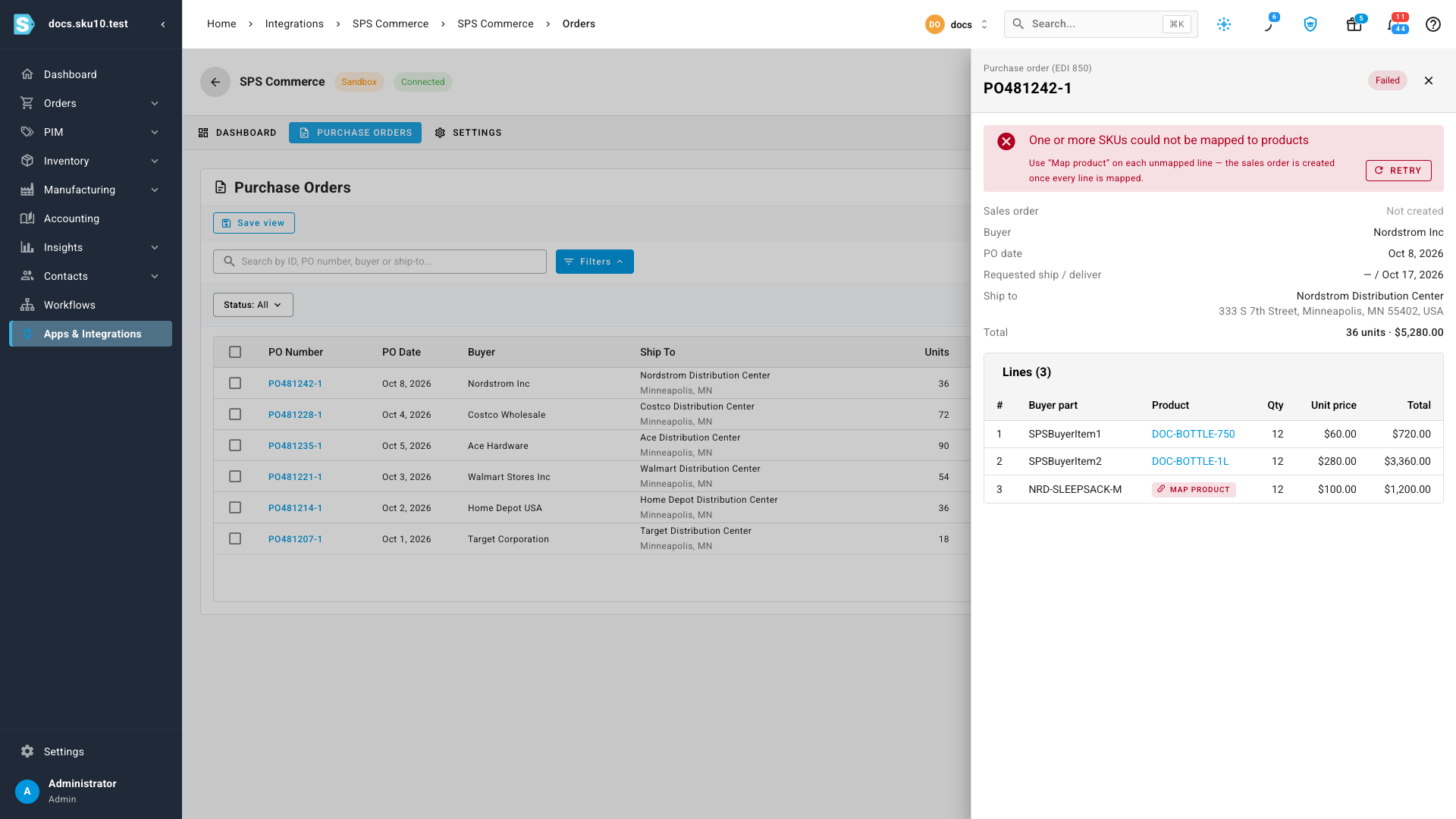
Click the purchase order number. The purchase order opens beside the list, and the line SKU.io couldn't match shows Map product instead of a product.
-
Click Map product. The retailer's part number, its description, and any vendor part number they sent appear at the top.
-
Search for the product the retailer means by SKU, name, or barcode, choose it, and click Map.
-
Repeat for any other unmatched line. When the last line matches, the sales order is created on its own and the status changes to Sales Order Created.
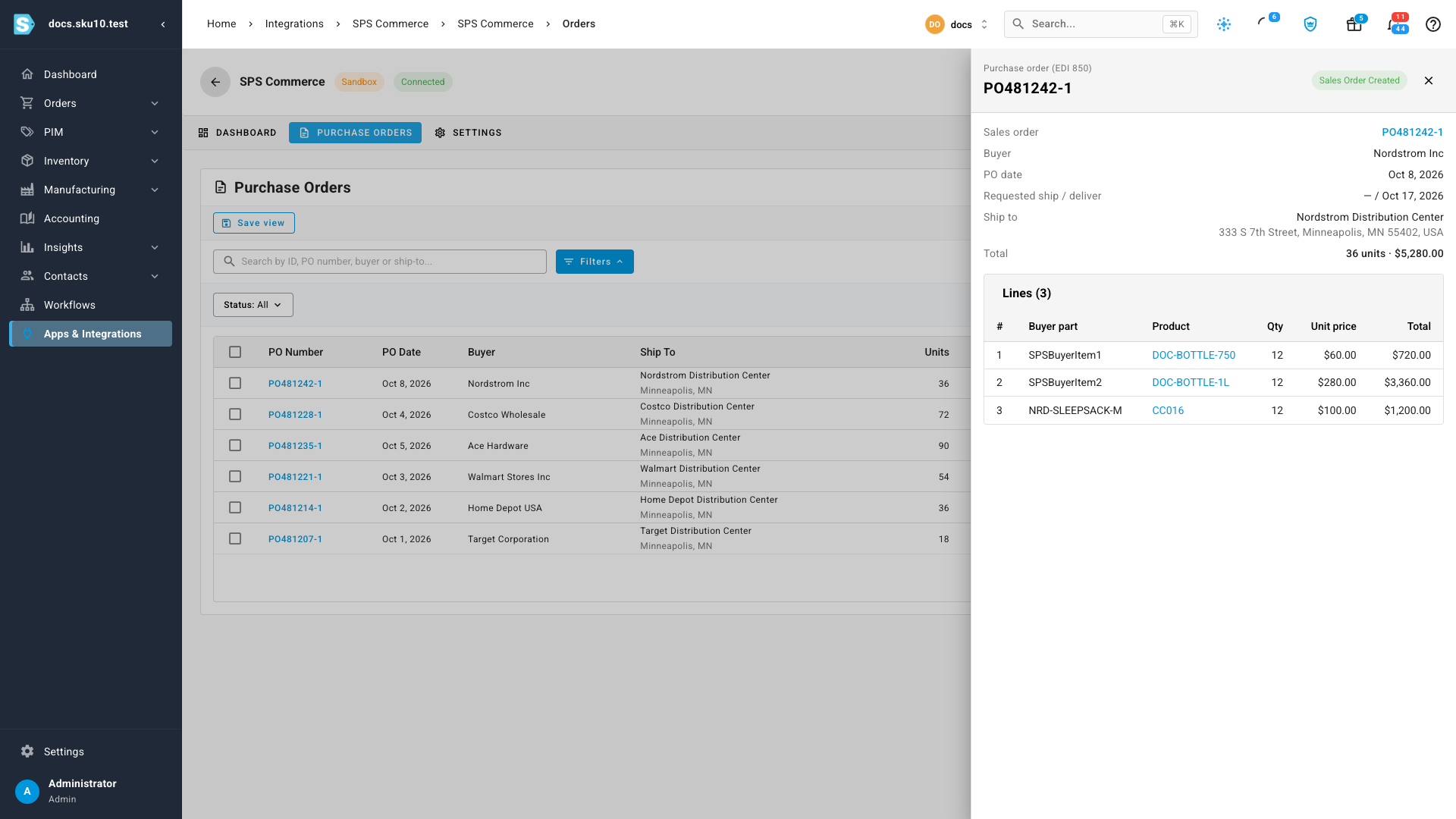
The mapping is saved for the connection. The next purchase order that uses the same part number matches on its own, and any other failed orders waiting on that part number are updated too.
A failed purchase order also shows Retry. Use it after you've fixed whatever stopped the order, such as a product that didn't exist yet when the order arrived.
Acknowledgments and ship notices
You don't send these yourself:
- Acknowledgment (855). As soon as a purchase order's sales order is created, SKU.io sends the retailer an acknowledgment through SPS Commerce.
- Ship notice (856). When you record a shipment for the sales order, SKU.io sends a ship notice with its tracking. A partial shipment sends a notice for what shipped.
If an acknowledgment didn't go out — for example, because the connection was down — click Send pending acknowledgments on the Purchase Orders tab to send every one that's outstanding.
Find a purchase order
On the Purchase Orders tab, search by purchase order number, buyer, or ship-to, or filter by Status. The Sales Order column links straight to the order SKU.io created.
If you delete a sales order that came from SPS Commerce, its purchase order goes back to Failed with the reason "Its sales order was deleted". Click Retry to create it again.
Next steps
- Connect SPS Commerce — change the receiver ID, reconnect, or turn off automatic checking.
- SPS Commerce — what moves between SKU.io and SPS Commerce.
Video transcript
Open Apps and Integrations from the menu on the left.
Type SPS into the search box, and choose it from the list of integrations.
Then open your connection, and its dashboard appears.
Purchase orders from your buyers arrive here on their own, every five minutes.
Need attention counts the orders that could not become sales orders yet.
Open the Purchase Orders tab to see everything your buyers have sent.
This one failed because an item on it matches nothing in your catalog.
Open it, and the line with the unknown part number shows a Map product button instead of an item.
Click Map product, and search your catalog for the item the buyer means.
Choose the right one from the results, and then click the Map button to save it.
Now every line matches, so the order converts in the background.
After a few seconds, its status changes to Sales Order Created.
The match is saved, so the next purchase of that item goes straight through.
The acknowledgment goes back to SPS Commerce as soon as the sales order exists.
And when you ship the order, the ship notice follows on its own, with its tracking number.