Load a retailer's stores and distribution centers
Retailers name their delivery points in different ways. Some send a full ship-to address on every purchase order. Others send only a store or distribution center code, and some send no address at all. Load each retailer's locations before its first purchase order arrives, and SKU.io can always work out where the order ships.
There are two places to load them:
| What the retailer sends | Load it into |
|---|---|
| A location code with no address, such as a store number on each line | The connection's Location directory: one row per code, with its address |
| A full ship-to address, sometimes with a location number | The retailer customer's Addresses: one address per distribution center or store |
Many retailers need both.
Before you begin
- Connect SPS Commerce.
- Get the retailer's location list. Retailers publish it on their vendor portal or in their EDI onboarding pack. You need each location's code, name and address.
- Find the retailer's trading partner ID. A retailer that has already sent you a purchase order is listed under it on the connection's Settings tab.
- To add addresses to the retailer's customer, link the retailer to its customer first. See Link SPS retailers to customers.
Load the location list
- Go to Apps & Integrations, search for SPS, and choose SPS Commerce.
- Open your connection, then click Settings.
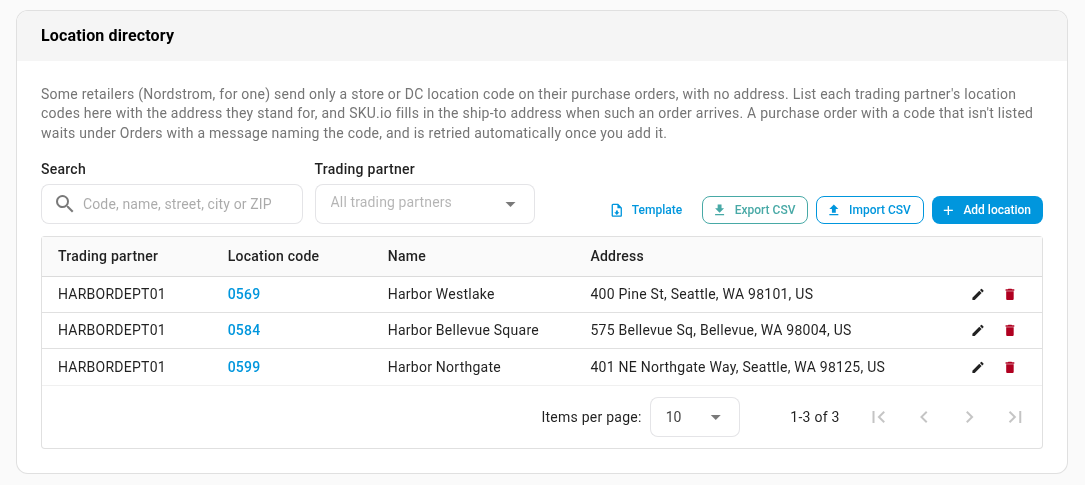
- Scroll to the Location directory card. It lists every code you've loaded, with the retailer it belongs to.
- Click Template. SKU.io downloads a CSV with the columns and one example row.
- Fill in one row for each store or distribution center. See the columns below.
- Click Import CSV and choose your file. SKU.io says what it did, for example Imported: 1 added, 0 updated, 3 unchanged. When purchase orders were waiting for one of the codes, it adds 1 waiting purchase order retried.
The location list's columns
Each row is one location for one retailer. Keep the headers exactly as the template has them: they are the column names below.
| Column | Required | What to enter |
|---|---|---|
trading_partner_id | Yes | The retailer's trading partner ID |
location_code | Yes | The store or distribution center code the retailer sends, for example 0569 |
name | Yes | The location's name, for example Harbor Store 569 |
address1 | Yes | Street address |
address2 | No | Suite, dock or building |
city | Yes | City |
state | For US addresses | State or province |
zip | Yes | ZIP or postal code |
country | No | Two- or three-letter country code, such as US or USA. Leave it blank for the United States |
Codes belong to one retailer. Harbor Department Stores' 0569 and another retailer's 0569 are separate rows. A file can hold up to 5,000 rows and 5 MB.
Spreadsheet apps often drop a code's leading zeros. SKU.io still matches a purchase order's code to the shortened one in your list, as long as no other code matches.
What an import changes
An import adds new codes and updates a row that has the same trading partner ID and location code. Codes that aren't in the file stay in the directory, so you can import a list in parts.
If any row has a problem, SKU.io imports nothing. The card says Nothing was imported — fix these rows and upload the file again. and lists every problem by line, for example Line 2: The city field is required. Fix the rows and import the file again.

To change many locations at once, click Export CSV, edit the file, and import it back.
Add one location by hand
- On the Location directory card, click Add location.
- Choose the Trading partner ID, and fill in the Location code, Name and address.
- Click Save.
To change a location, click its code. To remove one, click the bin. Orders that already have a sales order keep their address.
What happens when a purchase order arrives
- It has a ship-to address. SKU.io uses that address as sent, and doesn't look in the directory.
- It has a ship-to location code but no address. SKU.io uses the directory's address for that code.
- It has no ship-to, and every line ships to the same store. SKU.io uses that store's address.
- It has no ship-to, and its lines ship to several stores. SKU.io creates one sales order per store. See When a purchase order ships to several stores.
- A code isn't in the directory. The purchase order is Failed, with a message that names the code, for example Ship-to location "0611" (the store every line on this order ships to) from trading partner HARBORDEPT01 isn't in your location directory…. No acknowledgment is sent yet. Add the code, by hand or by import, and SKU.io retries the order on its own. You can also click Retry on the purchase order.
The address SKU.io fills in goes on the sales order, the ship notice, the invoice and the carton labels.
When a purchase order ships to several stores
Some retailers send no ship-to at all, and list a quantity for each store on every line instead. A sales order has one shipping address, so SKU.io creates one sales order for each store:
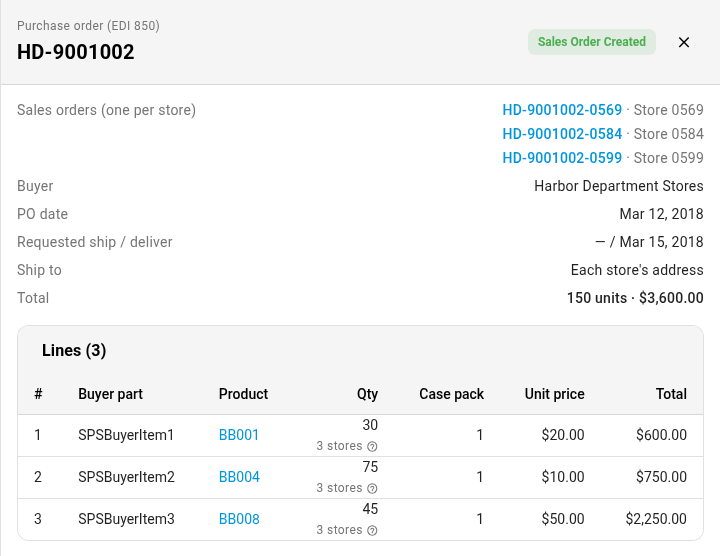
- Each order's number is the purchase order number followed by the store code, for example HD-9001002-0569, HD-9001002-0584 and HD-9001002-0599. Its customer PO is the original purchase order number.
- Each order ships to its store's name and address from the Location directory.
- Each order holds that store's quantity of every line, and leaves off a line the store gets nothing of. The line's description ends with its store, for example — Store 0569.
- You fulfill each store's order on its own. Its ship notice names the store as the ship-to, and its carton labels and invoice do too. Everything still reports against the original purchase order and its line numbers.
- The retailer gets one acknowledgment for the whole purchase order.
On the connection's Purchase Orders page, the Sales Order column lists every store's order. Open the purchase order to see them under Sales orders (one per store), each labelled with its store.
SKU.io doesn't split the purchase order, and leaves it Failed with a message, when:
- A store isn't in the directory. The message names the missing stores. Add them, by hand or by import, and the order is retried on its own.
- A line's store quantities don't add up to what it orders. The message starts Ship-to location unclear and names the line. Create the store orders yourself, or ask the retailer to resend the purchase order.
A purchase order that has a ship-to, such as a distribution center, isn't split this way: it ships to that address as one sales order, with each store as a mark-for. See Ship multi-store purchase orders by store.
Add each distribution center to the retailer's customer
When a retailer is linked to its customer, every purchase order from it becomes a sales order for that customer. Each new ship-to is added to the customer's addresses, and an address that's already there is reused.
The customer import creates one address per customer, so add a retailer's other distribution centers on the customer's page:
- Go to Contacts → Customers and open the retailer's customer, for example Cedar Books.
- Open the Addresses section.
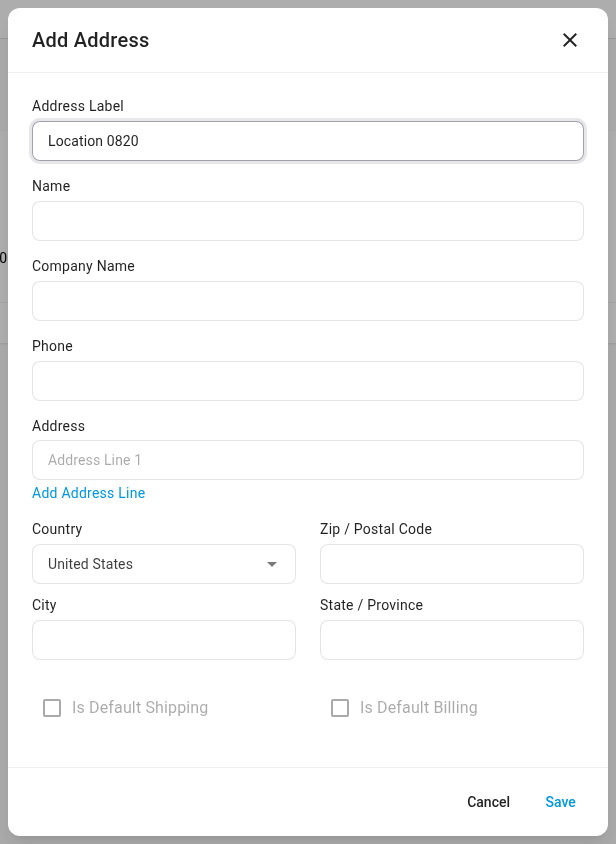
- Click Add Address.
- In Address Label, enter Location followed by the retailer's location number, for example Location 0553. Each label must be unique on the customer.
- Fill in the Name and the address.
- Click Save.
A purchase order whose ship-to carries that location number then uses the saved address, even when the order spells it differently or sends no address. If the order's ZIP code differs from the saved one, SKU.io treats it as a move: it keeps the order's address and saves it alongside.
Next steps
- Handle purchase orders from SPS Commerce — retry a failed purchase order.
- Ship multi-store purchase orders by store — a distribution center ship-to with store quantities on the lines.
- Choose where a retailer's ship-to address comes from — retailers that send the distribution center outside the ship-to.
- The retailer's location ID — the location ID SKU.io sends back on the ship notice.
Video transcript
Some retailers send only a store code on a purchase order, with no address. List each code with its address here, and those orders get their ship-to filled in for you. On your connection's Settings tab, the Location directory lists each retailer's codes. Download the template, and fill in one row for every store or distribution center. Then click Import CSV, and choose your file. Every row is checked first, and nothing is imported if one has a problem. Harbor Ballard is now on the list, and the other three stay as they were. An order was waiting for that store, so it's retried straight away. To see it, open Purchase Orders from the connection's menu on the left. The waiting order is now a sales order, shipping to Harbor Ballard. Next, open the order that lists a quantity for three stores, with no ship-to. For an order like this, one sales order is created for each store. Ship to reads each store's address, from your list. For a retailer that sends full addresses, link it to its customer. Each distribution center is one of the customer's addresses. Label it Location, then the retailer's number, and orders that carry that number use it.