Book freight for a retailer ship notice
Retailers that trade with you through SPS Commerce expect a pallet shipment's ship notice (856) to carry its bill of lading number, the carrier's PRO number and its SCAC. A freight ship notice with no PRO is rejected, so SKU.io holds it until the PRO is there. Book the freight from the shipment itself, and the booking fills those fields for you. There's no copying numbers from a broker's email.
Before you begin
- Connect a freight account, and set SCAC on ship notices on it if the retailer needs a SCAC.
- The shipment is a retailer (SPS Commerce) shipment with its cartons packed and weighed. See Pack and label SPS Commerce shipments.
- Your role needs the Get freight rates and Book freight permissions.
Book from the Cartons tab
- Open the shipment and choose the Cartons tab.
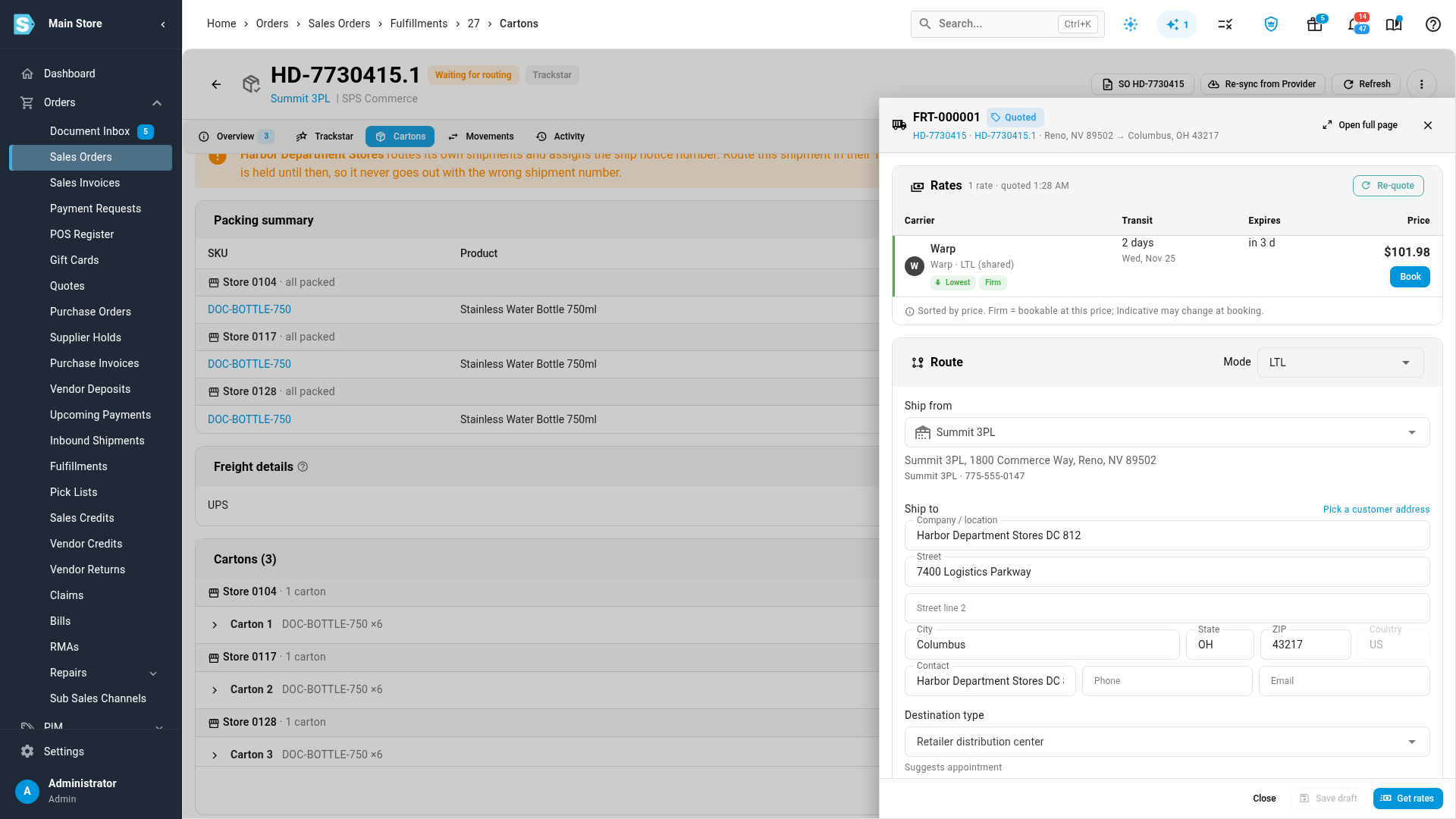
- In the Freight details card, click Book freight. The freight quote opens, built from this shipment: its warehouse, its ship-to and its cartons grouped onto pallets.
- Check the load, then click Get rates.
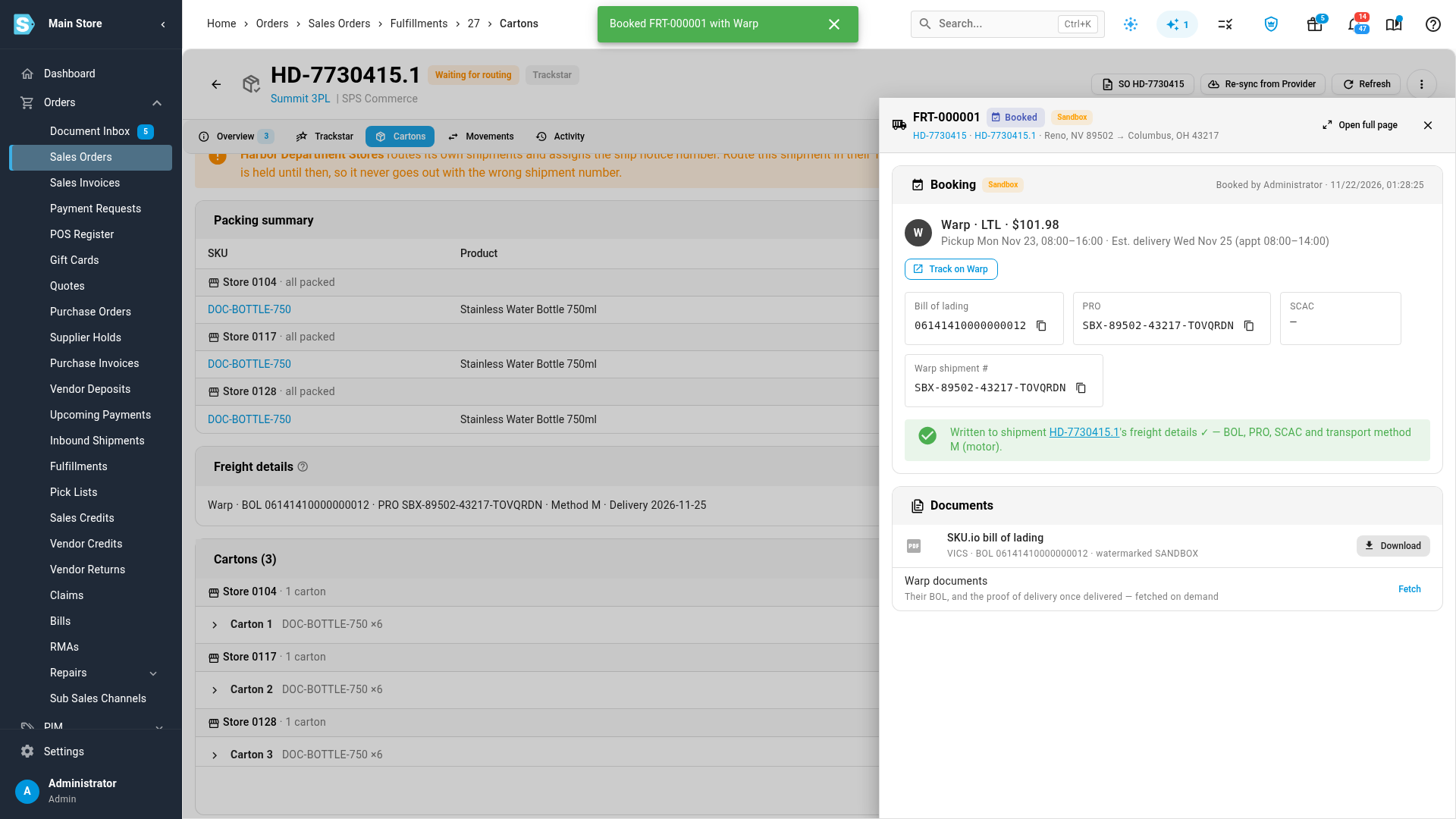
- Click Book on the rate you want. The dialog says Booking writes the BOL, PRO and SCAC to shipment …'s freight details.
- Check the pickup and delivery contacts. A retailer's EDI order often has no phone or email for its dock, so fill in the receiving contact's Phone and Email under Delivery contact. A booking with a blank required contact field is refused.
- Check the delivery appointment window, then click Confirm booking.
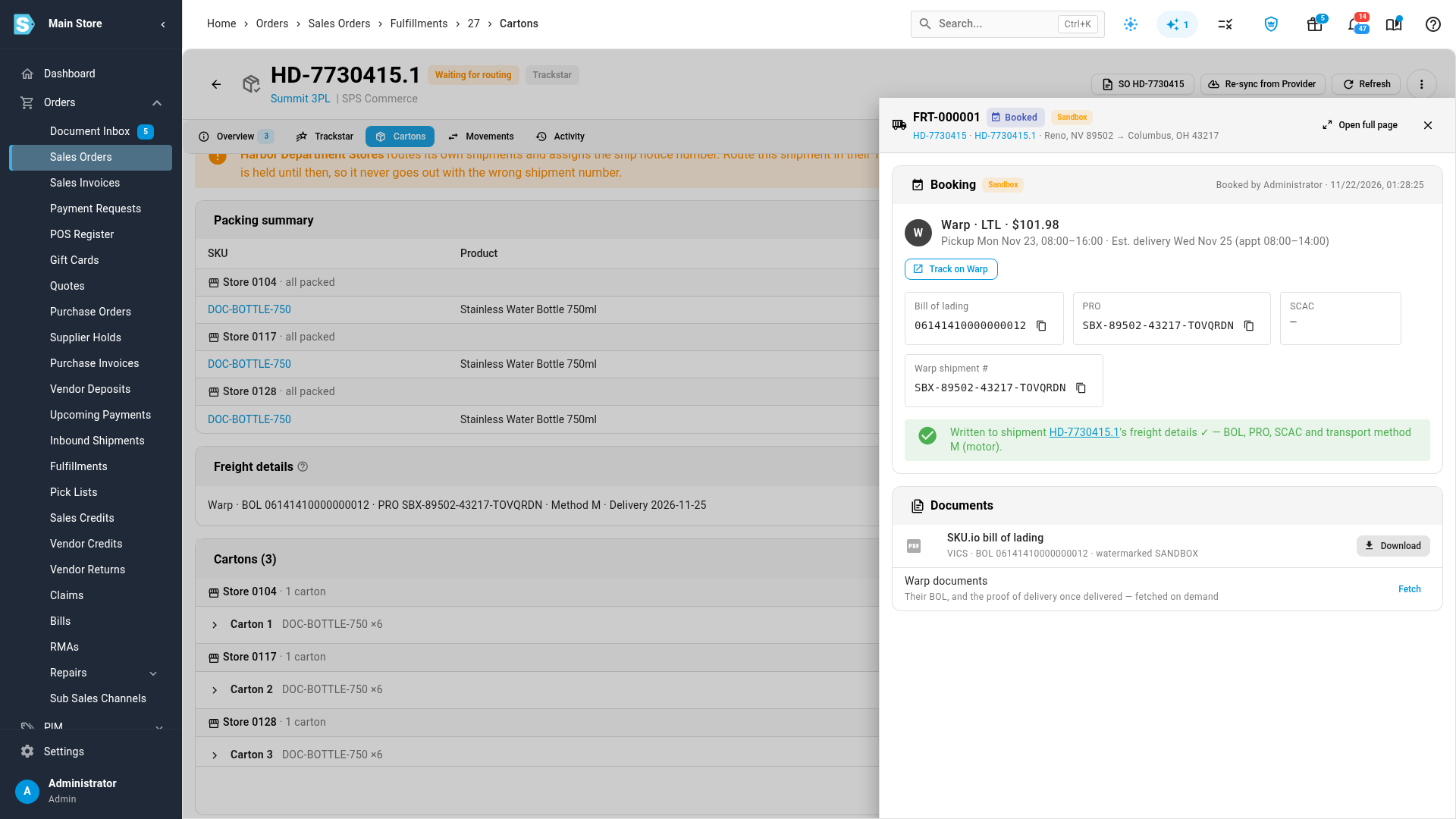
The booking card says Written to shipment … freight details ✓. Back on the Cartons tab, Freight details now shows the carrier, Bill of lading #, PRO #, Carrier SCAC, Carrier name, transport method M (motor freight) and the scheduled delivery date.
Book freight is greyed out when:
- The ship notice for this shipment has been sent, so its freight details can no longer change.
- Save or discard your freight detail changes first. (You're editing the card.)
What happens next
- A ship notice that was held for its PRO, bill of lading or carrier pickup goes out once the booking fills them in.
- An order held for a 3PL because its routing wasn't ready is released to the 3PL, with the carrier, bill of lading and PRO in its note. See Hand a retailer order to a 3PL with labels and routing ready.
- The retailer's carton labels print the bill of lading and PRO.
- When the carrier picks up, tracking records the pickup on the shipment, unless someone already recorded one. A PRO that arrives later fills PRO # if no one changed it by hand.
If the ship notice had already gone out before you booked, SKU.io doesn't change the shipment. The load's booking card says the ship notice was already sent. Send the retailer the new bill of lading and PRO another way.
When the retailer routes the load
Some retailers route the freight themselves: they choose the carrier, and send a load number or routing for it. If the shipment's freight details already hold a carrier, SCAC, load number or routing sequence that SKU.io didn't book, the Book dialog warns This load was routed by the retailer. Booking your own freight replaces that carrier on the ship notice. Book only if the retailer allowed prepaid freight on this order, and tick The retailer approved prepaid freight for this order to continue. The replaced routing is kept on the load's booking card and activity.
Sandbox bookings
A booking on a sandbox Warp account never changes the shipment's freight details, so a test booking can't send a real ship notice to a retailer.
Next steps
- Track a freight load
- Cancel a freight booking: cancelling clears the values SKU.io wrote, unless someone changed them since.
- Record a carrier pickup
Video transcript
A retailer's ship notice needs its bill of lading, its tracking numbers and its carrier. Until they're in, this shipment waits. They live in the Freight details card on the shipment's Cartons tab. In the Freight details card, click Book freight. The quote starts from this shipment: its warehouse, its delivery address, and its cartons stacked onto pallets. Check the load, then click Get rates, and every connected provider is asked at once. Click Book on the rate you want to reserve. The dialog confirms that booking writes the bill of lading, PRO and carrier code to this shipment. A retailer's order often has no phone or email for its dock, so add the receiving contact's. Check the delivery appointment window, then click Confirm booking. Booking takes a few seconds, while the provider confirms the truck. The booking is written straight to the shipment's freight details. Freight details now shows the bill of lading, PRO and carrier, and the transport method changes to motor freight. With its routing in, the order is no longer held, and the ship notice carries the bill of lading and PRO. If the ship notice had already gone out, the shipment is left alone, and you're told to send the new numbers another way.