Hand a retailer order to a 3PL with labels and routing ready
Some retailers want their own label on every carton and book the freight themselves. A 3PL that gets such an order too early picks and ships it without labels, or with the wrong carrier, and the retailer charges you for it. When a 3PL ships your orders through Trackstar, SKU.io holds each of these orders until it is ready. It packs the cartons, waits for the routing, prints the labels, and only then sends the order to the 3PL, with everything the 3PL needs in the order's note.
Which orders SKU.io holds
SKU.io holds an order when all of these are true:
- It came from a retailer through SPS Commerce.
- The retailer has a carton label template, and its ship notice lists cartons.
- The order is released to a warehouse that ships through Trackstar.
Every other order goes to its warehouse as it always has. Orders on the warehouse order flow or on Receive only are never held this way, because the 3PL gets those orders by EDI.
Before you begin
- Connect SPS Commerce, and connect the 3PL through Trackstar.
- Choose the retailer's carton label template, and give it a ship notice structure that reports cartons. See Pack and label SPS Commerce shipments.
- For Prepare automatically, give each product the retailer orders a Case Qty. SKU.io packs full cases.
Turn on Prepare automatically
- Go to Apps & Integrations, search for SPS, and choose SPS Commerce.
- Open your connection, then click Settings.
- Under Settings, click Shipping Labels.
- In Carton label templates, find the retailer and turn on Prepare automatically.
- Click Save Changes.
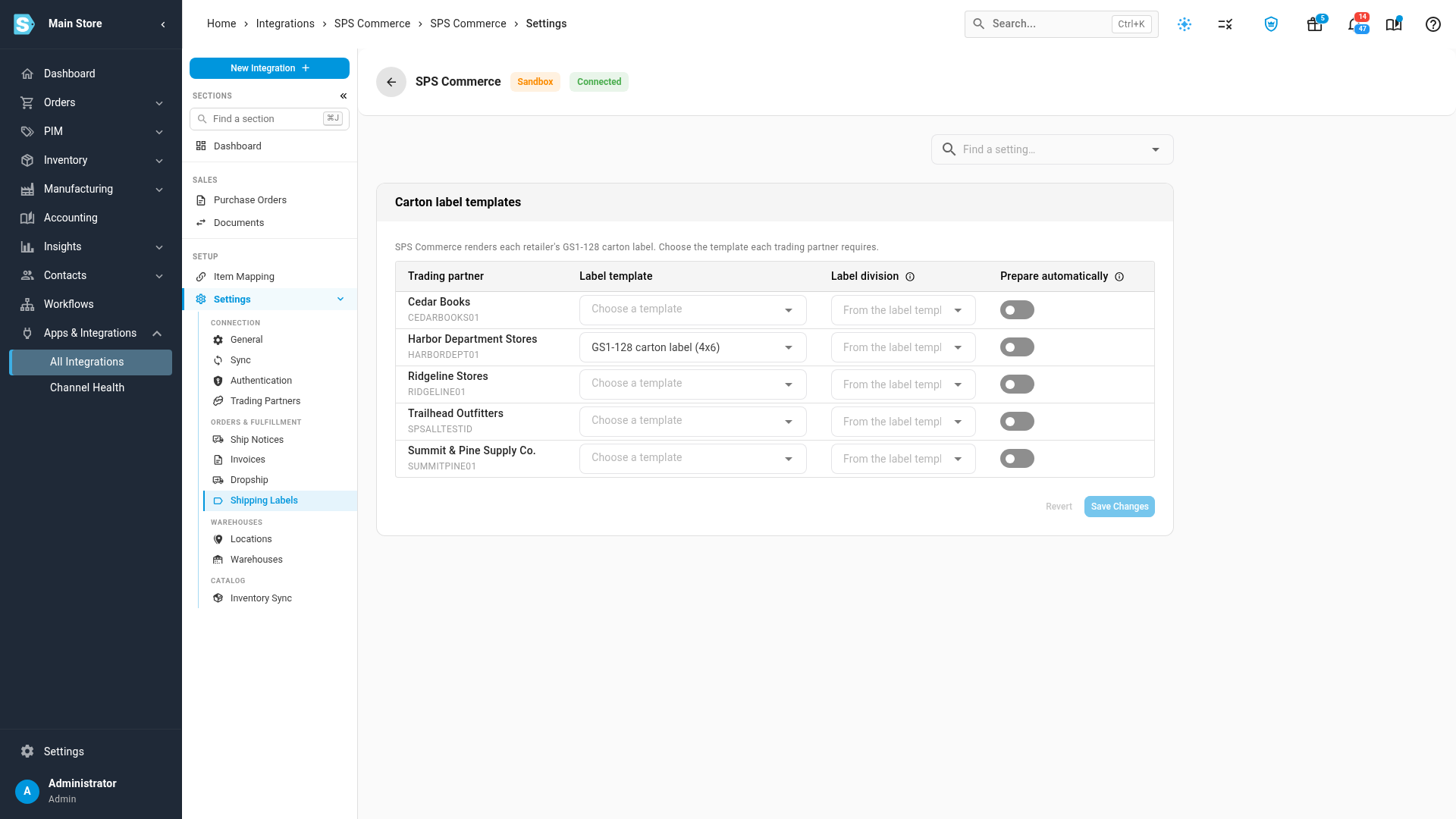
From then on, as soon as one of the retailer's orders reaches the 3PL's warehouse, SKU.io packs it by case, one store per carton, and gives every carton its SSCC number. When the routing is in, it prints the labels and sends the order. Without Prepare automatically, you pack the cartons and print the labels yourself on the shipment's Cartons tab, and SKU.io sends the order once they are done.
If a product has no case quantity, SKU.io doesn't pack the order. The order's activity says which product, for example Cartons for … were not packed automatically: … has no case quantity. Pack it on the shipment's Cartons tab.
What a held order looks like
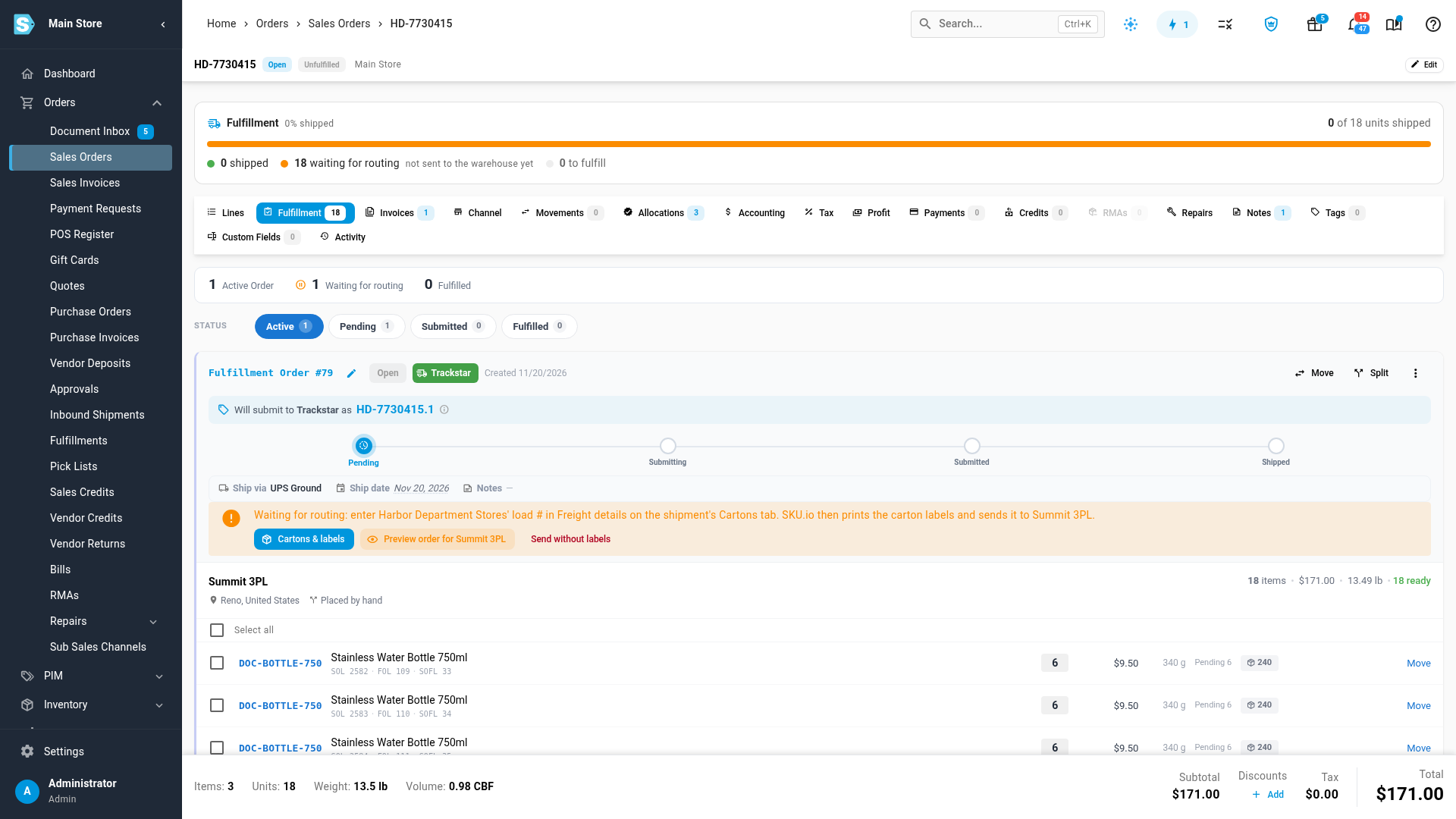
On the sales order's Fulfillment tab, the fulfillment order shows what it is waiting for, in this order:
| Hold | What to do |
|---|---|
| Waiting for cartons & labels | Pack the shipment's cartons on its Cartons tab, finalize, and print the labels. With Prepare automatically on, this is done for you |
| Waiting for routing | The retailer routes its own freight. Book the load, then enter its routing in Freight details |
| Waiting for carton labels | Print the labels on the Cartons tab. Labels printed before the routing changed are printed again |
The order's progress reads waiting for routing · not sent to the warehouse yet until it goes, and the stock stays reserved. While it waits, the fulfillment order offers no Submit button. Use the banner's actions instead:
- Cartons & labels opens the shipment's Cartons tab.
- Preview order for … shows the note and the order exactly as the 3PL will get them.
- Send without labels sends it now (see Send an urgent order without labels).
Enter the routing
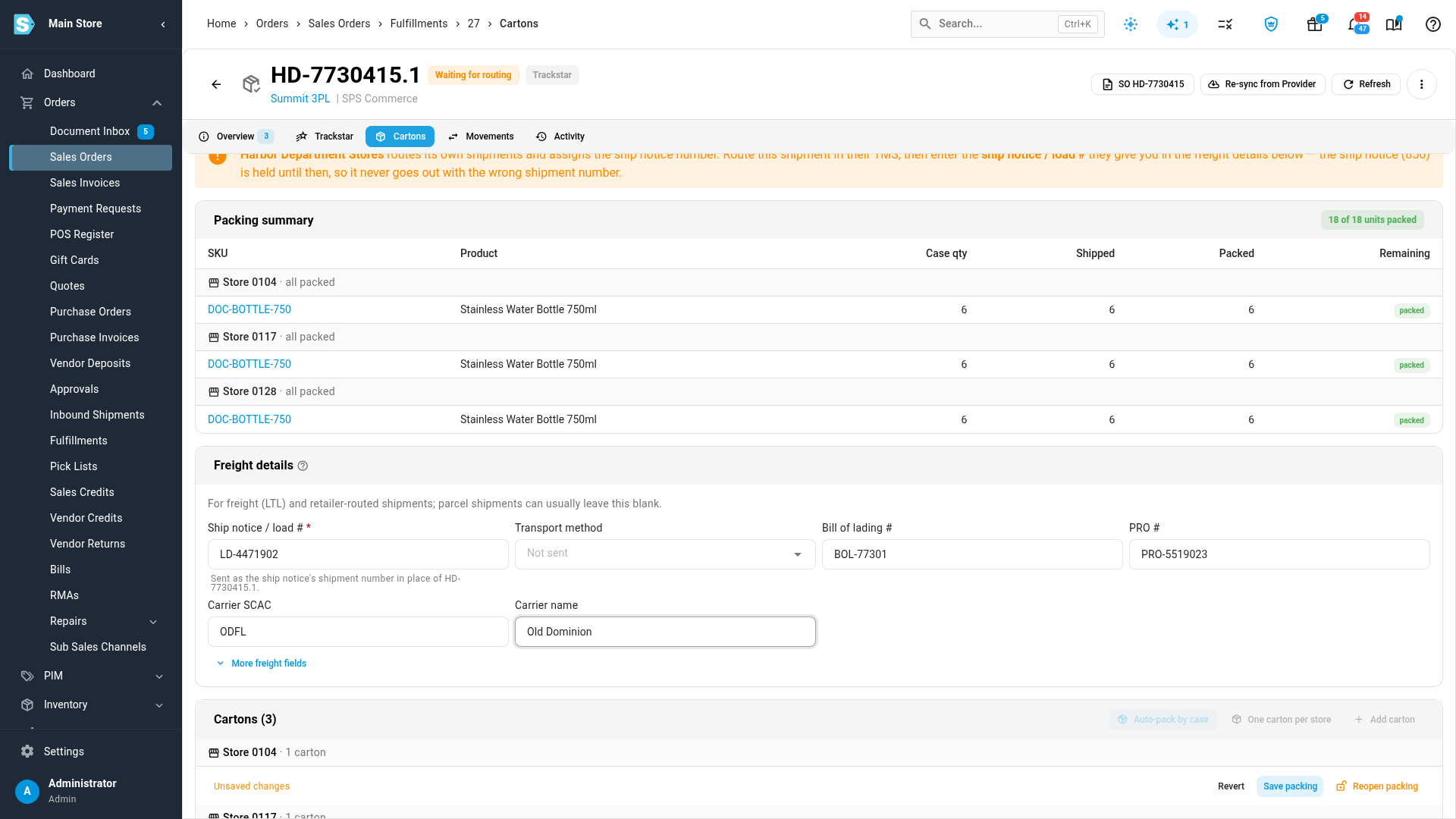
- Click Cartons & labels.
- Under Freight details, click Edit.
- Enter the Ship notice / load # the retailer gave you, the Bill of lading #, the PRO #, the Carrier SCAC and the Carrier name.
- Click Save packing.
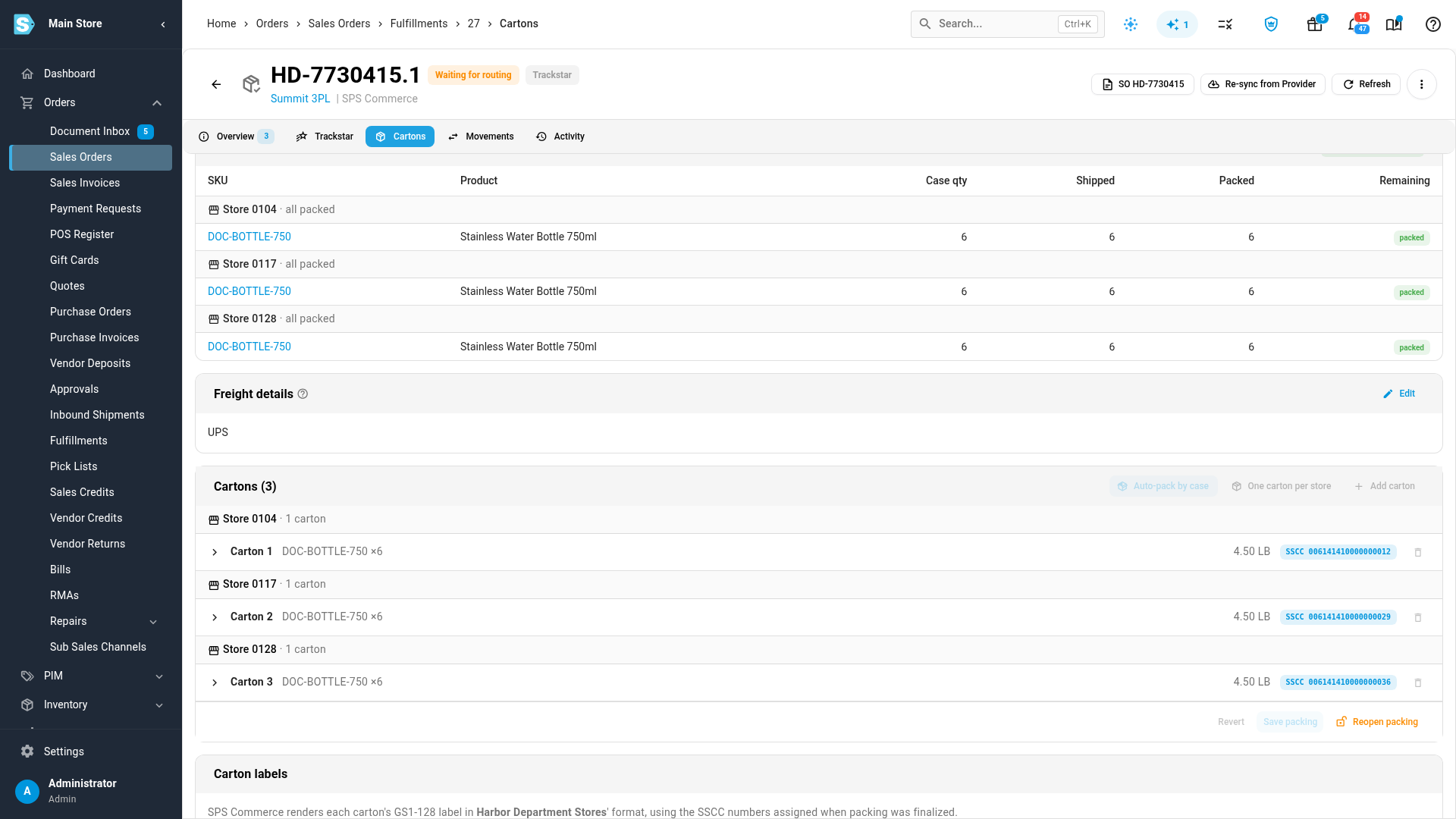
With Prepare automatically on, SKU.io prints the labels as soon as you save: Saved — the carton labels were printed with these freight details. Every carton shows its Label chip, Print labels reads labels ready, and Download ZPL (thermal printer) works for your own printer. The order is then sent to the 3PL.
What the 3PL receives
At the top of the Cartons tab, Sent to … with the labels link confirms the order went. Click View note to read the note on the 3PL's order:
- The retailer's purchase order number and your vendor number.
- The routing: carrier, load number, bill of lading and PRO.
- A link to the carton labels PDF. The 3PL opens it without signing in to SKU.io. Each carton gets one label.
- What goes in each store's carton, store by store.
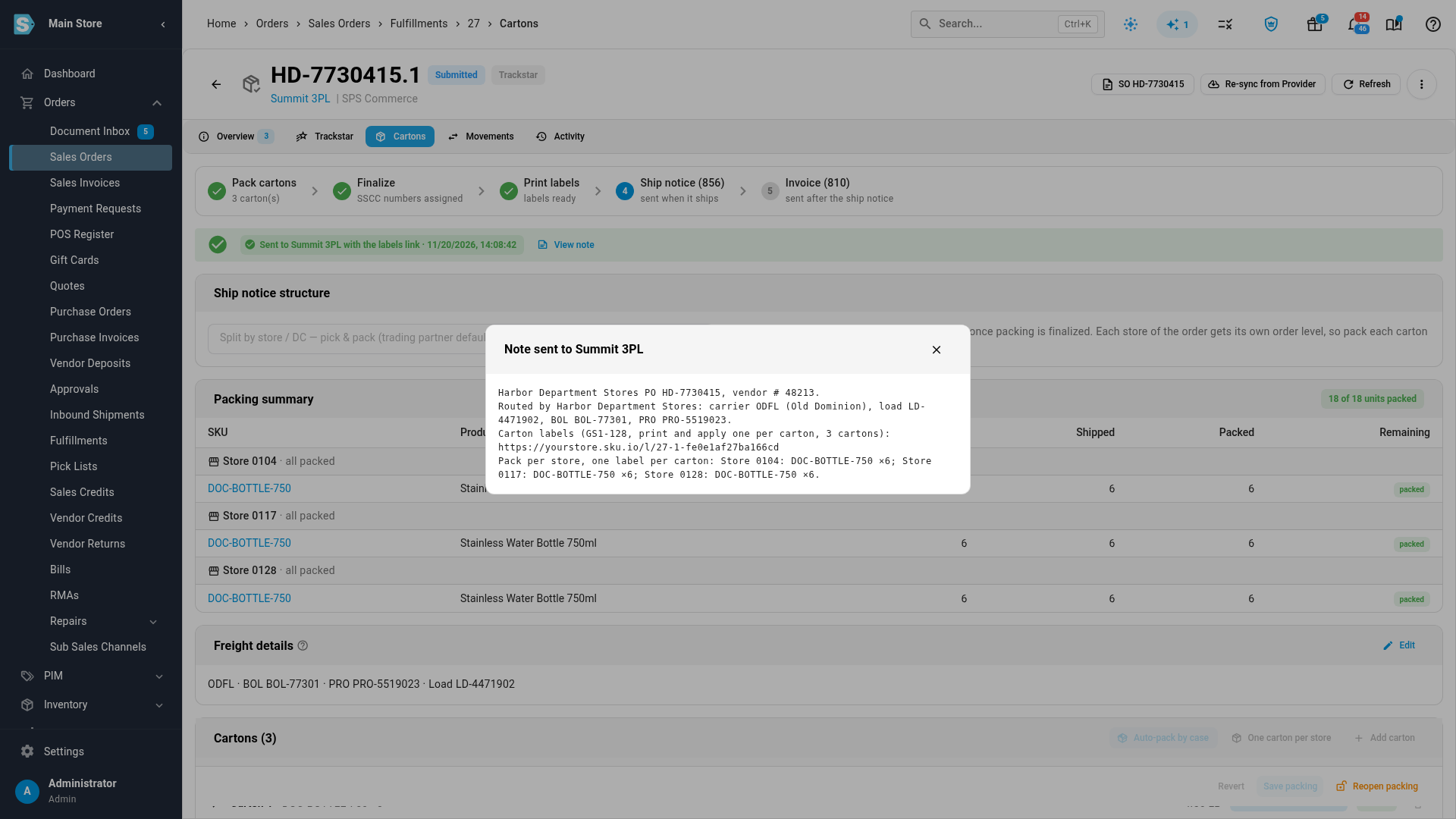
Which shipping method the order goes with
The order goes to the 3PL with the shipping method its Trackstar connection maps the routed carrier to. A routed freight load is never sent on the order's parcel method:
- When the routed carrier maps to no method, for example a freight carrier such as ODFL that the 3PL's system doesn't list, the order goes with the connection's Freight method for routed loads. The note names the routed carrier, and says the ship method on the order is the generic freight method.
- SKU.io picks that method by itself when the 3PL's synced shipping methods include one named LTL. To choose another, open the Trackstar connection, click Shipping Methods, and set Freight method for routed loads. See Route Trackstar shipping methods.
- When there is no freight method, SKU.io holds the order rather than send it as a parcel. The fulfillment order says why, with Choose freight method. The order goes once you choose one.
- A load routed to a parcel carrier that no method maps, such as UPS or FedEx, keeps the order's own method, and the note tells the 3PL which carrier the retailer routed it to.
If you change the cartons or the routing while the 3PL hasn't started on the order, SKU.io prints the labels again and updates the note. Once the 3PL is already working the order, the Cartons tab says so: … is already working this order, so the new labels link wasn't sent. Tell … directly.
Send an urgent order without labels
- On the held fulfillment order, click Send without labels.
- SKU.io warns that the 3PL will get the order without the carton labels, or without the retailer's routing, and that retailers fine for it. Click Send to … (the 3PL's warehouse) to confirm.
The order goes now, and its note says what is missing, for example Carton labels: not printed yet. SKU.io will add the link when they are. The Cartons tab shows Sent to … without labels by you. When the labels are printed later, SKU.io adds the link to the 3PL's order. If the 3PL has already shipped by then, the fulfillment order warns that the cartons may not have been labelled.
When the 3PL ships
The 3PL's shipment is recorded on the same shipment, so its cartons and labels stay with it. SKU.io then checks that the cartons the 3PL reports match the ones it labelled before it sends the retailer's ship notice (856). When they don't match, or the 3PL reports no cartons, the ship notice is held on the Cartons tab with the reason. Check with the 3PL, then click Cartons checked — send ship notice, or reopen packing to match what shipped.
A freight ship notice also needs the carrier's PRO number. When the 3PL reports one through Trackstar, SKU.io fills in PRO # under Freight details for you. A PRO you typed is never replaced. Until the shipment has a PRO, its ship notice is held, and the Cartons tab says why: This shipment goes by LTL freight with …, and retailers reject a freight ship notice without the carrier's PRO number. Enter the PRO from the bill of lading or the carrier's pickup receipt, click Save packing, and the ship notice goes. See Pack and label SPS Commerce shipments.
For a retailer that takes the ship notice only after carrier pickup, a routed freight load's pickup is the ship date the 3PL reports through Trackstar. A parcel's pickup comes from the carrier's first in-transit tracking scan instead, because a warehouse marks a parcel shipped when it prints the label. See Record a carrier pickup.
Next steps
- Pack and label SPS Commerce shipments
- Ship multi-store purchase orders by store
- Record a carrier pickup
- Send SPS orders to a 3PL by warehouse order: for a 3PL that takes orders by EDI instead.
Video transcript
When a retailer wants its own label on every carton, the 3PL can't ship without those labels. SKU.io holds the order until the cartons, labels and routing are ready, then sends it to the 3PL. Start under Shipping Labels, in your SPS Commerce settings. Find the retailer, and turn on Prepare automatically. Then click Save Changes. From then on, its orders are packed one carton per store as soon as they reach the 3PL's warehouse. Here's an order the retailer sent, released to the 3PL's warehouse. Its cartons are already packed, but this retailer books its own freight. So the order waits for routing, and nothing has gone to the 3PL yet. Preview order shows exactly what the 3PL will get. If it can't wait, Send without labels sends it now. Otherwise, click Cartons and labels. Each store has its own carton, and every carton already has its SSCC number. What's missing is the routing. Once the retailer has routed the load, click Edit in Freight details. Enter the load number, the bill of lading, and the carrier's tracking number. Then the carrier's code and name. Click Save packing. SKU.io prints a label for each carton, and sends the order to the 3PL. At the top, the order now reads sent to the 3PL, with the labels link. Click View note to see what the 3PL got. The note names the purchase order and your vendor number, and the routing the retailer chose. It links to the labels, which the 3PL can open without signing in. And it lists what goes in each store's carton.