Route Trackstar shipping methods
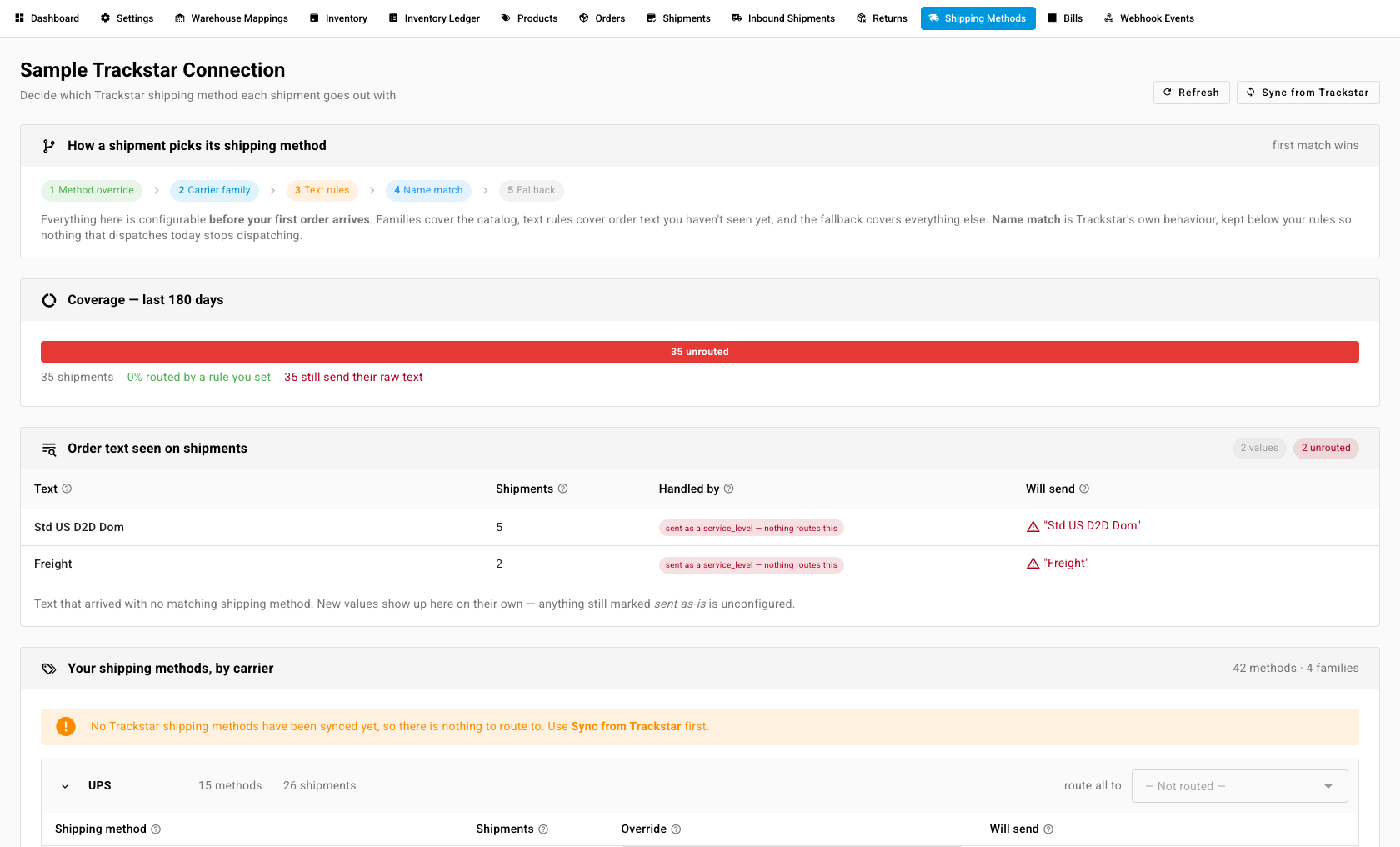
Orders often reach SKU.io with a shipping label like "Free Shipping" rather than a real carrier service. The Shipping Methods tab on a Trackstar connection decides which of the warehouse's shipping methods each shipment goes out with.
Before you begin
- Connect a warehouse through Trackstar.
- Sync the warehouse's shipping methods. If there are none yet, the page asks you to use Sync from Trackstar first.
How a shipment picks its method
SKU.io checks five layers in order, and the first match wins:
- Method override — one SKU.io shipping method pinned to one warehouse method. Beats everything below.
- Carrier family — a default for every method under one carrier.
- Text rules — your ordered rules over the order's shipping text.
- Name match — order text that exactly matches the name of one of the warehouse's methods.
- Fallback — the catch-all for anything still unmatched.
Steps
- Open the Trackstar connection and go to Shipping Methods.
- Check Coverage and Order text seen on shipments to see which shipping text your orders carry and which layer handles each one.
- Under Your shipping methods, by carrier, choose a method to route all to for a carrier, and set an Override on any single method that should go somewhere else. Methods you leave alone show Inherit family.
- Under Text rules, click Add rule. Choose contains, starts with, or is exactly, enter the text (for example
Collection), and pick the method to send. Matching ignores case, spacing, and punctuation. - Under Fallback, choose what to send for anything still unmatched: the text as-is, a shipping method you choose, or no shipping method at all. Click Save fallback.
What you'll see: Will send on each line of Order text seen on shipments updates to show the method that text now goes out with.
Next steps
Last verified:
Was this helpful?