
How to Do a Cycle Count Without Stopping Orders
To do a cycle count, pick a small set of products in one warehouse, record what the system says you have at the moment you start, count the shelves without looking at that number, and enter what you found bin by bin. Then, before anything posts, subtract whatever shipped or arrived after you started. If 40 mugs were on the books when you started, 3 were picked for Shopify orders before you reached their bin, and you counted 37, the variance is zero, not minus 3.
That last step is the one that decides whether you have to stop selling to count. The usual advice, including in ERP vendors’ own procedures, is to post every pending transaction and count after hours, or to set a cutoff and hold orders until the count is done. That’s written for a warehouse that closes. A brand selling on Shopify, Amazon and wholesale doesn’t close, and nobody wants to turn a store off for a morning to count 60 SKUs.
An ops lead at a three-warehouse brand described what happens when you count anyway and the system doesn’t handle it: “Because we didn’t shut down our store. Right. So it’s possible, you know, we were still accepting orders during the stock take time.” Their opening count and their sales overlapped, and the numbers that came out made no sense. A week earlier the same lead had asked the right question: would the count “have also tracked the stock movements between the count and newly shipped orders?”
The procedure
- Choose what you’re counting. One warehouse at a time, and a list of products, not the whole catalog. Those might be what your schedule says is due, a category that keeps coming up short, or a single bin a picker said was empty. If you count three warehouses on three different days, that’s three counts, each with its own start time.
- Take the snapshot right before the first shelf is touched. The snapshot is the on-hand figure for every product on the list at that moment, plus the time it was taken. Everything after it is “during the count”.
- Count blind. Counters see the product and the bin, not the expected quantity.
- Count each bin as its own line. A product kept on a shelf and in a returns bay is two lines.
- Enter the counts, by hand or by scanning.
- For lot-tracked products, record the lots of the difference: which lots any extra units belong to, and which lots a shortage came out of.
- Review before you post. Net out what moved during the count, recount the lines that are still off, give each remaining variance a reason, and only then finalize.
Sales during the count net out
For each line:
variance = counted − (snapshot + everything that moved in or out after the snapshot)
Take the mugs again. The snapshot says 40. After the snapshot, and before the counter reaches that bin, 3 are picked for orders and a receipt of 12 is put away into it. The counter finds 49. Expected is 40 − 3 + 12 = 49, so the variance is zero, and nothing needed to stop.
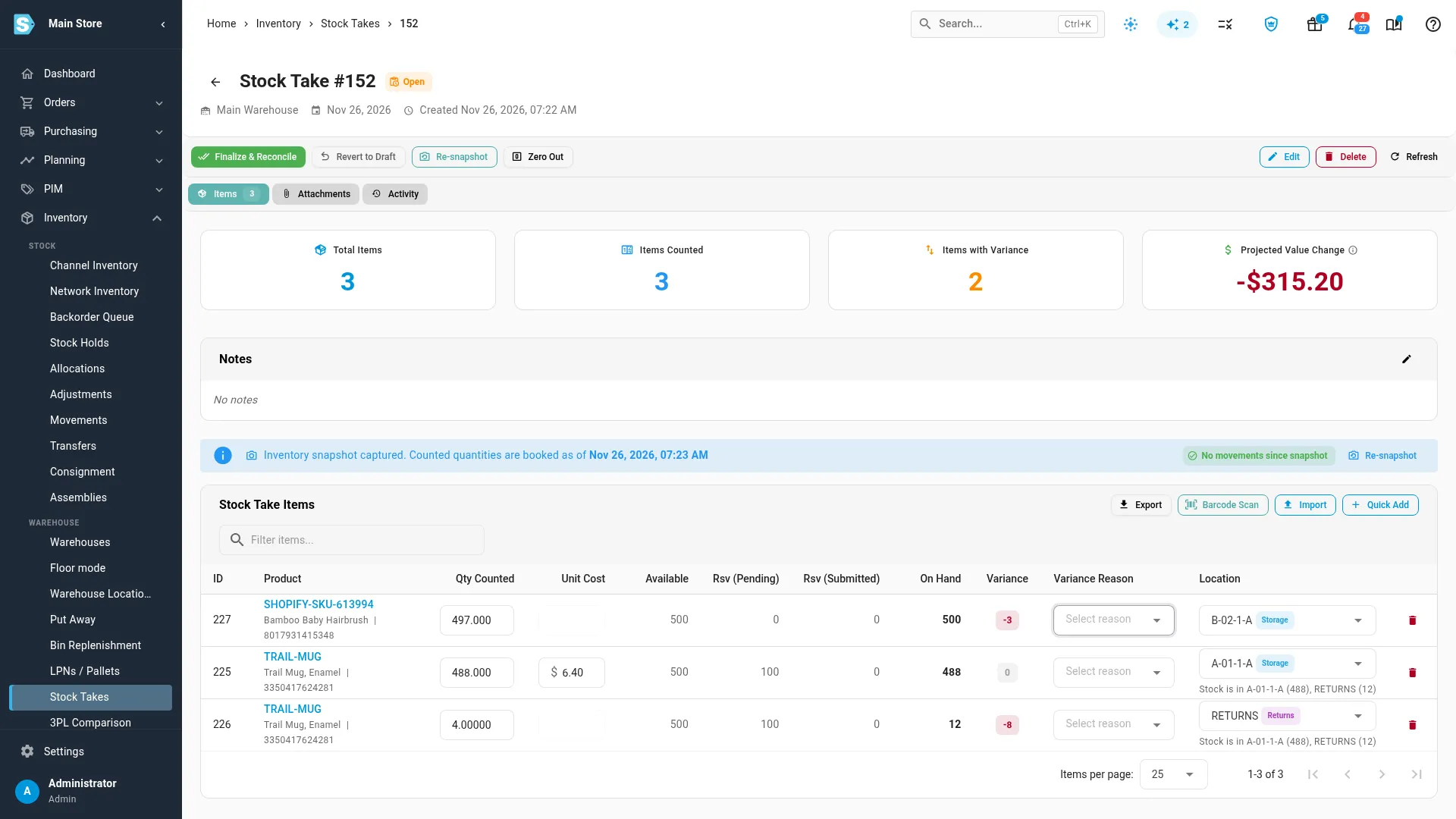
This is how SKU.io stock takes work. There’s no inventory lock while a count is open. Shopify, Amazon and wholesale orders keep shipping, receipts keep landing, transfers keep moving, and each one is netted into the line at finalize. The banner on an open count tells you whether anything has moved since the snapshot. When you count bin by bin, a sale picked from one bin only adjusts that bin’s line.
Snapshot first, count second. The snapshot time is the cutoff, so it has to be taken before you start counting, not when you sit down to type the counts in afterward. If the shelves were counted Saturday and the snapshot is taken Monday morning, every order that shipped over the weekend is already out of the snapshot but was still on the shelf when you counted it, and the count will read as found stock that never existed. You can back-date a count so it posts on the day it was really done, but back-dating only moves the posting date. The netting still keys off the moment the snapshot was taken.
Count each bin before it’s picked from again. The netting runs from the snapshot to the moment you finalize, not from the moment a bin was counted, because nothing records when each line was counted. So a pick from a bin after it was counted still gets netted out, and that bin reads as an overage. Count a bin and move on before the next pick wave reaches it, and finalize soon after the last bin is done.
The one thing netting can’t see: the packed bench
Netting works on things the system recorded. It can’t know about a unit that’s left the shelf when its order hasn’t shipped yet.
Units allocated to an order are still on hand until that order ships, because they’re still physically in the building. So if a picker pulled 4 mugs for orders that are now sitting packed on the bench, the shelf shows 4 fewer than the books, and nothing has moved in the ledger yet. Count the shelf and finalize before those orders ship, and you’ll post a shortage of 4 that isn’t one.
Local pickup has the same problem in a bigger form. A founder whose shop sells click-and-collect put it this way: “there’s nothing actually physically on a shelf to go and pick because it’s already been picked and packaged and waiting for someone to come and collect it.”
My rule is to count what’s physically in the building and hasn’t gone out, never what’s “available to sell”. Packed orders sit right on the edge of that rule: they’re still in the building, and they’re about to leave. That leaves two consistent ways to handle them:
- Leave the bench out, and finalize after those orders ship. The shipments land after the snapshot and are netted out like every other sale. This is the easy one for same-day shipping.
- Count the bench, and finalize before those orders ship. This suits a pickup shelf, where orders can sit for days.
The mistake is mixing them. Count the bench and then let the orders ship before you finalize, and the same 4 mugs are counted on the bench and netted out as shipped, so you post 4 found units that don’t exist.
The Rsv (Submitted) column on a count line shows the units committed to fulfillments already in progress. When a line is short by exactly that number, look at the bench before you look for a thief.
Count blind
On a blind count, the expected quantity is hidden until the counter enters a number. After that, the line shows its snapshot and variance so a manager can review it. The point is that the number typed in comes from the shelf, not from the screen.
Blindness is set when the count is created, on a count where you enter what you found rather than a +/− adjustment. An opening count for a new warehouse has nothing to hide, so it’s never blind.
Count every bin on its own line
If a product lives in two places, count each place separately. One number for the warehouse can’t tell you where the missing units went, and if the shortage then comes off the wrong bin, a picker is sent to a bin that’s already empty.
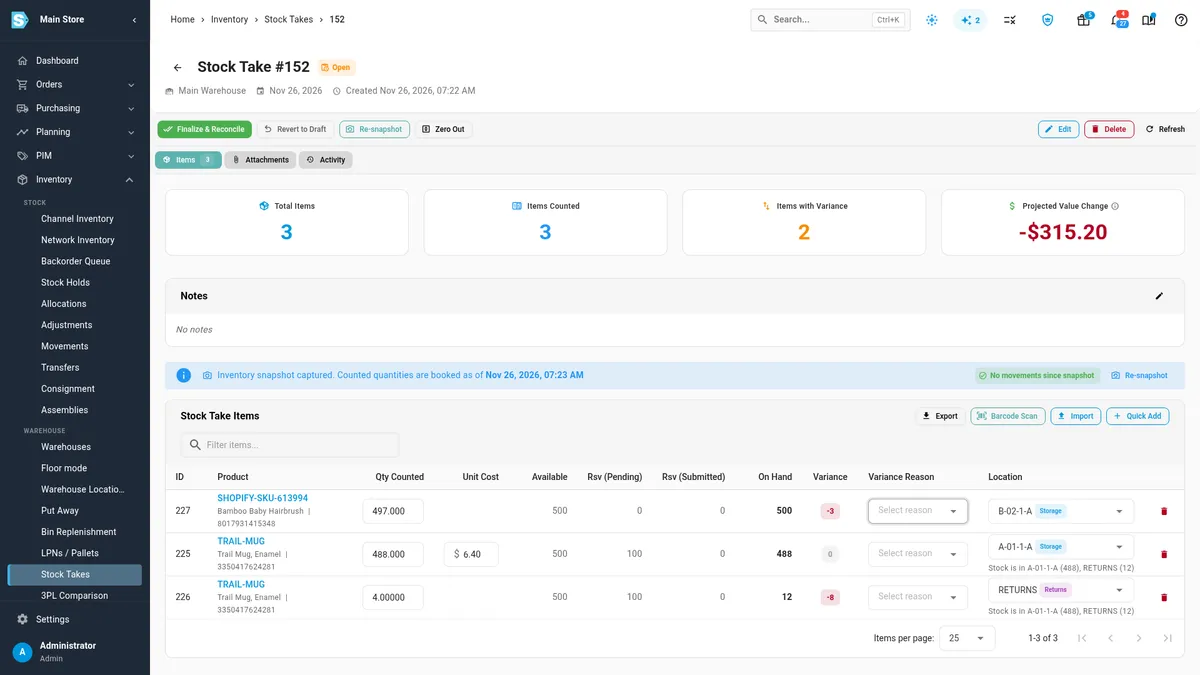
On a warehouse with bins turned on, SKU.io gives a product one line for each bin that holds it, each checked against that bin’s own stock. In the screenshot above, the mug’s shelf bin matched and the returns bin came up 8 short: 4 counted where 12 were expected. The shortage comes off the returns bin and the shelf is left alone. A count can’t be finalized while a binned product has a line with no bin. The steps are in count stock bin by bin.
Scanning the count
- At a desk or a station. Any keyboard-wedge barcode scanner works on the count page. Each scan adds 1 to that product’s count, by barcode or SKU. On a binned warehouse, add the products first and then count each bin’s line, because a scan counts the product as it adds it.
- At the bin, on a handheld. In Floor mode, a single-bin count is done from a scanner or phone. Scan the bin, then the items in it. Anything on the list that isn’t scanned counts as zero. Counts that cover more than one bin are done on the desktop count page.
When a picker reports a bin empty that shouldn’t be, that bin is kept off new pick lists until someone counts it. It’s the only hold involved, and it’s on one bin, not on selling.
Lots: count the product, record the lots of the difference
You count units of a product in a bin. You don’t count lot by lot. Lot detail goes on the difference:
- Found units get the lot they belong to: batch number, expiry date, manufacture date. Each lot becomes its own cost layer, and the lots entered have to add up to the units found.
- Missing units come out of the lot that expires first by default. If you know which lot they came from, say the pallet with the damaged corner, pick that lot instead.
That keeps a recall traceable without making counters read every batch code on every case. If a count turns up a lot number that was typed wrong at receiving, fix it as a lot correction, not as a count. That’s covered in fix what a count finds.
Review before anything posts
When you click Finalize & Reconcile, the preview shows each line’s system quantity, what moved during the count, what was counted and the variance. Nothing has posted yet. Here’s what I’d do at that screen:
- Recount any line that’s still off. Same bin, a different person if you have one. A second count costs a few minutes. Posting a miscount moves value on your books and syncs the wrong number to every channel the product is listed on.
- Give every remaining variance a reason. Damaged, expired, stolen, a receiving error, a picking error, a mislabel. The reason decides whether it’s a loss or a correction, and it’s what tells you next month whether the same product keeps coming up short.
- Decide what happens to open orders. If a shortage leaves less stock than is already promised to open orders, the preview stops on those lines and asks, line by line, whether to backorder the orders, change the count, or take the line off the count. It won’t finalize until each one is answered.
Before you call a shortage a loss, look for a move nobody recorded. In my own business the usual one is a kit build at our 3PL: components come off the shelf to become bundles, there’s no sale or receipt behind it, and the next count reads it as missing stock. So we start the assembly on our side first, and the 3PL knows that when they look at a pallet and there’s less on it than there should be, I hear about it before the number changes.
Once you finalize, the corrected on-hand flows to the Shopify, Amazon and other listings mapped to that product within minutes, the same way every other stock change does, on channels where inventory sync is on.
When this is more than you need
If you sell from one channel, from one room, with a hundred SKUs, close the store for an hour on a Sunday and count with a clipboard. You don’t need a snapshot when nothing is moving. The procedure above is for when something always is.
This guide is part of running a count program in the cycle counting guide. If your last count came out wrong and you think orders during the count are why, book a demo and bring the count sheet.