Map Amazon settlements to your accounts
Every two weeks or so Amazon pays you one deposit: your sales, less dozens of kinds of fee, refund, reserve and adjustment. To book that deposit properly, each line of the settlement has to land in the right account. SKU.io reads your settlement reports, and you map each kind of line to an account once. After that, every settlement posts to your books as a sales invoice and a fee bill that add up exactly to what reached your bank.
Before you begin
- Connect your Amazon account and let SKU.io import a settlement or two, so there are lines to map.
- Set up the accounts you want to post to, such as Amazon Sales, Amazon Selling Fees and FBA Fulfillment Fees, under Accounting → Settings → Nominal Codes.
Open the settlement mappings
-
Go to Apps & Integrations → Amazon and open the Finance tab.
-
Choose your Amazon account in the integration selector at the top, or leave All Integrations to work across them.
-
Open Settlement Mappings.
Group the lines into documents
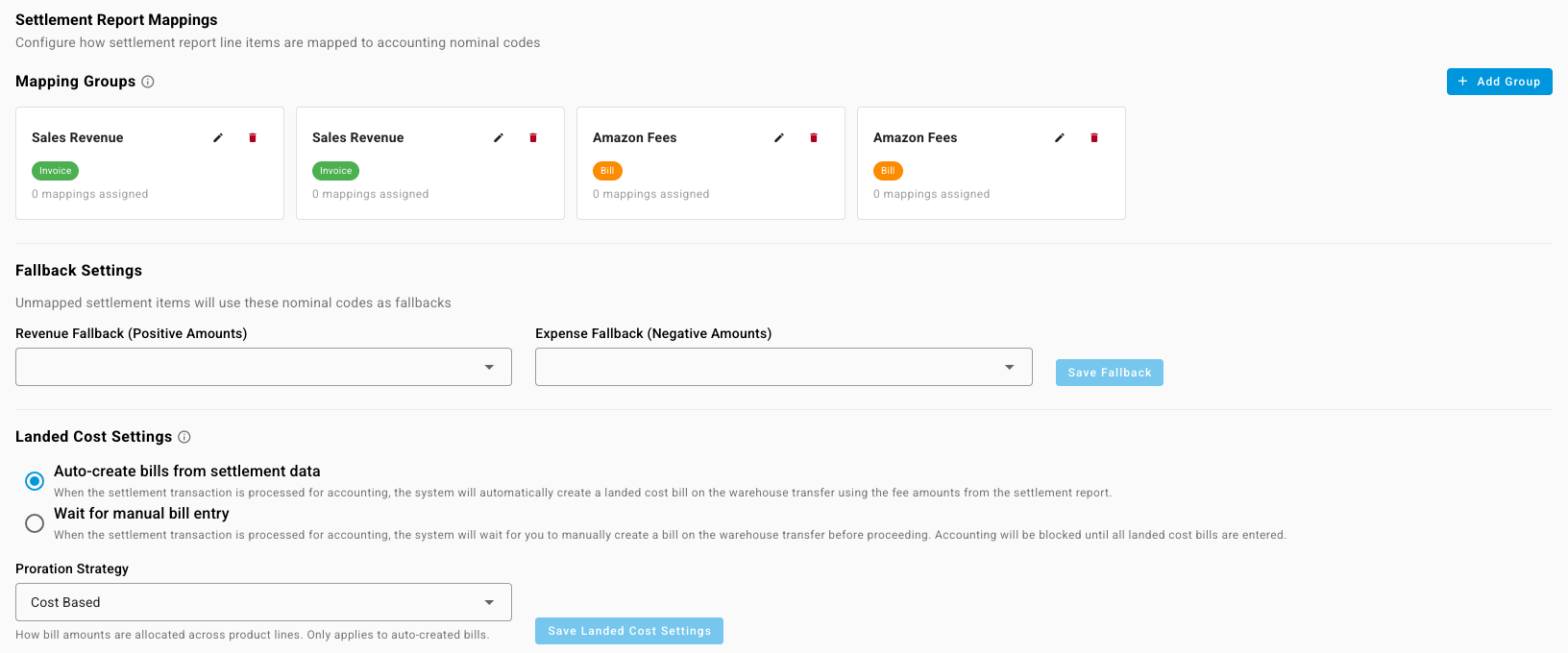
Mapping Groups decide which document each line ends up on. A group is either an Invoice, for money Amazon pays you, or a Bill, for money Amazon keeps. Most sellers need two: Sales Revenue as an invoice and Amazon Fees as a bill.
- Click Add Group, name it, and choose Invoice or Bill.
- Use the pencil to rename a group, or the bin to delete one.
If an invoice group's lines add up to a negative amount, SKU.io posts it as a sales credit instead.
Map each kind of line
Type Mappings lists every kind of settlement line SKU.io has seen, by Transaction Type, Amount Type, Description and Financial Code, with its usual Amount Sign.
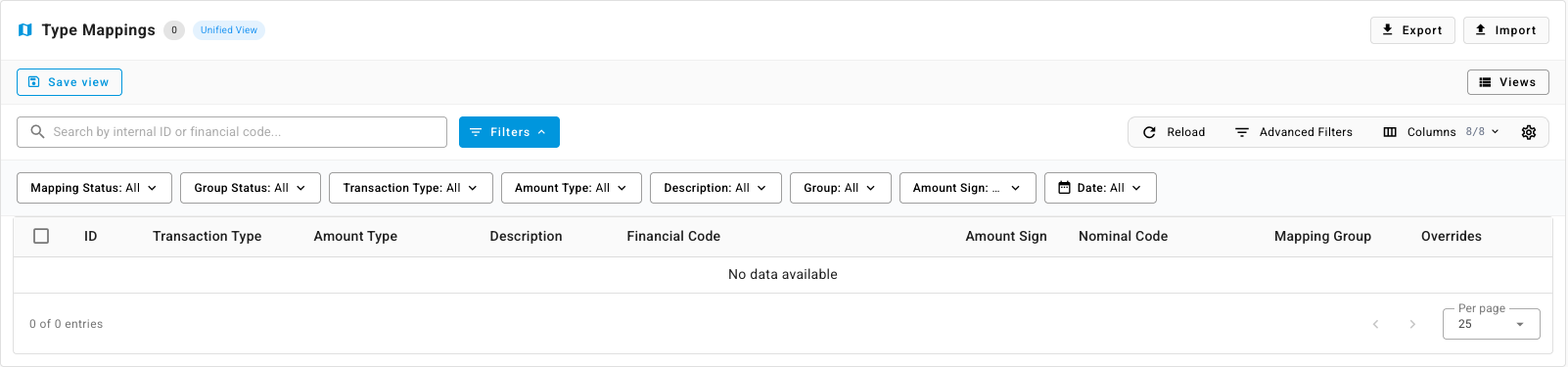
- Set Mapping Status to Unmapped to see what still needs an account.
- Tick the rows you want to map, then choose Assign Nominal Code and pick the account.
- With the same rows ticked, choose Assign Group and pick the document they belong on.
- To see real lines behind a row, open its actions menu and choose View settlement data examples.
To set up many mappings at once, or copy them from another account, use Export and Import on the Type Mappings card.
Catch anything you haven't mapped
New kinds of line appear when Amazon introduces a fee. So that a new line never stops a settlement from posting, set the fallbacks under Fallback Settings:
- Revenue Fallback (Positive Amounts): where unmapped money in goes. It's posted on its own invoice.
- Expense Fallback (Negative Amounts): where unmapped money out goes. It's posted on its own bill.
Click Save Fallback. Review the fallback accounts every month and map anything that has landed there.
Choose how FBA inbound fees become landed cost
Some settlement fees are the cost of getting stock into Amazon: inbound freight, placement fees, AWD inbound processing, and Amazon Global Logistics freight and duties. If you put those fees in a landed cost group, they become part of what the stock cost you and reach your COGS as the units sell. Otherwise, they hit your fees account on the day Amazon charges them.
SKU.io captures landed cost while it builds a settlement's documents, and it only captures the fees you've put in a landed cost group. If you skip settlement mappings because you don't post to Xero or QuickBooks, no inbound fee ever reaches your stock cost.
How SKU.io decides, line by line
When SKU.io processes a settlement, it checks every line in a group marked Landed Cost Group:
- The line names an inbound shipment. Amazon gives the FBA shipment ID
(
FBA…) or the AWD shipment ID (STAR-…) on the line. On its newer fee lines, Amazon puts the shipment ID where an order ID usually goes, and SKU.io reads it from there too. SKU.io then finds the purchase order or warehouse transfer the stock came in on. Either the transfer is that FBA shipment, or the AWD or FBA inbound shipment you processed is linked to the order or transfer. The fee goes onto a landed cost bill on that purchase order or transfer. - The line doesn't name a shipment, or SKU.io can't find the shipment. The fee posts to the account in its mapping, like any other fee.
A fee on a landed cost bill is spread over the products by your Proration Strategy. It's added to their cost, and it reaches COGS as they sell. It doesn't also post as a fee, so it's never counted twice.
SKU.io creates one bill per shipment for each settlement, from the supplier
Amazon, numbered AMZN-LC- followed by the purchase order or transfer number.
Amazon often charges one shipment across several payouts, so a shipment can carry a
bill from each one. Running the same settlement again updates its bill. It never
adds a second one.
Bills you enter yourself
SKU.io links a fee to a bill you entered only when that bill's invoice number is
the shipment ID, such as STAR-RE2VHPRYFV6WQ or FBA19BD4PX15. Capitals and
spaces around it don't matter. It checks the purchase order or transfer the fee
belongs to:
- A bill there has the shipment ID as its invoice number. The fee links to that bill in either mode, and the bill counts as paid out of the Amazon payout. SKU.io doesn't create a bill of its own, and it leaves your bill's lines as you entered them.
- There are bills there, but none has the shipment ID. The fee waits, in either mode, and holds its settlement. SKU.io never links a fee to an unrelated bill, such as an agent's commission, and never creates a second bill beside yours. The settlement lists the bills it found. Put the shipment ID on the invoice number of the bill the fee pays, and the next check links it.
- There are no bills there. Auto-create bills from settlement data creates SKU.io's own bill, and Wait for manual bill entry waits for yours.
Don't also enter an auto-captured fee by hand. Once SKU.io has created its own bill for a fee, a bill you enter for the same charge counts it twice.
A settlement that closed on or before your hard close date is left as it is.
Choose which fees to capitalize
Create a group for landed cost: click Add Group, choose Bill, and tick Landed Cost Group. The box is only available for bill groups. Then assign these kinds of line to it:
| Put in the landed cost group | Why |
|---|---|
| Inbound Transportation Fee and FBA Amazon-Partnered Carrier Shipment Fee | Freight into FBA or AWD on Amazon's partnered carrier |
| FBA Inbound Placement Service Fee | Amazon's fee for where your inbound shipment is placed |
| FBA International Freight Shipping Charge and FBA International Freight Duties and Taxes Charge | Amazon Global Logistics freight and import duty. See How Amazon Global Logistics charges become landed cost |
| AWD Processing Fee | Handling your inbound shipment at AWD. Amazon charges the same fee on replenishment orders out of AWD; those lines don't name an inbound shipment, so they still post as an expense |
Keep these in an expense group, because they don't belong to a shipment you received:
| Keep as an expense | Why |
|---|---|
| AWD Storage Fee | A monthly charge for stock you're holding. To place it on products, see Attribute storage fees and ad spend to products |
| AWD Transportation Fee and AWD MCD Transportation Fee | Moving stock out of AWD to FBA or to other channels |
Give the rows in the landed cost group an expense account too. A line that can't be placed on a shipment posts there.
Amazon reports some fees in two formats, and each is its own row in Type Mappings. In the older format the fee's name is the Description. In the newer one, under the transaction type FBAFees, the name is the Amount Type and the Description reads Base fee or Discount on Fee. Put every row for the fee in the group, discounts included. Accounting → Dashboard shows Amazon inbound fees expensed, not capitalized when lines that name an inbound shipment are mapped outside your landed cost group.
Choose how the bills get made
Under Landed Cost Settings, choose:
- Auto-create bills from settlement data: SKU.io creates the landed cost bill from the fee amounts in the settlement. It spreads the bill over the products by your Proration Strategy: By cost category, Cost Based, Weight Based, Volume Based or Quantity Based. By cost category (the default) splits each fee line by its cost category's Allocate by (see How each line is split), so a per-unit placement fee can split by quantity while a freight fee splits by weight. SKU.io puts each fee line in a cost category by its description: a category name or keyword alias in it. A fee that matches no category splits by cost.
- Wait for manual bill entry: SKU.io doesn't create bills. A fee holds its settlement until you enter a bill on the purchase order or transfer with the shipment ID as its invoice number.
Click Save Landed Cost Settings.
In both modes, a fee whose AWD or FBA inbound shipment you haven't processed yet holds its settlement. Open the settlement to see which shipment is waiting, then process that shipment. See Track AWD inventory.
Amazon sometimes charges a fee, such as the partnered-carrier fee, on a shipment it then cancels. A cancelled shipment you never processed won't ever reach a purchase order or transfer, so its fee doesn't wait: it posts to the account in its mapping.
Check where each fee went
Open Settlement Lines. Landed Cost Link links to the purchase order or transfer the fee was placed on, and LC Status shows the outcome:
| LC Status | Meaning |
|---|---|
| Created New Bill | SKU.io created a landed cost bill for the fee. |
| Matched Existing Bill | The fee was linked to a bill you entered, with the shipment ID as its invoice number. |
| Awaiting Manual Bill | The fee is waiting for its shipment to be processed, or for a bill with the shipment ID as its invoice number. Its settlement is held, and the settlement shows what's missing. |
| Unmatched | SKU.io couldn't find the shipment, or Amazon cancelled it before you processed it, so the fee posted to its mapped account. |
| Legacy Shipment | The shipment was created with Amazon's older inbound workflow. SKU.io doesn't create bills from those, so the fee posted to its mapped account. |
Change your mind later
Moving a fee into the landed cost group applies to past settlements as well as new ones. Settlements that haven't posted yet are processed again automatically. Settlements that have already posted are flagged in the ledger so you can rebuild them. Processing a settlement again links its lines to the bill it already has, so no bill is duplicated. Moving a fee out of the group affects only lines SKU.io hasn't placed yet: a fee already on a landed cost bill stays there.
Check each settlement posts
-
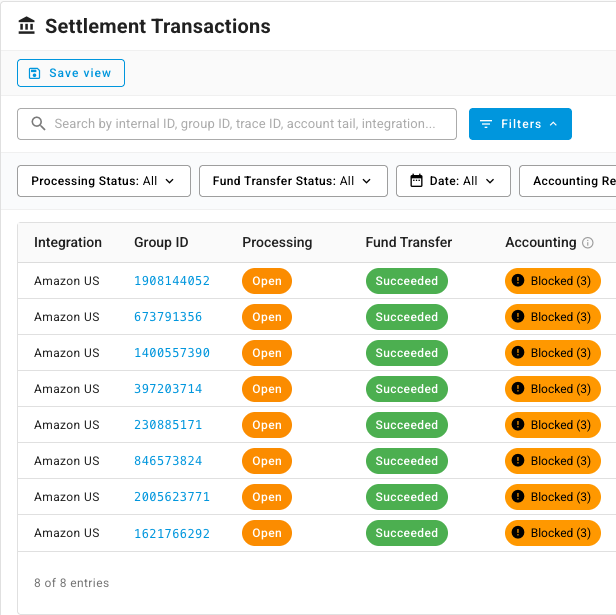
Open Settlement Transactions. Each row is one settlement, with its Group ID, Processing and Fund Transfer status and an Accounting status.
-
Filter Accounting Readiness to find settlements that can't post yet:
Status What to do Ready Nothing. The settlement posts on the next run. Blocked — Mapping Gap Some lines have no account: their kind of line isn't mapped, or it's mapped with no account. Give them an account, or set the fallbacks. Until then, SKU.io doesn't post the settlement. Blocked — Needs Exchange Rate Add the exchange rate for the settlement's currency. No payout — held by Amazon Amazon's transfer failed or it held the balance, so the settlement posts with no deposit. Nothing to do here; check your bank details in Seller Central if the transfer failed. Deposit needs attention The settlement's money hasn't reached your bank. See Check that Amazon paid out each settlement. Done Posted. Hover a Blocked chip to see every reason the settlement is waiting. A settlement also waits until Amazon closes it, its fund transfer finishes, and its lines add up to the settlement total. A settlement that closed negative doesn't wait: it has no transfer, so it posts.
-
Open a settlement to see its lines and the documents it posted.
A mapping change starts on the Changes apply from date at the top of Settlement Mappings. Settlements that ended on or after it are rebuilt with the new accounts, and earlier ones keep theirs. To correct settlements that already posted, pick an earlier date. See Change payout mappings from a date.
Each settlement's documents carry the settlement ID as their reference in Xero or QuickBooks. Together they equal the deposit, so you can match them to the bank line in one step. See Match bank statement lines. The month-end close also checks that every settlement is mapped.
Fee Mappings are for order profit, not the books
The Fee Mappings tab does a different job. It sorts the fee breakdown on each Amazon order into financial lines, such as Commission or Coupon Fee, so each order's profit is right. It doesn't change the settlement mappings above.
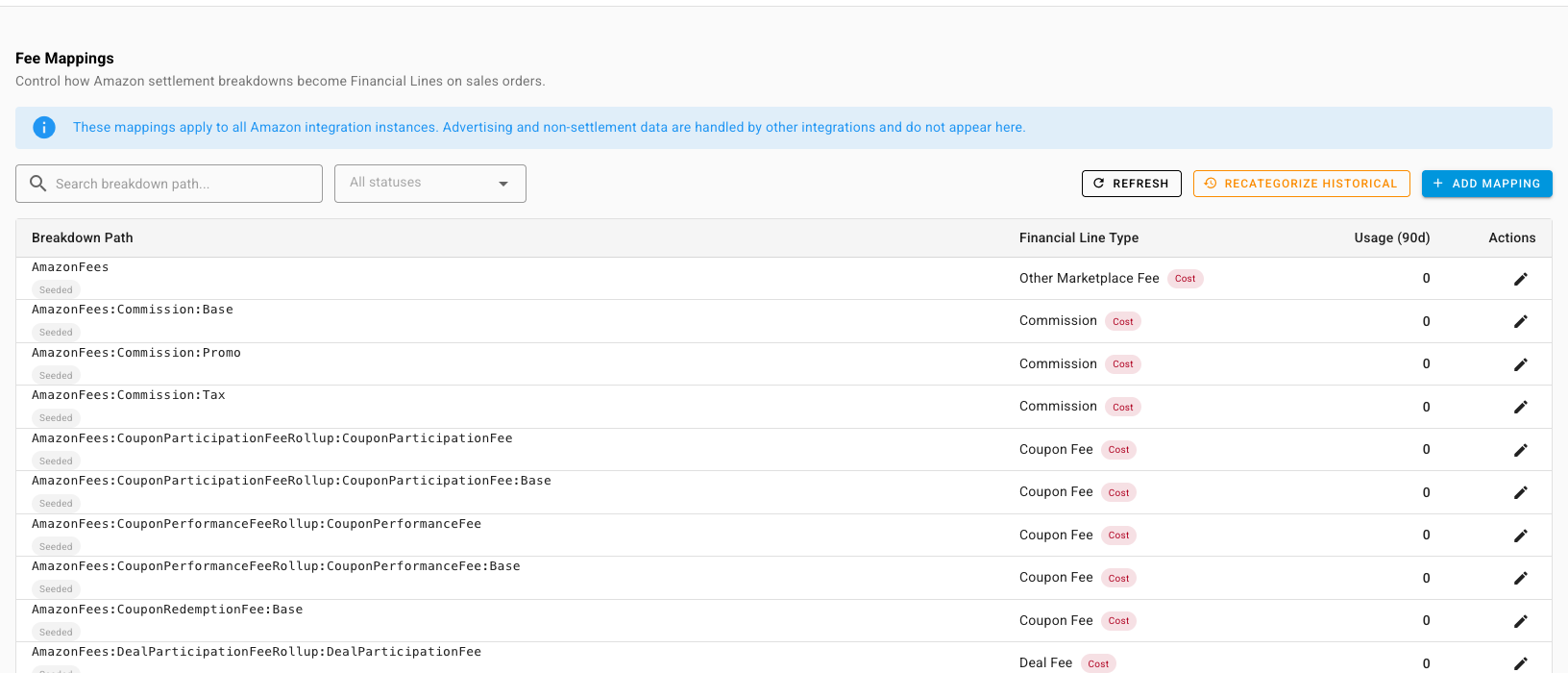
Most fee types come mapped. Click the pencil on a row to change its Financial Line Type, or Add Mapping for a new one. After changing mappings, click Recategorize Historical to apply them to past orders.
Next steps
- Split settlements and payouts at month end: post a settlement that crosses a month end in both months.
- How Amazon Global Logistics charges become landed cost: capture AGL freight and duty on the purchase order.
- Check whether a settlement's deposit is reconciled in Xero: see whether each settlement's deposit is paid and matched in Xero.
- How FBA reimbursements are accounted for: what happens to the reimbursement lines in a settlement.
- Match bank statement lines: match each settlement to its bank deposit.