Track AWD inventory
AWD is Amazon's bulk storage: you send pallets into AWD, and Amazon tops up your FBA stock from it. SKU.io keeps an AWD stock location for each connection and country, fills it from the shipments you send in, empties it as Amazon moves units on to FBA, and values it with FIFO cost layers, so the cost follows the units all the way to FBA.
Before you begin
- Your Amazon connection is in North America, FBA tracking is on, and your seller account is enrolled in AWD. If Amazon refuses access, the page says AWD access denied by Amazon and offers Re-check Access.
- You can download reports from the AWD section of Seller Central.
Set your starting point
AWD sync stays off until SKU.io knows what you held in AWD the day before your FBA tracking start date.
-
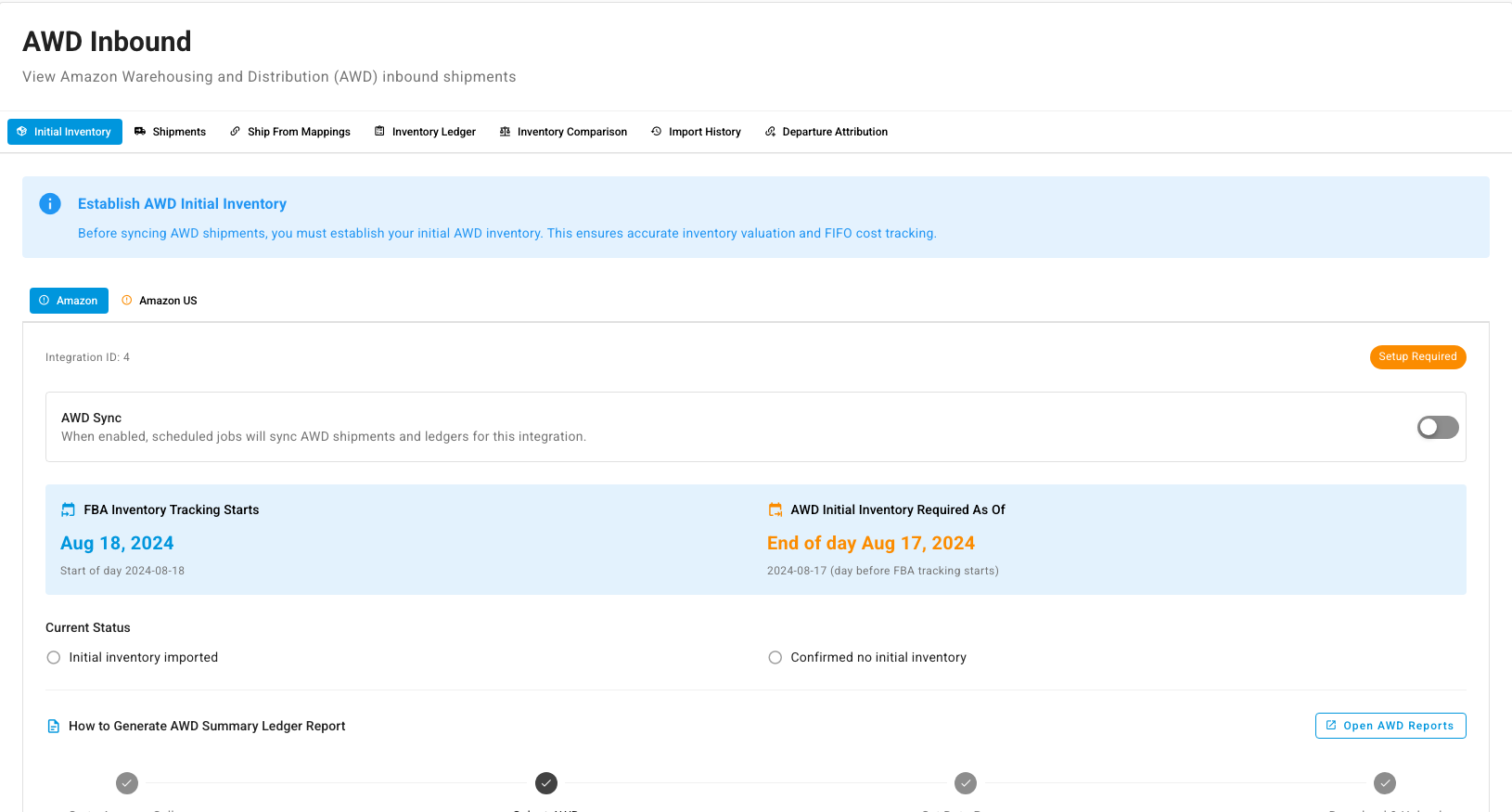
Go to Apps & Integrations, open your Amazon connection, click FBA, then open AWD Inbound. The Initial Inventory tab opens, with one tab per Amazon connection and a Setup Required chip until you finish.
-
Check the dates: FBA Inventory Tracking Starts, and AWD Initial Inventory Required As Of, which is the day before.
-
If you held AWD stock on that day, follow How to Generate AWD Summary Ledger Report: in Seller Central, download the AWD inventory ledger summary for that date (Open AWD Reports takes you there), then use Import Initial Inventory to upload it. Check the imported rows and their Unit Cost.
-
If you held none, click Confirm No Initial Inventory.
-
Turn on AWD Sync. The chip changes to Ready to Sync, and scheduled jobs start syncing AWD shipments and ledger entries for the connection.
Process the shipments you send into AWD
-
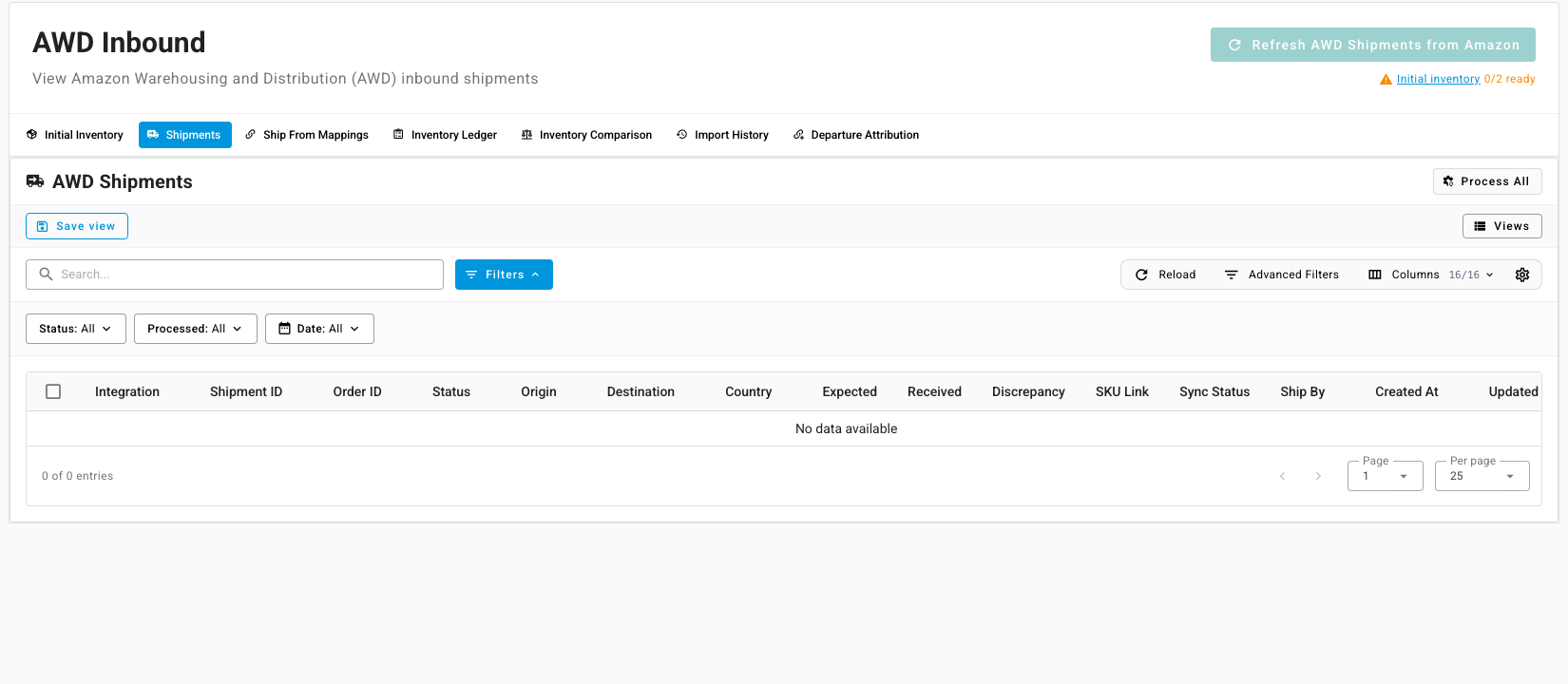
Open Shipments. AWD Shipments lists each shipment with its Origin, Destination, Expected and Received quantities, and any Discrepancy. Click Refresh AWD Shipments from Amazon to pull new ones now.
-
Make sure each shipment's origin is mapped under Ship From Mappings: Set Warehouse for stock that leaves one of your warehouses, or Set Supplier for stock a supplier ships straight to AWD.
-
Click Process on a shipment, or Process All. A warehouse-sourced shipment gets a warehouse transfer into the AWD location. A supplier-sourced shipment needs Link to PO, so the units come in at the purchase order's cost. SKU Link then shows what it's tied to. If a shipment shows an Unmapped SKU chip, some of its merchant SKUs don't match a product yet. See Map merchant SKUs that AWD can't match.
Keep the AWD ledger current
Open Inventory Ledger to see each AWD event: Received, Departed, Lost, Found, Damaged, Other or Unknown, with its cost. Lost and damaged units leave your AWD stock at their cost. If scheduled sync can't reach a period, click Import AWD Ledger and upload the ledger report from Seller Central. Import History lists every upload with how many rows were created, already in, or rejected.
Recovery reads lost and damaged units from this ledger to find AWD claims, so import it at least once a month. See Claims for stock in AWD.
Units Departed from AWD are on their way to FBA. Departure Attribution matches each departure to the FBA shipment that received it, so the cost moves with the units. SKU.io does this every day; the tab shows anything still Unattributed, flags AWD facilities you haven't mapped, and suggests where Amazon outbound orders went. See Attribute AWD departures to where they went.
How AWD stock is costed
Stock in AWD costs what you paid to get it there: the goods and the landed costs on the way. That cost goes with the units when Amazon moves them on to FBA, and it's the cost of goods sold when they sell.
- Stock from a supplier costs the purchase order line's price plus its share of the bills on the purchase order, such as freight and duty.
- Stock from your own warehouse costs what it cost in that warehouse plus its share of the transfer's bills, such as freight or Amazon's inbound fees. A transfer's bills are shared across its products by value.
- Stock Amazon moves from AWD to FBA arrives at FBA at the AWD cost it left with, plus its share of any bills on that transfer to FBA.
- A bill that arrives later still counts. Add or change a bill on the purchase order or transfer after the stock reached AWD, and SKU.io updates the cost of the AWD stock, the units on their way to FBA, the FBA stock they became, and the cost of goods sold for any already sold. The split by cost type follows too.
See what each unit's cost is made of
A unit's cost in AWD isn't one number. It's split by cost type: Base Product for the goods themselves, plus a share of each landed cost you paid to get them there, such as Freight or Customs Duty. The split carries on with the units as Amazon moves them to FBA, so stock in transit and the FBA stock it becomes keep the same split until the units sell.
- Stock from a supplier takes its split from the purchase order line: the goods price, plus the bills and other costs on the purchase order, each under its cost category.
- Stock from your own warehouse keeps the split it already had there, plus the transfer's bills, shared out the same way as the transfer's total cost.
- A bill added or changed later updates the split everywhere the units have gone. So does changing a bill line's category. That moves value between categories without changing the unit cost.
- Stock with no purchase order or transfer behind it, such as an opening balance, is all Base Product.
A bill line with no cost category shows up as Other. To split it out, give the line a category. See Manage cost categories.
To see the split, go back to FBA, open Inventory & Valuation, then FIFO Layers. Hover over a layer's Avg Cost for the split per unit, or over Extended COGS for the layer's total.
Bring the count back in line
- Open Inventory Comparison. It sets SKU.io's AWD on-hand against Amazon's own figures, product by product, with the difference in units and value.
- If SKU.io reads high or low, select a single connection and click Re-anchor to Amazon's count.
- On Re-anchor to Amazon's Count, check that every precondition passes, review the correction per SKU, tick the confirmation, and click the Apply button, which names the size of the correction. You can reverse it later from the same page.