Change payout mappings from a date
When you switch payout lines to a new account, the change shouldn't rewrite months of books that are already closed. Each mapping change in SKU.io therefore starts on a date. Payouts dated on or after it are rebuilt with the new accounts. Earlier payouts keep the accounts they posted with. This works the same way for Shopify and eBay payouts and for Walmart and Amazon settlements.
You can also split a sale into product, shipping and discount. Your books then show shipping income and discounts on their own accounts, and the payout still adds up to the bank deposit.
Before you begin
- Set up the channel's payout or settlement mappings. See Account for Shopify and eBay payouts, Account for Walmart settlements or Map Amazon settlements to your accounts.
- Add any new account you'll post to under Accounting → Settings → Nominal Codes.
- Know your accounting lock date, if you've set one. A change can't start on or before it.
Pick the date a change starts
-
Go to Apps & Integrations, open the channel, and choose the store in the integration selector.
-
Open the Finance tab, then the mappings tab: Payout Mappings for Shopify and eBay, Settlement Mappings for Walmart and Amazon.
-
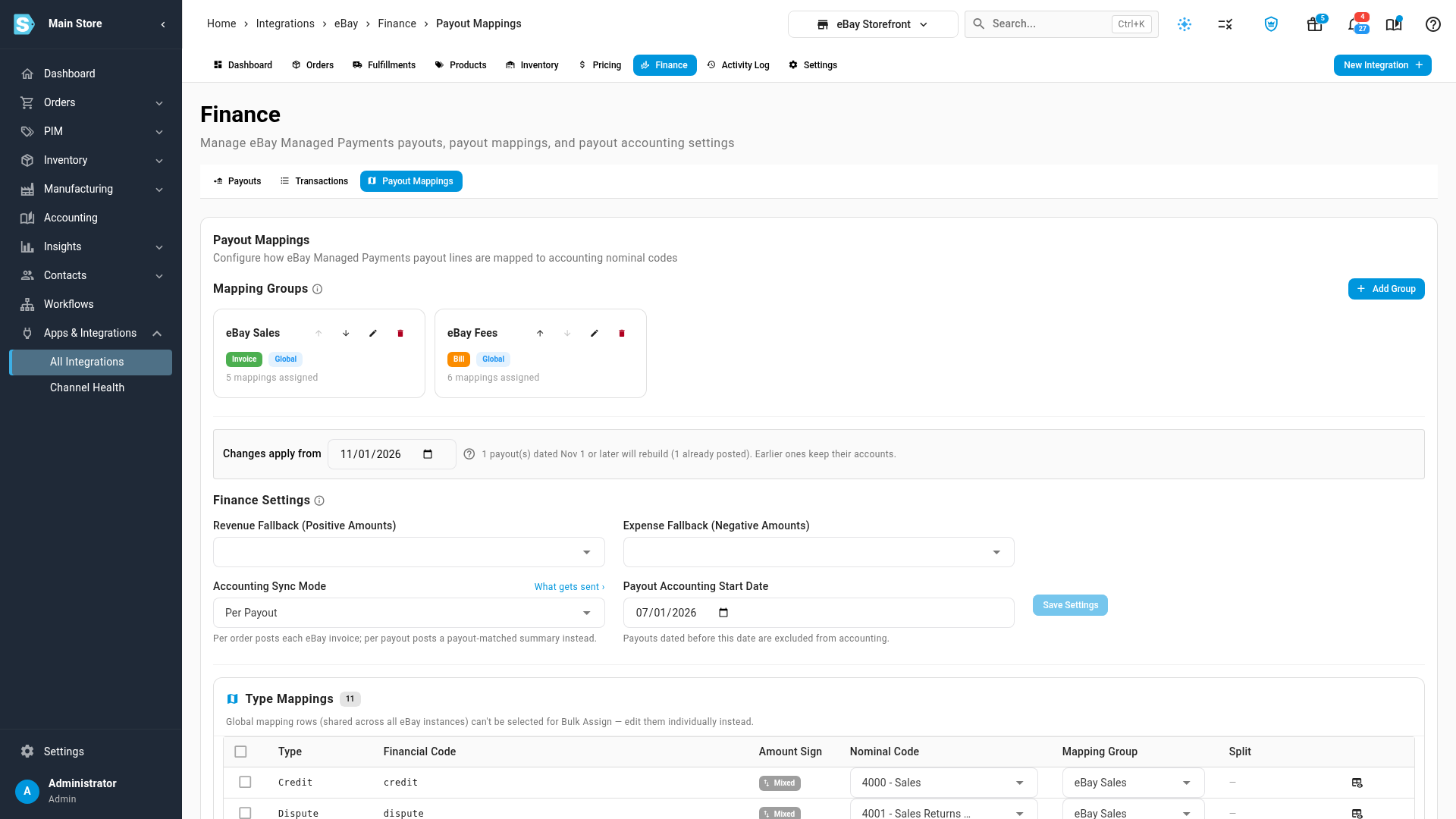
Find Changes apply from, above Finance Settings. It shows today's date (in SKU.io's timezone) until you choose another.
-
Leave today's date to change things from now on, or pick a later date to schedule the change. The text beside the date says how many payouts are dated on or after it, and how many of those are already posted.
-
Make your change: pick a new Nominal Code or Mapping Group on a row, use Bulk Assign, turn on a split, or change the fallback accounts under Finance Settings. Each of these takes the date you picked.
Which date counts depends on the channel:
| Channel | A payout uses the mapping in force on |
|---|---|
| eBay | Its payout date. |
| Shopify | The date it posts on, its Entry Date. A payout split at month end uses each part's own date. |
| Walmart | The settlement date. |
| Amazon | The day the settlement period ended. |
Payouts in a locked accounting period are never rebuilt, whatever date you pick.
See a row's history
A row that has changed before has a clock icon at the end of the row. A row with a change still to come shows a From chip with that change's start date instead. Click either one to open Mapping by payout date:
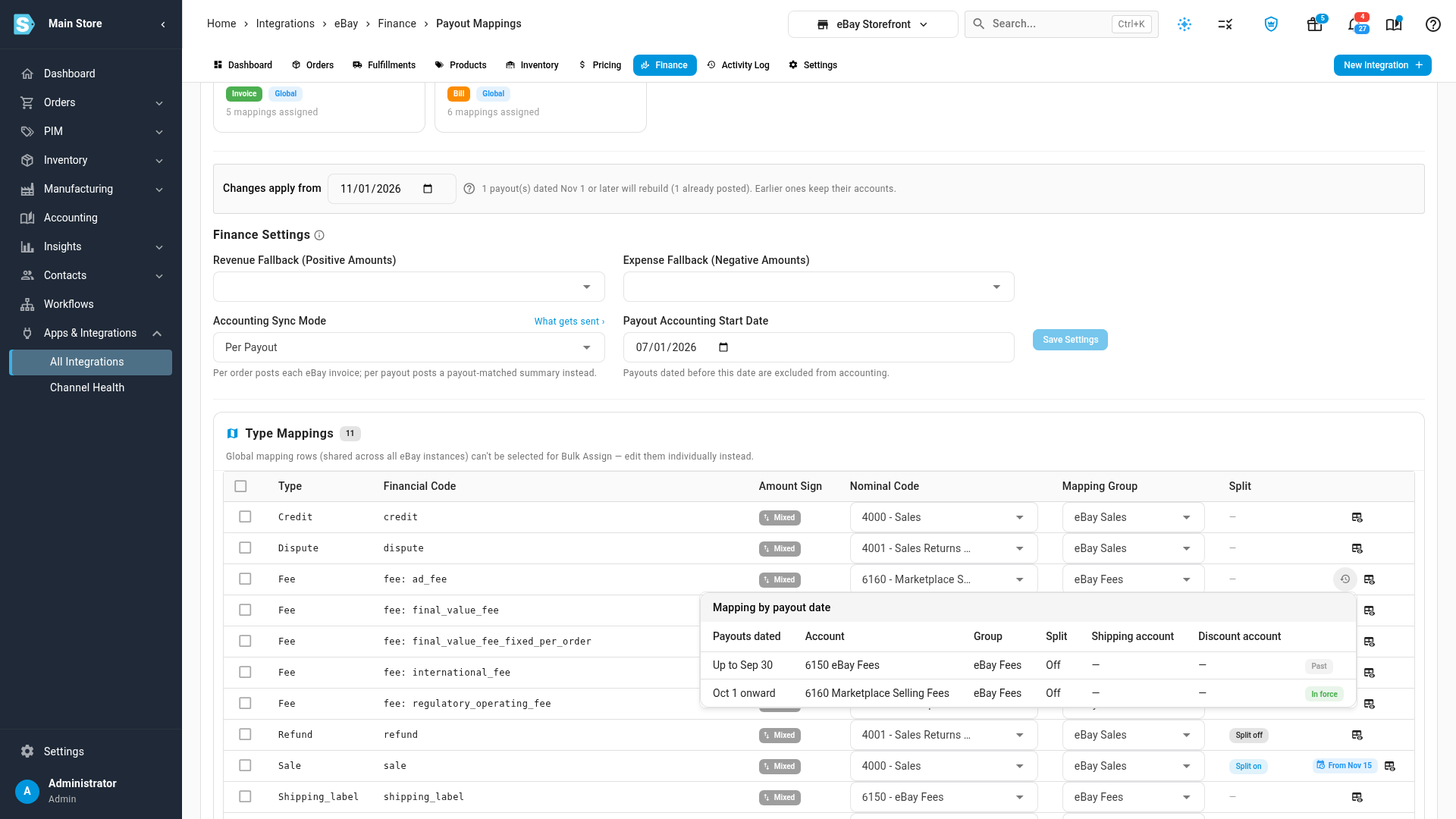
- Each line covers a range of payout dates, such as Up to Sep 30 or Oct 1 onward, and the account, group and split settings that range uses.
- Past ranges have ended, In force is the one payouts use today, and Scheduled hasn't started yet.
- A store's own row added part-way through says Uses the default (all stores) setting for the dates before it. Payouts before then use the all-stores row.
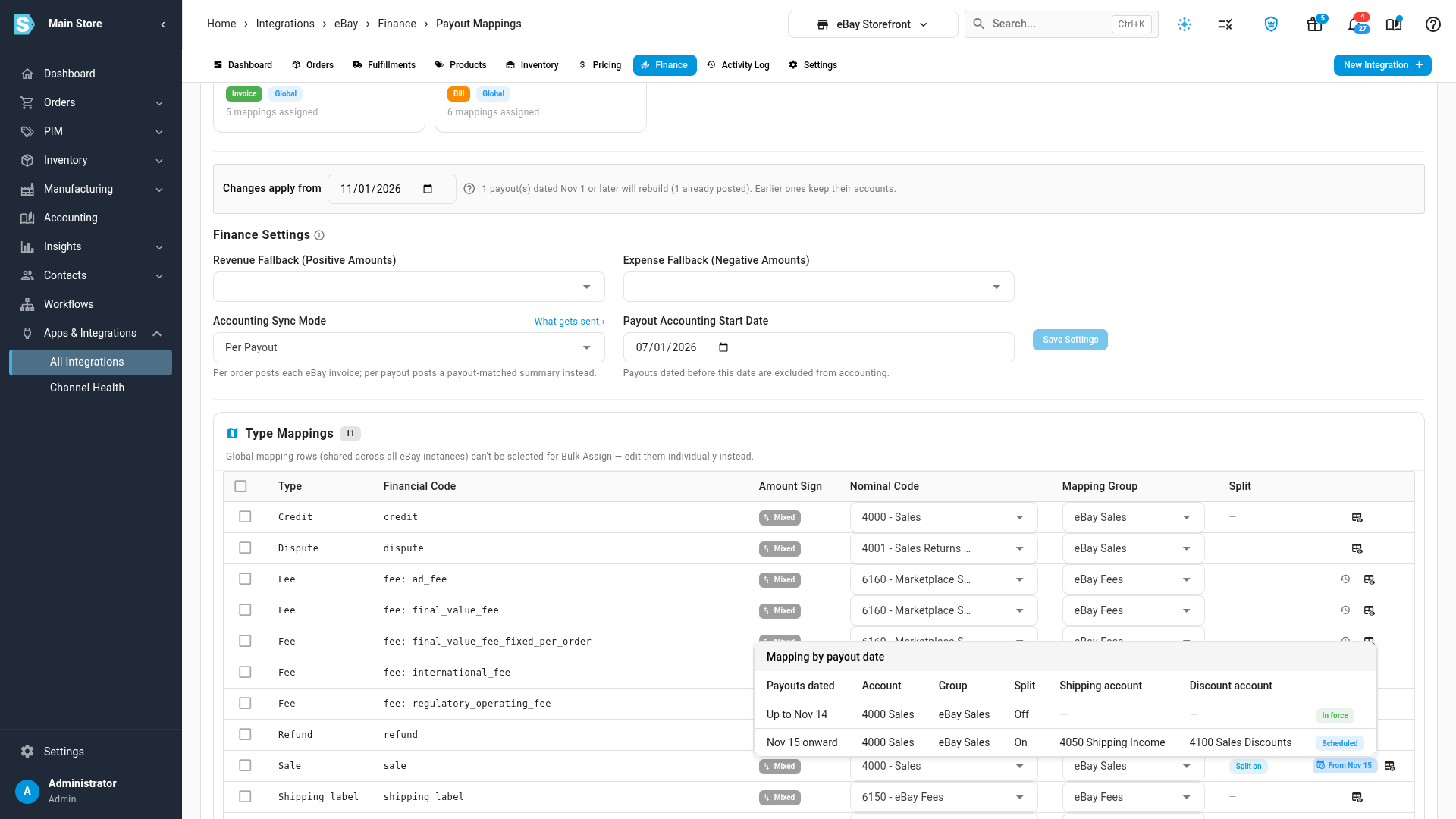
The row itself always shows the latest values, including a scheduled change. Check the From chip to see when they start.
Split sales into product, shipping and discount
eBay sale and refund lines, and Shopify charge and refund lines, each arrive as one amount: the product price, plus the shipping charged, less any discount. A split divides each line using the order's own amounts. It's off until you turn it on.
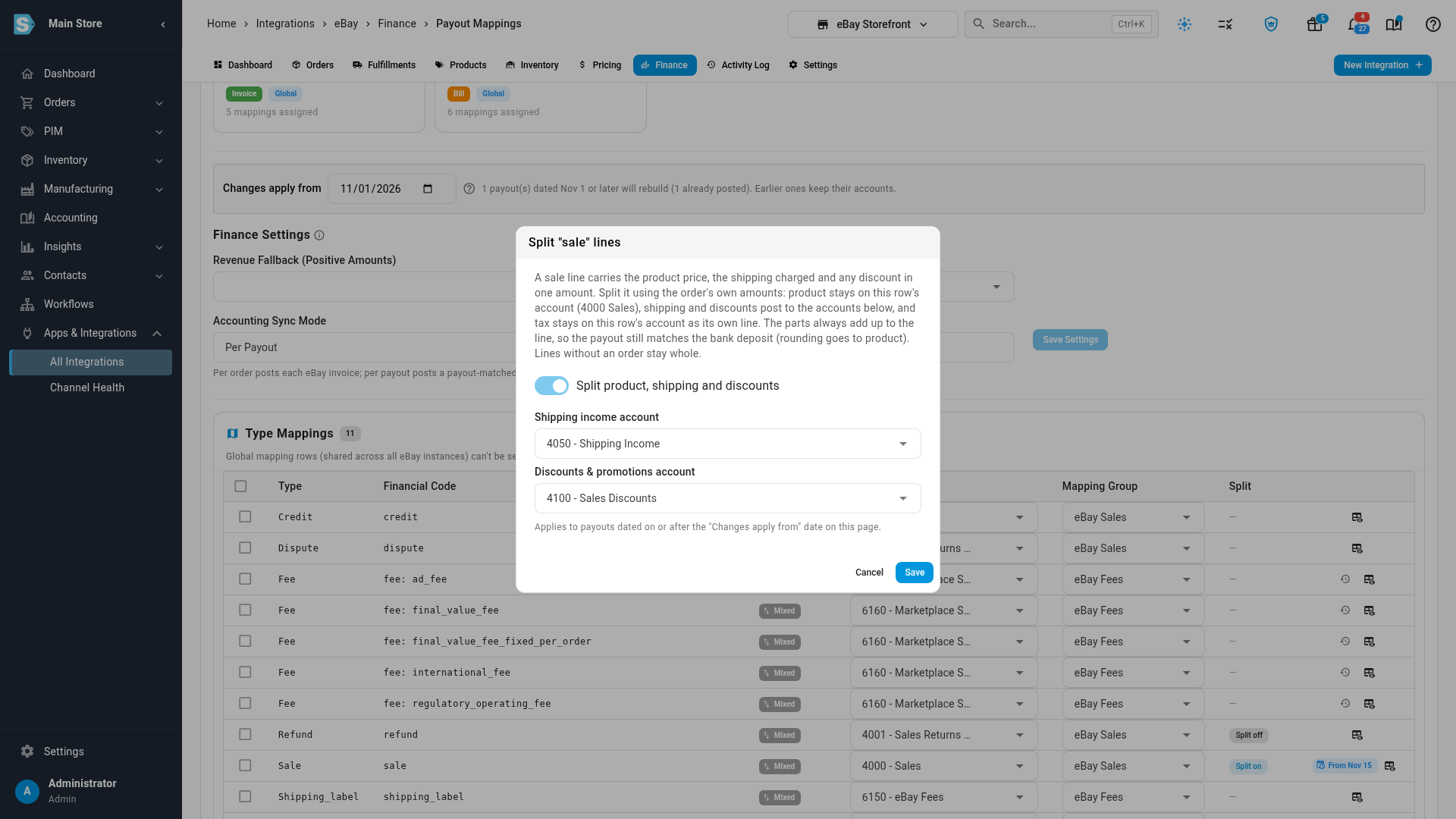
- On the row, click Split off in the Split column. The row's actions menu has the same option.
- Turn on Split product, shipping and discounts.
- Pick a Shipping income account.
- Pick a Discounts & promotions account, or leave it on Keep discounts inside product.
- Click Save. The split starts on the Changes apply from date, like any other change.
How the parts are worked out:
- Product stays on the row's own account. It takes whatever is left once the other parts are set, so rounding always lands there.
- Shipping and discounts go to the accounts you picked. If you leave either one empty, it stays in product.
- Tax is posted to the row's own account as a separate line, as it is without a split.
- A line without an order, or whose order has no amounts to split by, stays whole.
- The parts always add up to the original line, so the payout still equals the bank deposit to the cent.
Restate past payouts
Sometimes a mapping was wrong from the start, and the payouts that already posted need fixing too.
- In Changes apply from, pick an earlier date. A Restates past payouts chip appears when payouts on or after that date have already posted.
- Make your change.
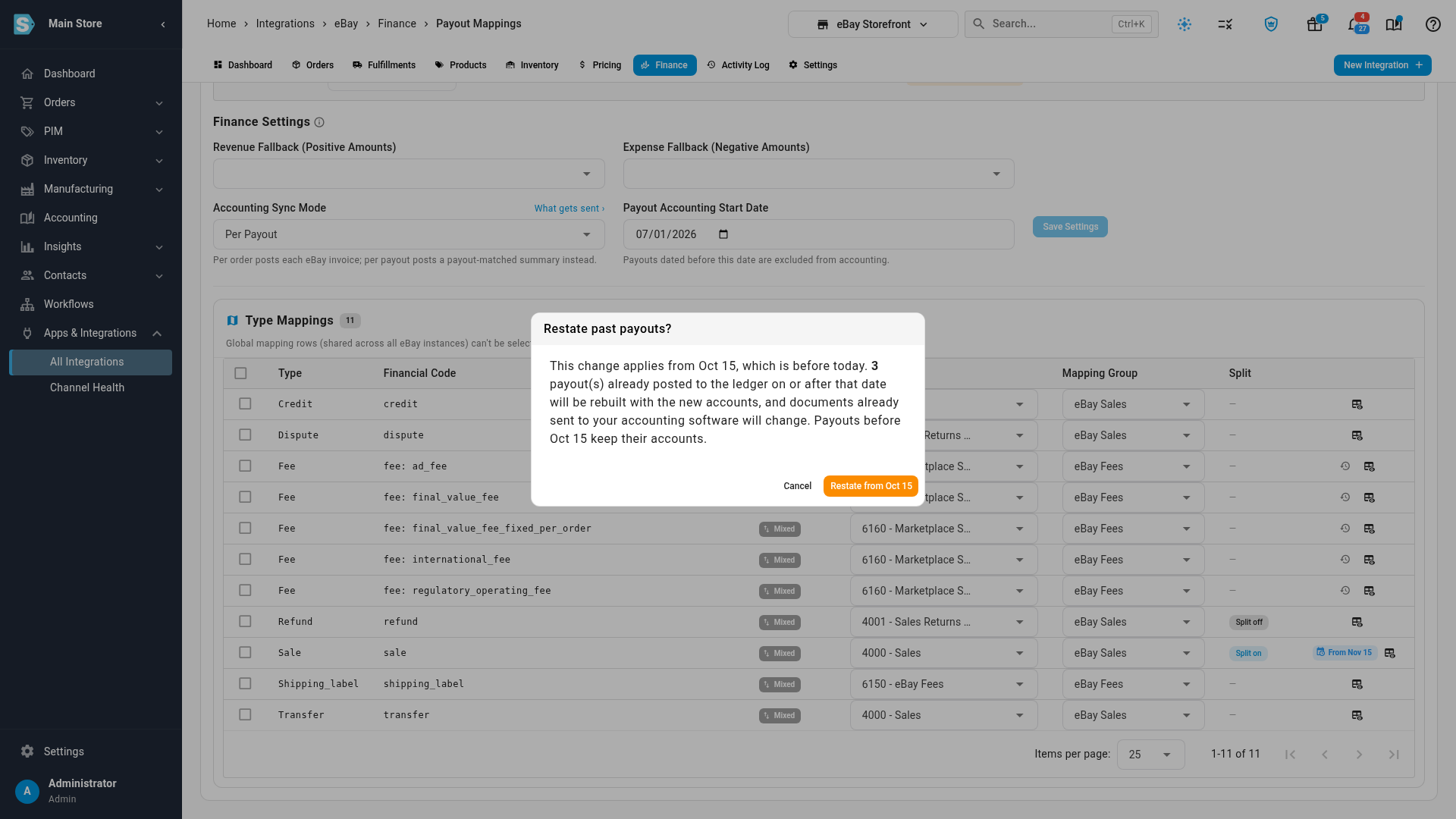
- Read Restate past payouts?. It says how many posted payouts will be rebuilt, and that documents already sent to your accounting software will change.
- Click Restate from to go ahead, or Cancel to leave everything as it was.
You can't pick a date on or before your accounting lock date.
A row marked Global applies to every store on that channel. When you change it with an earlier date, the confirmation counts the posted payouts of every store, not only the one in the integration selector.
On Amazon, a Type Mappings file you load with Import always applies from today, whatever Changes apply from shows. To start an imported change on another date, make it on the rows instead.
Next steps
- Account for Shopify and eBay payouts: set up payout mappings and per-payout accounting.
- Account for Walmart settlements: the same for Walmart.
- Map Amazon settlements to your accounts: the same for Amazon.
Video transcript
On the Payout Mappings tab, every mapping change starts on a date. Changes apply from shows today, unless you pick another day. Beside it, a count shows the payouts dated on or after that day that will rebuild with the new mapping. Earlier ones keep their accounts, exactly as they posted.
Further down, in Type Mappings, a clock icon at the end of a row means that row has changed before. Open it to see which account each range of payout dates used. Here, the fee lines moved to Marketplace Selling Fees at the start of last month. Payouts dated before then still post where they did, so closed months stay exactly as they were.
A From chip marks a change that hasn't started yet. This one splits the sale lines two weeks from now, into new shipping and discount accounts. Until then, every payout keeps posting exactly the way it does today.
On the sale row, click Split on to see how it works. Split product, shipping and discounts divides each line using the order's own amounts. Choose a shipping income account and a promotions account here, or leave either one empty to keep it where it is. Tax stays as its own line, and rounding goes to product. So the parts always add up, and the payout still matches the bank deposit to the cent.
To correct payouts that already posted, pick an earlier day in Changes apply from, at the top of the page. A chip appears to warn you that this change restates past payouts. Then make the edit as usual: here, one row moves to the eBay Sales group. Before anything is saved, a Restate past payouts box asks you to confirm. Documents already sent to your accounting software will change, so only go ahead when that's what you want.