Check that Amazon paid out each settlement
Amazon pays each settlement into your bank, unless something stops it. A settlement can close negative, so Amazon charges you instead. Its transfer can still be on its way, or it can fail. SKU.io shows what happened to the money in every settlement, and the month-end close checks that nothing was missed.
Before you begin
- Connect your Amazon account and let SKU.io import your settlements.
- Map your settlements so they post to your books. See Map Amazon settlements to your accounts.
Read the Fund Transfer column
-
Go to Apps & Integrations → Amazon and open Finance.
-
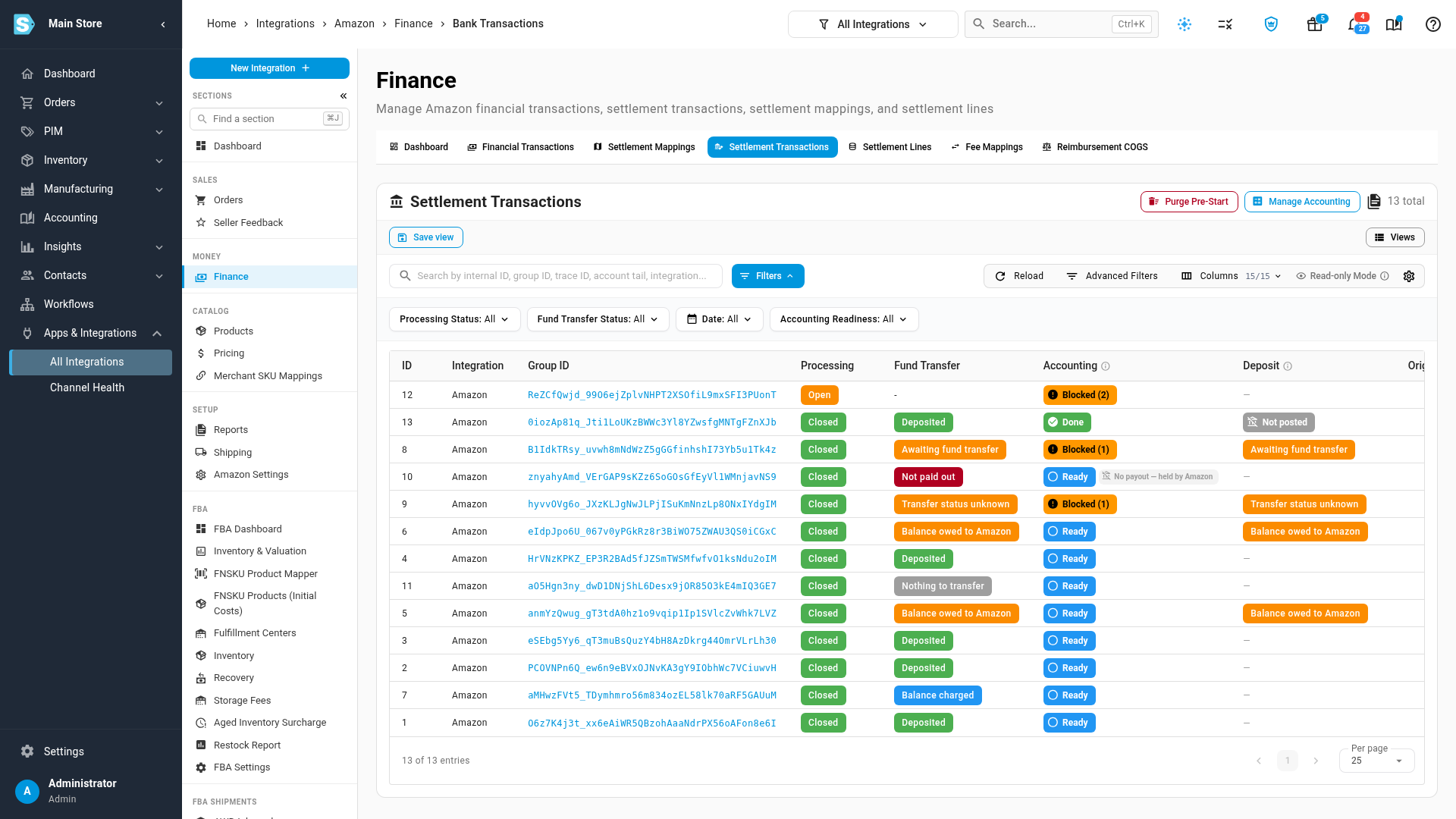
Open Settlement Transactions.
-
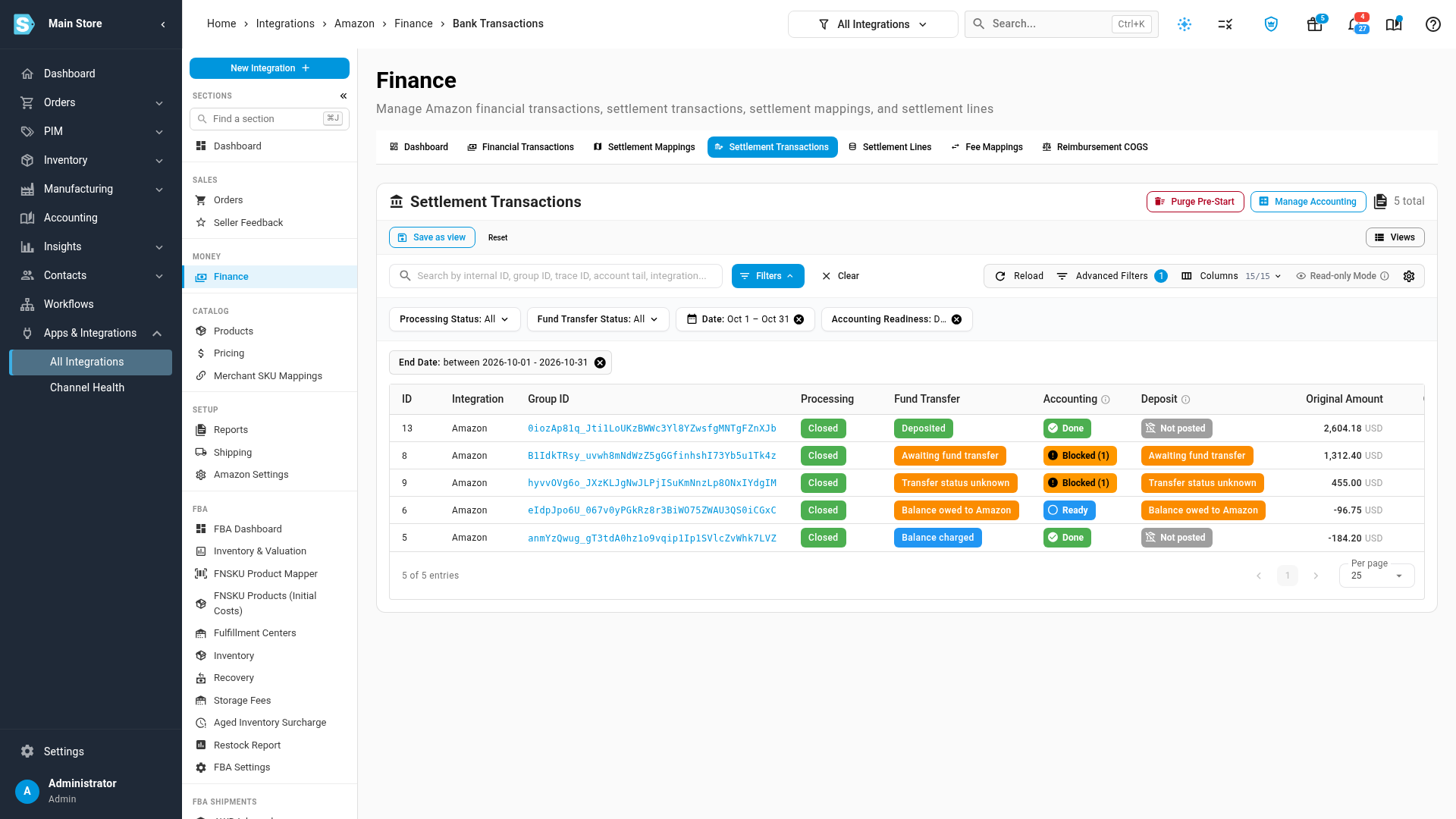
Read the Fund Transfer column. Hover any status to read the full sentence about that settlement, with Amazon's own status word under it.
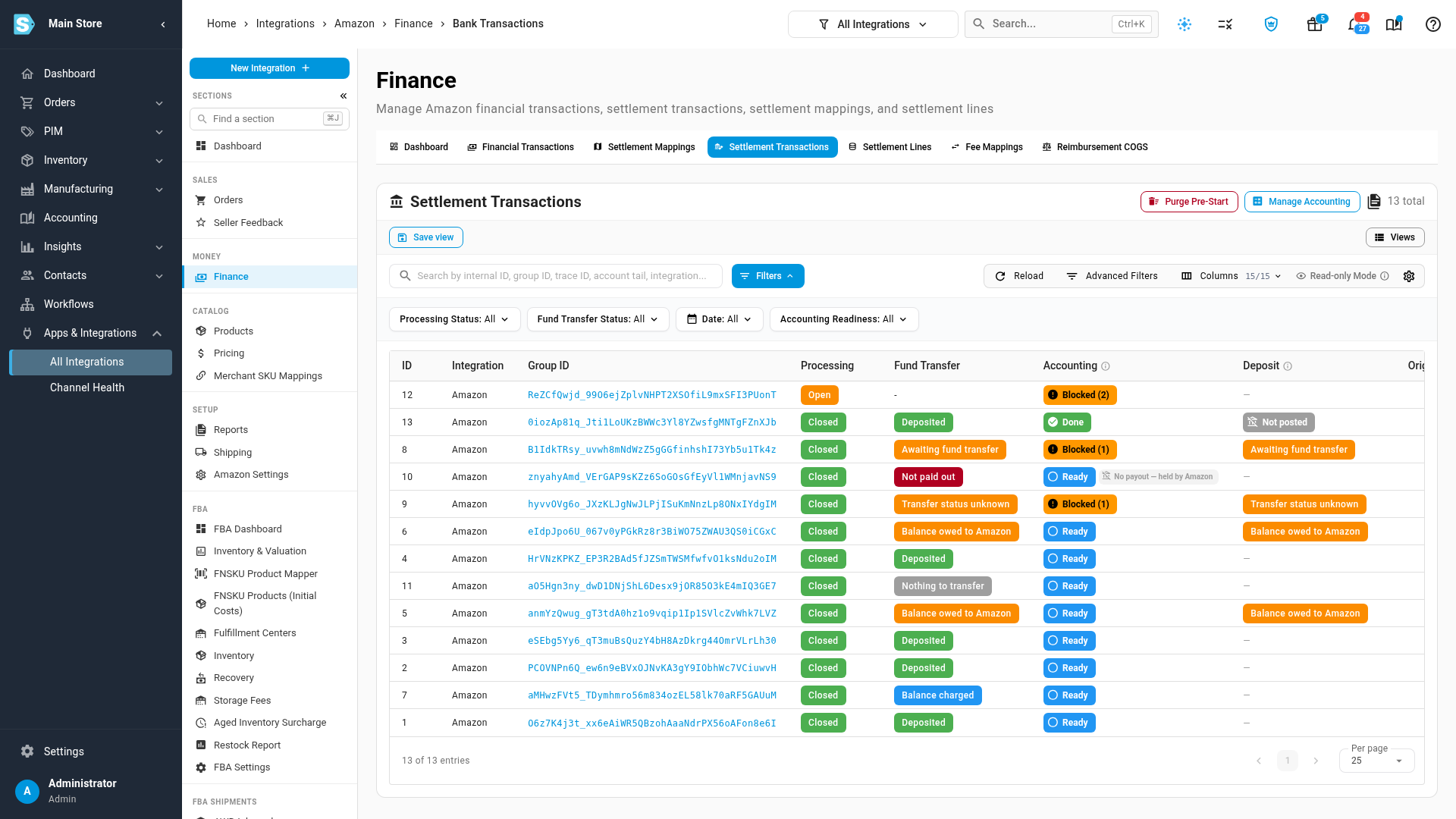
Status What it means What to do Deposited Amazon paid the settlement into your bank. Nothing. Balance owed to Amazon The settlement closed negative, so there was no bank transfer. No charge has been recorded yet. Check how Amazon collected it. See Record a charge Amazon made to your card. Balance charged The settlement closed negative, and Amazon charged the balance to your card or bank. Nothing. Awaiting fund transfer Amazon closed the settlement and is still sending the money. Wait. SKU.io checks Amazon again until the transfer finishes. Transfer status unknown Amazon hasn't confirmed a transfer, so no deposit is confirmed. Compare the settlement with your Amazon statement and your bank. Nothing to transfer The settlement came to zero. Nothing. Not paid out Amazon's transfer failed. Check your bank details in Seller Central. — Amazon still has the settlement open. Nothing yet.
A settlement that closed negative still posts to your books, because the refunds and fees in it are real. Only its bank transfer is missing.
Find the settlements that need you
-
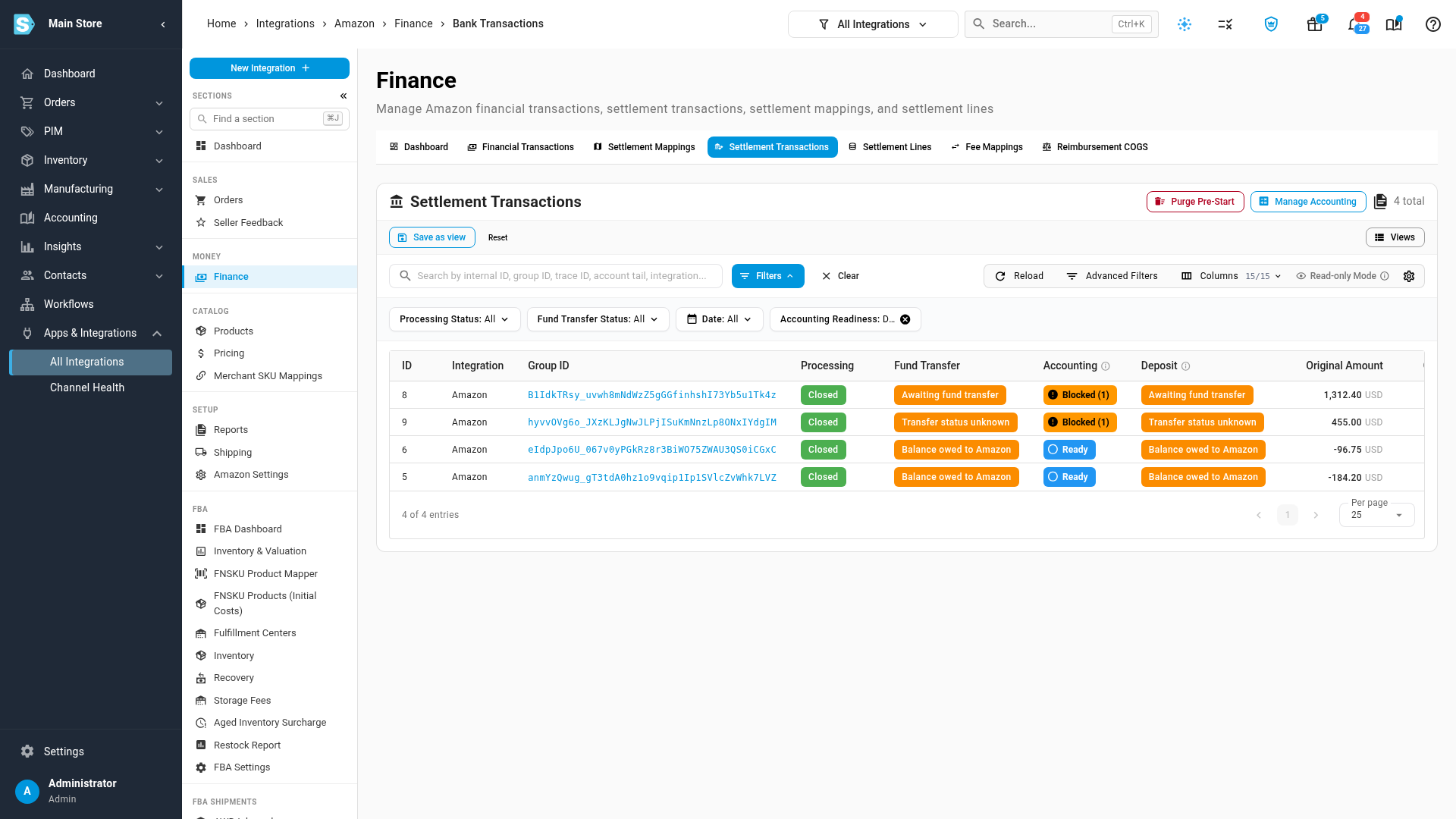
Open the Accounting Readiness filter and choose Deposit needs attention. The list keeps the settlements that are awaiting a transfer, owed to Amazon, or have an unknown transfer status.
-
Read the Deposit column. For these settlements it shows the same reason instead of the accounting-software match. For every other settlement it shows whether the deposit is matched in Xero or QuickBooks. See Check whether a settlement's deposit is reconciled in Xero.
Read why a settlement had no bank transfer
Click a settlement's ID to open it. Under Accounting Readiness, the fund transfer row says what happened:
- A green tick means the transfer finished, or there was nothing to transfer.
- An amber icon means the settlement can post, but its money didn't reach your bank. For a negative settlement it reads No bank transfer: negative settlement.
- A red cross means the settlement waits to post. That's the case while the transfer is in progress, or when Amazon hasn't reported a status at all.
Record a charge Amazon made to your card
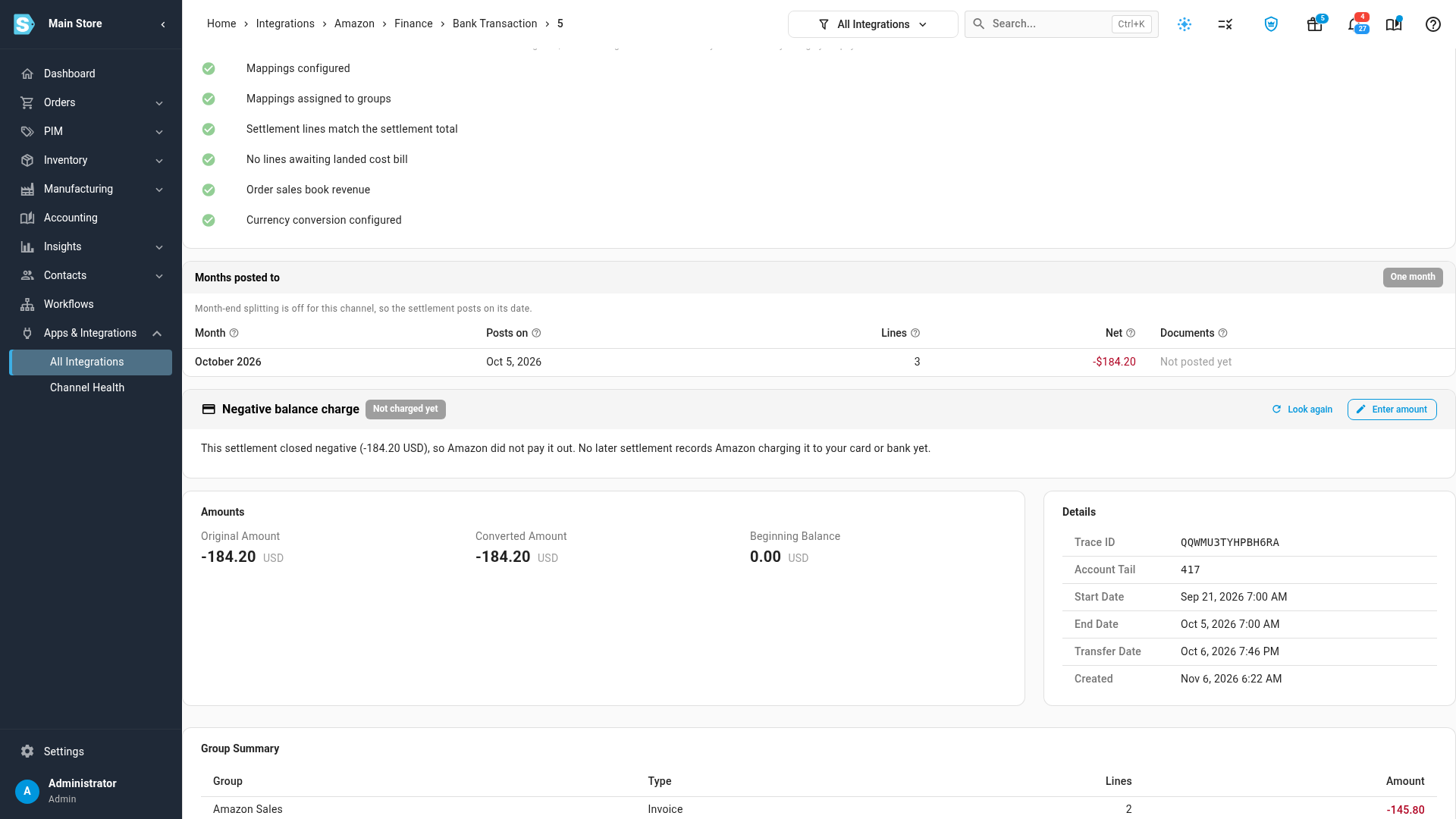
When a settlement closes negative, Amazon charges the balance to your payment method, or takes it from a later settlement. A later settlement usually records the charge, and SKU.io links the two on the settlement's Negative balance charge card. When no settlement records it, enter it yourself:
-
Open the settlement, and on the Negative balance charge card click Enter amount.
-
Type the Amount charged, and optionally the Charge date and the Card / bank account it went to.
-
Click Save charge. The card reads Charged, and the settlement's status changes to Balance charged.
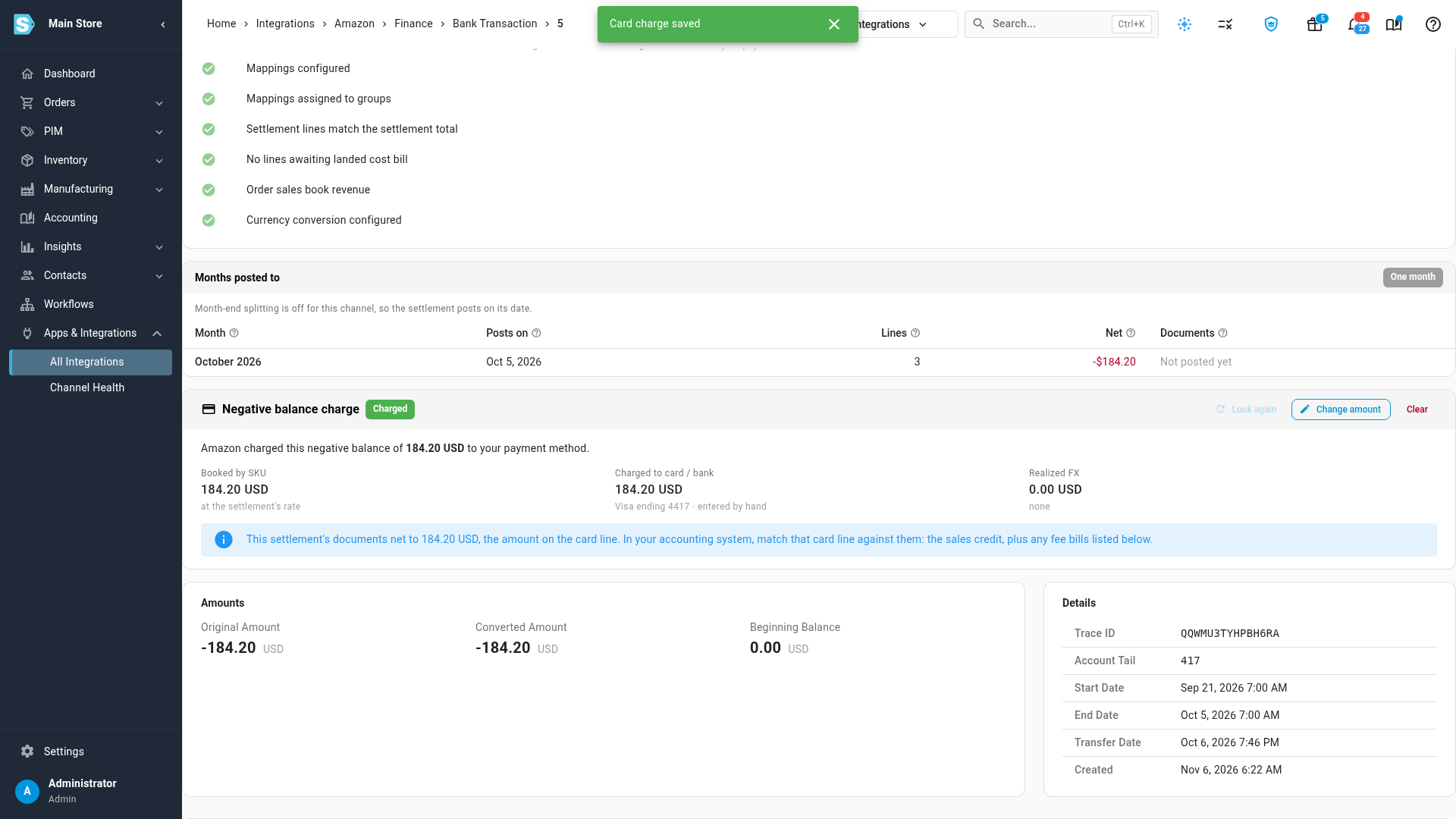
If the card was charged a different amount, for example in another currency, the card reads Needs FX mapping until you map a realized FX gain/loss account under Accounting → Settings. SKU.io then books the difference.
To undo it, click Clear. Look again searches later settlements for the charge, and is available only when the charge wasn't entered by hand.
Clear the month-end check
The month-end close checks the settlements that ended in the month.
-
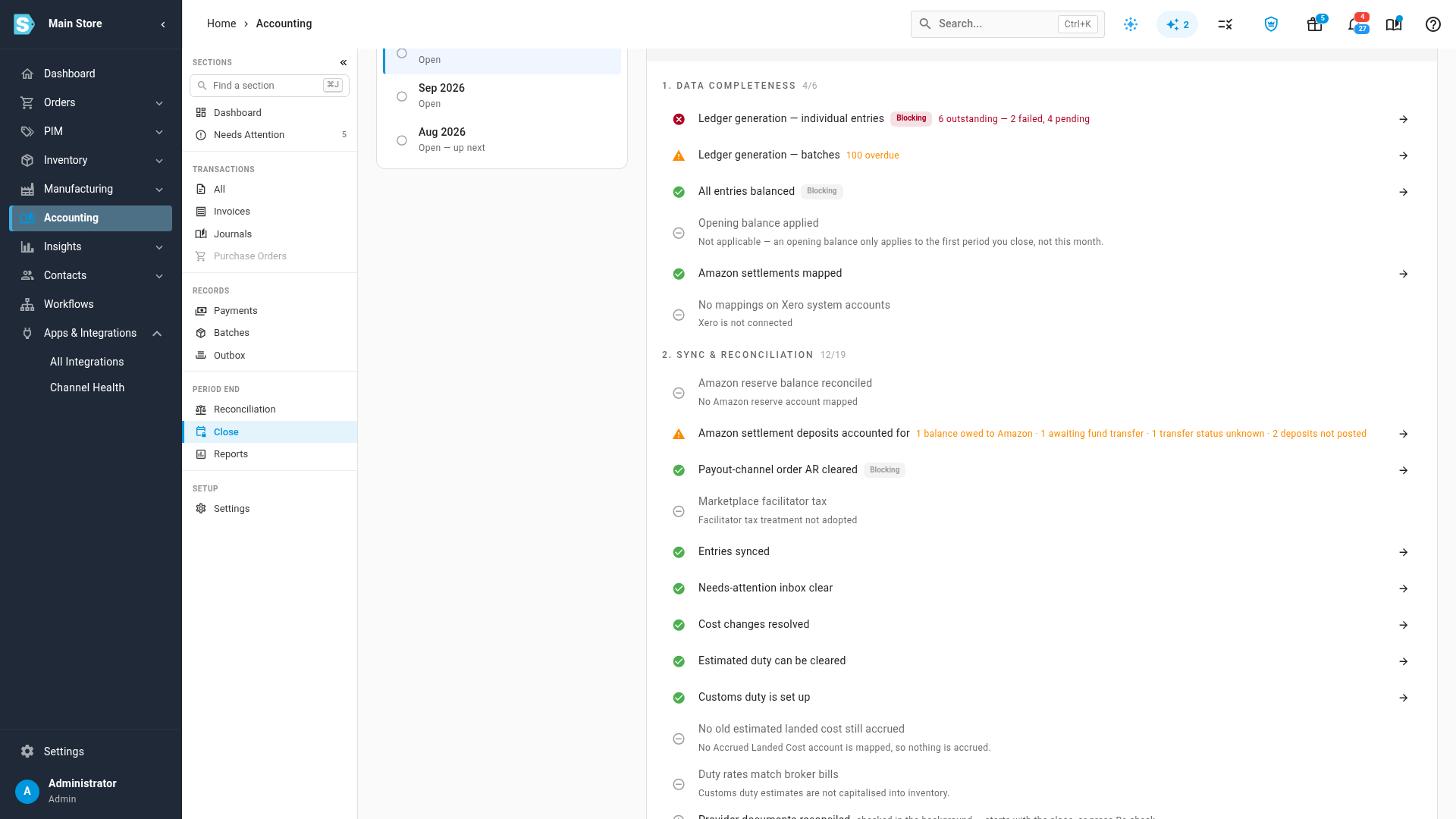
Go to Accounting and open Close, then choose the month.
-
Find Amazon settlement deposits accounted for under Sync & reconciliation. It's a warning, so it doesn't stop you closing. It counts every settlement that ended in the month and:
- is awaiting a fund transfer,
- has a balance owed to Amazon with no recorded charge,
- has a transfer status Amazon hasn't confirmed, or
- posted to your books, but whose deposit didn't post.
-
Click the arrow at the right of the row. Settlement Transactions opens with exactly those settlements, across all your Amazon accounts.
-
Work through each one, then come back to the checklist.
A balance owed to Amazon is counted only in the month its settlement ended. If Amazon took it from a later settlement, acknowledge the warning when you close that month. It won't come back the next month.
Next steps
- Check whether a settlement's deposit is reconciled in Xero: confirm each deposit is matched in your accounting software.
- Fix a failing check: work any row on the close checklist.
- The close checks: what every check measures.
Video transcript
Amazon pays each settlement into your bank, unless something stops the payout. To see what happened to each one, open Finance on this integration. Then open Settlement Transactions, which lists every settlement. The Fund Transfer column says what happened to the money. Deposited: the payout reached your bank. Balance owed to Amazon: the settlement closed negative, so nothing was paid out. Balance charged: that negative balance has since been taken from your card. Awaiting fund transfer: the money is still on its way. Transfer status unknown: no transfer has been confirmed yet. Nothing to transfer: the settlement came to zero. And Not paid out: the transfer failed. Hover over a status to read the full explanation. To see only the settlements that need you, open Accounting Readiness, and choose Deposit needs attention. The Deposit column repeats the reason for each settlement. Open a settlement with a negative balance. Its readiness checklist explains why there was no bank transfer. It still posts to your books, because the refunds and fees in it are real. When Amazon charges the balance to your card, a later settlement usually records it, and SKU.io links the two. If no settlement records it, click Enter amount. Type the amount that was taken, then the card or bank account. Save the charge, and the settlement now shows as Balance charged, with the card you entered. At month end, the close checklist runs this check automatically. Go to Accounting, and open the Close section from the menu on the left. The Periods list shows every month, with the newest at the top. Choose the month to close, and its checklist opens on the right. Amazon settlement deposits accounted for counts every settlement that ended that month with no deposit, no recorded charge, and no stated reason. It also catches a settlement that posted to your books, but whose deposit didn't. Click the arrow to open exactly those settlements. Work through each one, and the check clears.