Review Amazon financial transactions
Amazon reports every sale, fee, refund and account charge as a financial transaction. SKU.io imports them and processes each one onto the sales order it belongs to: Amazon's fees become cost lines on the order, and a refund becomes a sales credit. That is what makes an Amazon order's profit match what Amazon actually paid you. The Financial Transactions tab is where you see them, find the ones that haven't been applied yet, and process or undo them yourself.
Financial transactions and settlements describe the same money from two angles. A transaction is one event on one order, and it's what fills in that order's costs and refunds. A settlement is Amazon's payout, which groups a couple of weeks of those events into one deposit, and it's what posts to your accounting. To book settlements, see Map Amazon settlements to your accounts.
Before you begin
- Your Amazon account is connected. See Connect Amazon and choose your marketplaces.
- The orders the transactions belong to have been imported. A transaction can only be processed onto an order SKU.io already has.
- You need permission to sync integrations to process transactions, undo processing, or fetch transactions.
Open the transactions
- Go to Apps & Integrations, open your Amazon channel, and click Finance.
- Open the Financial Transactions tab. To see one Amazon account only, pick it in the integration selector at the top of the page.
The cards at the top add up the transactions in the list, so they follow your filters:
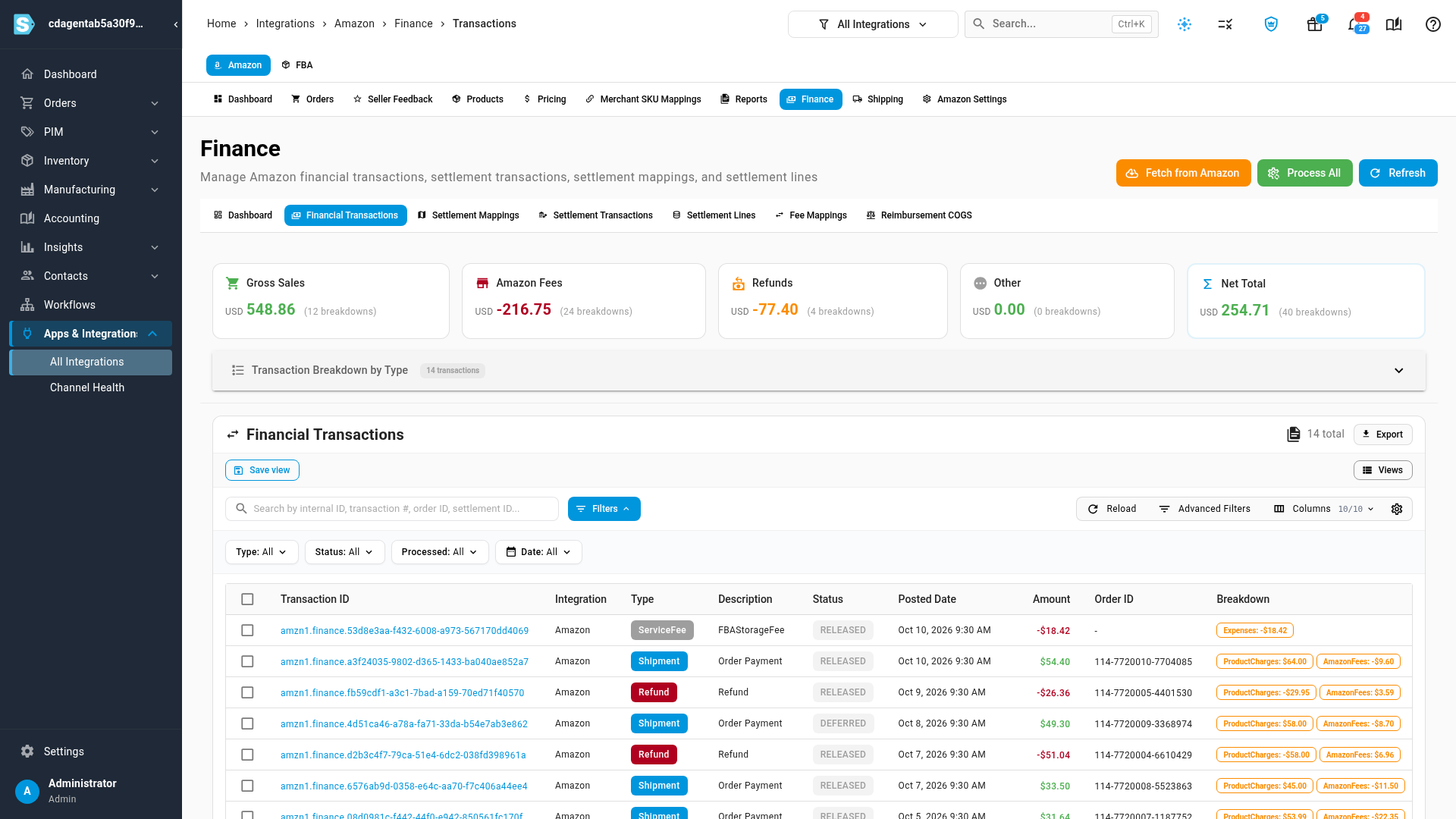
| Card | What it adds up |
|---|---|
| Gross Sales | The product charges, shipping and gift wrap your customers paid. |
| Amazon Fees | Referral fees, fulfillment fees and other Amazon fees. |
| Refunds | Money returned to customers, less the fees Amazon gave back. |
| Other | Everything else, such as subscription and storage fees and adjustments. |
| Net Total | All of the above together. |
Transaction Breakdown by Type opens a count of the list by type. Amazon's payouts and transfers to your bank appear under Excluded from Totals (Informational) instead, because the money in them is already counted in the transactions they pay out.
Read a transaction
Each row is one transaction:
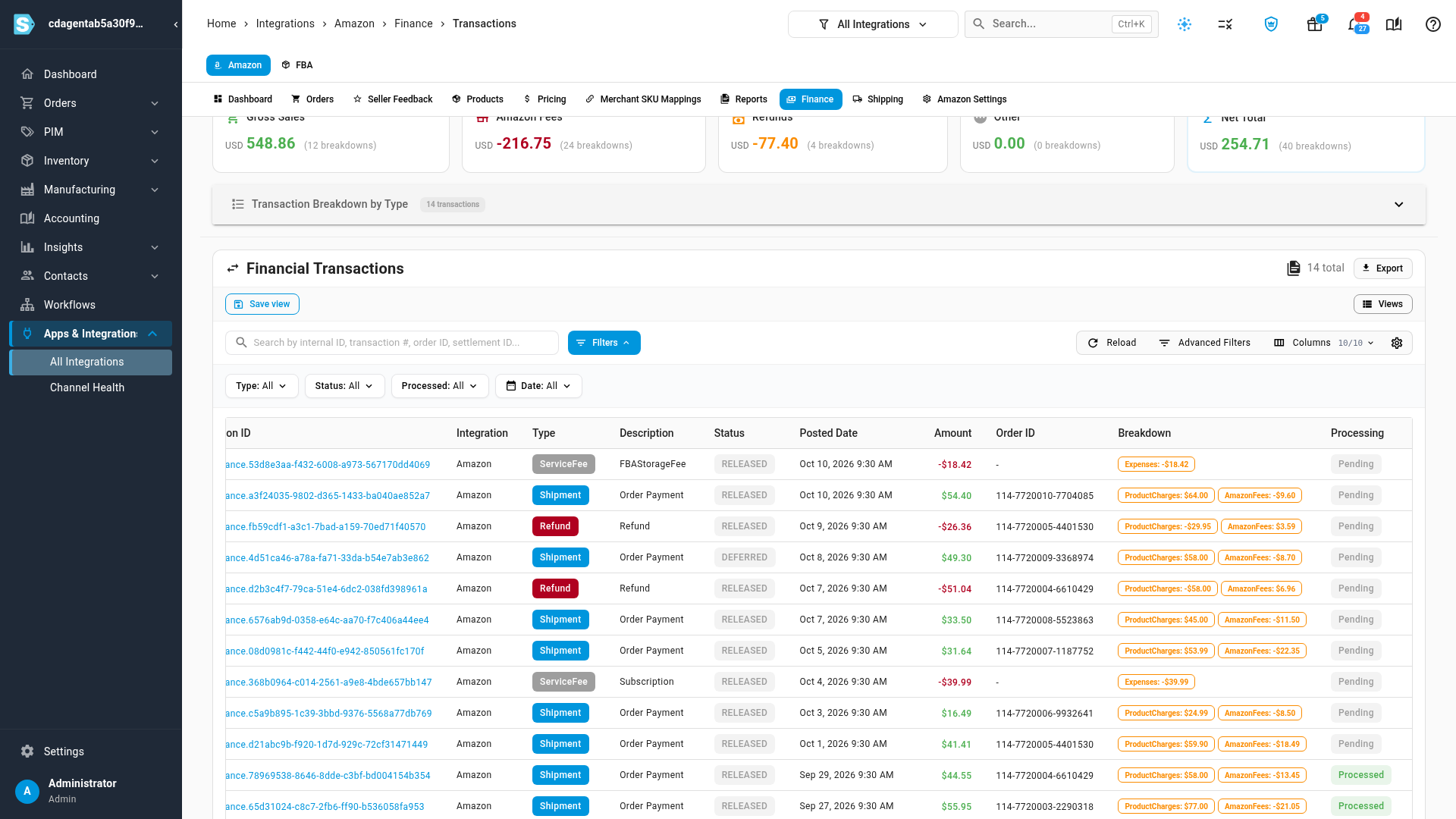
| Column | What it tells you |
|---|---|
| Type | Shipment for an order Amazon charged for, Refund, ServiceFee for an account fee, and others such as Adjustment, Chargeback or FBAInventoryReimbursement. |
| Description | Amazon's own description, such as Order Payment or Subscription. |
| Status | RELEASED money is on its way to your next settlement. DEFERRED money is held back by Amazon, for example until a delivery is confirmed. |
| Amount | The net amount: green when Amazon pays you, red when it charges you. |
| Order ID | The Amazon order the transaction belongs to. Account-level fees have none. |
| Breakdown | The transaction split into Sales and Expenses. |
| Processing | Processed once SKU.io has applied it to the order, Pending until then. |
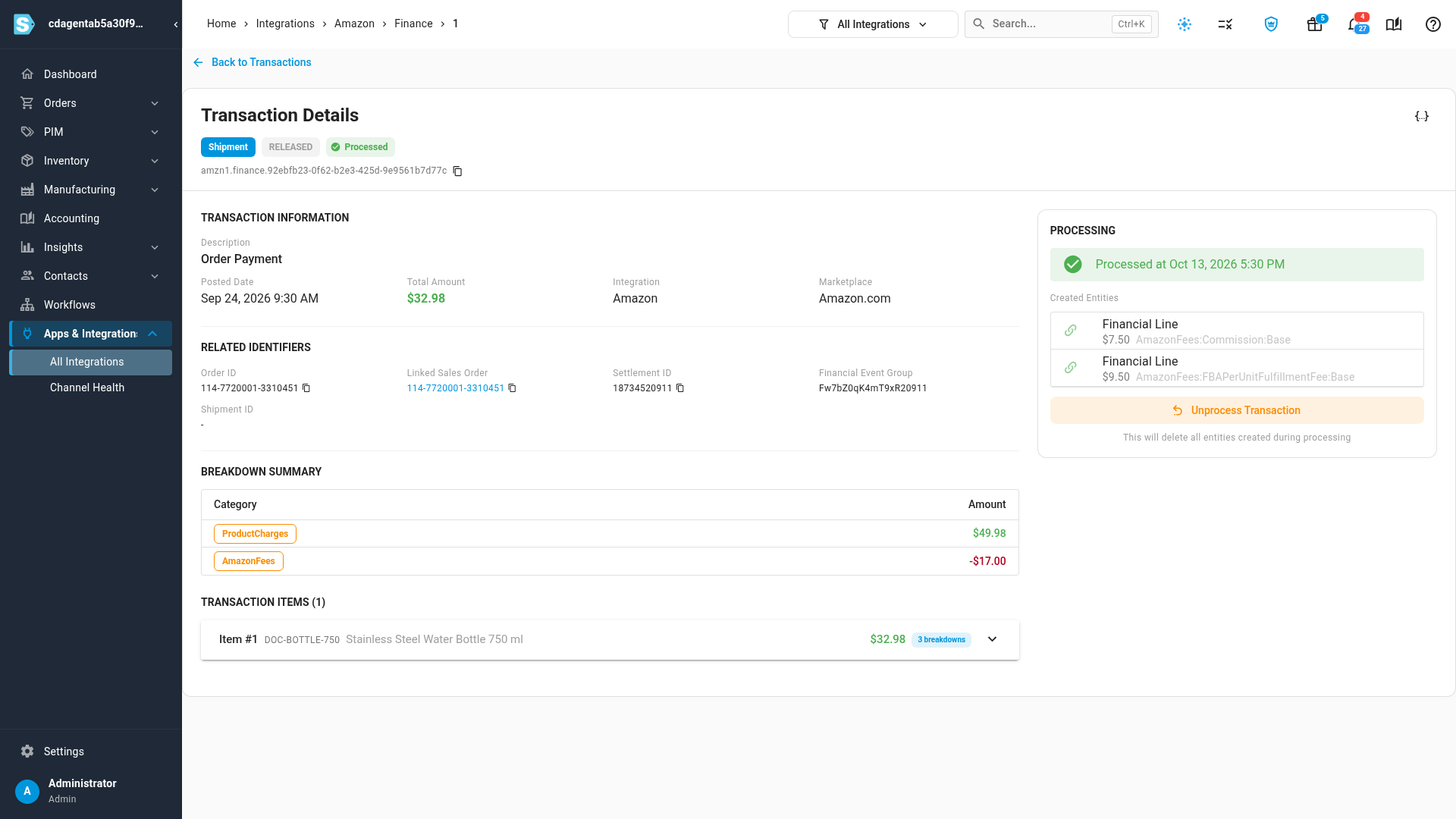
To see a transaction in full, click its Transaction ID. The page shows its Breakdown Summary, each item and its fees, the Linked Sales Order, and under Processing, the Created Entities: the cost lines or sales credit that processing added to the order.
Process transactions
SKU.io fetches new transactions and processes them on a schedule. A transaction stays Pending when it arrived before its order was imported; a scheduled run picks those up twice a day. To apply them now:
-
To list only what's still waiting, set Processed to Not Processed. Account fees with no order never appear in that list, because there's nothing to apply them to.
-
Tick the transactions you want to apply.
-
Click Process in the bar above the table. The bar also shows the total of the ticked transactions.
-
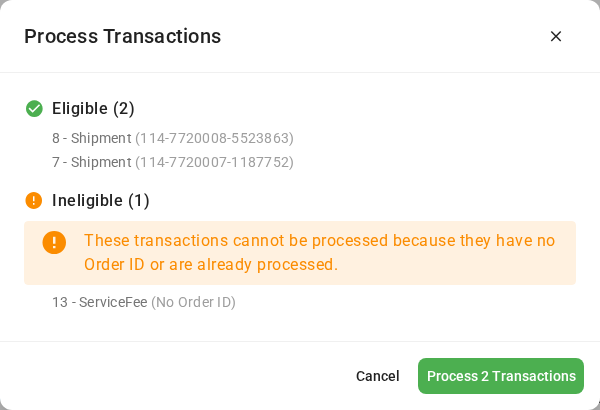
The Process Transactions dialog splits your selection into Eligible and Ineligible. A transaction is ineligible when it has no Amazon order to apply to, such as a subscription fee, or when it's already processed.
-
Click Process N Transactions to confirm.
What processing does depends on the type:
- A Shipment and most other order transactions add Amazon's fees for the order to the sales order as cost lines, so the order's profit includes them.
- A Refund creates a sales credit on the sales order for the refunded products, and adds the fees Amazon gave back as cost lines. Any units on the order that hadn't shipped are no longer owed, so they won't be sent to your warehouse.
- Account-level fees with no order aren't applied to an order. They reach your books through the settlement, see Map Amazon settlements to your accounts.
Undo a processed transaction
Undoing processing removes everything it created, so you can process the transaction again later.
- For one transaction, open it and click Unprocess Transaction.
- For several, tick them in the list and click Unprocess. The dialog lists which ones can be unprocessed; a transaction that isn't processed yet is skipped.
Fetch and process everything now
The buttons at the top of the page act on the whole account, or on the account picked in the integration selector:
- Fetch from Amazon asks Amazon for new transactions now instead of waiting for the next scheduled fetch. The list refreshes a few seconds later.
- Process All processes every eligible pending transaction in the background. Follow it in the job tray, then click Refresh.
Next steps
- Map Amazon settlements to your accounts: post the payouts these transactions add up to.
- How FBA reimbursements are accounted for: what happens to the reimbursement transactions Amazon pays for lost and damaged stock.
- Order financials and accounting: how an order's costs and credits reach your books.
Video transcript
Every sale, fee and refund on your seller account arrives as a financial transaction. To review them, open the Finance tab, at the top of the channel's pages. Then open the Financial Transactions tab, which lists each one that's been fetched. The cards at the top add up the transactions in the list below. Gross Sales and Refunds need no explanation. Amazon Fees also includes account charges, like your monthly subscription. Other catches anything else, such as adjustments. Net Total is what's left after every charge. Each row below is one transaction, with its Type and its status. Next come the Amount, and the Order ID of the sale. DEFERRED marks money that Amazon is still holding. Processing shows whether the transaction has been applied to its order yet. To see one transaction in full, click its Transaction ID. You get its Breakdown Summary, and its Linked Sales Order. Created Entities lists what processing added to that sale. Here, two cost lines, for Amazon's commission and its fulfillment fee. Unprocess Transaction would remove both lines again. Go back to the list, using Back to Transactions at the top of the page. To apply transactions to their orders yourself, tick each row you want. Here, that's two order payments, and the monthly subscription fee for the account. Then click Process, in the blue bar above the table. The dialog splits your selection into Eligible and Ineligible transactions. Anything with No Order ID can't be processed, because no sale stands behind the charge. Click the green button to process the eligible rows. Each of those sales now carries its Amazon fees as costs, so its profit is right. To see only what's still waiting, open the Processed filter above the table, and pick Not Processed from its list. Account charges with no order never appear in that view. SKU.io also does both jobs automatically, in the background. Fetch from Amazon brings in new ones without waiting for the schedule. Process All works through every eligible transaction in one go.