Manage cost categories
A cost category is a label you attach to the individual cost lines that make up a product's landed cost — Freight, Customs Duty, Insurance, Handling, and more. When a landed-cost invoice is captured, each extracted line is assigned a cost category; that category drives how the cost is grouped in FIFO cost breakdowns, which nominal account it posts to, and how the line is spread across the products on a shipment (its Allocate by). This page walks every task — creating, editing, archiving, merging, and deleting categories, plus managing the keyword aliases that let SKU auto-classify invoice lines — and calls out the guards that trip people up, especially system categories and the in-use delete guard.
Before you begin
- Cost categories are managed under Settings → Financials → Cost Categories. From the Financials settings page, open Cost Categories; the header's Keyword Aliases button takes you to the aliases screen.
- Keyword aliases are read and written through the landed-cost (purchasing) surface, so managing them requires read-write access to Purchase Orders. Everything else lives under Financials settings.
- Cost categories are account-wide — they're not per-warehouse or per-supplier. A rename or merge changes the category everywhere it's used.
Read the cost categories list
The Cost Categories table lists every category, active and archived, system and user-defined. It's loaded in full and filtered in the browser (there is no server-side pagination on this screen), so search and filters apply instantly across the whole set.
- Search matches on the category name (case-insensitive).
- Status filter: All, Active, or Archived.
- Type filter: All, User-defined, or System.
- Columns: Name, Type (System / User), Default Nominal Code, COGS Account, Allocate by, Status (Active / Archived), Usage, Created At, Updated At. Use the column selector to show or hide optional columns.
A lock icon next to a name marks a system category — its Archive, Merge, and Delete actions are disabled, and Edit Allocate by is the only change it allows. User-defined rows are clickable and open the edit dialog.
This settings screen shows every category. Elsewhere in the app, category pickers (for example, when you assign a category to a landed-cost bill line) request the list in selectable mode, which excludes system categories — so Base Product and the decoration categories never appear as manual choices even though they're listed here.
Usage counts
The Usage column shows how many records point at each category. Hover the total for the breakdown across the three relations:
| Count | What it tracks |
|---|---|
| Financial line types | Financial line types mapped to this category (see product accounting) |
| Bill lines | Landed-cost / bill lines assigned to this category |
| Cost breakdown items | Sales-order FIFO cost-breakdown items tagged with this category |
total | The sum of the three — the number that governs whether the category is deletable |
Usage counts are only present when the list is loaded with counts requested (the Cost Categories screen always does this) or when you open a single category. A category with a total of 0 is truly unused and safe to delete; anything above 0 is in use.
Create a cost category
- Go to Settings → Financials → Cost Categories (or press C on the list).
- Click Create Cost Category.
- Enter a Name.
- Optionally pick a Default Nominal Code — the account landed-cost bill lines assigned to this category post to. Leave it blank to fall back to your nominal code mappings.
- Optionally change Allocate by — how this category's bill lines split across products. It starts on By cost (default). See Choose how a category's bill lines split.
- Optionally pick a COGS Account. When a unit sells, this category's share of its landed cost is expensed to that account instead of your main cost of goods sold account, so duties or inbound freight can show as their own expense lines. Leave it blank to keep the cost in the order's COGS account. To use a different account for one sales channel or sub-sales channel, click Add channel under COGS Account by Channel and pick the channel and its account.
- Click Create.
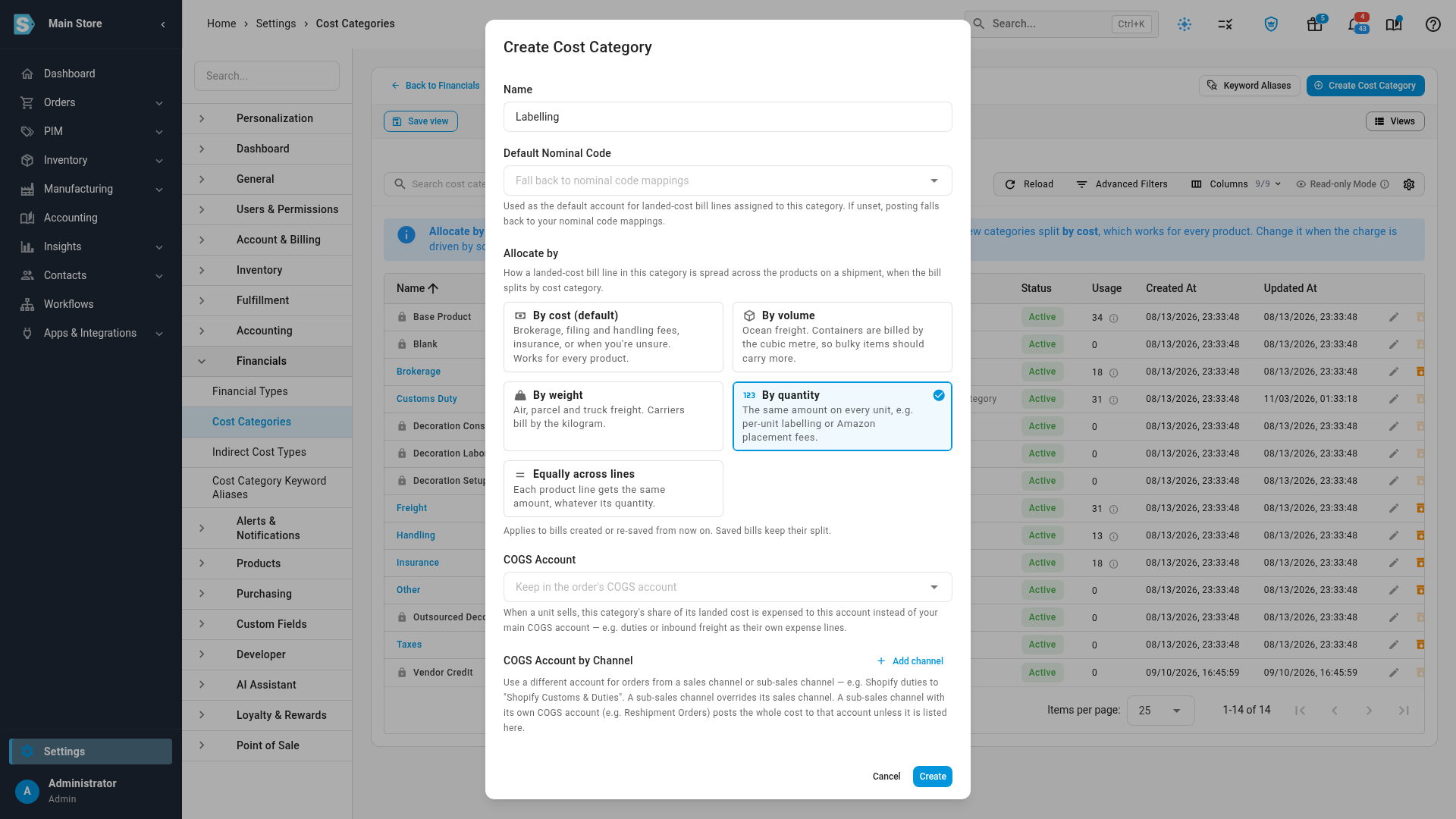
The name is required, capped at 255 characters, and must be unique across all categories (case-sensitive at the database level, but see the duplicate guards below). If the name already exists you get "A cost category with this name already exists."
New categories are always created as active and user-defined (never system) regardless of anything else you send.
"Did you mean?" duplicate suggestion
As you leave the Name field on a new category, SKU runs a fuzzy check and, if your name is within a small edit distance of an existing one, shows a "Did you mean <name>?" banner with a Use existing button. This steers you away from near-duplicates like Frieght vs Freight or Customs Duties vs Customs Duty. The match is case-insensitive, returns the closest existing name within a Levenshtein distance of 2 or less (one or two typo'd characters), and returns nothing if no name is that close — so for a genuinely new category no banner appears. Click Use existing to reuse the matched category instead of creating a new one, or ignore the banner and create your category anyway.
Edit a cost category
- In the list, click a user-defined category's name (or its Edit pencil).
- Change the Name, Default Nominal Code, Allocate by, COGS Account, or COGS Account by Channel.
- Click Update.
Renames follow the same rules as create — required, max 255, unique — except the uniqueness check ignores the category's own current name, so re-saving without changing the name never trips the duplicate error.
A cost category is a Type 1 label: renaming it changes the name everywhere it appears going forward, but it does not rewrite historical FIFO cost breakdowns that were already snapshotted under the old name. Past sales-order COGS breakdowns keep the value they were costed at; only the display name updates on live references. If you need a genuinely different bucket, merge instead.
For a system category, the dialog only lets you change Allocate by: its name and accounts stay fixed.
Choose how a category's bill lines split
A landed cost bill that splits By cost category (the default for new bills) spreads each line the way its category's Allocate by says. Set it once per category, and every new bill follows it. See How each line is split for how a bill uses it.
-
Go to Settings → Financials → Cost Categories.
-
Click the category (or its Edit pencil; for a system category, Edit Allocate by).
-
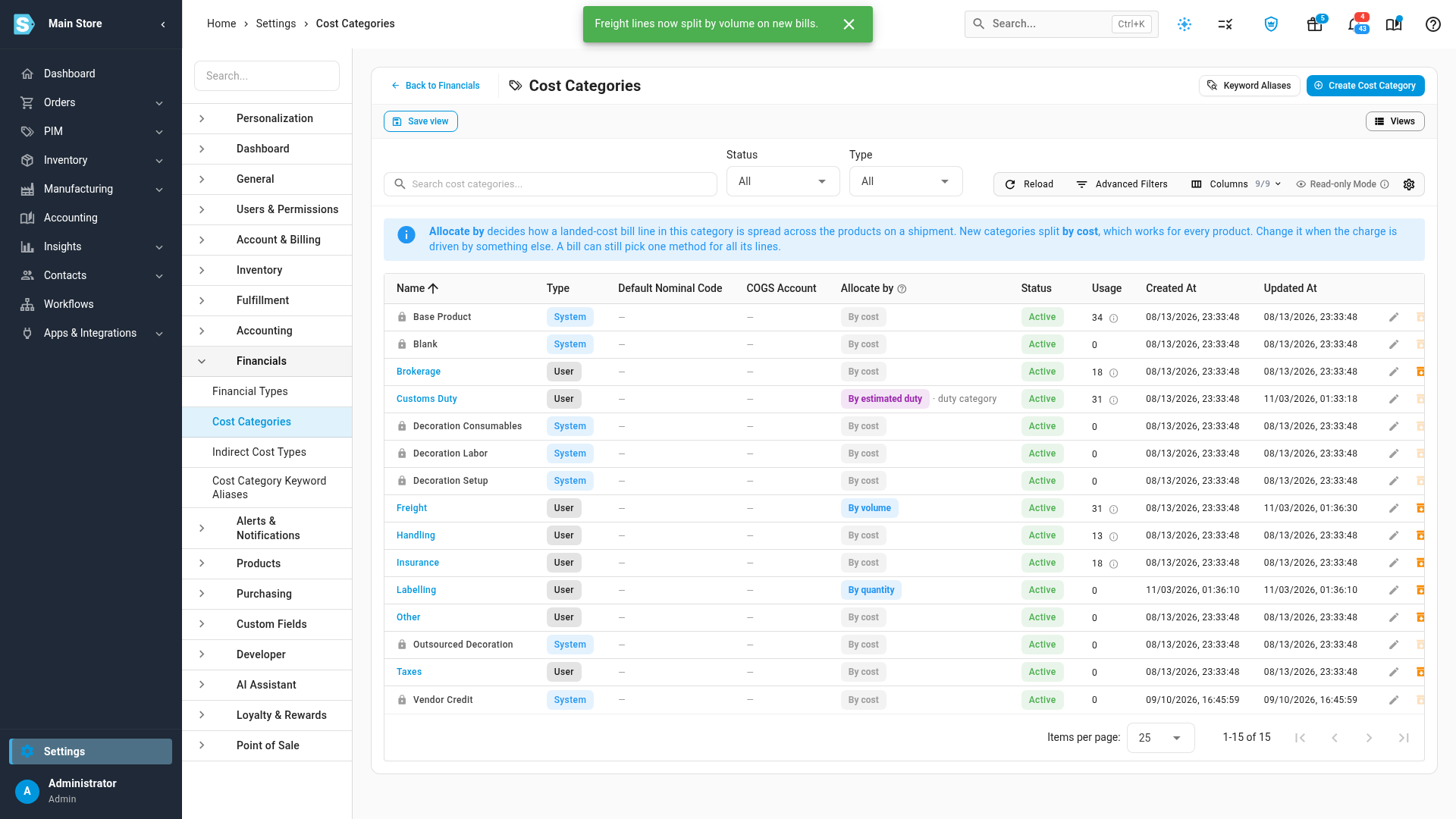
Under Allocate by, pick how its lines should split. Each option says when to use it:
- By cost (default): brokerage, filing and handling fees, insurance, or when you're unsure. Works for every product.
- By volume: ocean freight. Containers are billed by the cubic metre.
- By weight: air, parcel and truck freight. Carriers bill by the kilogram.
- By quantity: the same amount on every unit, such as per-unit labelling.
- Equally across lines: each product line gets the same amount, whatever its quantity.
- By estimated duty: only offered on your duty category. Shares the duty by each product's duty rate, falling back to cost when no rate is set.
- By customs entry: only offered on your duty category. Uses the duty actually filed on a linked customs entry for each product line; any part no purchase order line covers splits by cost.
When you pick By weight or By volume, the form says how many of your products have real (vendor or measured) weights or dimensions, for example "Only 6 of 157 products have real dimensions (vendor or measured). Bills fall back to cost for products without them."
-
Click Update. The confirmation names the change, for example "Freight lines now split by volume on new bills."
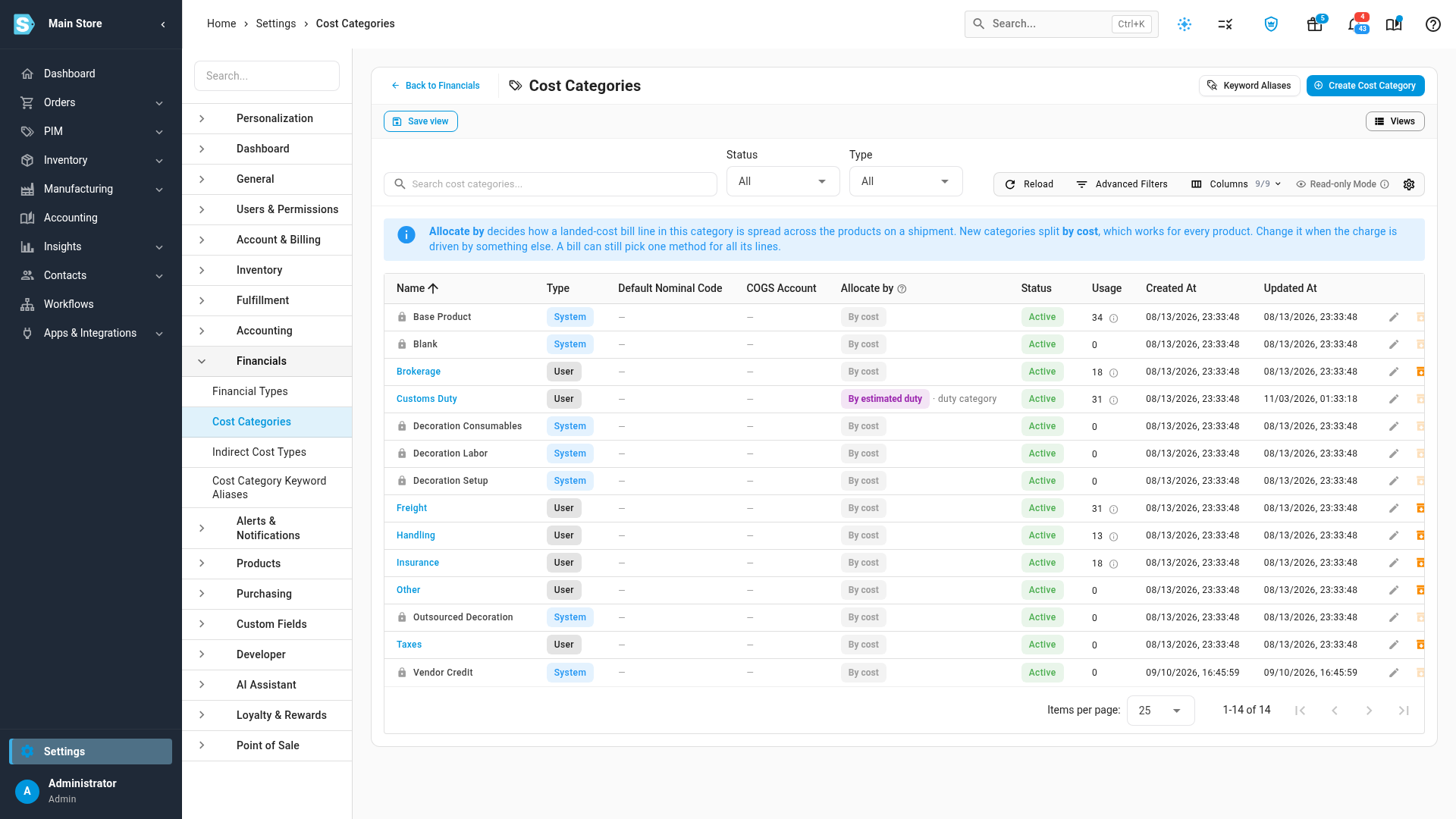
The Allocate by column shows each category's choice. · duty category marks the category your duty estimates book to. Until you choose for it, it splits By customs entry when a fully matched customs entry is linked, and By estimated duty otherwise.
A change applies to bills created or saved from then on. Bills you've already saved keep the split they were made with, so your past inventory costs don't move.
Weight and volume splits are only as good as your products' weights and dimensions. While you enter a bill, the editor warns you when too many products only have estimated ones, and suggests weight or volume when real data shows it would move cost between products. From that suggestion, Always use volume for Freight (or weight) changes the category for you.
Archive and unarchive a cost category
Archiving hides a category from the default (Active) view without deleting it or touching the records that reference it. It's a soft state change (Active → Archived).
To archive:
- In the list, click the Archive action on a user-defined row and confirm.
To unarchive:
- Set the Status filter to Archived (or All), find the category, click Unarchive, and confirm.
Key behaviors:
- References are untouched. Archiving doesn't detach the category from any bill line, breakdown item, or financial line type — it only hides the category from pickers and default views.
- Unarchive is blocked by a name collision. If, while a category was archived, someone created a different active category with the same (case-insensitive) name, unarchiving is rejected with "An active cost category named
<name>already exists. Merge or rename before unarchiving." Rename one of them, or merge the active duplicate into the one you're restoring, then try again. - System categories can't be archived.
Merge a cost category into another
Merging folds a source category into a target: every reference is re-pointed to the target, then the source is deleted. Use it to collapse duplicates (Freight + Shipping) or retire a category that's still in use.
- In the list, click the Merge action on the source (user-defined) category.
- In Merge Cost Category, pick a Target Category from the dropdown (active categories only; the source is excluded).
- Click Merge.
What happens, as one all-or-nothing step:
- All bill lines, financial line types, and breakdown items on the source are re-pointed to the target.
- The source category is deleted.
Guards and edge cases:
- You can't merge a category into itself — "Cannot merge a cost category into itself."
- System categories can't be the source of a merge.
- History isn't rewritten. As with renames, merging re-points live references but doesn't rewrite already-snapshotted FIFO cost breakdowns — those keep their original category on historical layers.
- This can't be undone. Because the source is deleted at the end, there is no unmerge. The dialog warns you before you confirm.
Merge is the safe way to remove a category that's still in use: it moves the references somewhere valid first, so nothing is left pointing at a deleted category. Reach for force-delete only when you're certain the category has no references you care about.
Delete a cost category
Deleting permanently removes a category. There are two layers of protection.
- In the list, click the Delete action on a user-defined row.
- If the category is referenced, the confirmation warns you (with the reference count) that merging is usually safer.
- Confirm to delete.
How the guards work:
- Standard delete is blocked while in use. If the category's total usage (bill lines + breakdown items + financial line types) is greater than 0, the delete is rejected with "This cost category is still in use (
Nreferences). Archive or merge it first." ?force=trueskips only the pre-check. A force-delete tells the manager to skip counting usage first — but it doesn't override the underlying guard. The model layer independently re-counts references on delete and, if any remain, still rejects with "This cost category is referenced byNrecord(s) and cannot be deleted. Archive or merge it first." In other words, force can never orphan a reference: a category with live references can't be hard-deleted by any path. To actually remove an in-use category, merge it (which re-points the references) or archive it.- System categories are never deletable — "System cost categories cannot be deleted."
- A clean delete is permanent and can't be undone.
System (protected) categories
Some categories ship with SKU and are flagged System. They're marked with a lock icon and a System chip, and every change except Allocate by is blocked — you can't rename, archive, merge, or delete a system category. The controls are disabled, and any attempt is refused with a "System cost categories cannot be …" message.
System categories are:
| Category | Role |
|---|---|
| Base Product | The category for the product's own base cost — the "everything that isn't an added landed cost" bucket |
| Blank | The undecorated blank in a decorated finished good's layered cost |
| Decoration Labor | Labor to decorate a made-to-order item |
| Decoration Consumables | Inks, transfers, and other consumables used in decoration |
| Decoration Setup | One-off setup / screen / digitizing charges |
| Outsourced Decoration | A single charge when decoration is subcontracted out |
The default user-defined categories SKU seeds (Freight, Customs Duty, Brokerage, Insurance, Handling, Taxes, Other) aren't system — you can rename, archive, merge, or delete those freely, with one exception below.
Your customs duty category
The category chosen as your Customs duty category, in Settings → Purchasing → Landed Cost Estimates, is the one SKU.io reads actual duty from. In the list, its Allocate by column adds · duty category. You can rename it, and it stays your customs duty category. You can't archive, merge, or delete it: those actions are greyed out on its row, and hovering over them says This category is your customs duty category. Choose another one in Landed cost estimates first. To retire it, choose a different customs duty category first. See Choose your customs duty category.
Decoration and made-to-order categories
The five decoration categories (Blank, Decoration Labor, Decoration Consumables, Decoration Setup, and Outsourced Decoration) exist to compose a decorated finished good's layered cost: a blank plus its consumables, labor, and setup, or a single outsourced-decoration charge. They're seeded idempotently and are system-owned, so they always exist and can't be removed — this keeps the layered-cost buckets stable across every account.
Keyword aliases (landed-cost auto-categorization)
Keyword aliases teach SKU which cost category a line belongs to when it's read off a landed-cost invoice. When an invoice line's description contains a keyword (matched case-insensitively, whole-word), that line is auto-assigned to the keyword's category — so a line reading "BAF / Bunker surcharge" lands under Freight without anyone picking it by hand.
Open the aliases screen from Settings → Financials → Cost Categories → Keyword Aliases.
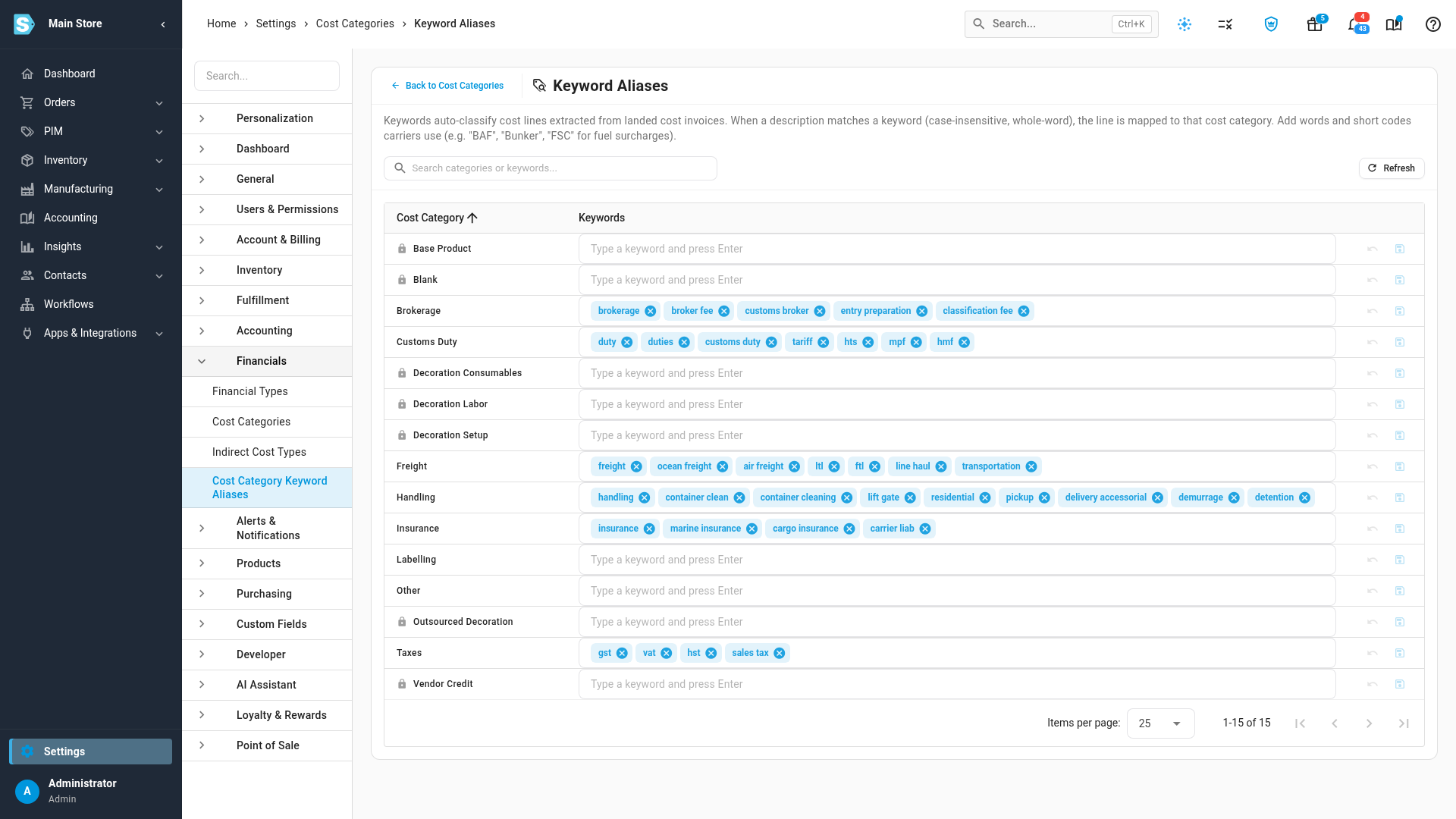
- The table lists one row per active cost category (archived categories aren't shown here) with its current keywords as chips.
- Add a keyword: click into a category's keyword box, type the word or short code, and press Enter.
- Remove a keyword: click the × on its chip.
- Save the row: click the Save (disk) action on that row. Changes are saved per category — each row saves independently.
- Discard: click Discard changes (undo) to revert a row to its last saved state before saving.
Seeded keywords carry a default flag that distinguishes them from ones you add; any keyword you type is stored as a custom (non-default) keyword.
How keywords are normalized
When you save a category's keywords, SKU cleans the list before storing it:
| Rule | Effect |
|---|---|
| Lowercased & trimmed | Freight becomes freight |
| Minimum 2 characters | Single-character entries are dropped (the box also validates this and shows "Each keyword must be at least 2 characters.") |
| Maximum 100 characters | Longer entries are rejected by validation |
| De-duplicated | Repeats within one category collapse to a single keyword |
| Replace semantics | Saving replaces that category's whole keyword set — keywords you removed are deleted, and new ones are inserted as custom (non-default) |
Ambiguity warning
If the same keyword is assigned to more than one category, the screen shows a Duplicate keywords banner listing them, because a shared keyword produces ambiguous matches at classification time (SKU can't tell which category the line belongs to). Resolve it by removing the keyword from all but one category.
How cost categories connect to inventory and reporting
Cost categories are defined here, but they're consumed elsewhere:
- Landed-cost invoices / bill lines apply a category to each cost line — see add landed costs to a purchase order. Those categorized costs flow into inventory value.
- FIFO cost breakdowns group a product's layered cost by category. The mechanics of layers, COGS, and average cost live in the Inventory guides — see FIFO layers & COGS; this page doesn't re-explain them.
- Financial line types map to categories to drive accounting posting — see set a product's accounting.
Note the difference between a product's unit cost and average cost: Unit cost is the standard cost you enter on a product (see set a product's price), while average cost is derived from the product's FIFO layers as inventory moves — it's not something you set on this screen, and its detailed mechanics are covered in the FIFO / COGS reference.
Next steps
- Set a product's accounting & financial line type
- Set a product's price
- Add landed costs to a purchase order
- Record landed cost bills: how a bill splits each line by its category
- FIFO layers & COGS
- Products — overview
Video transcript
Cost categories label each charge on a landed cost bill, like freight, duty, or brokerage. To manage them, open Settings from the sidebar. Then open the Financials group, and choose Cost Categories from the settings it lists. The page lists every category you have, the ones you created and the ones that come with your account. Each row shows the category's type, its accounts, and how its lines are allocated. Allocate by decides how a bill line in that category is spread across the products on a shipment. New categories split by cost, which works for every product. To add a category, click Create Cost Category. Type a name in the Name field. This example uses Labelling, for a per-unit labelling charge. Then choose how its lines split, from the options below the name. Each option says when it's the right choice. Labelling is charged per unit, so pick By quantity. Optionally pick a default nominal code for the bill lines in this category. A COGS account lets this cost be expensed on its own line when the stock sells, instead of in your main cost of goods sold. Then click Create at the bottom of the form, and after a moment the new category appears in the list. To change an existing category, click its edit button. Ocean freight is billed by the cubic metre, so set Freight to By volume. The change applies to bills you create or save from today. Bills you've already saved keep their split. Click Update to save the change, and the list shows the new choice for Freight. In the list, Freight now shows By volume in the Allocate by column. A lock marks a system category. You can change its Allocate by, but not its name or accounts. To match invoice wording to categories automatically, click Keyword Aliases. This page lists the words that send an invoice line to each category, so new invoices are sorted for you.