ShipBob settings reference
Go to Apps & Integrations, choose ShipBob, click your connection under Instances, and click the Settings tab. The page has four tabs: General, Connection, Sync, and Financial. Each tab saves on its own. Change what you need, then click Save Changes on that tab. Revert Changes undoes changes you haven't saved, and both buttons are unavailable until you change something.
General
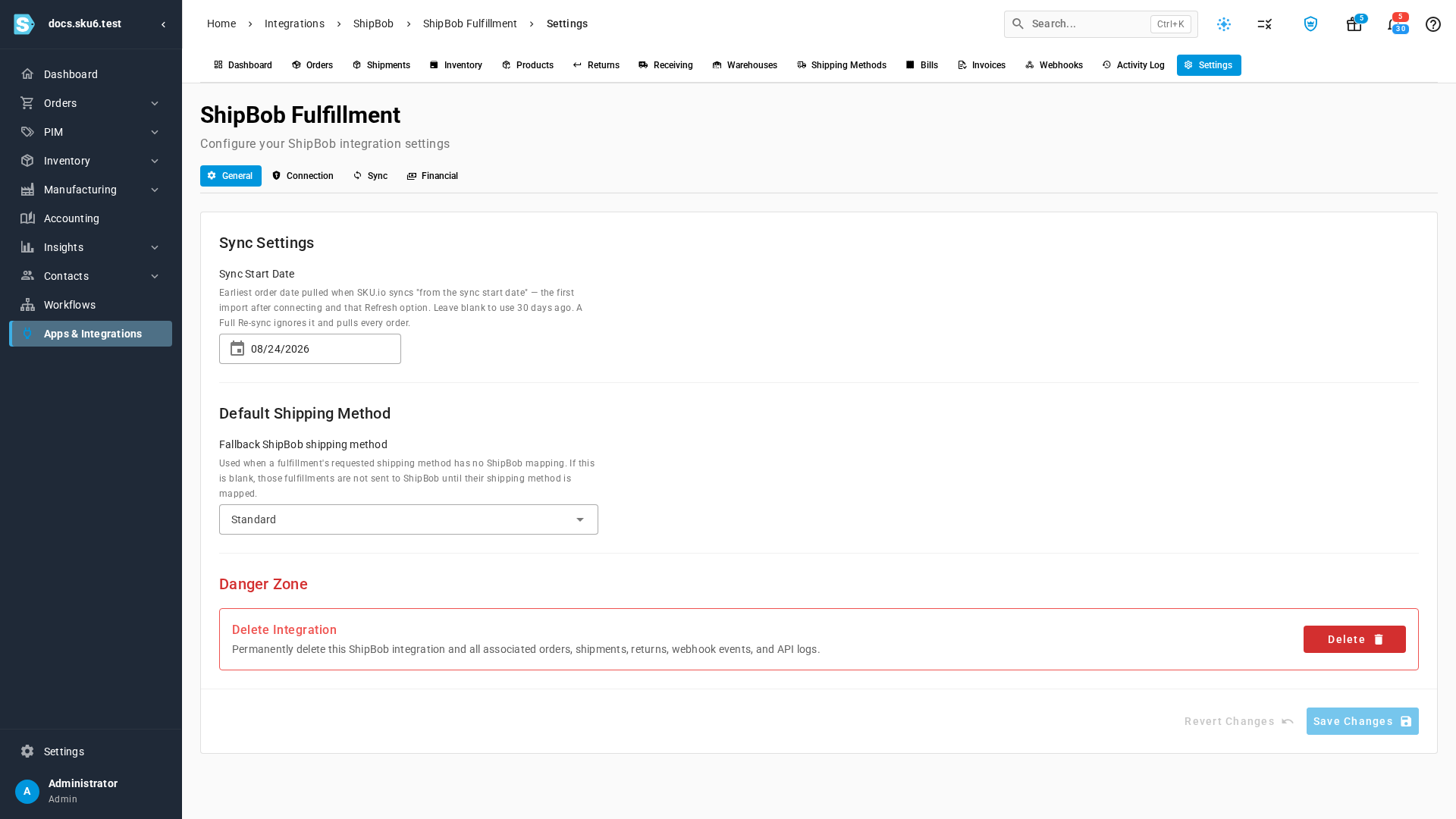
| Field | What it does |
|---|---|
| Sync Start Date (under Sync Settings) | The earliest ShipBob order date pulled by the first import after you connect, and by From Sync Start Date in the Sync from ShipBob dialog on the Orders tab. You set it first on the connect form. Leave it blank to use 30 days ago. The scheduled order sync and Full Re-sync aren't limited by it. It's also the billing start date when you don't set one on the Financial tab. |
| Fallback ShipBob shipping method (under Default Shipping Method) | The ShipBob service SKU.io sends when a fulfillment order's shipping method has no mapping and no ShipBob service matches its name. The list shows your active ShipBob services. A saved service that ShipBob has since turned off shows (inactive). When the field is empty, it reads None — unmapped fulfillments are rejected: those fulfillment orders are rejected, and you submit them again once their shipping method is mapped. See Map ShipBob shipping methods. |
Danger Zone: Delete Integration
Delete removes the ShipBob connection and everything SKU.io imported through it.

- Click Delete.
- Read the confirmation: "This will queue deletion of the ShipBob integration and all its data. This action cannot be undone."
- Click Delete to confirm, or Cancel to keep the connection.
What you'll see: Instance deletion queued, and Apps & Integrations opens. The deletion finishes in the background, and SKU.io:
- Unsubscribes from ShipBob's notifications.
- Turns every warehouse the connection converted back into a Direct warehouse with Manual fulfillment, so it stops routing to ShipBob.
- Removes the costs billing sync added to your sales orders, products, and purchase orders.
- Deletes the ShipBob orders, shipments, returns, receiving orders, products, stock, bills, invoices, notifications, and activity it imported.
Your ShipBob account isn't changed.
SKU.io refuses the deletion when billing sync added receiving fees to the landed cost of purchase orders received in a locked accounting period. Removing those fees would change inventory values you've already reported. The message names the purchase orders: "n capitalised 3PL receiving cost line(s) sit on purchase orders received in a locked accounting period (purchase orders). Removing them would re-cost reported inventory: unlock the period or keep the integration."
Connection
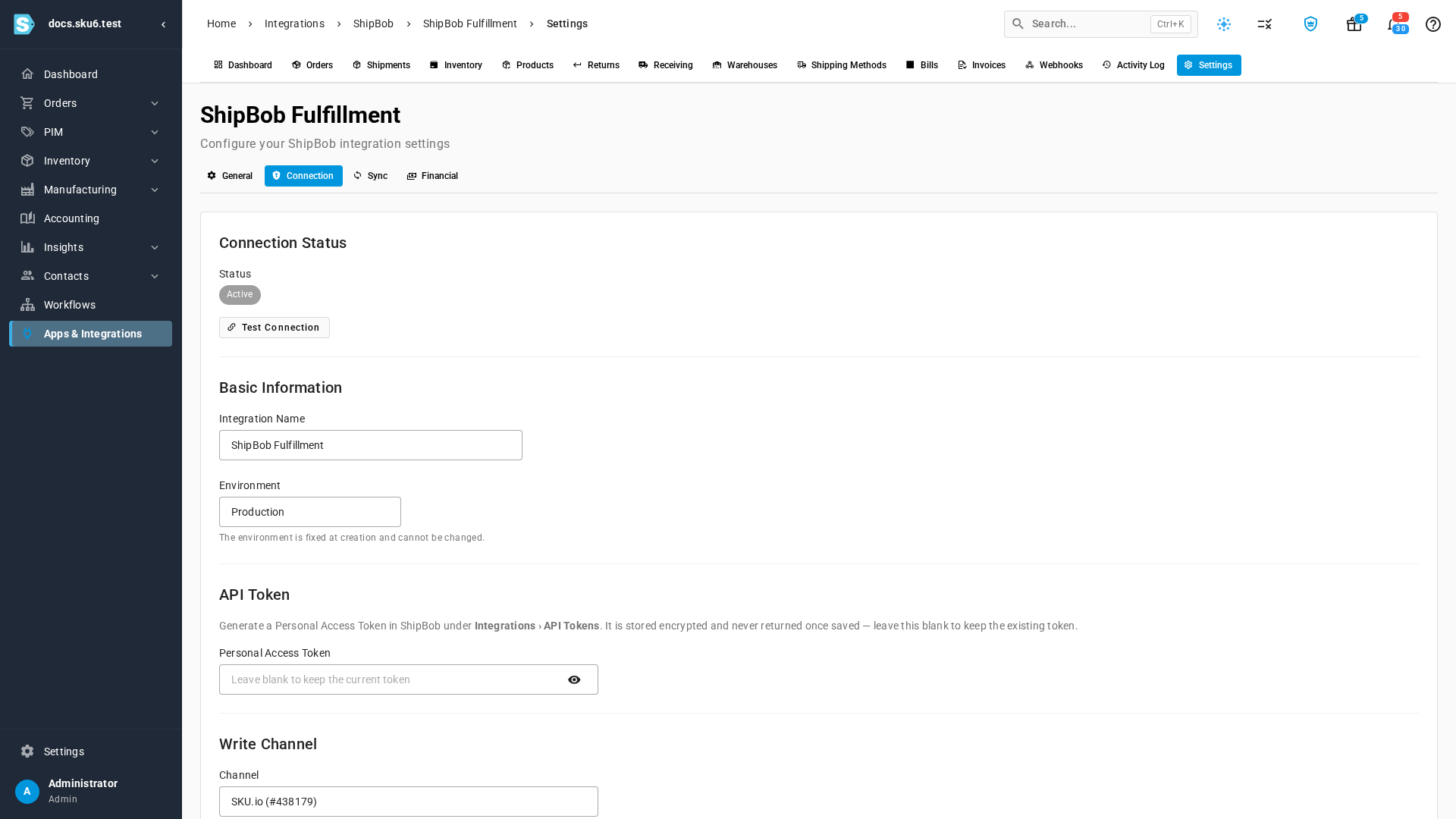
| Field | What it does |
|---|---|
| Status | Active when automatic syncing is on, Configured when it's off. After you click Test Connection, it shows Connected or Connection failed. |
| Test Connection | Checks the saved token against ShipBob and lists the channels it can write to. It tests the saved token, not one you've typed and not yet saved. A passing test also clears an Invalid credentials state (see below). |
| Integration Name | The connection's name, shown in breadcrumbs and on Apps & Integrations. It must be unique across all your integrations. |
| Environment | Production or Sandbox. It's fixed when you create the connection and can't be changed. |
| Personal Access Token | Leave it blank to keep the current token. Paste a new one and save to replace it, for example after you revoke the old one in ShipBob. SKU.io stores the token encrypted and never shows it again. The new token must come from the same ShipBob account and environment. |
| Channel (under Write Channel) | The channel that orders SKU.io creates in ShipBob belong to, for example SKU.io (#438179). To change it, click Test Connection: the field becomes a list of the token's writable channels. Choose one and click Save Changes. A connection that reads Not set gets the token's only writable channel chosen for you after the test, and you still save it. |
When ShipBob rejects the token
If ShipBob stops accepting the token, for example because someone revoked it, the Dashboard shows a red Invalid credentials chip and a ShipBob credentials are invalid banner: ShipBob no longer accepts the API token. Syncs will keep failing until you enter a valid token. Your administrators are notified too. Syncs fail until you fix it:
- Click Fix in Settings on the banner. Settings → Connection opens.
- Generate a new token in ShipBob, paste it into Personal Access Token, and click Save Changes.
When ShipBob accepts the new token, the connection goes back to Connected and the alert clears. If the saved token works again, for example after a ShipBob outage, click Test Connection instead. A passing test clears the alert too.
Sync
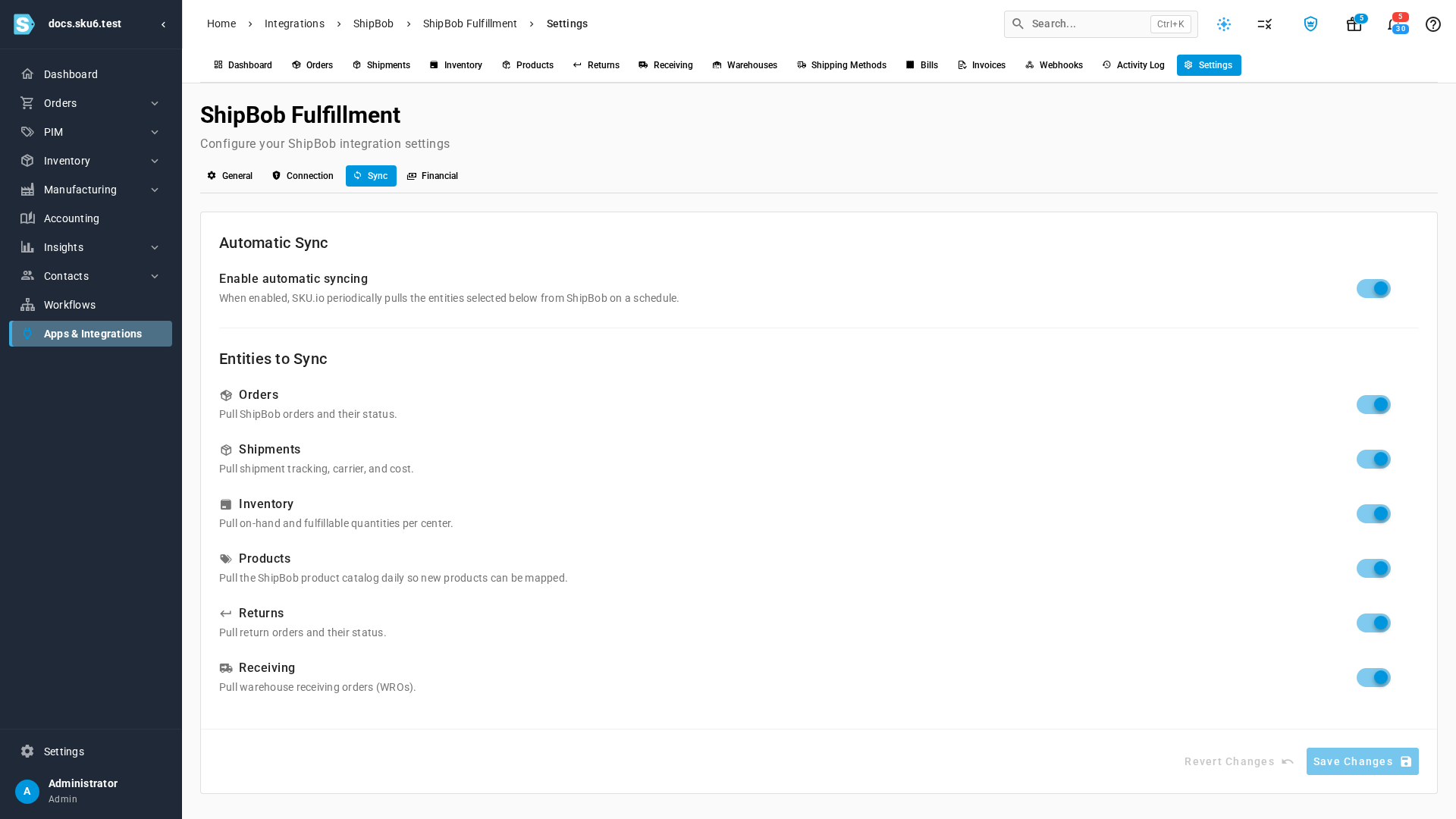
| Field | What it does |
|---|---|
| Enable automatic syncing | The master switch for scheduled pulls from ShipBob. Turn it off and no scheduled sync runs, and the switches below are unavailable. Notifications from ShipBob, Sync buttons, and sending orders to ShipBob keep working. |
| Orders | Pulls ShipBob orders and their status every 15 minutes. |
| Shipments | Pulls shipment tracking, carrier, and cost every 15 minutes, and sweeps for missing tracking numbers. |
| Inventory | Pulls on-hand and fulfillable quantities per fulfillment center every 15 minutes. |
| Products | Pulls the ShipBob product catalog daily, so new products can be mapped. |
| Returns | Pulls ShipBob returns and their status hourly. |
| Receiving | Pulls warehouse receiving orders hourly. |
Every switch starts on. Fulfillment centers and shipping methods have no switch of their own. They sync daily while Enable automatic syncing is on. See the Scheduled syncs reference.
Financial
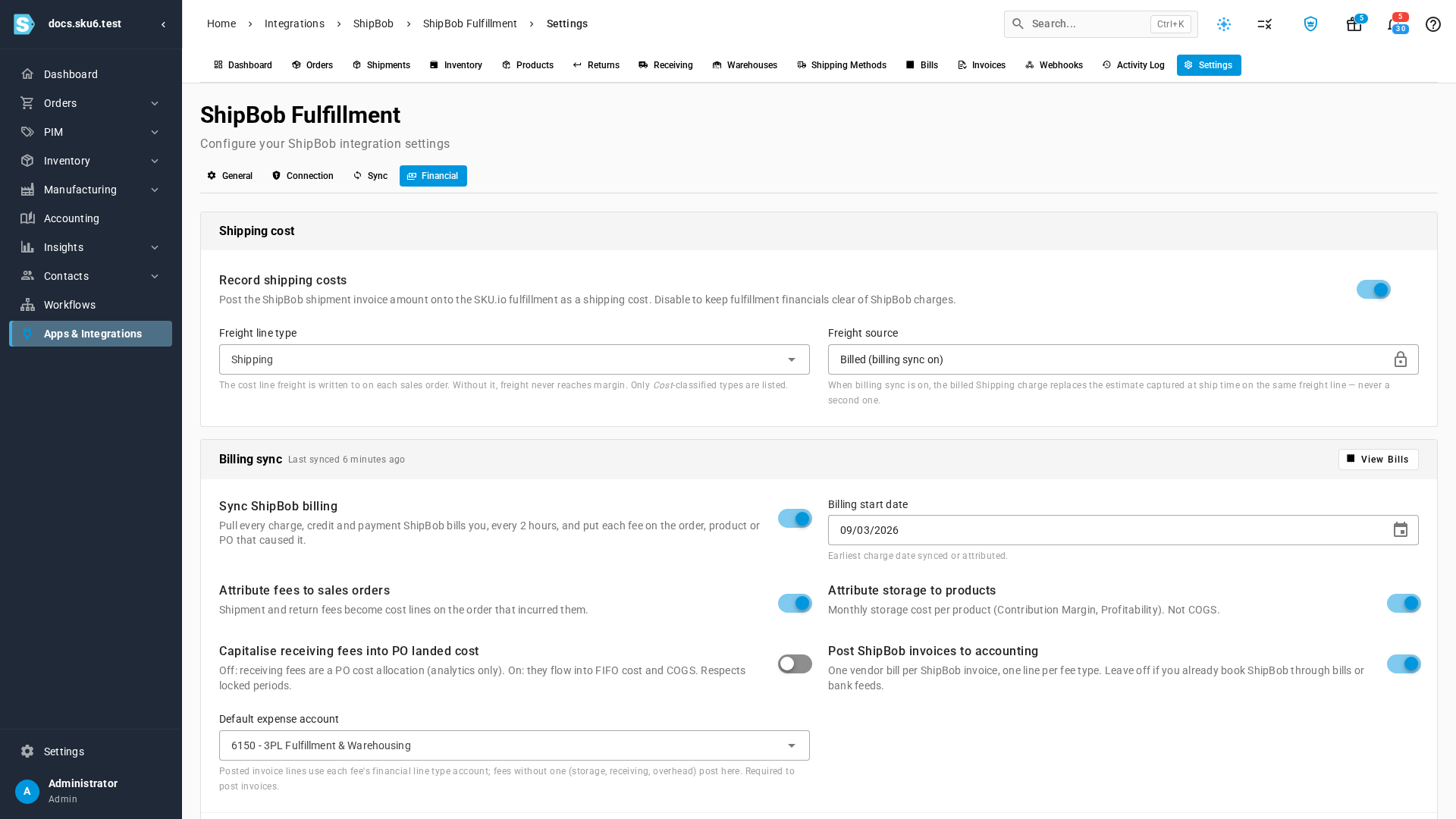
The Financial tab has three cards.
Shipping cost
| Field | What it does |
|---|---|
| Record shipping costs | Adds each shipment's ShipBob invoice amount to the SKU.io fulfillment as a shipping cost. Turn it off to keep ShipBob charges off fulfillment financials. |
| Freight line type | The cost line freight is written to on each sales order. Auto (Shipping Cost) uses the default shipping-cost type. Only cost-classified line types are listed. Changing it moves the existing ShipBob freight lines to the new type too. |
| Freight source | Read-only. Estimate at ship time while billing sync is off. Billed (billing sync on) when it's on: the billed shipping charge then replaces the ship-time estimate on the same freight line, never adding a second one. |
Billing sync
| Field | What it does |
|---|---|
| View Bills | Opens the Bills tab. Last synced beside the title shows when billing last ran. |
| Sync ShipBob billing | Pulls every charge, credit, and payment ShipBob bills you every 2 hours, and puts each fee on the order, product, or purchase order that caused it. Off by default. |
| Billing start date | The earliest charge date synced or attributed. |
| Attribute fees to sales orders | Shipment and return fees become cost lines on the sales order that incurred them. |
| Attribute storage to products | Spreads each month's storage cost across the products stored, for contribution margin and profitability reports. It doesn't change inventory cost or cost of goods sold. |
| Capitalise receiving fees into PO landed cost | Off: receiving fees are linked to the purchase order for reporting only. On: they're added to the purchase order's landed cost, so they become part of the products' inventory cost, and of cost of goods sold when they sell. Locked periods are never changed. |
| Post ShipBob invoices to accounting | Creates one vendor bill per ShipBob invoice, with one line for each expense account its fees map to. Leave it off if you already book ShipBob through bills or bank feeds. |
| Default expense account | Appears when posting is on, and is required for it. Each posted line uses the account of its fee's line type. Fees without one, such as storage, receiving, and overhead, post here. |
The four attribution and posting switches are unavailable until Sync ShipBob billing is on. Turning billing on, or changing these switches, re-attributes your existing charges in the background.
Fee mapping lists every ShipBob fee name, grouped by family, with how SKU.io treats it and its 30-day count and amount. See Map ShipBob fees.
For what each billing choice means for your books, see How ShipBob billing attribution works and Turn on ShipBob billing.
Next steps
- How the ShipBob integration works — what each sync does.
- Manage a connected app — controls every integration shares.