Map ShipBob fees
ShipBob uses about a hundred fee names and adds new ones over time. The Fee mapping card lists every fee name your ShipBob account has billed, grouped by family, and says what SKU.io does with each one. The first billing sync fills it in automatically, so you only change a row when you want a fee handled differently. For background, see How ShipBob billing attribution works.
Before you begin
- Turn on ShipBob billing and let the first sync finish. Until then the card says No fee names yet. They are created from ShipBob's fee catalogue on the first bill sync.
- You need permission to manage integrations.
Read the fee mapping card
- Go to Apps & Integrations, open ShipBob, and choose your connection.
- Click the Settings tab, then Financial.
- Scroll to the Fee mapping card.
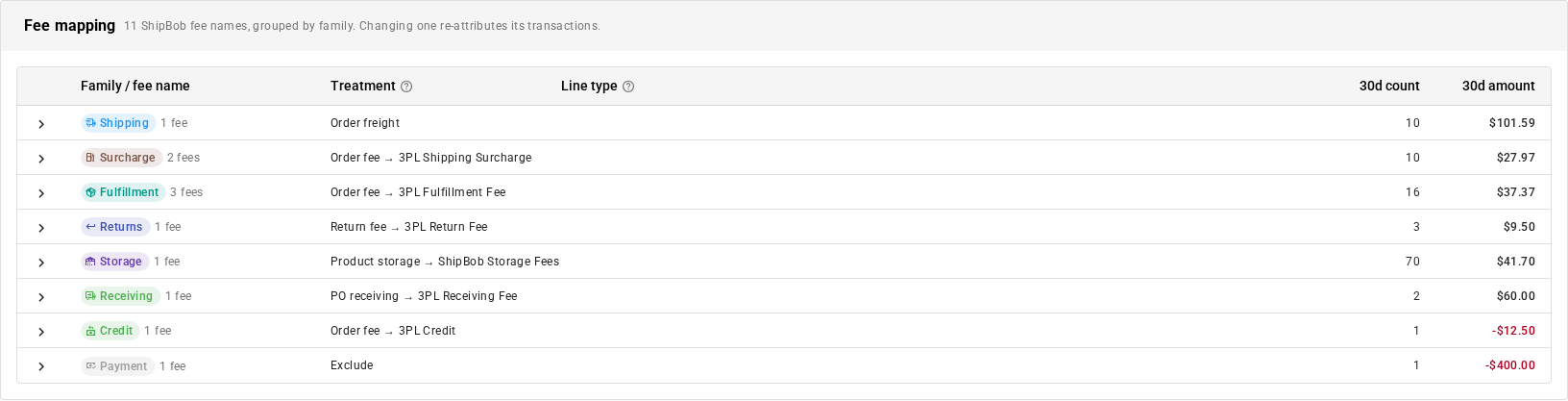
Each family row summarizes the fees in it: how many fee names, what they're mapped to (for example Order fee → 3PL Fulfillment Fee), and their charge count and amount over the last 30 days. Families are listed in this order: Shipping, Surcharge, Fulfillment, Returns, Storage, Receiving, Credit, Payment, Account, Other.
- Click a family row to expand it. Each fee name in it gets its own Treatment and Line type.
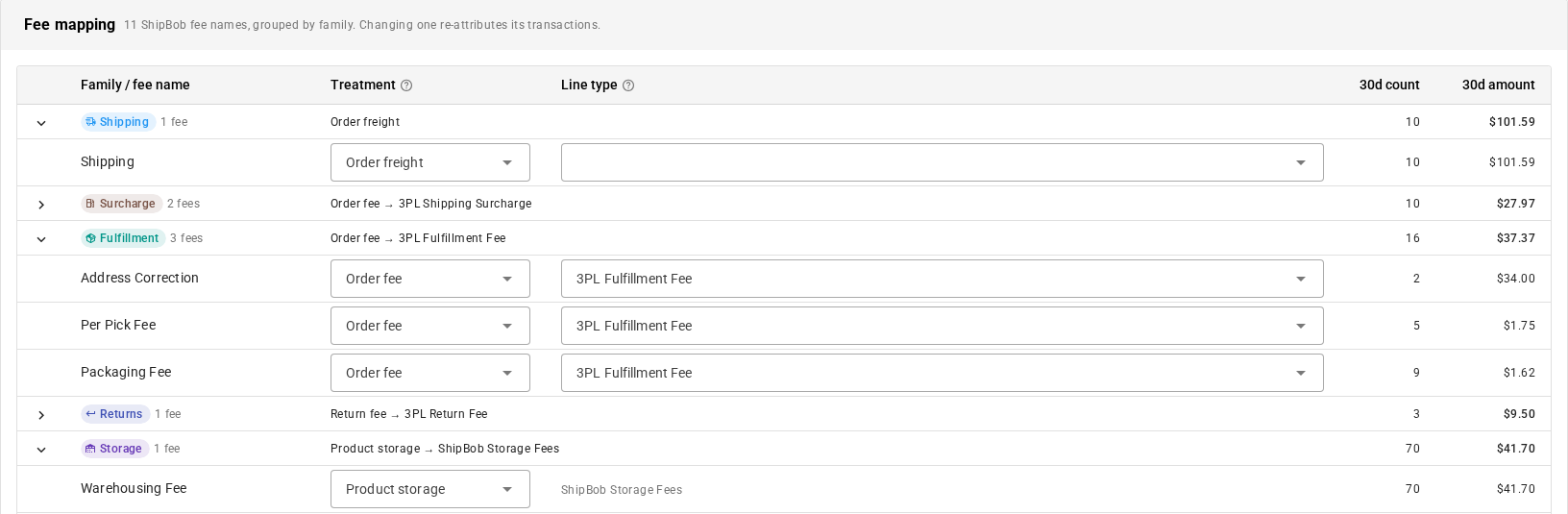
| Column | Shows |
|---|---|
| Family / fee name | The family chip on group rows, the ShipBob fee name on fee rows. A Review chip marks a fee name that needs a decision. |
| Treatment | What SKU.io writes for each charge of this fee. |
| Line type | The cost line type the charge is written as, and through that type, the account it posts to. For Product storage and Keep unattributed, the monthly cost entry it goes to, such as ShipBob Storage Fees. |
| 30d count | How many charges of this fee in the last 30 days. |
| 30d amount | Their total. Credits and payments show in red. |
Choose a treatment
The treatment decides what kind of record each charge becomes.
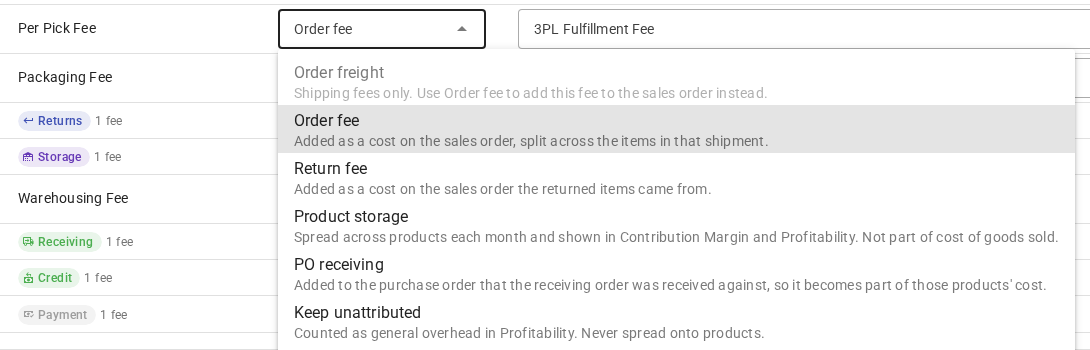
| Treatment | Description in the list | Use it for |
|---|---|---|
| Order freight | Shipping fees only. The billed shipping cost replaces the estimate recorded when the order shipped, on the order's freight line. | The Shipping fee. On any other fee it's unavailable, with Shipping fees only. Use Order fee to add this fee to the sales order instead. |
| Order fee | Added as a cost on the sales order, split across the items in that shipment. | Pick, packaging, label, kitting, and B2B fees, surcharges, credits |
| Return fee | Added as a cost on the sales order the returned items came from. | Return processing fees |
| Product storage | Spread across products each month and shown in Contribution Margin and Profitability. Not part of cost of goods sold. | Warehousing and storage fees |
| PO receiving | Added to the purchase order that the receiving order was received against. | Receiving and inbound fees. Whether the fee also becomes part of the stock's cost depends on Capitalise receiving fees into PO landed cost. |
| Keep unattributed | Counted as general overhead in Profitability. Never spread onto products. | Account fees, minimums, and anything you don't want on orders |
| Exclude | Not a cost, for example a payment. Shown only when reconciling invoices. | Payments |
To change a fee's treatment:
- Expand its family.
- In the fee's Treatment list, choose the new treatment.
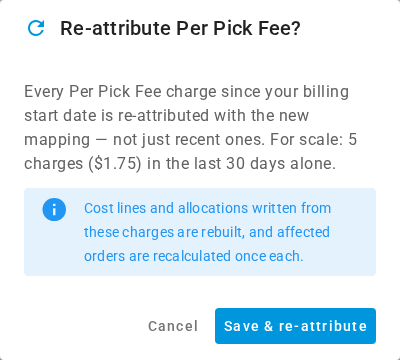
- Read the confirmation, then click Save & re-attribute. Cancel keeps the current treatment.
Choose or create a line type
The line type is what an order cost line is called on the sales order, how it's spread across the order's lines, and which account it posts to when you post invoices to accounting. It applies to the Order fee, Return fee, and PO receiving treatments.
- In the fee's Line type box, choose a cost line type. Only types classified as Cost are listed.
- To make a new one, type its name and click Create. SKU.io creates it as a Cost type that's spread across order lines by quantity, confirms with Cost line type "…" created, and selects it for this fee.
- Click Save & re-attribute in the confirmation.
A type you create inline has no account. Before you post invoices to accounting, give it one in your financial line type settings, or its fees post to the connection's Default expense account.
Shipping freight is written to the Freight line type on the Shipping cost card, so the Line type box on the Shipping fee row stays empty. To change the freight type, change Freight line type.
What changing a mapping does to past bills
A mapping change isn't only for new charges. When you click Save & re-attribute:
- Every charge of that fee since your Billing start date is attributed again under the new mapping, not only the last 30 days the confirmation counts.
- The cost lines and allocations written from those charges are removed and rebuilt, and each affected order is recalculated once.
- Storage and receiving months that include those charges are rebuilt.
- The work runs in the background. SKU.io confirms with Per Pick Fee saved — re-attributing 5 transactions ($1.75), or saved — no transactions to re-attribute when there are none. Follow ShipBob Billing Attribution in the job tray.
Only that fee's charges are touched. Charges you marked void stay voided.
Review new fee names
When ShipBob bills a fee name SKU.io hasn't seen, SKU.io guesses its family and treatment from the name and attributes it with that guess straight away, so no charge waits. A name it can't place goes to the Other family as Keep unattributed. Each guessed name is flagged for you to confirm:
- The Bills tab shows an alert that a new fee name needs a mapping decision, with a Review fee mapping → link.
- The Financial tab shows a card at the top, before Fee mapping, headed with the number of new fee names that need a decision. Each one shows the suggested treatment and line type and its last 30 days of charges.
For each new name, either:
- Click Accept suggestion to keep the guess, or
- Click Choose… to jump to the fee's row in Fee mapping, then pick a treatment and line type.
Both save the mapping and re-attribute the fee's charges, and the Review flag clears.