ShipBob scheduled syncs reference
ShipBob sends most changes to SKU.io the moment they happen, through webhooks. Scheduled syncs back those up: they pull the same data on a timetable, so a missed notification delays an update rather than losing it. This page lists every scheduled sync, what switches it off, and the button that runs it by hand.
What syncs, and how often
| What | How often | What it brings in | Switches that must be on |
|---|---|---|---|
| Orders | Every 15 minutes | Your ShipBob orders and their status. A shipped order also records its shipment on the sales order. | Enable automatic syncing and Orders |
| Shipments | Every 15 minutes | Shipment status, tracking, carrier, and invoice amount. | Enable automatic syncing and Shipments |
| Tracking | Every 15 minutes | Any order ShipBob has tracking for that SKU.io hasn't recorded yet. SKU.io records the shipment and tells ShipBob it has the tracking. | Enable automatic syncing and Shipments |
| Inventory | Every 15 minutes | On-hand, committed, fulfillable, and awaiting stock for each product at each fulfillment center. | Enable automatic syncing and Inventory |
| Returns | Once an hour | ShipBob returns and their status. | Enable automatic syncing and Returns |
| Receiving | Once an hour | Receiving orders and their expected, received, and stowed quantities. | Enable automatic syncing and Receiving |
| Products | Once a day, and with every inventory sync | Your ShipBob product catalog, so new products appear for mapping. Every inventory sync also refreshes the catalog and auto-matches new products, so a new product usually appears within 15 minutes. | Enable automatic syncing and Products for the daily sync. The refresh with inventory follows the Inventory switch. |
| Fulfillment centers | Once a day | ShipBob's fulfillment centers, so new ones appear on the Warehouses tab. | Enable automatic syncing only |
| Shipping methods | Once a day | ShipBob's shipping services, so new ones appear on the Shipping Methods tab. | Enable automatic syncing only |
| Webhook replay | Once an hour | Replays unprocessed Order Shipped, Order Delivered, Shipment Delivered, and Shipment Tracking Updated notifications from the last 14 days. | Always runs |
| Billing | Every 2 hours | ShipBob charges, credits, payments, and invoices. SKU.io then attributes each new or changed charge. | Sync ShipBob billing only |
Hourly and daily syncs run at a set point in each hour or day. The time isn't something you choose.
What each sync doesn't do
- Inventory never changes your SKU.io stock. ShipBob's numbers are kept as a copy you compare on the Inventory tab. You correct SKU.io with a stock take. See Create a stock take from ShipBob discrepancies.
- Products doesn't change mappings you made by hand. It maps a new ShipBob product automatically only when exactly one SKU.io product matches it.
- Returns and Receiving are read-only. They don't receive stock into SKU.io.
How the Sync switches work
The switches are on Settings → Sync.
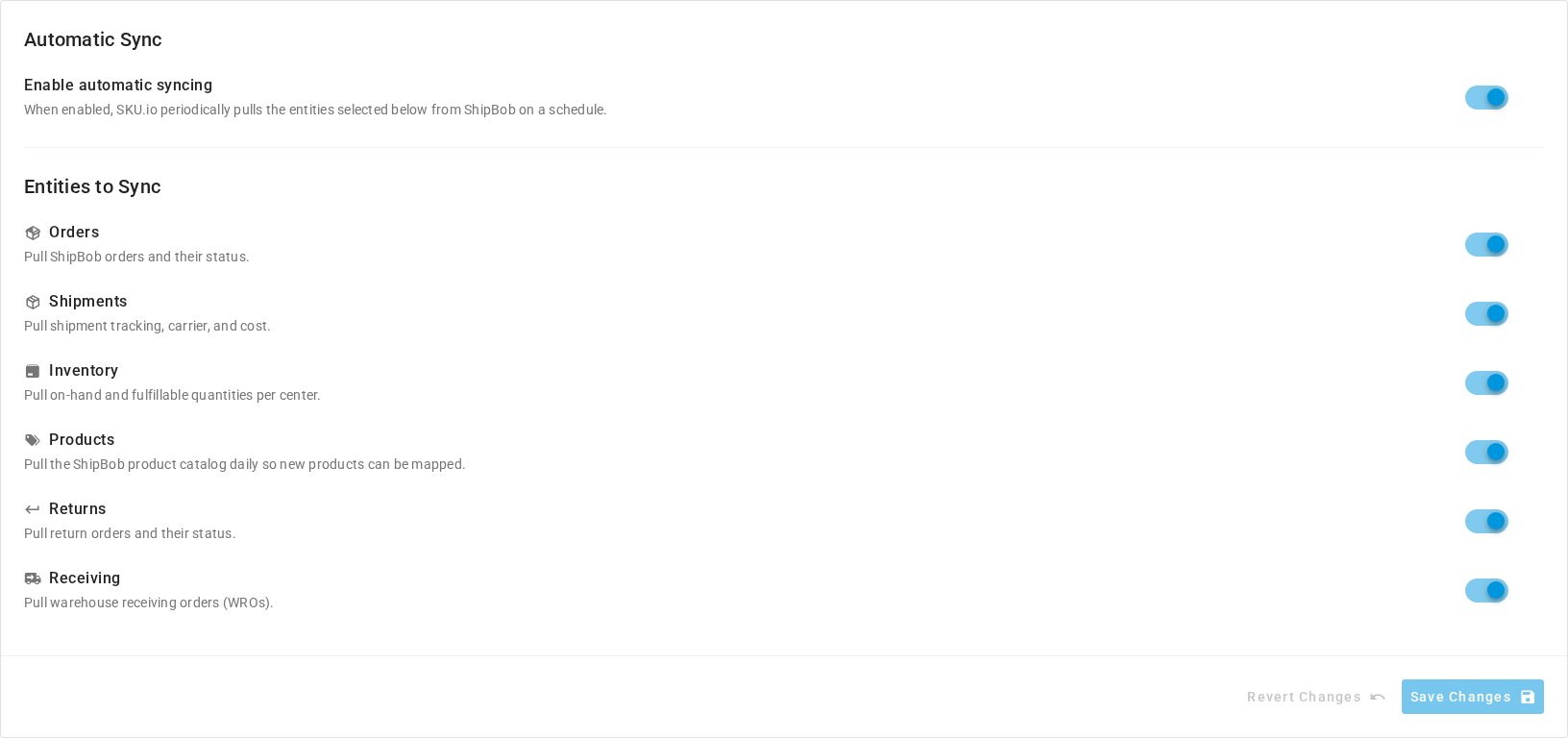
- Enable automatic syncing is the master switch. When it's off, nothing in the table syncs on a schedule, except Webhook replay and Billing. The switches under Entities to Sync turn grey and keep their settings, so they take effect again when you turn the master switch back on.
- Each switch under Entities to Sync turns off one scheduled sync, as the table shows. Shipments controls both the Shipments and the Tracking sync.
- Fulfillment centers and shipping methods have no switch of their own. They follow the master switch.
- Click Save Changes after you change a switch. Revert Changes undoes changes you haven't saved.
Two things keep working when the switches are off:
- Webhooks. ShipBob still sends notifications, and SKU.io still acts on them. To stop them, you'd disconnect ShipBob.
- Sending orders to ShipBob. The switches only control what SKU.io pulls. Orders go to ShipBob when a fulfillment order is submitted. See Dispatch to a fulfillment provider.
ShipBob keeps shipments inside their orders, so the Shipments sync re-reads orders to find them. If you turn Orders off but leave Shipments on, order statuses still update every 15 minutes.
How billing syncs
Billing has its own switch, Sync ShipBob billing, on Settings → Financial. It's off until you turn it on, and the Sync switches don't affect it. See Turn on ShipBob billing.
- When you turn it on, SKU.io syncs straight away, from the Billing start date.
- Every 2 hours after that, SKU.io pulls charges from shortly before the last sync. Each sync re-reads at least the last 14 days, so a charge ShipBob changes or adds late is still picked up.
- After each sync, SKU.io attributes every new or changed charge, and retries pending ones, such as a fee for a shipment that hadn't synced yet.
- When you change an attribution option, SKU.io attributes every charge again.
Run a sync by hand
Every scheduled pull also has a button. On every tab, Sync from ShipBob pulls from ShipBob, and Reload only re-reads what SKU.io already holds. A sync you start by hand runs even when its switch is off. Progress shows in the job tray, under a name such as Sync ShipBob Orders: followed by your connection's name.
| Where | Button | What it syncs |
|---|---|---|
| Dashboard | Sync from ShipBob menu: Sync Orders, Sync Shipments, Sync Inventory, Sync Fulfillment Centers, Sync Shipping Methods, Sync Returns, Sync Receiving | The data type you choose |
| Orders | Sync from ShipBob | Orders. On Fetch New Orders, choose Fetch Since Latest Sync, From Sync Start Date, Custom Date Range, or Full Re-sync. On Search Specific Order, look one order up and click Download (an order SKU.io doesn't have yet) or Update (one it already has). |
| Shipments | Sync from ShipBob | Shipments |
| Inventory | Sync from ShipBob | Inventory, and the product catalog with it |
| Products | Sync from ShipBob | The product catalog |
| Returns | Sync from ShipBob | Returns |
| Receiving | Sync from ShipBob | Receiving orders |
| Warehouses | Sync from ShipBob | Fulfillment centers |
| Shipping Methods | Sync from ShipBob | Shipping methods |
| Bills | Sync Bills | Billing. Available only when Sync ShipBob billing is on. |
From Sync Start Date uses the Sync Start Date on Settings → General, and shows that date in its name. When the setting is blank, it goes back 30 days. Full Re-sync ignores the date and pulls every order.
While a sync of that type is running, its button is unavailable. Hover it to read A ShipBob sync is already running — track its progress in the job tray, or the tab's own version of that message.
The Sync Status card on the Dashboard shows when Orders, Shipments, Inventory, Returns, and Receiving last synced.
When ShipBob is unavailable
If ShipBob doesn't answer, a scheduled sync waits about a minute and tries once more. If ShipBob still doesn't answer, the sync skips that run, and the job tray says ShipBob is unavailable and how many runs it has skipped. The next scheduled run tries again. After three runs in a row fail, the job tray shows the sync as failed.
If ShipBob rejects the API token, every sync stops until you save a new token. See ShipBob troubleshooting.
What isn't on a schedule
| Action | When it happens |
|---|---|
| Sending an order to ShipBob | When a fulfillment order for a ShipBob warehouse is submitted |
| Subscribing to webhooks | When you connect, and when you click Re-subscribe All on the Webhooks tab |
| Matching products automatically | After each products sync, including the one inside every inventory sync, and when you click Auto-Match on the Products tab |
| Correcting SKU.io stock | Only when you create a stock take from the Discrepancies view of the Inventory tab |