How ShipBob billing attribution works
ShipBob bills you transaction by transaction: a shipping charge per shipment, a pick fee, a packaging fee, a fuel surcharge, a day of storage per product, a receiving fee per warehouse receiving order (WRO), a return fee, and the occasional credit. Each transaction lands on one of ShipBob's invoices, and your payments appear as transactions too.
When billing sync is on, SKU.io copies every one of those transactions and asks one question of each: what caused this cost? The answer decides where the money lands. This page explains that decision. The tasks that act on it are Map ShipBob fees and Review ShipBob bills and fix unattributed charges.
From charge to destination
Every ShipBob fee name belongs to a family, and the fee's mapping gives it a treatment. The treatment says what kind of record SKU.io writes. The fee's reference (a shipment, a return, a ShipBob product, or a receiving order) says which order, product, or purchase order it's written against.
| Family | Example fees | Default treatment | Lands on |
|---|---|---|---|
| Shipping | Shipping | Order freight | The fulfillment's single freight line on the sales order |
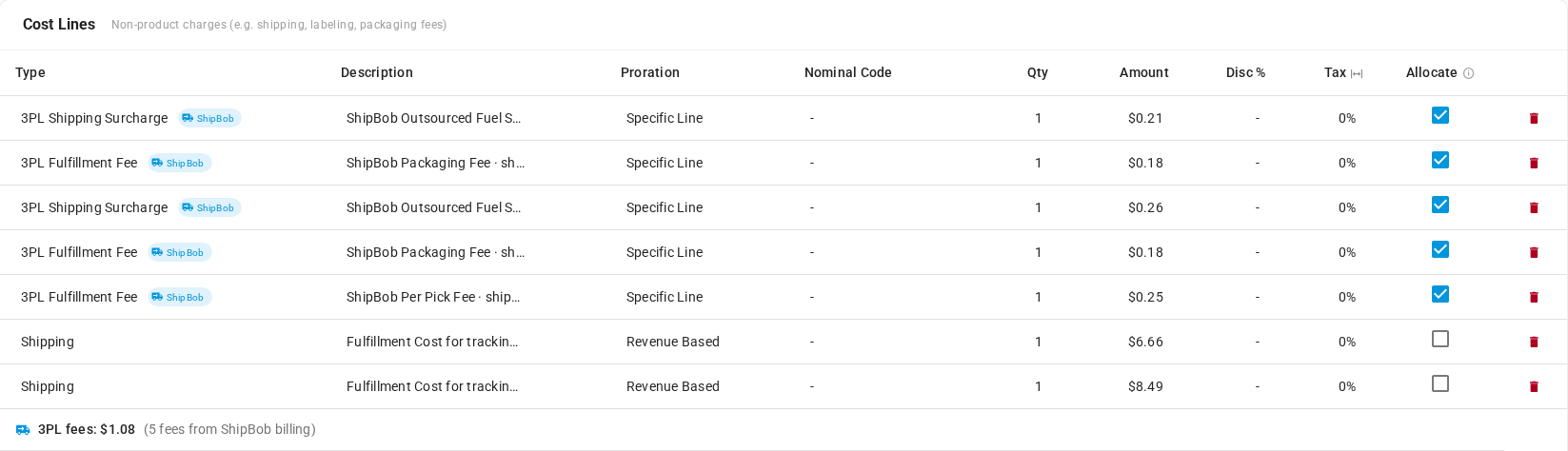
| Fulfillment | Per Pick Fee, Packaging Fee, Address Correction | Order fee | A cost line on the sales order, type 3PL Fulfillment Fee |
| Surcharge | Outsourced Fuel Surcharge, Peak Season Surcharge | Order fee | A cost line on the sales order, type 3PL Shipping Surcharge |
| Returns | Return Processing Fee | Return fee | A cost line on the original sales order, type 3PL Return Fee |
| Storage | Warehousing Fee | Product storage | The monthly ShipBob Storage Fees cost entry, allocated per product |
| Receiving | Inbound Fee | PO receiving | The purchase order the receiving order was for, through the monthly ShipBob Receiving Fees cost entry |
| Credit | Credit | Order fee | A negative cost line on the sales order, type 3PL Credit |
| Payment | Payment | Exclude | Nothing. A payment settles the bill and isn't a cost |
| Account, Other | Account fees, anything new SKU.io can't classify | Keep unattributed | The monthly overhead cost entry, left unallocated |
Order fees follow the shipment, not the whole order
A fee billed on a shipment belongs to the items in that shipment. When an order ships in one parcel, the fee is spread over the order's lines using the line type's allocation rule. When an order splits into several shipments, the fee is spread only over the lines in the shipment that incurred it. A pick fee for the parcel from Moreno Valley never lands on an item that shipped from Bethlehem. The split always adds back to the charge exactly, to the cent.
These cost lines feed per-order and per-product margin and the profitability reports. They don't create accounting entries on their own. Your books get ShipBob's costs only through invoice posting (see Posting to accounting).
Where fees show on the sales order
On a sales order's Cost Lines card, each fee written from ShipBob billing carries a ShipBob chip next to its type. Its description names the fee and the shipment, such as ShipBob Packaging Fee · shipment 523000104. Below the lines, 3PL fees totals them and counts the fees. Freight isn't in that total: it stays on the order's Shipping lines, one per fulfillment.
Where fees show on products and fulfillments
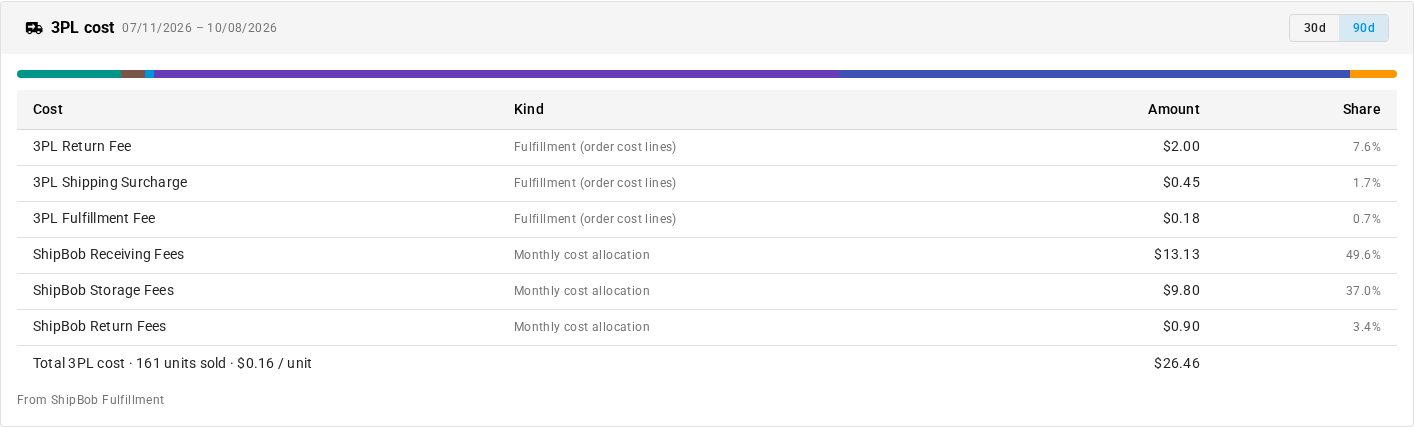
A product's Analytics section has a 3PL cost card. It lists the ShipBob fees that landed on the product over the last 30d or 90d (90 days by default), one row per cost line type or monthly cost entry:
- Cost names the line type, such as 3PL Fulfillment Fee, or the monthly entry, such as ShipBob Storage Fees.
- Kind is Fulfillment (order cost lines) for fees spread over the product's order lines, or Monthly cost allocation for storage, receiving, and return fees allocated to the product each month.
- Amount and Share give each row's total and its part of the whole.
The last row, Total 3PL cost, adds them up and shows the units sold in the period and the 3PL cost per unit.
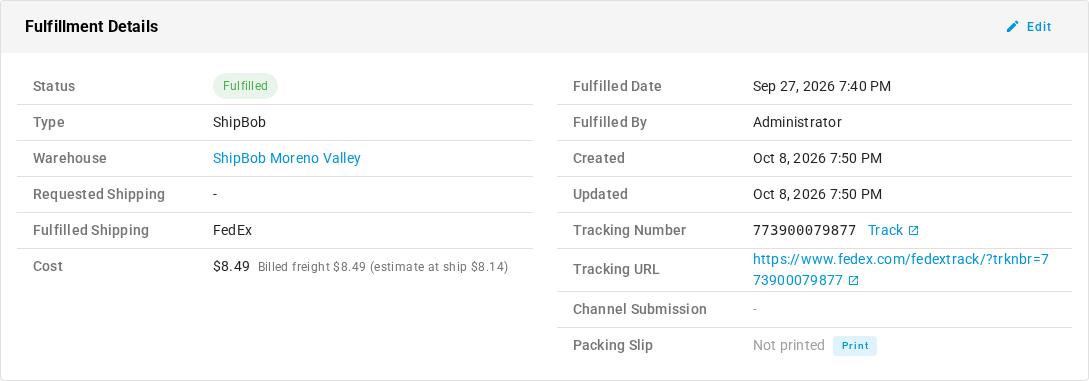
A fulfillment's Overview shows the billed freight next to its Cost whenever it differs from what ShipBob reported at ship time, for example Billed freight $8.49 (estimate at ship $8.14). See Billed freight replaces the estimate.
Storage is a period cost per product
ShipBob charges storage per product per day. SKU.io adds each month's storage into one ShipBob Storage Fees cost entry and allocates it to the products it was charged for, so slow sellers show what they cost to keep. Storage isn't added to inventory value or cost of goods sold. It shows up in the Contribution Margin and profitability reports as a cost allocated to each product for that month. See Attribute storage fees and ad spend to products.
Storage for a ShipBob product that isn't mapped to a SKU.io product stays on the month's entry but isn't allocated. Map the product and the month is rebuilt.
Receiving fees go to the purchase order
A receiving fee names the warehouse receiving order. SKU.io reads the purchase order number on that receiving order and looks for exactly one SKU.io purchase order with that number. By default the fee is allocated to that purchase order for reporting only, through the monthly ShipBob Receiving Fees cost entry. If you turn on Capitalise receiving fees into PO landed cost, the fee becomes a cost line on the purchase order instead and flows into the stock's cost and cost of goods sold.
Capitalising is the one case where an accounting lock matters to attribution. A purchase order whose receipts fall in a locked accounting period can't take a new cost, because that would change inventory values you've already reported. The fee stays unattributed with the reason Accounting period locked. A receiving fee that was capitalised before the month was locked stays on the purchase order, too: re-attributing doesn't remove it.
Billed freight replaces the estimate
When ShipBob ships a parcel it reports what the shipping cost, and SKU.io records that figure as the fulfillment's shipping cost, on one freight line on the sales order. That figure is an estimate. The Shipping charge on your bill is what ShipBob actually charged, after re-labels and corrections.
With billing sync on, the billed Shipping charges for a shipment, net of any shipping credits, replace the estimate on the same freight line. SKU.io never adds a second freight line, so freight is never counted twice. With billing sync off, the estimate stays. The Freight source field on the Financial settings tab shows which one is in use. The Pending card on the Bills tab shows the gap between billed freight and the estimates as Freight variance, and each fulfillment whose freight changed shows both figures next to its Cost.
If the order is known but none of its shipments can be matched to a fulfillment, the freight goes on the order as a single cost line of your freight line type instead.
How a fee finds its order
A shipment fee is matched by trying three things in turn, and the first match wins:
- The shipment. The ShipBob shipment is synced and linked to a SKU.io fulfillment.
- The ShipBob order. The shipment isn't linked yet, but the ShipBob order it belongs to was sent from SKU.io.
- The store order number. The charge carries the order number from your sales channel, and exactly one SKU.io sales order with that number came through that same channel and is routed to a warehouse mapped to this ShipBob account. If two orders match, the fee is unattributed as Ambiguous order.
If none of the three matches and the shipment belongs to an order SKU.io never sent to ShipBob, the fee is unattributed as Order not imported, with the sales channel ShipBob recorded.
A return fee follows the return to its original shipment and then the same chain. If no order turns up, the fee is added to the monthly ShipBob Return Fees cost entry and split across the returned products by quantity. On the Bills tab it counts under Attributed to products as Split across products. A returned item that isn't mapped to a SKU.io product leaves its share unallocated.
The bill drawer shows each step that was tried and why it matched or failed, under How SKU.io resolved this fee.
Pending and unattributed
Fees can arrive before the thing they refer to. ShipBob can bill a shipment hours before the shipment syncs, or bill a receiving fee before you create the purchase order. So a fee that can't be matched yet is Pending, not unattributed:
- Pending fees are retried on every billing run. Most resolve on the next shipments sync.
- A pending fee that still can't be matched 14 days after its charge date becomes Unattributed, keeping the reason it was waiting on, such as Shipment not found or Order not imported.
- Some reasons can't fix themselves by waiting, so they're unattributed straight away: Product unmapped, Ambiguous order, and No reference.
- A charge billed in another currency waits as Pending with the reason Exchange rate missing until that day's exchange rate is published. It doesn't expire after 14 days. It's attributed as soon as the rate arrives.
Unattributed never means lost. Every unattributed fee goes into that month's overhead cost entry, which appears as unallocated cost in the profitability reports. SKU.io never spreads it onto products that didn't cause it, because that would make those products look less profitable than they are. Fees for orders from sales channels SKU.io doesn't import, such as a wholesale or marketplace channel ShipBob fulfills directly, stay unattributed for this reason.
Every invoice reconciles
For each ShipBob invoice, SKU.io holds this identity:
Attributed + Pending + Unattributed + Excluded = the sum of the invoice's transactions
and then compares that sum with the amount ShipBob says the invoice is for. If the two agree, the invoice is Reconciled. If they differ, it shows Variance. That usually means ShipBob added or removed a line after SKU.io read the invoice. A voided charge counts toward none of the buckets. See Reconcile ShipBob invoices.
Posting to accounting
Attribution is for analytics: it shapes margin and profitability and writes no journal entries of its own. The one exception is capitalised receiving fees, which change the cost of the stock they're added to and so flow into cost of goods sold when that stock sells. If you also want ShipBob's bills in your books, turn on Post ShipBob invoices to accounting. Each reconciled ShipBob invoice then becomes one supplier bill from ShipBob, with one line per expense account. Payment invoices are never posted, because you reconcile payments against the bank. Leave posting off if you already enter ShipBob bills by hand or through a bank feed, or the expense is booked twice.
Next steps
- Turn on ShipBob billing
- Map ShipBob fees
- Review ShipBob bills and fix unattributed charges
- Read the Contribution Margin report
Video transcript
SKU.io can attribute each ShipBob charge to an order, a product, or a purchase order. To set it up, open the Settings tab of your ShipBob connection. Then choose the Financial tab, where billing lives. Sync ShipBob billing pulls every charge, credit and payment, every two hours. Billing start date sets the earliest charge date to sync. Three switches decide where each fee lands. Attribute fees to sales orders puts shipment and return fees on their sales order. Attribute storage to products spreads storage across the products it covers. Receiving fees go to the purchase order, unless you capitalise them into landed cost. With posting on, each ShipBob invoice becomes a vendor bill in your accounting. The Bills tab lists every charge ShipBob sends, and where it landed. The top cards split the total into attributed, unattributed and pending charges. Each card also filters the list. Click Unattributed to list only the charges that matched nothing. The Attributed To column gives the reason each charge has no home. Here, the reason reads Purchase order not found. Open a charge to see each lookup that was tried. This receiving fee names a purchase order number with no match in SKU.io. The trace shows the receiving order lookup, then the purchase order lookup. Make sure one purchase order carries that number, then click Re-attribute. To follow one order's charges, search the bills by its order number. Every charge for that order is listed, one row per fee. Scroll down, and open the shipping charge to see how it was attributed. The trace shows how the shipment led to its sales order. Written To lists the cost line it created, exact to the cent. Click the sales order link to see where those charges went. On the sales order, ShipBob fees appear under Cost Lines, tagged ShipBob. Each freight line carries the billed shipping for one parcel. So the order's profit reflects what ShipBob actually charged. The Invoices tab checks each ShipBob invoice against the charges behind it. Reconciled means the two totals match. This storage invoice is one dollar and eighty cents more than its charges. Expand a row to see the gap and the suggested fix. Usually ShipBob added a line after the invoice was read. Run Sync Bills, and if the gap stays, compare the line count in ShipBob.