Map ShipBob fulfillment centers to warehouses
ShipBob stores your stock in fulfillment centers. SKU.io stores stock in warehouses. The Warehouses tab pairs the two, and the pairing turns order routing on. A warehouse you map becomes a ShipBob warehouse, so its fulfillment orders go to ShipBob. Until at least one center is mapped, nothing is sent to ShipBob.
What the mappings are for
The tab explains it under What are these mappings for?:
- Inventory attribution. The on-hand and reserved stock ShipBob reports for a center is recorded against the warehouse you map it to. Stock in an unmapped center doesn't count toward any SKU.io warehouse, so the Inventory tab can't compare it with yours.
- Fulfillment order routing. Orders a center ships resolve back to the right SKU.io warehouse. An unmapped center leaves its fulfillments out of sync.
You can map several centers to one warehouse. That suits you if you track ShipBob as a single location in SKU.io. Mapping each center to its own warehouse lets you see stock per center.
Before you begin
- Connect ShipBob. The fulfillment centers are pulled when you connect.
- Create the SKU.io warehouses you want to map to. A new warehouse should be Direct, with Manual as its Shipping Provider. See Create & edit a warehouse.
Map a fulfillment center
-
Go to Apps & Integrations, choose ShipBob, and click your connection under Instances.
-
Click the Warehouses tab.
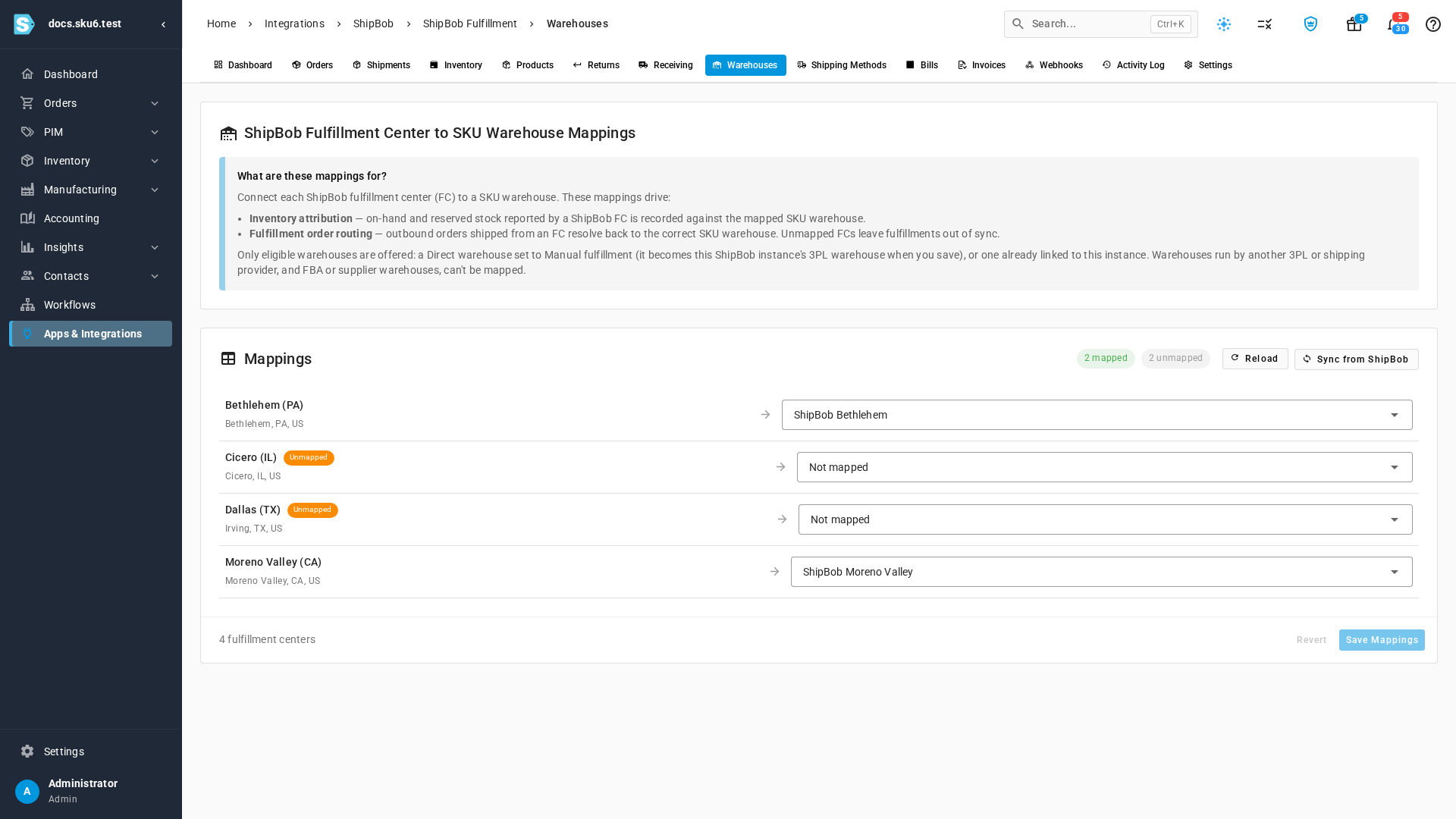
Each row shows the center's name and address on the left and its SKU.io warehouse on the right. An unmapped center has an Unmapped chip and reads Not mapped. The chips above the list count how many are mapped and unmapped.
-
Open the dropdown next to a fulfillment center and choose a SKU.io warehouse.
-
Repeat for each center you use.
-
Click Save Mappings.
-
If a warehouse you chose isn't a ShipBob warehouse yet, SKU.io asks you to confirm. The dialog names each warehouse that becomes a ShipBob 3PL warehouse, warns that its fulfillment orders go to ShipBob from then on, and reminds you that unmapping later doesn't undo it. Click Convert and Save, or Cancel to go back and change your choice.
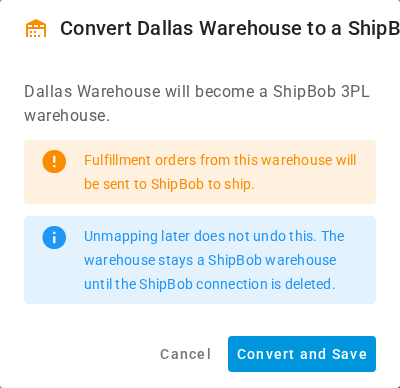
What you'll see: Fulfillment center mappings saved, and the Unmapped chips clear. Click Revert before saving to undo your changes.
Which warehouses you can choose
Mapping a warehouse also links it to ShipBob, so the dropdown lists only the warehouses that can route to ShipBob: Direct warehouses with Manual fulfillment or no fulfillment set, and warehouses already linked to this ShipBob connection. A warehouse that ships through another 3PL or shipping provider, or that belongs to Amazon, Walmart, Faire, TikTok, or a supplier, isn't listed. The list can be long, so check the name before you save. The confirmation names every warehouse it's about to convert.
When you save, SKU.io checks each warehouse again:
| Warehouse | What happens when you save |
|---|---|
| Direct with Manual fulfillment, or no fulfillment set | SKU.io converts it to a 3PL warehouse linked to this ShipBob connection. Its fulfillment orders now go to ShipBob. |
| Already a ShipBob 3PL warehouse for this connection | Nothing changes. Map as many centers to it as you like. |
| Anything else | The save is refused with the message below. |
If a warehouse changed after you opened the tab, for example someone set it to another shipping provider, the save is refused with one of these messages:
- A 3PL warehouse linked to another integration: "Warehouse "name" is already linked to a different 3PL integration. Choose an unassigned Direct warehouse or one already linked to this ShipBob instance."
- A Direct warehouse that ships through another shipping provider: "Warehouse "name" already dispatches through another shipping provider. Choose a Direct warehouse set to Manual fulfillment instead."
- An Amazon, Walmart, Faire, TikTok, or supplier warehouse: "Warehouse "name" can't be mapped to ShipBob. Only a Direct (Manual) warehouse or one already linked to this ShipBob instance can be used."
The save is all or nothing. If one mapping is refused, none of the changes are saved. Fix that row, or set it back to Not mapped, and save again.
Like other 3PLs, ShipBob doesn't appear in the Shipping Provider dropdown when you edit a warehouse. This tab is the only way to make a warehouse a ShipBob warehouse. See How warehouse types work.
Unmap a fulfillment center
- Choose Not mapped in the center's dropdown, or click the clear icon.
- Click Save Mappings.
Unmapping removes only the link to the center. The warehouse stays a ShipBob 3PL warehouse. When you delete the ShipBob connection, every warehouse it converted goes back to Direct with Manual fulfillment.
When ShipBob adds a fulfillment center
SKU.io checks for new fulfillment centers every day. To check now, click Sync from ShipBob. Progress shows in the job tray, and the button is unavailable while a sync is already running. When it finishes, click Reload to see the new center with an Unmapped chip.
If no center is mapped, a warning reads No fulfillment centers are mapped: "Outbound orders can't be routed to ShipBob until at least one fulfillment center is mapped to a SKU warehouse." If the list is empty, the tab reads No ShipBob fulfillment centers found. Click Sync from ShipBob to pull them.
Next steps
- Map ShipBob shipping methods — choose the ShipBob service for each shipping method.
- Map ShipBob products — so stock and order lines match.
- Review ShipBob inventory — compare ShipBob stock with yours, center by center.
- Dispatch to a fulfillment provider — send a fulfillment order to ShipBob.